
Trail Camera Not Sending Pictures to Phone? Universal Fix Guide
A cellular trail camera is only useful while photos keep showing up on your phone. When they stop, it is easy to assume the camera is broken, but most of the time the cause is simple: weak signal, low batteries, an expired plan or a card problem. This guide works for most brands. Follow the steps in order, and you will usually find the reason your trail camera is not sending pictures to your phone within a few minutes.
Check the most common causes first: an inactive or expired data plan, weak cell signal (less than about 2 bars), low or cold batteries, a missing, full or unformatted SD card, and outdated firmware or app. Renew the plan, move the camera higher or to a more open spot, put in fresh lithium batteries, format the card in the camera, update everything, then power cycle the camera and send a test photo. If it still will not send, contact the brand with your camera ID.
- Top cause
- Weak signal
- Next most common
- Plan, batteries, SD card
- Target signal
- About 2 bars or more
- Best batteries
- Lithium AA or solar
- First fix to try
- Power cycle + test photo
- Last resort
- Brand support with camera ID
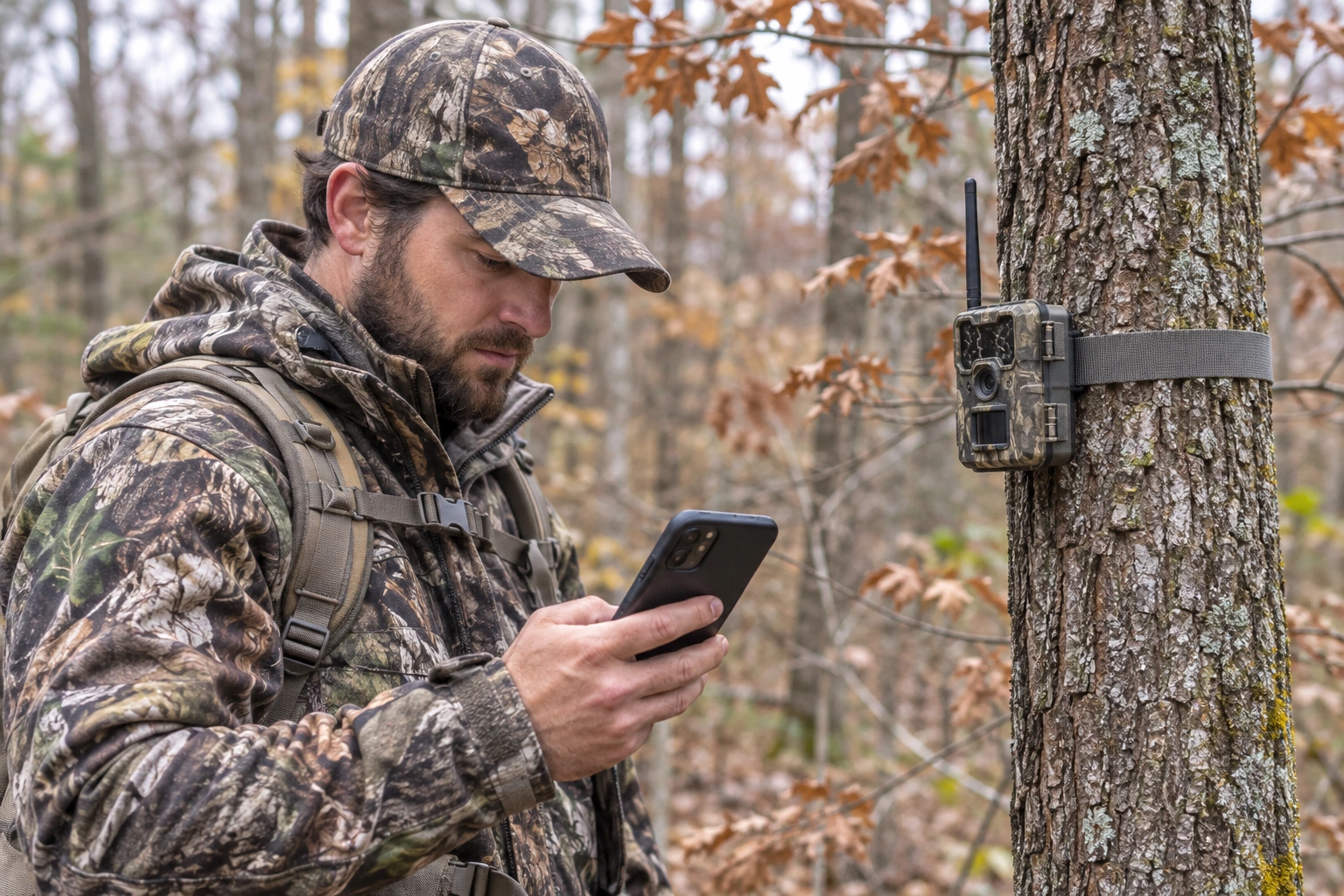
Quick 2-Minute Checks
- Open the app and look at the camera’s last check-in time, battery level and signal bars. This tells you a lot right away.
- Check your phone: is it online, and are app notifications turned on?
- Check the plan: is it active, paid, and not out of photos or data for the month?
- Check the camera mode: some cameras only send at set times (for example, once or twice a day) to save battery, so photos may arrive later in a batch.
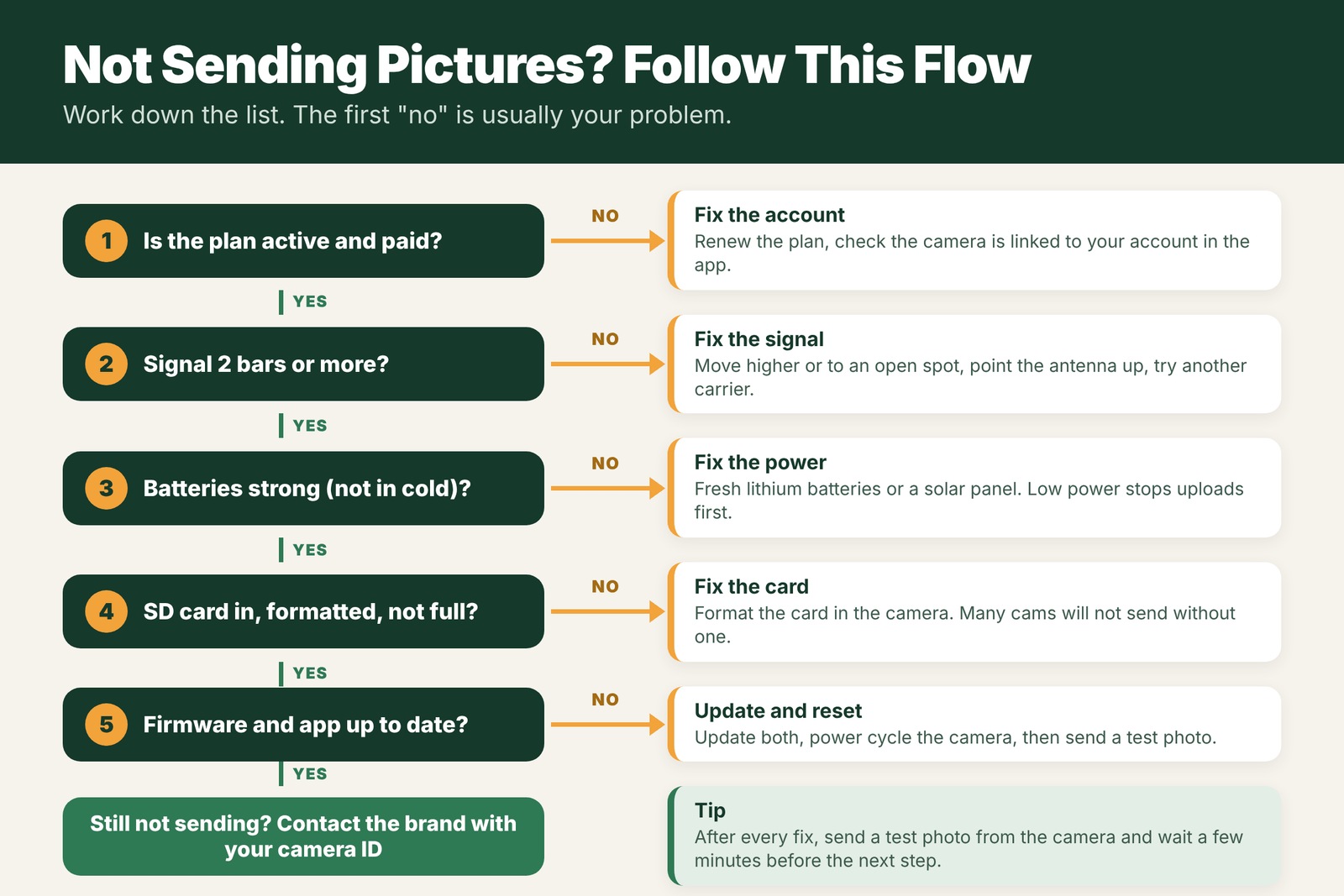
Signal and Antenna
Low signal is the most common reason photos stop sending. A camera may take photos fine but not have enough signal to upload them.
- Aim for about 2 bars or more. One bar may connect sometimes but often fails on photo uploads.
- Go higher and more open. Moving the camera up the tree or a few yards toward a field edge can add a bar.
- Point the antenna straight up and make sure it is screwed on firmly.
- Check the carrier. If your camera is on a carrier that is weak at your spot, a model on another network may work better.
- Weather and leaves can lower signal. A spot that worked in winter may struggle in summer foliage.
More help: trail camera antenna placement tips and do signal boosters work.
Plan, SIM and Account Issues
- Expired or paused plan: renew it in the app. Some plans pause automatically when a card on file fails.
- Photo limit reached: monthly plans with a photo cap stop sending once you hit it.
- Camera not linked: make sure the camera is still activated and linked to your account. Re-adding it can help after a reset.
- SIM problems: on cameras with a removable SIM, check it is seated correctly and is the right SIM for that camera.
Batteries and Power Save
- Uploading uses the most power, so low batteries often stop sending before they stop photos.
- Use lithium AA batteries, especially in cold weather, where alkaline batteries lose voltage fast.
- Add a solar panel if your camera supports one, for cameras that send many photos.
- Check power-saving settings. A long transmission interval or “send once a day” setting can look like the camera stopped sending.
SD Card, Firmware and App
- SD card: many cellular cameras need a card to save photos before sending. Use the size and class the manual lists, and format it in the camera.
- Full card: if loop recording or overwrite is off, a full card can stop new photos.
- Firmware: update the camera firmware from the app or brand site. Updates often fix connection bugs.
- App: update or reinstall the app, then log out and back in.
- Power cycle: turn the camera off, remove the batteries for 30 seconds, put them back and turn it on. Then send a test photo.
Brand-Specific Fixes
Each brand has its own app and quirks. If the steps above did not fix it, see our brand guides:
Still stuck? Contact the brand’s support with your camera’s ID or IMEI, your plan details and the last check-in time from the app.
Troubleshooting Table: Symptom, Cause, Fix
| Symptom | Likely cause | Fix |
|---|---|---|
| Camera shows no signal or 0 bars | No coverage, bad spot, loose antenna | Move higher or to open ground; tighten antenna |
| Photos on card but not in app | Upload settings, plan limit, weak signal | Check upload settings and plan; improve signal |
| Worked, then stopped suddenly | Plan expired, batteries low, cold weather | Renew plan; fresh lithiums; check battery level |
| Uploads only at night or late | Scheduled upload times, power-save mode | Change upload schedule in the app |
| Only thumbnails arrive | Plan or setting limits full-size photos | Request full-size photos or change plan |
| Videos never arrive | Video upload not on your plan or not enabled | Check video settings and plan |
| App shows camera offline for days | No signal, dead batteries, SIM issue | Visit camera; check power and SIM |
Step-by-Step: A Full Reset Without Losing Your Setup
- Note your settings in the app or take screenshots before you change anything.
- Check the account: plan active, camera listed, no billing problems.
- Visit the camera at midday. Check the battery level, SD card and antenna.
- Swap in fresh lithium batteries and a card formatted in the camera.
- Power cycle: turn the camera off, wait 30 seconds, and turn it back on.
- Watch the status lights or screen as it connects. Many cameras show a signal or registration status.
- Send a test photo and wait a few minutes for it to show in the app.
- Only if that fails, try a factory reset, then re-add the camera and your settings.
How Upload Timing Works
Many cellular cameras do not send each photo the second it is taken. Some send instantly, some batch photos and send them on a schedule, such as every hour or a few times a day, to save battery. Some send thumbnails first and full-size photos only when you ask. In cold weather or with weak batteries, cameras may switch to a power-saving mode that sends less often. If photos arrive late but do arrive, the issue is usually a setting, not a failure. Check your camera’s upload or transmission settings in the app.
Field Examples
The cold snap: a camera that sent photos all fall goes quiet during a cold week. The alkaline batteries cannot deliver enough power for the modem in freezing weather. Fresh lithiums bring it back immediately.
The plan limit: a busy feeder camera stops sending on the 20th of the month. The photo limit on the plan is used up. Increasing the delay and lowering sensitivity keeps the camera within its plan next month.
The leafy summer: a camera that had 2 bars in March has 0 to 1 in July. Leaves on the trees block more signal. Moving it 10 feet higher on the same tree restores reliable uploads.
Mistakes That Stop Uploads
- Testing signal at the truck instead of at the camera spot.
- Mounting low in a creek bottom, where signal is weakest.
- Letting the plan lapse or forgetting that some plans pause in the off-season.
- Pulling the SD card on a camera that needs one to work.
- Ignoring firmware updates, which often fix connection bugs.
When to Contact Support
If the camera has fresh lithiums, a formatted card, an active plan, at least 2 bars, current firmware, and still will not send after a power cycle and a reset, contact the maker’s support. Have the camera’s model, serial number or IMEI, your account email and the steps you tried ready. Support can often check the SIM and network registration from their side, which you cannot do from the app.
How to Prevent Upload Problems Before They Start
Most sending problems can be avoided with a little planning. Before you hang a new cellular camera, check the coverage map for its carrier, then stand at the exact spot and look at your own phone’s signal on the same network if you can. Turn the camera on at the tree and watch the signal reading in the camera or app for a minute before strapping it down. Choose a tree with an open view toward the nearest town or highway, where towers usually are, and mount the camera above head height. Use lithium batteries or a solar panel from the start, since a modem pulls far more power than a regular camera. Set a reasonable photo delay so the plan lasts the month, and turn on battery or signal alerts in the app if your brand offers them. Finally, put a reminder in your phone for when the plan renews. A few minutes of setup saves a lot of frustration in the middle of the season. For more help with weak spots, see trail camera antenna and trail camera signal booster.
Frequently Asked Questions
Why is my trail camera not sending pictures to my phone?
The most common causes are weak signal, an expired plan, low batteries, an SD card problem or outdated firmware. Check those in order and send a test photo after each fix.
How many bars does a cellular trail camera need?
About 2 bars or more is a good target. With 1 bar, the camera may connect but often fails to upload photos.
Can low batteries stop a trail camera from sending photos?
Yes. Sending photos uses more power than taking them, so low or cold batteries often stop uploads first. Use lithium batteries or a solar panel.
Does a cellular trail camera need an SD card to send pictures?
Most do. Many cellular cameras save the photo to the card before sending it, so a missing, full or unformatted card can stop uploads.
How do I reset a cellular trail camera?
Turn it off, remove the batteries for about 30 seconds, then power it back on and send a test photo. For a full factory reset, follow your brand’s manual.
Why does my cellular trail camera only send pictures at certain times?
Many cameras send photos on a schedule to save battery. Check the upload or transmission settings in the app.
Can leaves block my trail camera signal?
Yes. Summer leaves can weaken signal, so a spot with good bars in spring may struggle in summer. Mount higher if needed.
What should I have ready when I call trail camera support?
The model, serial number or IMEI, your account email, and a list of the fixes you already tried.