
SPYPOINT Camera Not Connecting or Sending Photos? 9 Fixes
Short answer: When a SPYPOINT cellular camera will not connect or send photos, the cause is usually signal, an inactive plan or activation, weak batteries or a bad SD card. Check the camera’s status in the SPYPOINT app, power-cycle it, move it to a spot with better signal, and reactivate it if it still fails. Contact SPYPOINT support if the app shows the camera as active but nothing arrives.
Work through these fixes in order
- Confirm the camera is active in your account. It must be paired and assigned to a plan. A deactivated or unassigned camera can keep taking photos without uploading them.
- Check the plan. Make sure you have not used all of your monthly photos. See SPYPOINT data plans for the limits on each tier.
- Look at the last communication time in the app. If it is recent, the camera is online and the problem may be the photo settings. If it is old, the camera is not reaching the network.
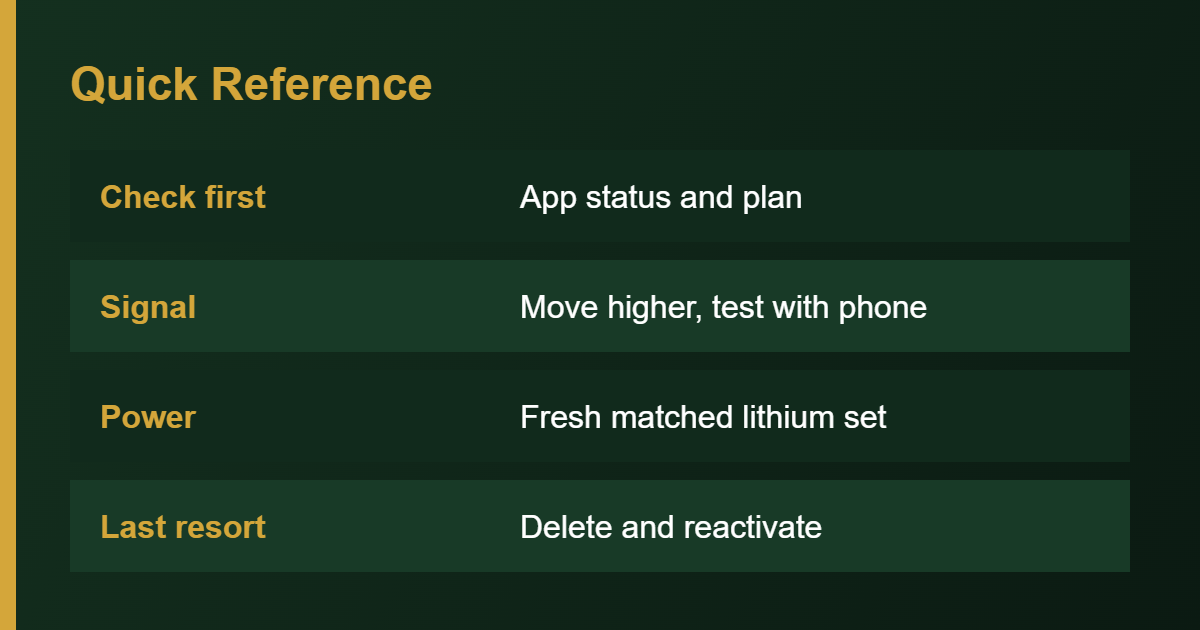
- Replace the batteries. Low or mixed batteries cause connection failures before the camera dies completely. Use a fresh matched set. Our power checklist covers contacts and polarity.
- Reseat and format the SD card. Back up your photos first, then format the card in the camera. A corrupted or incompatible card can block transmission. See how to format an SD card.
- Power-cycle the camera. Turn it off, wait about 30 seconds, then turn it on and watch the status lights. Light patterns differ by model, so check your manual for what each color means.
- Improve the signal. Move the camera higher or to a clearer spot, away from dense tree cover. If your phone has no bars at the location, the camera will likely struggle too. Network location matters more than distance.
- Delete and reactivate. Several guides suggest removing the camera from the app and activating it again to refresh the connection. Note your settings first, since you will need to set them again.
- Update the app and firmware. An outdated app or firmware can cause odd behavior. Reinstalling the app is a harmless test.
Quick symptom guide
| Symptom | Likely cause | First fix |
|---|---|---|
| Photos on SD card but none in app | Plan, activation or signal | Check status and last communication |
| Stuck searching for network | Weak signal or SIM issue | Move the camera, then reboot |
| Camera restarts or dies fast | Low batteries | Fresh matched set |
| Activation fails | Account or plan error | Retry, then contact support |
When to contact support
If everything above checks out, contact SPYPOINT with your camera model, firmware version, account details and the steps you tried. For other camera problems, see our broader trail camera troubleshooting guide, and for first-time setup read how to use a SPYPOINT camera.
Why a SPYPOINT camera loses its connection
A SPYPOINT cellular camera depends on three things working together: a live account and plan, a usable cellular signal, and enough battery power to transmit. When one of them fails, the camera can keep taking pictures while nothing reaches your phone. Support articles and independent guides describe the same pattern: the camera captures locally, but the image never appears in the app because activation, plan or signal is wrong. Knowing which of the three is failing saves a lot of walking back to the camera. For how uploads work in general, see how a cellular trail camera works.
Check the app before you drive out
You can learn a lot without touching the camera. Open the SPYPOINT app and look at the camera’s status page.
- Last communication time. A recent time means the camera is online. An old time means it has not reached the network.
- Battery level. A low or missing reading points to power trouble.
- Signal strength. Weak or no signal explains most upload failures.
- Plan status. Confirm the camera is assigned to an active plan and has not used up its monthly photos. See SPYPOINT data plans.
SPYPOINT’s own support notes say a healthy-looking status can still hide a problem, so they may recommend a troubleshooting step anyway. If a status field is flagged, follow the steps for that field first.
A real SIM card, for context
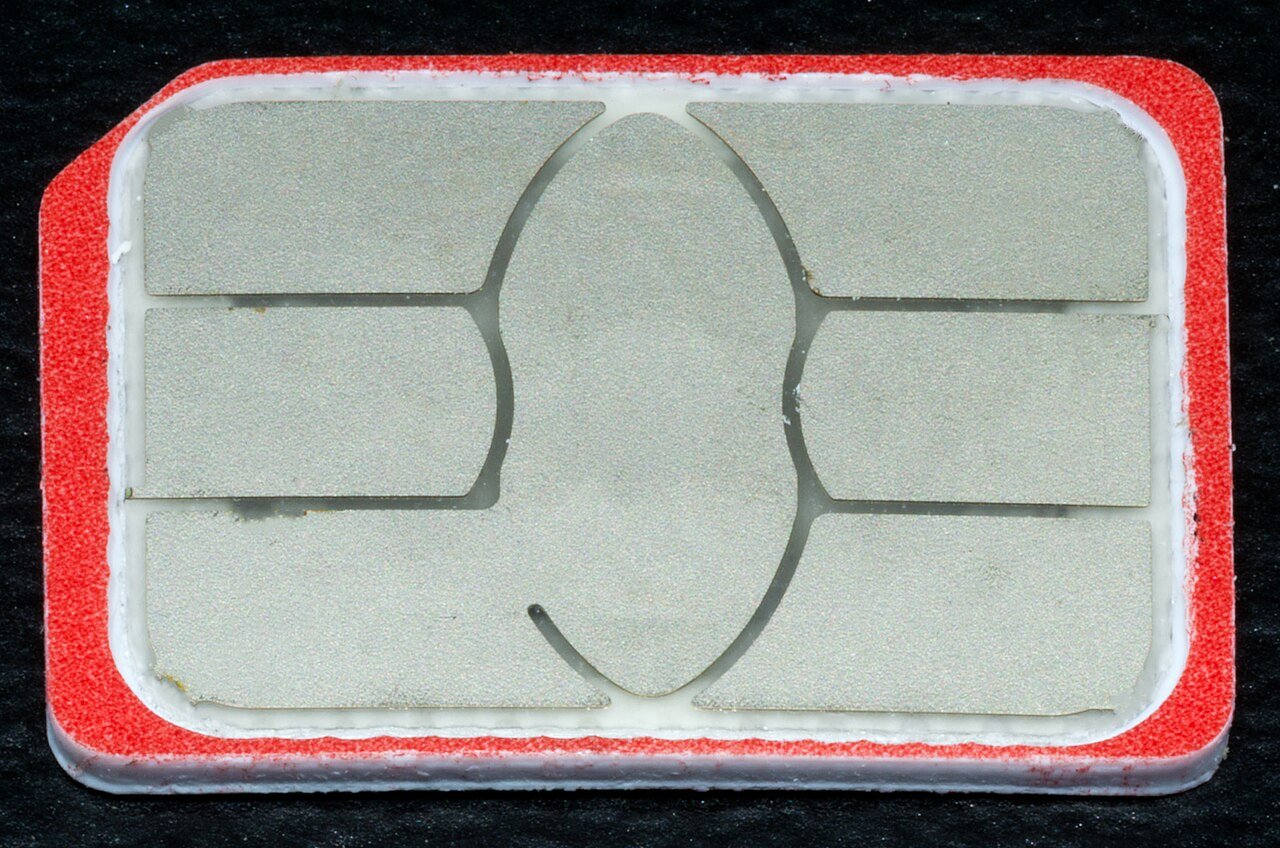
The SIM is the camera’s identity on the cellular network. Third-party guides note that a SIM that is faulty or not seated properly can cause connection problems, though most SPYPOINT cameras ship with the SIM already installed and activated through the app. If everything else checks out, a SIM issue is a support conversation rather than a DIY fix.
Fixing weak signal
Signal at the exact spot matters more than signal at your house. A few practical moves:
- Move the camera higher on the tree or to a clearer gap in the canopy.
- Avoid mounting behind a ridge, in a deep hollow or against dense evergreens.
- Test with your phone. If it shows no bars there, the camera is unlikely to do better.
- Re-test after moving. Give the camera a few minutes to search and report.
- If your model supports an external antenna or a different carrier model, ask SPYPOINT support which option suits your area.
Our carrier coverage guide explains how to judge coverage before you buy or mount.
Power problems that look like connection problems
A cellular camera uses extra power every time it searches for a signal or uploads a photo. Weak or mismatched batteries can let the camera capture images yet fail to transmit them. Install a fresh matched set, ideally lithium, and watch the status lights on startup. Our power checklist covers contacts, polarity and moisture. In cold weather, lithium cells hold voltage better, which can be the difference between uploading and not.
SD card problems that block uploads
A full, locked or corrupted SD card can stop the camera from saving or sending images. Back up your photos, then format the card in the camera. A card that is too large for the model can also misbehave, so check the manual. See what size SD card to use and how to format it.
When to delete and reactivate
If the camera stays stuck searching for a network, several troubleshooting guides suggest removing it from your account and activating it again to refresh the connection. Write down your settings first, because you will set them again. Remove the batteries and SD card for a few seconds, reinsert them and restart before you reactivate. This is a last step before contacting support, not a first move.
What the lights and app tell you
SPYPOINT models use status lights during startup and transmission, and support articles recommend checking the pattern after powering the camera on. Meanings differ between FLEX and LINK models, so check the manual for your camera rather than trusting a generic chart. A steady pattern that ends in an online status in the app is the result you want.
Prevent connection problems
- Check signal in the app before leaving the spot.
- Replace batteries on a schedule instead of waiting for failure.
- Keep the app and camera software up to date. See firmware update steps.
- Stay inside your plan’s photo limit so uploads do not pause.
- Walk-test the camera after every battery change.
Information to have ready for support
If the steps above do not bring the camera online, contact SPYPOINT support with the details they will ask for first. Having them ready shortens the conversation and avoids a second round of questions.
- The camera model and serial number or activation details.
- The battery type and when you last replaced it.
- The signal reading shown in the app at the mount spot.
- The date and time of the last successful communication.
- What you already tried: moving the camera, new batteries, formatting the card, reactivating.
Mention whether photos are being saved to the SD card. If they are, the camera hardware is working and the issue is almost certainly network, plan or account related. If nothing is saved, the problem sits with power, the card or the camera itself.
Seasonal habits that prevent dropouts
Connection trouble often shows up after a season change. Leaves grow back and block signal, cold weather weakens batteries, and plans that were paused may not have been restarted. Before each season, test signal at every mount spot, install fresh lithium batteries, check that each camera is on an active plan and confirm the app shows a recent check-in. A short walk-test costs a few minutes and avoids driving back to a camera that never reported in.
Frequently Asked Questions
Why does my SPYPOINT take pictures but not send them?
The camera can capture locally while the plan, activation or signal blocks upload. Check the app status first.
Do I need to reactivate after changing batteries?
Normally no. Reactivation is a troubleshooting step when the camera cannot reconnect.
Can a full SD card stop transmission?
A full or corrupted card can cause problems, so format it after saving your photos.
Will cold weather affect the connection?
Cold drains batteries faster, which can cause failures. Lithium batteries handle it better.
Sources
- SPYPOINT support knowledge base (device troubleshooting articles)
- Discover Cameras, SPYPOINT Flex not sending pictures and Link Micro LTE guides
- Versus Guy, how to get signal on a SPYPOINT camera