
Is your Stealth Cam not sending pictures like it’s supposed to? You’re not alone, and it can be incredibly frustrating when your camera fails to deliver those important snapshots.
Whether you rely on it for wildlife monitoring or security, missing images can leave you in the dark. But don’t worry—most of the time, this problem has simple fixes that you can do yourself. You’ll discover why your Stealth Cam might be dropping the connection and how to get it back to sending pictures reliably.
Keep reading to take control of your camera’s performance and never miss a moment again.
Check Signal Strength
Signal strength plays a key role in sending pictures from your Stealth Cam. A weak signal can stop photos from reaching your phone or email. Checking signal strength helps find if your camera is in a good coverage area. This step is simple but important for fixing photo sending issues.
How To Check Signal Strength On Stealth Cam
Most Stealth Cams show signal bars on their screen or app. Count the bars to see the strength. More bars mean better signal and easier photo sending. If the signal is low, try moving the camera to a new spot. High places or open areas usually have better signals.
Using The Stealth Cam App To View Signal
Open the Stealth Cam app on your phone. Look for signal or connection status in the camera settings. The app may show signal bars or a percentage. This gives a quick view of how strong the connection is. Check this often to keep your camera working well.
Improving Signal Strength For Better Photo Sending
Place your camera where it can catch the cell tower signal better. Avoid thick trees, buildings, or hills blocking the way. Try raising the camera higher on a tree or post. Sometimes, small moves can boost signal and help photos send faster.
Verify Battery Levels
Checking the battery levels of your Stealth Cam is a simple but crucial step. Low or dead batteries often cause the camera to stop sending pictures. The camera needs enough power to capture images and transmit them wirelessly. Without sufficient battery, it cannot perform these functions properly.
Batteries can drain faster in cold weather or after long usage. Old batteries might also lose their ability to hold a charge. Regularly verifying battery levels ensures your camera stays active and reliable. It prevents missed photos and communication failures.
How To Check Battery Levels On Your Stealth Cam
Most Stealth Cams display battery status on the screen or via their app. Turn on the camera and look for the battery icon. It usually shows full, half, or low charge. Some models send battery alerts to your phone. Keep an eye on these notifications to avoid surprises.
Use Fresh Or Fully Charged Batteries
Always use new or fully charged batteries for best performance. Replace old batteries regularly, even if they still show power. Rechargeable batteries should be charged completely before use. This practice helps maintain consistent camera operation.
Consider Battery Type And Quality
Use batteries recommended by Stealth Cam manufacturers. High-quality alkaline or lithium batteries last longer and work better in cold. Cheap or incompatible batteries may cause problems. Investing in good batteries saves time and frustration.
Confirm Photo Mode Settings
Confirming the photo mode settings on your Stealth Cam is a key step to ensure it sends pictures correctly. Incorrect settings can stop the camera from capturing or transmitting images. This section guides you through checking and adjusting these settings for better performance.
Check The Camera’s Photo Mode
Start by powering on your Stealth Cam and accessing the menu. Look for the photo mode option. Ensure it is set to “Photo” or “Photo + Video,” depending on your needs. If it is on “Video Only,” the camera will not send photos.
Verify The Time Interval Between Shots
Find the setting that controls how often the camera takes photos. If the interval is too long, you may see fewer pictures or none at all. Adjust the interval to a shorter time, such as 1 or 5 minutes, to increase photo capture frequency.
Confirm The Transmission Frequency
The transmission frequency setting determines how often photos are sent. Set this to a value that matches your cellular plan and signal strength. Too frequent transmissions may fail if the signal is weak. Choose a moderate frequency like every 15 or 30 minutes.
Review The Sensor Settings
Check if the motion sensor is active. The camera uses this sensor to trigger photo capture. If it is off or set to a very low sensitivity, the camera might not take pictures. Adjust the sensitivity to a medium or high level for better results.
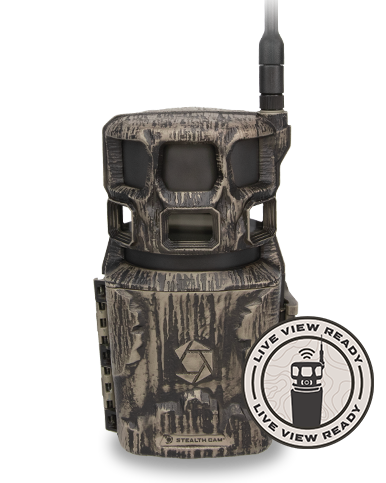
Credit: www.stealthcam.com
Adjust Transmission Frequency
Adjusting the transmission frequency on your Stealth Cam can improve photo delivery. This setting controls how often the camera sends pictures to your phone or email. Setting the right frequency helps balance battery life and data usage. It also ensures images reach you without delay or loss.
Choosing a very high transmission frequency may drain the battery quickly. On the other hand, a low frequency could delay important images. Finding the right balance is key to reliable photo sending.
How To Change Transmission Frequency On Stealth Cam
Access your camera’s menu or mobile app to find transmission settings. Look for options labeled “Send Frequency” or “Transmission Interval.” Select a time frame that suits your needs. Typical options range from every 5 minutes to every few hours. Save changes before exiting the menu.
Best Transmission Frequency For Different Uses
For active monitoring, choose a shorter interval like 5 to 15 minutes. This keeps you updated with fresh images. For casual checks, longer intervals like 30 minutes or more save battery and data. Adjust based on how often you want updates and your battery capacity.
Check Signal Strength Before Adjusting Frequency
Strong cellular or Wi-Fi signal improves transmission success. Test signal strength at your camera’s location. Weak signal might cause images to fail sending, no matter the frequency. Consider moving the camera or adding a signal booster for better coverage.
Inspect Cellular Data And Mms
Stealth cams rely on cellular data and MMS to send pictures. Without proper settings, photos might not reach your phone. Checking these settings is key to fixing the issue quickly.
Cellular data must be active on your phone. MMS, or Multimedia Messaging Service, allows picture messages to send using cellular data. Both must work together for your camera to send images properly.
Check Cellular Data Connection
Ensure your phone has a strong cellular data signal. Weak signals can block picture transmission. Look at the signal bars on your phone’s screen. No bars or low bars mean poor connection.
Turn on cellular data in your phone settings. Some phones turn off data automatically to save battery. Make sure data is enabled before testing your camera again.
Enable Mms Messaging
MMS must be turned on to send photos via your cellular network. Go to your phone’s messaging settings. Find the option labeled “MMS Messaging” and enable it. Without this, images won’t send even with data on.
Note that MMS uses cellular data, not Wi-Fi. If your phone is on Wi-Fi only, the pictures will not send. Switch to cellular data to allow MMS to work correctly.
Verify Your Carrier Plan
Some carrier plans do not include MMS services. Contact your mobile provider to confirm your plan supports MMS. Ask about any restrictions that might block picture messages.
Also, check if your plan has enough data allowance. Running out of data can stop your camera from sending photos. A quick call to your carrier clears these doubts.

Credit: www.amazon.com
Review App Permissions
Reviewing app permissions is a key step when your Stealth Cam is not sending pictures. Apps need the right permissions to access your photos, send messages, and connect to the internet.
Without these permissions, the app may fail to upload or share images. Checking and adjusting permissions is simple and can fix many common issues quickly.
How To Check App Permissions On Android
Open your phone’s Settings and tap on Apps or Applications. Find the Stealth Cam app in the list. Tap Permissions to see what access the app has.
Make sure permissions for Storage, SMS, and Cellular Data are enabled. If any are off, turn them on to allow the app to work properly.
How To Check App Permissions On Iphone
Go to Settings and scroll down to the Stealth Cam app. Tap it to view permissions. Ensure Photos, Cellular Data, and Notifications permissions are granted.
Turn on permissions that are off. This lets the app save images and send notifications about new pictures.
Why Permissions Matter For Sending Pictures
The app needs Storage access to save and send photos. SMS or MMS permissions allow it to send images via text. Cellular Data permission lets it use your mobile network.
Without these, the app cannot send pictures. Checking permissions avoids delays and errors in picture transmission.
Restart And Reset Devices
Restarting and resetting your Stealth Cam can fix many common issues. It helps clear temporary glitches and refreshes the system. This often restores the connection and allows the camera to send pictures properly.
Try restarting the device before any complex troubleshooting. If problems continue, a reset may be necessary to restore factory settings. Both steps are simple but effective first actions to take.
Restart The Stealth Cam
Turn off your Stealth Cam by pressing the power button. Wait 10 to 20 seconds before turning it back on. This pause lets the internal system fully shut down and clear errors.
Restarting can fix minor bugs that block photo transmission. After reboot, check if the camera sends pictures as expected.
Perform A Factory Reset
Locate the reset button on your Stealth Cam. Usually, it is a small hole needing a pin or paperclip to press.
Hold the reset button for about 10 seconds until the device powers off. Release the button and let the camera reboot.
Factory reset deletes all settings and returns the camera to its original state. Reconfigure your device after reset to resume normal use.
Restart Your Phone Or App
Restart the phone or device you use to receive pictures. This can fix temporary app or network problems blocking images.
Close the Stealth Cam app fully and reopen it after restarting your phone. Check app permissions and ensure cellular data is active.
Clear App Cache
Clearing the app cache can solve many issues with your Stealth Cam app. Cached data stores temporary files that help the app run faster. Over time, this data can become corrupted or outdated.
Corrupted cache may stop the app from sending pictures properly. Clearing the cache removes these temporary files. This forces the app to create fresh data and often fixes bugs.
How To Clear App Cache On Android
Open your phone’s Settings menu. Find and tap on “Apps” or “Applications”. Scroll to the Stealth Cam app and select it. Tap on “Storage” or “Storage & cache”. Press the “Clear Cache” button. Restart your phone and open the app again.
How To Clear App Cache On Iphone
iPhones do not allow direct cache clearing for apps. You must delete the app and reinstall it. Tap and hold the Stealth Cam app icon. Select “Remove App” and then “Delete App”. Go to the App Store and reinstall the Stealth Cam app. Log in and check if pictures send properly now.
Benefits Of Clearing The App Cache
Clearing cache frees up storage space on your phone. It can improve app speed and responsiveness. It removes old files that may cause errors. This simple step often restores normal app function quickly.
Update Software And Apps
Updating the software and apps on your Stealth Cam and smartphone plays a vital role in solving picture sending problems. Outdated software can cause bugs that block photo transmission. Keeping everything current ensures smooth communication between devices.
Manufacturers often release updates to fix known issues and improve features. Installing these updates can restore proper camera functions. Updates also enhance compatibility with your mobile network and messaging apps.
Check For Stealth Cam Firmware Updates
Visit the official Stealth Cam website or app to find the latest firmware version. Download and install any available updates following the instructions. This step can fix bugs that stop pictures from sending.
Update Your Mobile App
Open your phone’s app store and search for the Stealth Cam app. If an update is available, install it immediately. Updated apps work better with the camera and mobile networks.
Keep Your Phone’s Operating System Current
Check your phone’s settings for system updates. Install all available updates to avoid software conflicts. A current operating system helps apps run smoothly and supports better photo transmission.
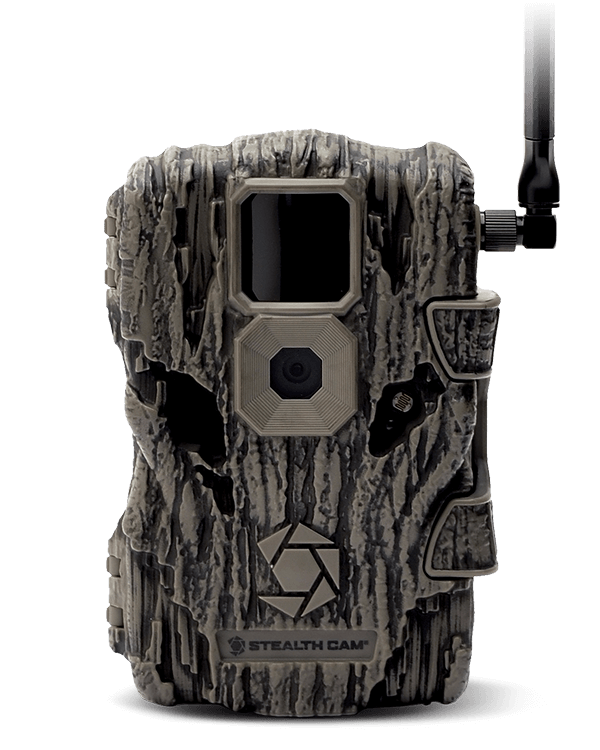
Credit: www.stealthcam.com
Contact Carrier Support
Contacting your carrier support is a key step if your Stealth Cam does not send pictures. Carriers manage the cellular service that your camera uses. They can check if the network or your account has problems. This helps find issues that you cannot fix yourself.
Sometimes, your camera fails to send photos due to network problems. Carrier support can confirm if the signal is strong in your area. They can also see if your plan includes MMS or data services needed for photo sending. This ensures your camera has the right service to work properly.
Check Service Status With Carrier
Contact your carrier to ask about the current service status. There might be outages or maintenance in your location. These can stop pictures from sending. Carriers can give updates on when the service will return.
Verify Your Account And Plan
Ask your carrier to check your account status. Ensure your plan supports MMS and cellular data. Sometimes, restrictions or unpaid bills block services. Carrier support can help fix these issues quickly.
Request Network Settings Update
Your carrier can send updated network settings to your phone. These settings help your camera connect to the network properly. Getting the latest settings often resolves sending problems.
Ask For Technical Assistance
Carrier support can guide you through troubleshooting steps. They may suggest resetting network settings or checking SIM card issues. Their help can solve complex problems that stop photos from sending.
Frequently Asked Questions
Why Is My Camera Not Sending Photos?
Your camera may not send photos due to weak signal, low battery, incorrect photo mode, or transmission settings. Check app permissions, enable MMS and cellular data, and ensure a strong internet connection. Restart your device and update software if needed to fix sending issues.
Why Aren’t My Pictures Being Sent?
Your pictures may not send due to weak internet, disabled MMS or cellular data, or app permission issues. Check signal strength, enable MMS and cellular data, grant app permissions, and restart your device. Clearing the app cache or resetting network settings can also help resolve the problem.
Why Am I Not Getting Pictures On My Trail Camera?
Your trail camera may not capture pictures due to low battery, weak signal, incorrect settings, or full storage. Check battery life, signal strength, photo mode, and transmission frequency. Ensure app permissions and cellular data are enabled. Restart the device and update firmware to resolve issues quickly.
How Long Does It Take A Stealth Cam To Send Pictures?
A stealth cam typically sends pictures within 30 seconds to a few minutes after capturing. Transmission speed depends on signal strength and settings.
Why Is My Stealth Cam Not Sending Pictures?
Weak signal or low battery often stops picture transmission from the camera.
How Do I Fix Stealth Cam Picture Sending Issues?
Check signal strength, battery, photo mode, and transmission frequency settings.
Can Poor Cellular Data Affect Stealth Cam Photos?
Yes, poor or no cellular data can prevent photos from sending.
Should I Check Mms And Cellular Data For Sending Photos?
MMS and cellular data must be enabled for the camera to send pictures.
Does App Permission Affect Stealth Cam Photo Delivery?
App needs permission to access photos and send them properly.
How Does Phone Storage Impact Stealth Cam Photo Sending?
Full phone storage can stop photos from being received or saved.
Conclusion
Stealth Cam not sending pictures can frustrate anyone. Start by checking your signal strength and battery life. Make sure MMS and cellular data are enabled on your phone. Verify app permissions to allow photo access. Restarting your phone often clears small glitches.
Keep your apps and system updated for best performance. If problems continue, try resetting network settings or using a different app. These simple steps help ensure your camera sends pictures smoothly. Stay patient and check each setting carefully to fix the issue.
As an Amazon Associate, I earn from Qualifying Purchases.