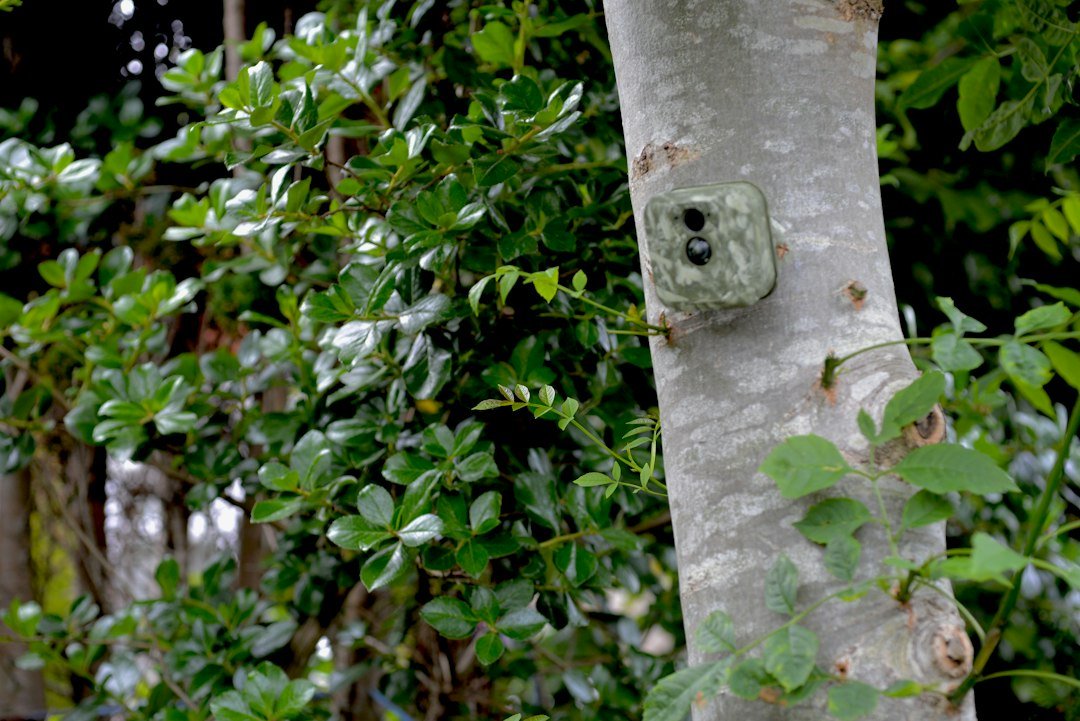
How to connect a trail camera to your phone: Use the manufacturer’s cellular app for remote image delivery, connect directly by Wi-Fi or Bluetooth when supported, or transfer photos from an SD card using a phone-compatible reader. The correct method depends on your camera model.
Can You Connect Any Trail Camera to a Phone?
Not every trail camera connects directly to a smartphone. Cellular cameras send images over a supported mobile network to a manufacturer app, while Wi-Fi models may offer a short-range connection to the phone. Some cameras use Bluetooth for initial pairing or settings, but Bluetooth does not always transfer full-resolution photos. Basic non-cellular cameras normally save images to an SD card, which you can read with a compatible phone adapter. The first step is identifying the exact model and reading its manual. Do not purchase a cellular plan or download an app until you know which connectivity features the camera actually supports.
Step 1: Identify the Camera Model and Connection Type
Look for the model number on the camera body, inside the battery compartment, or on its packaging. Check the manufacturer’s specifications for cellular, Wi-Fi, Bluetooth, or SD-card-only operation. A camera described as wireless may still require a nearby phone, while a cellular camera can transmit from a remote location if it has supported coverage and an active plan. A Wi-Fi camera does not necessarily connect through your home router; some create their own temporary network. Write down the model and firmware version if available. These details determine which app, setup procedure, storage card, and troubleshooting steps apply.
Method 1: Connect a Cellular Trail Camera to Your Phone
For a compatible cellular model, install the official manufacturer app, create an account, and follow its camera activation process. Many models use a QR code, serial number, or activation code. Insert the approved batteries and memory card, attach the antenna if required, and activate a compatible photo transmission plan. Turn on the camera and allow its initial network registration or firmware process to finish. Trigger a test photograph and verify that it arrives in the app before mounting the camera remotely. Cellular connectivity uses the camera’s supported network; the phone can view images from elsewhere through its own internet connection. Signal quality and delivery times vary.
Method 2: Connect a Wi-Fi Trail Camera to Your Phone
If your camera supports direct Wi-Fi pairing, install its official app and enable the camera’s Wi-Fi mode according to the manual. Open your phone’s Wi-Fi settings and connect to the network broadcast by the camera if instructed. Some devices instead use an app-guided pairing process. Return to the app to preview images, change settings, or download files, depending on supported features. Direct camera Wi-Fi often works only within a limited distance, so do not assume you can view the camera remotely from another city. A phone may warn that the camera’s Wi-Fi network has no internet; that can be normal for local pairing.
Method 3: Connect a Bluetooth Trail Camera
Some trail cameras use Bluetooth for discovering the camera, pairing, or controlling its Wi-Fi connection. Install the manufacturer’s app and grant the Bluetooth permissions it requires. Turn on the camera’s pairing mode, then follow the app prompts. Do not assume that Bluetooth alone can stream photos or videos, because many products use it only for control or initial connection. Pairing range can be limited by distance, obstacles, and the camera’s power-saving behavior. If the app cannot discover the camera, check that Bluetooth is enabled on the phone, that the device is awake, and that no other phone is currently connected.
Method 4: Use an SD Card Reader With Any Compatible Phone
For a basic trail camera without wireless connectivity, turn the camera off and remove its SD or microSD card safely. Insert the card into a reader compatible with your phone’s USB-C or Lightning connection. Open the phone’s file manager or photo import application and locate the camera’s image folder, often called DCIM. Copy the photos to the phone rather than editing files directly on the card. Safely disconnect the reader and return the card to the camera. This method does not provide live alerts or remote access, but it is often the simplest way to view images from non-cellular cameras.
How to Connect a SPYPOINT Trail Camera to a Phone
SPYPOINT cellular cameras are activated through the official SPYPOINT app. Open the Cameras section, add the device, and follow the model-specific activation prompts. FLEX models commonly use a QR code, while storage and power requirements vary by model. Complete setup, allow the initial connection sequence to finish, and use the test-photo function where supported. The camera then transmits photographs according to its settings and plan. Do not assume that SPYPOINT uses a direct Wi-Fi connection simply because its images appear on your phone. See our SPYPOINT setup guide for a longer walkthrough.
How to Connect a Tactacam REVEAL Camera
For a supported Tactacam REVEAL cellular model, download the official REVEAL app and sign in. Follow the camera-addition and activation instructions for your particular generation. Install the specified batteries, memory card, and antenna or power accessories before the test. Activate the required cellular service and confirm the camera has a usable network connection at the intended location. Trigger a test image and verify it reaches the app. Exact buttons and status lights vary between REVEAL generations, so follow the manual rather than a generic sequence. For current models, see our Tactacam camera guide.
How to Connect a Moultrie Cellular Trail Camera
Moultrie cellular trail cameras use the manufacturer’s supported app and activation workflow, which can differ by model generation. Identify the exact EDGE or other model, install the current official app, and follow its camera setup prompts. Supply the approved power source and memory card where required, then activate the appropriate service plan. Place the camera where its supported cellular network is available. Trigger test images and confirm successful delivery before leaving it unattended. Do not assume every Moultrie camera supports Bluetooth pairing, local Wi-Fi photo transfer, or the same storage format. The manufacturer’s manual is the authority for these model-specific details.
How to Connect a Muddy Trail Camera to a Phone
Muddy sells both cellular and non-cellular trail cameras, so the process depends on the model. Certain cellular Muddy cameras use the supported Command ecosystem, while basic models record to local SD storage and may not have any phone connection. Check the model label before downloading software. If it is cellular, follow the official activation process and test photo delivery. If it records locally only, transfer the images with a compatible SD card reader. Trying to pair an SD-card-only camera over Bluetooth will not work if the hardware lacks that feature. Read our Muddy camera app guide.
Android Phone Setup Checklist
On Android, use the Google Play listing from the camera manufacturer when installing an app. Allow the permissions needed for the supported pairing process, which may include Bluetooth, nearby devices, location, or local network access depending on the phone and app version. Keep the phone’s internet connection available for cellular account activation. For direct Wi-Fi pairing, connect to the camera network when prompted and return to the app. If transferring files, choose a USB-C reader that supports the phone and the card format. Test with a few photos before copying an entire card, and avoid deleting originals until the transfer is verified.
iPhone Setup Checklist
On an iPhone, install the manufacturer’s official app from the App Store and grant the permissions needed for Bluetooth or local-network discovery if the app requests them. Cellular cameras typically require account activation through the app. For direct Wi-Fi cameras, follow the manufacturer’s pairing procedure in Settings and the app. For an SD card, use a reader compatible with your iPhone connector and the Files or Photos import workflow. Older Lightning iPhones and newer USB-C iPhones may require different adapters. Keep iOS and the camera app reasonably up to date, and check the manufacturer’s compatibility notes before purchasing accessories.
Does a Trail Camera Need Wi-Fi to Send Photos?
A cellular trail camera can send photos without connecting to your home Wi-Fi, provided the camera supports a mobile network at its installation site and has an active transmission plan. A Wi-Fi-only trail camera typically needs a nearby connection for direct transfer unless it specifically supports another networked mode. An SD-card-only model does not send photos wirelessly at all. Marketing terms such as wireless can describe different technologies, so verify the actual feature list. Cellular cameras can be convenient for distant property monitoring, but recurring plans and signal limitations are important considerations. See our trail camera Wi-Fi guide.
Can You Watch Live Video on Your Phone?
Not all trail cameras support live viewing. Many cellular models are designed to capture motion-triggered images and upload them periodically rather than stream continuously. Some premium models offer video requests or other remote features, but those may require specific hardware, plans, or adequate network conditions. A direct Wi-Fi camera may offer a local preview when you stand near it, which is not the same as remote live streaming. Check the exact model’s official feature list before buying it for real-time security. If continuous video and immediate alerts are essential, a dedicated security camera may better match your needs.
Why Your Trail Camera Will Not Connect to the App
Begin by checking the model and correct app. Confirm that the camera is powered on, activated, and using compatible batteries and memory storage. For cellular devices, verify service-plan status and coverage at the actual location. For Wi-Fi or Bluetooth, move the phone closer and check required permissions. Some cameras need time to complete their first firmware update or registration. Avoid resetting the camera repeatedly before checking its status indicators and official troubleshooting instructions. If the app shows an error, note its exact wording and consult the manufacturer. Our trail camera troubleshooting guide covers related issues.
Phone Connected but No Photos Appear
A successful app login or Wi-Fi pairing does not prove the camera captured an image. Check the camera’s recording mode, SD card status, trigger settings, and battery level. For a cellular model, look for the last communication time and photo transmission schedule. Trigger a deliberate test photograph and allow enough time for delivery. For a direct Wi-Fi camera, verify that the app is connected to the camera’s local network rather than another access point. For an SD reader, inspect the correct folder and file types. If images are stored on the card but not transmitted, concentrate on the connection or plan rather than the motion sensor.
How Far Can Your Phone Be From the Camera?
Distance depends on the connection method. Bluetooth and direct Wi-Fi generally require the phone to remain near the camera, with usable range affected by trees, walls, radio interference, and hardware. Cellular cameras can send images to your account while your phone is far away, provided both devices have their own working internet connections and the camera has compatible network coverage. An SD card reader requires physical access to the card. Do not confuse the camera’s PIR detection range with its wireless transmission range. Our camera detection range guide explains that distinction.
Security and Privacy When Connecting
Use the manufacturer’s official app, protect your account with a strong unique password, and enable additional authentication where offered. Avoid sharing activation codes, account credentials, or private camera locations publicly. Install firmware updates through supported procedures, and remove a camera from your account before transferring ownership if the manufacturer requires it. When monitoring property, follow applicable privacy and land-use rules. Do not attempt to connect to a trail camera you do not own or have permission to manage. For remote property monitoring, understand that a trail camera is not a complete substitute for a purpose-built security system.
Frequently Asked Questions
Can I connect a trail camera to my phone without Wi-Fi? Yes, through cellular service or an SD card reader, depending on the model. Can any trail camera use Bluetooth? No, the camera must have compatible Bluetooth hardware and software. Do I need a subscription? Many cellular models require an active photo plan, while local SD transfers do not. Can I see photos remotely? Yes, with supported cellular models and coverage. Why won’t my phone find the camera? Check the correct app, pairing mode, permissions, distance, and model compatibility. Will an SD card reader work? Usually, if the card and reader are compatible with your phone.
Final Verdict: Choose the Right Connection
To connect a trail camera to your phone, first determine whether the model is cellular, Wi-Fi, Bluetooth-enabled, or SD-card-only. Cellular is suited to remote image delivery, direct Wi-Fi or Bluetooth can help with nearby setup, and an SD card reader offers a straightforward manual transfer method. Follow the manufacturer’s activation and storage requirements, take a test photo, and confirm the image arrives before installing the camera remotely. If your camera has no wireless hardware, no app can add that capability by itself. For an overview of camera types, read our non-cellular camera guide.
As an Amazon Associate, I earn from Qualifying Purchases.