If your Tactacam REVEAL is taking pictures but not sending them to the app, start with transmission rather than motion sensitivity. Confirm the exact model, whether new files exist locally, the camera’s latest check-in, the active camera subscription, and the selected upload schedule. A camera that records successfully can still have a separate plan, signal, power, or communication problem.
This guide separates those stages so that you do not erase useful evidence or change unrelated settings. It is based on official Tactacam support material, with model-specific examples clearly identified. It is not a hands-on test of your camera, and it does not replace the current manual for your particular generation.
First prove whether the camera captured a new image
Write down the last image received in the app and the last known camera check-in. Note the date, time zone, camera name, and device identifier. Make sure you are looking at the intended camera rather than another unit with a similar name or a filtered gallery.
Where the model supports local storage, follow its instructions to check for recent readable files. Preserve any images you need before formatting a card. A recent local photograph with no matching app image is a different symptom from a card with no recent capture at all.
For example, a hypothetical camera might contain a local image timestamped Tuesday afternoon while the app’s latest image is from Monday. That observation supports investigating delivery. It does not identify a failed antenna or prove that a subscription is the cause. Keep the local timestamp as evidence while checking the other stages.
Identify the exact REVEAL generation
Read the model label and select its official support section. REVEAL Gen 1, X, XB, X-Pro, SK, Pro 3.0, and newer products do not necessarily share firmware, storage, SIM arrangements, or controls. A reset or card recommendation copied from a different generation can create another problem.
The official REVEAL X transmission guide specifically distinguishes captured images from failed uploads. It recommends checking picture allowance, signal, placement, and card compatibility. Treat those as diagnostic categories; use the model’s own instructions for the detailed actions.
If you are uncertain about the generation, photograph the label and ask official support to identify it. Keep the serial number private when asking public questions. A retailer’s abbreviated title is less useful than the exact identification on the unit.
Check the camera’s plan and current allowance
Open the subscription details for that camera and confirm that it is active, assigned to the correct device, and within its applicable allowance. Tactacam’s REVEAL X support page explains that reaching the relevant monthly picture limit can stop new photo delivery until the limit resets.
Do not buy a more expensive plan before checking the account. Record the allowance, usage, renewal date, and any app message. If an extra service is proposed, read its current price and conditions in your account before enabling it; this guide does not authorize an upgrade or assume it is necessary.
Our REVEAL plan guide provides a starting point for plan comparisons. Use the current official portal for the terms attached to your camera, since a generic article cannot establish the status of your individual subscription.
Compare ordinary delivery with HD or video requests
Ask whether no new photographs arrive at all or whether only a requested higher-resolution file or video is missing. These are different symptoms. Record whether ordinary images still appear, whether a request is pending, and any message shown beside the requested item.
The support material for the REVEAL Ultra distinguishes thumbnail delivery and optional higher-quality requests. Do not assume that a missing requested file proves that basic image transmission has failed, or that every generation provides the same request features.
Check the selected upload or communication schedule in the instructions for your model. A scheduled transmission should be assessed against its documented behavior. Do not invent a universal five-minute delivery deadline or repeatedly issue requests while trying to determine whether the first request completed.
Read signal as part of a controlled location check
Use the current signal information and a supported test procedure rather than relying on an old app reading. Note when the status was last updated. A status screen from a previous successful connection may describe that earlier event rather than the camera’s condition right now.
For a permitted location change, record the original position, then make one supported change and repeat the model’s test. Compare the outcome at each position. This approach is more useful than moving the camera, replacing the card, and changing several settings simultaneously.
A phone working beside the tree does not establish that the camera has an equivalent connection. The devices and service arrangements can differ. Use the camera’s own connection result and official coverage guidance rather than treating your phone’s signal bars as a camera diagnostic.
Check power without assuming one percentage proves health
Inspect the supported power arrangement and follow the manual for battery type, installation, external power, and warnings. Record whether the camera is powered, checking in, capturing locally, or failing during a communication attempt. These observations are more useful than a general claim that the batteries “look fine.”
Do not mix incompatible battery systems, improvise an external supply, or open the electronics. If the unit shows damage or liquid intrusion, stop routine troubleshooting and obtain the manufacturer’s guidance. A new power source should be the approved type for that exact camera.
If you change a supported power source, repeat the same controlled test and record the result. A successful upload afterward is evidence that the setup changed, but it is not a laboratory diagnosis of the removed batteries or proof that no other issue exists.
Check storage carefully before formatting
The REVEAL X guide gives a full-size Class 10 U3 card recommendation for that model’s workflow. Match your own model’s current card specification rather than automatically using a larger card or a microSD adapter. Physical fit is not the same as supported operation.
Our REVEAL SD-card guide explains the buying questions. Confirm capacity, speed class, form factor, and formatting instructions against the camera documentation. Save wanted files before any operation that erases them.
A useful comparison is a known compatible card prepared exactly as instructed, followed by the same capture-and-send check. Do not format the only copy of important images simply because the app gallery is empty. Preserve the distinction between local files and delivered images.
Use firmware instructions only for the identified model
Tactacam’s Gen 1 sending guide includes generation-specific firmware checks. It even distinguishes supported firmware variants with different HD-download behavior. That is why a number from a general internet answer should not be installed on an unrelated camera.
Record the installed version, find the official model page, and follow the published update procedure when an update is appropriate. Check the required power, file, storage, and completion indications. Do not interrupt an update or substitute firmware merely because its filename looks newer.
If the version is supported, do not keep resetting or reflashing the camera as a substitute for checking the plan and connection. Ask support about a persistent error and preserve the evidence collected before changing more variables.
Build a short diagnostic log
Use one row per check: date and time, camera model, location, power arrangement, storage used, relevant setting, local capture result, app result, and status timestamp. Note exactly one change between comparable checks whenever practical.
An illustrative entry could read: “Recent local file exists. Plan active and allowance remaining. Test at location A produces no new delivery; approved test at location B delivers a new image. Same card, batteries, and settings.” That is more informative than declaring the camera defective without a controlled comparison.
Send the log through official support with the requested device identifiers and clear photographs. Avoid posting account details or precise private-property camera coordinates publicly. Ask whether the next step is a supported setting change, accessory check, service, or replacement.
Verify the field setup before leaving it
After resolving the observed problem, confirm a fresh capture and delivery at the final mounting position. Check the framing, current status, and selected schedule. Refit the camera according to the manual and ensure that any enclosure does not obstruct required components.
Our security-box guide covers fit and mounting considerations. A test on a table is not the same as a test inside the final box on the final tree. Keep a record of that last successful check so a later failure has a clear starting point.
When to stop troubleshooting
Stop when official instructions require service, when damage is present, or when repeated supported tests leave a persistent unresolved error. Do not bypass account ownership, modify internal components, or guess at SIM/APN changes that the model’s instructions do not support.
The practical goal is to identify which stage fails and provide enough evidence for the correct next action. A camera that captures but does not transmit needs that separation before another card, battery pack, or subscription purchase can be justified.
Keep the original files until the diagnostic question is resolved.
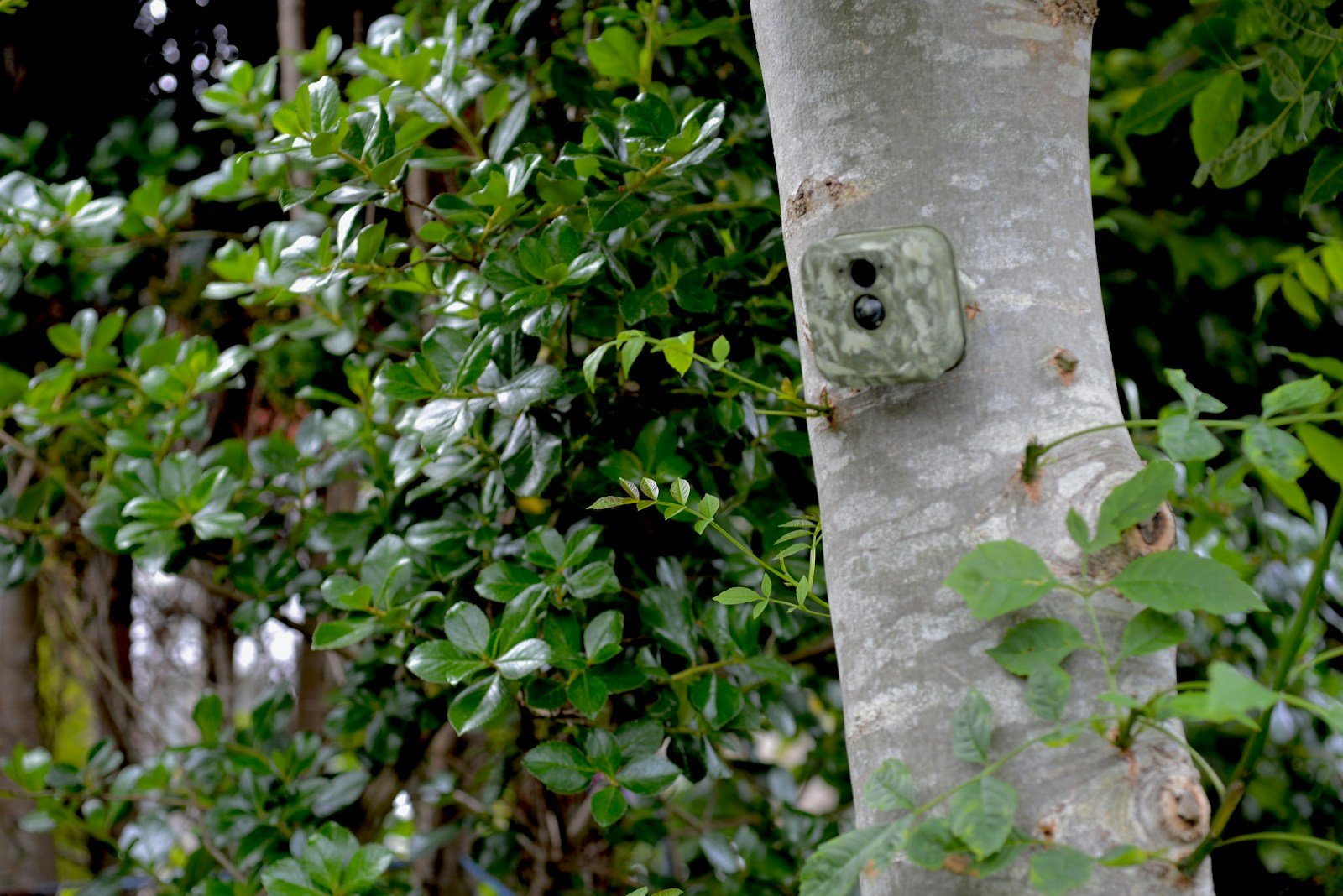
Illustrative stock photograph by Gavin Allanwood on Unsplash, under the Unsplash License. It is not an image captured by the camera discussed or evidence of a hands-on test.
As an Amazon Associate, I earn from Qualifying Purchases.