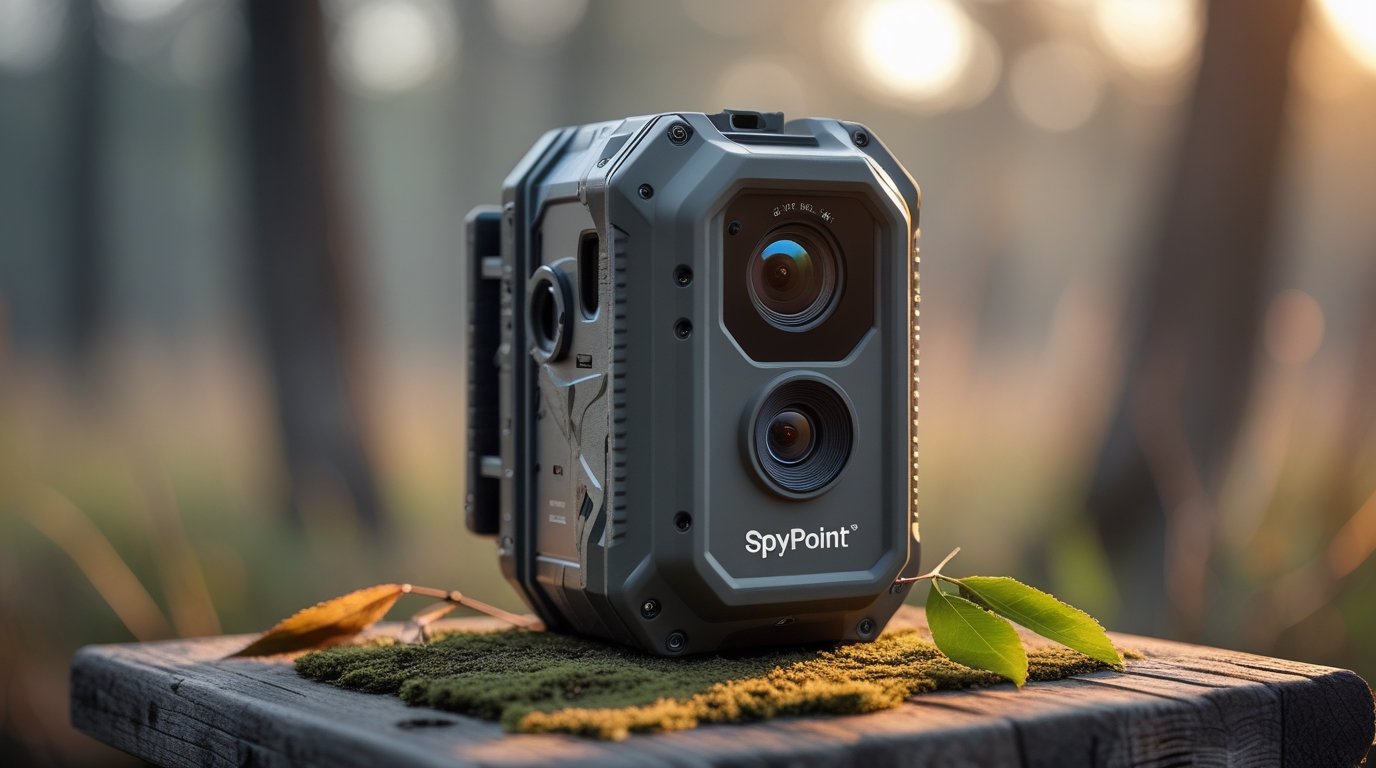
How to use a SPYPOINT trail camera: Identify your model, download the official app, activate compatible cellular cameras, install the correct batteries and microSD card, complete startup, test photo transmission, and mount the camera where it has a reliable signal. FLEX and LM2 setup requirements differ, so follow the instructions for your exact model.
Quick Start: How to Use a SPYPOINT Trail Camera
Using a SPYPOINT trail camera begins with identifying the exact model, preparing the correct power source and memory card, activating compatible cellular models in the SPYPOINT app, and testing photo delivery before installation. For a FLEX-series camera, SPYPOINT instructs owners to install the antenna, add the camera to the app, scan the activation code, insert batteries and a microSD card, power on, format the card, and press TEST. Older models and non-cellular devices can have different procedures. This guide emphasizes the official FLEX and LM2 workflows while explaining how to adapt the steps to your model. Never assume that an SD card size or battery pack fits every SPYPOINT camera.
Step 1: Identify Your SPYPOINT Camera Model
Find the model name on the box, camera housing, battery compartment, or owner’s manual. Common SPYPOINT families include FLEX, FLEX-M, FLEX-S, FLEX-DARK, FLEX-PLUS, LM2, and older LINK models. The exact model matters because storage capacity, battery type, antenna setup, buttons, firmware, and transmission options can differ. For example, SPYPOINT’s official FLEX activation instructions specify a Class 10 microSD card from 2GB to 512GB, while the LM2 activation page specifies a 2GB to 32GB Class 10 microSDHC card. Do not rely on generic instructions when the camera has different hardware. Keep the model number and serial or activation code accessible during setup.
Step 2: Download the SPYPOINT App
Install the official SPYPOINT app from the appropriate app store on a supported iOS or Android phone. Open the app and create an account or sign in. For a cellular SPYPOINT model, the account manages camera activation, image viewing, transmission settings, and available photo plans. Avoid third-party applications that claim to activate SPYPOINT cameras or request your account password. The official setup page directs users to the Cameras tab and the plus button to add a device. Check that your phone has a working internet connection during account setup. Camera-to-app transmission later depends on the camera’s own supported cellular network, not necessarily your home Wi-Fi.
Step 3: Activate Your Cellular SPYPOINT Camera
In the SPYPOINT app, open Cameras, tap the plus button, select the appropriate camera, and follow the on-screen activation steps. For FLEX models, the manufacturer directs users to scan a QR code. The activation code is located inside the battery compartment on documented FLEX models. Select a transmission plan when prompted. Official FLEX-series manuals describe a free allowance of 100 transmitted photos per month when the user chooses the available free option, although plan terms should be verified at activation. Complete account activation before leaving for the field. A camera that is not correctly activated may save images locally but fail to deliver them to the app.
Step 4: Attach the Antenna Correctly
For a SPYPOINT camera with a removable antenna, attach it as described in the official model guide. The FLEX setup instructions specifically show the antenna being screwed onto the camera before field use. Do not overtighten the connector or substitute an unapproved antenna. An improperly installed antenna can contribute to weak signal or transmission failures. Keep the antenna clear of metal objects and avoid placing it directly behind a thick tree trunk when possible. Some older or compact SPYPOINT cameras use different antenna arrangements, so inspect the actual unit rather than assuming every model has a detachable antenna. Check for a damaged connector before powering on.
Step 5: Install the Correct Batteries or Power Pack
SPYPOINT’s FLEX-series activation page lists eight AA non-rechargeable lithium batteries or a compatible LIT-22 rechargeable lithium pack for standard FLEX models. FLEX-PLUS models support a different configuration, and solar variants have their own charging instructions. The official LM2 page lists eight AA alkaline or lithium batteries or the compatible LIT-10 pack. Use the approved power option for your exact model and follow the polarity markings. Do not mix old and new batteries or combine different battery chemistries. Power problems can cause failed startup, missed photographs, or unsuccessful transmissions. Read our trail camera battery guide for general considerations.
Step 6: Choose the Right microSD Card
Storage requirements differ significantly across SPYPOINT models. The official FLEX setup page specifies a Class 10 microSD card from 2GB through 512GB. The official LM2 setup page instead specifies a 2GB to 32GB Class 10 SDHC microSD card. This distinction is important: a high-capacity card that works in a FLEX may not work in an LM2. Choose a reputable card and verify its capacity and type against your model’s documentation. Insert it with the camera powered off unless the manual instructs otherwise. Never force a card into the slot. Back up existing photos before formatting, because formatting erases stored files.
Step 7: Power On and Complete Startup
After inserting the correct power source and memory card, turn the camera on. SPYPOINT says the first FLEX startup can download firmware and may take up to 15 minutes. Let the sequence finish and do not interrupt an update. The manufacturer instructs owners to wait until the status lights turn off before proceeding with the test photo. Different LED colors and patterns indicate power, signal, memory-card, firmware, or transmission status. Consult the model-specific indicator chart if the camera does not reach its ready state. Avoid repeatedly switching the camera on and off during its first connection, since this can interrupt setup and make troubleshooting harder.
Step 8: Format the microSD Card on FLEX Cameras
SPYPOINT instructs FLEX users to format the microSD card immediately after powering on by holding the FORMAT button for five seconds while the relevant status indicator is blinking green. The format LED flashes during the process. This operation deletes stored images, so back up any files you want to keep first. The timing matters: SPYPOINT’s FLEX tutorial notes that pressing FORMAT after the startup window may not work as intended. Other models, including the LM2, can have different formatting procedures and may require preparation using a computer. Follow your camera’s official manual rather than copying FLEX button instructions to another model.
Step 9: Take a Test Photo Before Mounting
A successful test is one of the most important setup checks. SPYPOINT instructs FLEX users to press the TEST button after startup and confirm the image appears in the app. The official support page also recommends testing before going into the woods. Allow time for the camera to connect and transmit; delivery speed depends on network conditions and camera activity. If no photo arrives, check the app account, activation status, memory card, power, and signal indicators. For cameras without a dedicated TEST button, follow the model-specific walk-test or photo-trigger procedure. Do not leave a newly activated cellular camera unattended until you have verified successful transmission.
Step 10: Mount the Camera in the Field
Choose a stable tree or post overlooking a wildlife trail, crossing, feeding area, or property access point. SPYPOINT’s FLEX installation guidance recommends aiming north or south when practical, placing the camera around the subject’s mid-body height, and keeping branches and tall grass out of the detection area. These are starting points rather than universal rules; terrain and target species matter. Secure the strap tightly enough to prevent movement without damaging the mount. Avoid pointing the lens directly at bright sunrise or sunset when possible. Our camera aiming guide covers practical placement.
Step 11: Verify Cellular Signal at the Actual Location
A camera can work perfectly at home but fail in a remote area with poor cellular coverage. After mounting, power it on and check the signal indicators using the manufacturer’s instructions. Allow the camera to complete its startup sequence, then trigger a test image and confirm it arrives in the app. SPYPOINT recommends checking the app before leaving the location. Cellular models may use different carrier-selection systems, and network availability varies by region. Do not assume a strong phone signal on one carrier guarantees camera connectivity on another. If the signal is weak, try a different permitted mounting location or height and repeat the test.
Step 12: Adjust Photo and Video Settings
Once your SPYPOINT camera is active, review the available settings in its app or onboard menu. Depending on the model, you may be able to adjust capture mode, trigger delay, sensitivity, transmission frequency, and video behavior. Shorter trigger delays can capture more activity but also produce many similar images and increase battery or data use. Higher image quality can consume more storage. Start with a straightforward photo configuration, confirm reliable operation, and then adjust one setting at a time. Some advanced functions are model-specific or tied to a paid plan. Do not assume every SPYPOINT camera supports live video or the same remote controls.
How to View SPYPOINT Trail Camera Photos
For a successfully activated cellular model, open the SPYPOINT app and navigate to the camera’s photo gallery. Newly transmitted images appear according to the camera’s settings, signal conditions, and available plan. Some models store higher-resolution originals on the microSD card while sending a different version or preview to the app. If the gallery seems empty, refresh it and check the camera’s last communication status. Photos can also be reviewed locally by safely removing the card when the camera is powered off and using a compatible card reader. Keep backups of important images before formatting or reusing the card.
How to Use SPYPOINT at Night
SPYPOINT trail cameras use motion detection and infrared illumination to record wildlife after dark. Many infrared night images are black and white. Good results depend on subject distance, flash design, battery condition, and camera placement. Keep grass and branches away from the lens and flash to reduce reflected infrared glare. Do not mount the camera too far from the trail if you need recognizable detail. Test nighttime performance at the intended location rather than relying solely on the advertised flash range. If images are consistently black, inspect power, illumination, and obstructions. See our night vision explanation.
How to Use a SPYPOINT Solar Trail Camera
Solar-equipped models such as documented FLEX-S variants have additional charging requirements. SPYPOINT’s FLEX activation guide instructs owners of FLEX-S and FLEX-S-DARK cameras to charge the internal battery using the specified cable before initial use. For field placement, the manufacturer recommends at least four hours of direct sunlight for those models. Solar charging is less effective under dense tree cover or during prolonged cloudy weather. Position the solar panel according to the manual while keeping the camera aimed correctly. A solar camera still needs power management, and heavy video or cellular use can exceed the energy available from limited sunlight. Confirm the exact charging method for your model.
What Does the SPYPOINT Free Plan Include?
SPYPOINT’s official FLEX manuals describe an available free plan with 100 photo transmissions per month for supported cellular cameras. Plan availability and included features can change, so verify the current options in the SPYPOINT app before activation. A free transmission allowance is different from unlimited local storage, and video requests or advanced functions may have separate charges. If you deploy several cameras, consider how many images each one sends and whether the free allowance fits your usage. Lower trigger sensitivity or a longer delay can reduce unnecessary transmissions in some locations. For comparisons, see our trail camera plan guide.
SPYPOINT Camera Not Sending Photos: What to Check
Start with the camera’s last reported status in the app. Confirm that activation is complete, the transmission plan is active, and the camera has sufficient battery power. Inspect the signal indicator at the installation site and verify that the microSD card is supported and recognized. If the camera recently started for the first time, allow time for firmware and network setup. SPYPOINT notes that some cameras may take up to 30 minutes to report. Press the supported TEST button or trigger a new image and check whether it arrives. If repeated tests fail, consult the official support instructions for your exact model rather than resetting everything immediately.
SPYPOINT Camera Will Not Turn On
If a camera shows no status lights, turn it off and inspect the power source. Confirm battery orientation, correct battery chemistry, charged rechargeable packs, and clean contacts. Check that the compartment is closed properly and that the power switch is fully engaged. If the model has an internal rechargeable battery, follow its prescribed charging procedure. A damaged power cable or incompatible pack can cause problems. Try a known-good approved power source before concluding that the camera is defective. If the device still will not start, contact official SPYPOINT support and provide the model number. Our power troubleshooting checklist may also help.
SPYPOINT microSD Card Errors and Formatting Problems
An incompatible capacity, unsupported card type, incomplete formatting, locked adapter, or damaged card can prevent recording. The first step is to verify the precise model’s requirements. FLEX-series instructions allow much larger microSD capacities than the LM2 instructions, so using the wrong generic recommendation can create problems. Back up important files before formatting. If the camera offers an official in-camera format function, use it at the specified time and in the specified way. Test with another reputable compatible card if the error persists. Do not repeatedly remove the card while the camera is writing or transmitting files, as that can increase the risk of corruption.
How to Reduce False Triggers and Blank Photos
Wind-blown grass, branches, changing temperatures, and poor aiming can create images with no visible animal. Reposition the camera so its detection zone covers the expected trail rather than a patch of moving vegetation. Clear obstructions where permitted and check that the mounting strap is tight. Avoid aiming directly at surfaces that rapidly heat in sunlight. If the model supports sensitivity adjustment, test different settings and compare results. A longer trigger delay can reduce repetitive captures but may also miss activity, so use it thoughtfully. Perform a walk test from several directions to understand how the sensor responds at your chosen distance.
How to Maintain a SPYPOINT Camera
Check the camera periodically for low batteries, loose mounting hardware, moisture, insects, dirt on the lens, and vegetation growing into the detection zone. Back up photographs before formatting a card or changing storage media. Keep firmware updated through supported official procedures and avoid interrupting updates. If using a solar model, clean the panel gently according to its manual and verify that it still receives sufficient sunlight. Inspect antenna connections on models with external antennas. Record the camera’s location and activation details in a secure place. For equipment protection, see our trail camera security guide.
Frequently Asked Questions
How do I activate a SPYPOINT trail camera? Use the official SPYPOINT app, add the camera, and follow the activation code or QR process. Does SPYPOINT need Wi-Fi? Cellular models use a supported mobile network to transmit images. What microSD size works? FLEX-series instructions specify 2GB to 512GB Class 10, while LM2 specifies 2GB to 32GB Class 10 SDHC. How do I test it? Use the model’s TEST button or walk-test procedure and confirm the photo arrives. Do I need a subscription? Cellular transmission requires an available plan, which may include a free tier. Why are night photos black and white? Infrared illumination commonly produces grayscale images.
Final Setup Checklist and Official Sources
Identify the exact model, install the approved power source and microSD card, activate cellular service through the official app, and allow the first startup sequence to finish. Format the card only according to the model instructions, take a test photo, mount the camera securely, and confirm signal and photo delivery at the field location. The manufacturer’s FLEX activation guide provides the official FLEX sequence, while the LM2 activation guide shows important differences in storage and power. For further troubleshooting, use the official SPYPOINT support center. Always prioritize your specific manual over generic advice.
As an Amazon Associate, I earn from Qualifying Purchases.