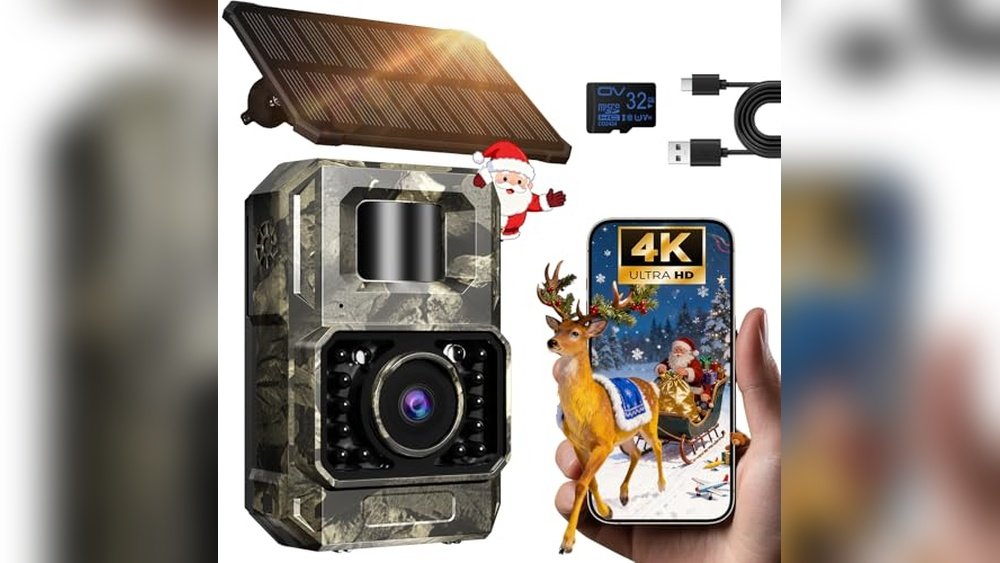
How to view trail camera photos on iPhone: Connect the camera’s SD card using a compatible USB-C or Lightning reader and open Photos or Files. If your trail camera is cellular, view transmitted pictures in the manufacturer’s official iPhone app. The correct steps depend on your iPhone connector and camera model.
Quick Answer: How to View Trail Camera Photos on an iPhone
You can view trail camera pictures on an iPhone in two main ways. If your camera saves images to an SD or microSD card, remove the card safely and use an iPhone-compatible reader to open or import the photos. If you own a supported cellular trail camera, install the manufacturer’s official app and view images delivered to your account. Some Wi-Fi-enabled cameras also allow nearby transfers through their apps. The best method depends on the camera model and the connector on your iPhone. You do not need to buy a cellular subscription simply to view photographs stored on a removable memory card.
What You Need Before You Start
Check the trail camera’s exact model and the memory card format it uses. Many models record JPEG photos to SD or microSD cards, although video formats and folder structures vary. Next, identify whether your iPhone has USB-C or Lightning. Choose a compatible reader that accepts your card size and works with your iPhone and iOS version. If you use a cellular camera, have its official app and account credentials ready instead. Keep the camera manual nearby for instructions on safely removing storage and using the correct app. Avoid formatting the card until you have backed up any pictures you want to keep.
Method 1: View Trail Camera Photos With an SD Card Reader
Turn off the trail camera before removing its memory card unless the manufacturer specifies another procedure. Insert the SD card into a reader, then connect the reader to your iPhone. Open the Files app and look under Locations for the connected drive. Open the card, find the camera’s image folder, and tap a supported image file to preview it. Depending on the device, iOS version, card, and file format, you may also see an import option in Photos. Copy the images to On My iPhone or another location before making changes. When finished, disconnect the reader safely and return the card to the camera.
Step-by-Step: Import Pictures Into the Photos App
Connect a compatible reader and memory card to your iPhone. Open Photos and look for an available import interface if your iPhone recognizes the connected camera storage for photo import. Select the images you want and choose the import action shown on your device. The exact interface varies across iOS versions and card formats. If an import option does not appear, open Files instead, browse the card, select the photographs, and use Share or Save Image where supported. Verify the imported images appear in your photo library before deleting anything from the card. Keep the originals until you have confirmed a successful backup.
Step-by-Step: Use the Files App Instead
Open Files, tap Browse, and look for the card reader under Locations. If you do not see it, reconnect the reader and check whether the card uses a supported file system. Browse folders such as DCIM, where many cameras store images. Tap a JPEG file to preview it. To preserve photos, select the files and copy them to a folder under On My iPhone or an available cloud storage location. Files is particularly useful when you want to keep the original folder structure or handle non-photo files. Be cautious with video formats that the iPhone may not preview without a compatible app.
USB-C iPhones: Choosing a Reader
For an iPhone equipped with USB-C, choose a USB-C SD or microSD reader that is compatible with iPhone and the memory card’s capacity and format. Some readers include multiple slots; insert the card in the correct slot rather than forcing it into an adapter. A reader with a USB-A plug may need a compatible adapter, but a direct USB-C model is often simpler. Connect the reader, open Files, and check Locations. If the card does not appear, test the reader and card separately with another compatible device. The iPhone connector type does not guarantee that every reader or file system will work.
Lightning iPhones: What Is Different?
Older iPhones use a Lightning connector, so a USB-C-only card reader will not plug in directly. Use a compatible Lightning SD card reader or the appropriate supported adapter. Some third-party accessories may require a companion app or may not work reliably with all iOS versions. Check compatibility before buying, especially if you plan to transfer large video files. Connect the card, then look in Photos for import options or Files for accessible external storage, depending on the reader and device. If the iPhone reports an unsupported accessory, check the connector, power requirements, accessory compatibility, and software updates.
Method 2: View Photos Through a Cellular Trail Camera App
Cellular trail cameras can upload images to an online account through a supported mobile network. Install the official app for your camera brand, sign in, and activate the camera according to the manufacturer’s instructions. Confirm that the device has adequate power, supported network coverage, and any required data or photo plan. Once the camera successfully captures and transmits images, open its gallery in the app to view them on your iPhone. You do not have to stand next to the camera to view delivered photos. However, a cellular camera cannot guarantee immediate delivery in weak coverage or during scheduled transmission intervals.
SPYPOINT: View Trail Camera Photos on iPhone
For a compatible SPYPOINT cellular camera, install the official SPYPOINT app on your iPhone and sign into your account. Add or select the camera and complete activation if you have not already done so. Open the app’s photo gallery to see images that have successfully transmitted. Some features, download options, and transmission settings depend on the camera model and account plan. If a photo is missing, check the camera’s last communication, battery status, signal, and transmission schedule before assuming the image was never captured. Our SPYPOINT setup guide covers the broader activation process.
Tactacam REVEAL: View Photos on iPhone
If you own a compatible Tactacam REVEAL cellular camera, install the official REVEAL app and sign in to the account associated with the camera. Complete device activation and service setup according to the model’s instructions. When images transmit, open the app to review them. The availability of higher-resolution downloads, videos, and other functions may vary by model and subscription. If the app opens but no pictures appear, check the camera’s recording status and network connection. An app login alone does not mean the camera has successfully captured or uploaded a new image.
Moultrie: View Photos on iPhone
For supported Moultrie cellular models, use the manufacturer’s current official app and follow the model-specific activation procedure. Once the camera sends photographs, you can review them from your iPhone while connected to the internet. Storage and transmission workflows can differ among Moultrie product generations, so do not assume that all models require the same SD card or pairing method. If you use an older non-cellular Moultrie camera, the SD card reader method may be the appropriate solution instead. Always verify the model and app before entering account details or purchasing a service plan.
Method 3: Use Wi-Fi or Bluetooth When Supported
Some trail cameras create a short-range Wi-Fi network for nearby photo access or settings changes. Others use Bluetooth to initiate pairing, while transferring images through Wi-Fi. Install the correct manufacturer app, enable the camera’s supported pairing mode, and follow the on-screen prompts. Your iPhone may need local network or Bluetooth permission. Direct Wi-Fi usually requires you to be near the camera, and a network with no internet access can still be normal for local transfer. Not all trail cameras support this feature. See our phone connection guide for a broader comparison.
Can You View Trail Camera Photos Without Wi-Fi?
Yes. A memory card reader allows you to open photos locally without Wi-Fi or a cellular plan, provided the iPhone and reader support the card and files. Cellular trail camera apps do not require your camera to connect to home Wi-Fi, but the camera needs compatible mobile network coverage and the iPhone needs internet access to retrieve uploaded images. A Wi-Fi-only trail camera may require a local connection for app-based transfers. The phrase wireless trail camera can mean different things, so check the model specifications rather than assuming every wireless camera offers remote viewing.
Can You Watch Trail Camera Videos on iPhone?
Many trail cameras record video as well as photographs, but iPhone playback depends on the file container, video codec, resolution, and app support. A video may appear in Files without opening in Photos. If the file is unsupported, copy it to a computer for conversion or use a reputable compatible player. Some cellular apps transmit thumbnails or short clips rather than every original video automatically. Large files may take longer to transfer from a memory card. Preserve the original recordings until you have confirmed that the converted or downloaded copy plays correctly.
Why Your iPhone Does Not Recognize the SD Card
First check that the reader matches your iPhone’s connector and supports the card format. Reconnect the accessory and inspect the Files app under Locations. Try a different card or reader to isolate the problem. An improperly formatted, damaged, or corrupted card may fail to mount, and some accessories have additional power requirements. Do not format a card containing valuable pictures merely because it fails to appear. Instead, test it on another compatible device and back up the files if possible. If your camera reports card errors, consult its manual for approved card capacities and formatting methods.
Why the Photos App Does Not Show an Import Option
The Photos app may not show an import option for every connected reader or storage configuration. Open Files and check whether the card is available under Locations. If so, locate the JPEG images and use the share or save workflow supported by your iOS version. Some camera folder structures or file formats may not be recognized by Photos for direct import. A compatible card reader is essential; a physically fitting adapter is not always enough. Update iOS when appropriate, then retest without deleting files from the card. Import behavior can differ between Lightning and USB-C devices.
Why Cellular Trail Camera Photos Are Not Appearing
If your camera’s app gallery is empty, verify that the camera is activated and the correct account is selected. Check the camera’s power, service plan, network coverage, and last communication status. Trigger a test photograph using the manufacturer’s instructions and wait for the expected transmission window. Some cameras store images on a card even when they cannot upload them. If the app shows an error code, consult the manufacturer’s support documentation for that specific model. Avoid repeatedly resetting the camera until you understand the problem, because doing so may interrupt updates or require reactivation.
How to Save and Organize Trail Camera Photos
After importing photographs, create a dedicated album in Photos or a folder in Files. Group images by camera location, date, or property, and retain original filenames when you may need to match photos with camera records. Back up important files to a trusted cloud service or computer before deleting the originals. If you monitor multiple cameras, separate their photos to avoid confusion. Be mindful that trail camera timestamps can be wrong if the camera clock is misconfigured. For routine maintenance, see our SD card management guide.
Do You Need a Special App to View SD Card Pictures?
Usually you do not need a trail-camera-specific app to view ordinary supported JPEG files from an SD card. Apple’s Files and Photos apps can handle many common image transfers when the card reader and storage are compatible. A manufacturer app is mainly needed for its proprietary wireless pairing or cellular account features. Some specialty formats or accessories may require additional software. Before installing an unfamiliar app, confirm the accessory manufacturer’s compatibility guidance. Do not provide camera passwords or account credentials to third-party apps that do not need them.
Frequently Asked Questions
Can I put a trail camera SD card into an iPhone? You need a compatible card reader because iPhones do not have a built-in full-size SD slot. Can I view pictures without cellular service? Yes, through a supported card reader. Does an iPhone need Wi-Fi for an SD card reader? No. Why can I see files but not photos? Check the image format and the correct folder. Can I use a Lightning reader with USB-C iPhone? Not directly without suitable compatible hardware. Can I see cellular camera pictures from anywhere? Usually yes, once uploaded and available through the app with internet access.
Final Checklist: View Your Photos Safely
Start by identifying whether your trail camera saves pictures locally or uploads them to a cellular service. For local storage, power down the camera, remove the card, connect a compatible reader, and open Photos or Files on your iPhone. For cellular models, use the official app and confirm that images have transmitted. Check compatibility before purchasing accessories, and make a backup before deleting or formatting anything. If the camera is not yours, do not access its storage or account without permission. For related setup instructions, visit our complete trail camera phone guide.
As an Amazon Associate, I earn from Qualifying Purchases.