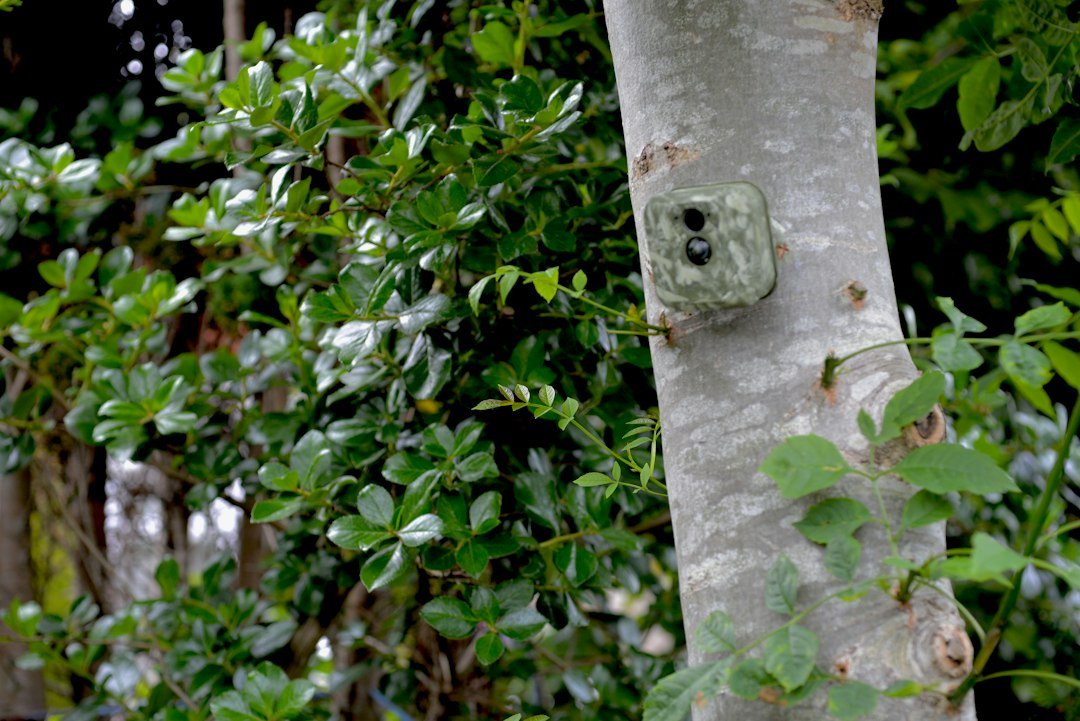
What size SD card for a Muddy trail camera? Many Muddy models support full-size SD or SDHC cards up to 32GB. A 16GB card is adequate for lighter photo use, while a compatible 32GB SDHC card provides more space. Confirm the exact model before buying.
Quick Answer: What Size SD Card for a Muddy Trail Camera?
For many Muddy trail cameras, a 16GB or 32GB full-size SD or SDHC memory card is the practical choice. The manufacturer explicitly lists a maximum of 32GB for numerous models, including Pro-Cam 14, Pro-Cam 20, Pro-Cam 24, Mitigator 2.0, and Manifest 3.0. A 32GB SDHC card is often the simplest purchase when you want more room for photographs or short video clips. However, not every Muddy model necessarily has identical requirements. Always identify the model number and consult its official specifications before buying a card. Do not assume a 64GB or 128GB SDXC card will work in a camera that specifies a 32GB maximum.
Muddy SD Card Size by Camera Model
Muddy’s 2023 official catalog lists the Pro-Cam 14 (MUD-MTC100KX), Pro-Cam 20 (MUD-MTC20VK), and Pro-Cam 24 (MUD-MTC24VK) as accepting SD cards up to 32GB. These bundles were described as including 16GB cards. The manufacturer’s Mitigator 2.0 product page also specifies one SD card up to 32GB, as does its Manifest 3.0 cellular camera page. An older MTC100K listing from Lowe’s confirms support up to 32GB. These examples support a strong general recommendation, but they are not a substitute for the documentation for every model ever sold. Check the number printed on the housing or packaging.
Is a 16GB SD Card Enough?
A 16GB card can be sufficient for a camera set to capture occasional photographs, particularly if you check it regularly. Muddy has bundled 16GB SD cards with several cameras that support up to 32GB. Whether 16GB is enough depends on image file size, capture frequency, burst mode, video resolution, and how long the camera remains unattended. A busy trail can generate far more files than a quiet location. If you mostly capture photos and visit the camera often, 16GB may be convenient and economical. If you record many videos or leave the camera in the field longer, a compatible 32GB card provides more storage headroom.
Is a 32GB SD Card Better?
A 32GB SDHC card is a good general-purpose choice for Muddy cameras that officially support capacities up to 32GB. It provides more room for images and videos than a 16GB card without exceeding the stated limit of the models discussed here. Larger capacity does not improve image sharpness or motion detection, but it can reduce the chance of filling the card before your next visit. Choose a reputable memory card rather than an unusually cheap unbranded product. Follow the manufacturer’s recommended speed class if one is specified. Always test a new card in the camera before leaving it unattended for days or weeks.
Can You Use a 64GB or 128GB Card?
Do not assume a 64GB or 128GB SDXC card is compatible with a Muddy camera rated for a maximum of 32GB. Larger SDXC cards commonly use a different default file system from SDHC cards, and older camera firmware may not recognize them correctly. Some users attempt to reformat larger cards, but this does not guarantee reliable operation and can conflict with manufacturer requirements. For a model with an explicit 32GB maximum, use a card within that limit. If you own a newer or less common Muddy model, verify its specifications before concluding that a larger card is unsupported. A reliable 32GB card is preferable to a larger card that fails unpredictably.
SD vs SDHC vs SDXC Explained
SD refers to the Secure Digital memory card family. Standard SD cards typically cover smaller capacities, while SDHC cards commonly range from 4GB through 32GB. SDXC cards are associated with larger capacities starting at 64GB. A full-size SDHC card is therefore a natural match for many Muddy cameras with a 32GB limit. Card shape also matters: some devices accept full-size cards, while microSD cards require an adapter when used in a full-size slot. An adapter can introduce another point of failure, so a standard full-size card is often simpler when the camera calls for one. Follow the exact model’s manual for card type and format.
What SD Card Speed Should You Buy?
Memory card speed ratings indicate minimum or advertised write performance under specified conditions. For a camera taking still photographs or short standard-definition clips, extreme high-speed cards are not automatically necessary. Higher-resolution video can demand more consistent write speed, so consult the model’s documentation. A reputable Class 10 or U1 SDHC card can be a reasonable starting point where the manufacturer does not specify something different, but it is not a universal requirement for all Muddy models. Avoid confusing speed class with storage capacity. A fast 128GB card can still be incompatible with a camera that supports only 32GB. Test photo and video recording before deployment.
How to Insert an SD Card Into a Muddy Camera
Switch the camera off before handling its memory card unless the manufacturer explicitly instructs otherwise. Open the housing and locate the SD slot. Follow the printed orientation markings, insert the compatible card gently, and do not force it. Make sure the small write-protect tab on a full-size SD card is in the unlocked position. Close the compartment properly and turn the camera on. Use its setup screen or status indicators to confirm that the card is recognized. If the camera reports an error, power it down and recheck card orientation, capacity, and condition. Never repeatedly force a card into a slot that does not accept it.
Should You Format a New SD Card?
Formatting can help prepare a memory card for use in a particular camera, but it erases stored photographs and videos. Back up anything important before proceeding. If your Muddy camera provides a documented format option, follow the model-specific instructions. A 32GB SDHC card typically uses FAT32, while SDXC cards normally use exFAT; however, the camera’s supported file system is the deciding factor. Avoid selecting arbitrary computer formatting settings based only on online advice. After formatting, take several test photographs and confirm they appear on the card. Our Muddy SD card formatting guide covers the general process.
How to Format on a Windows Computer
If the camera manual permits computer formatting, first copy all files to a safe location. Insert the card into a compatible reader, confirm you have selected the correct removable drive, and use a suitable formatting tool or Windows formatting options. For an SDHC card, FAT32 is the normal file system, but confirm the model’s requirements. Avoid formatting the wrong drive or assuming that a computer-recognized card will work in the camera. Eject the card safely, insert it into the powered-off camera, and run a photo and video test. If the camera offers its own formatting function, use that method when recommended by the manufacturer.
How to Format on a Mac
On a Mac, back up the SD card before making changes. Open Disk Utility, identify the removable memory card carefully, and follow the model’s approved formatting requirements. The normal file system for an SDHC card is FAT32, which Disk Utility may describe as MS-DOS (FAT). Select the physical card rather than an unrelated disk. After formatting, eject the card safely and insert it into the camera while the camera is off. Take a test photo to verify recording. If the camera still displays a memory error, try a different known-good card within the supported capacity rather than repeatedly changing formatting options.
Why a Muddy Trail Camera Says SD Card Error
An SD card error can indicate unsupported capacity, an incompatible file system, a locked card, incomplete insertion, a damaged card, or a camera problem. Start with the easiest checks: turn the camera off, remove and reinsert the card, confirm the lock switch is open, and verify that the model supports the capacity. If you need to format, back up the card first. Try a reputable known-good 16GB or 32GB SDHC card where the model specifies a 32GB maximum. If multiple supported cards fail, inspect the slot for visible damage and contact manufacturer support. Do not scrape contacts or insert tools into the slot.
Why the Camera Is Not Saving Pictures
A camera that turns on but saves no images may have a card problem, incorrect recording mode, weak batteries, or poor motion-sensor positioning. Check that the card is recognized and not full or locked. Set the camera to a basic photo mode and conduct a controlled walk test. Review the saved files with a card reader. If the camera captures test images but not wildlife, adjust its aim or trigger settings. If no files are saved, try another compatible card and fresh approved batteries. Troubleshoot one factor at a time. Read our trail camera troubleshooting guide for additional steps.
Do Muddy Cellular Cameras Need an SD Card?
Some Muddy cellular trail cameras still use local SD storage even though they can transmit images over a mobile network. The official Manifest 3.0 and Mitigator 2.0 specifications explicitly list an SD card slot supporting up to 32GB. Cellular transmission and local storage serve different purposes: a remote app may receive selected files while the camera retains recordings locally. An active cellular plan does not automatically remove the need for a compatible card. Always follow the exact camera’s setup instructions. For the supported app and cellular activation, read our Muddy camera app guide.
How Many Photos Fit on a 32GB Card?
The number of images that fit on a 32GB card varies with file compression, resolution, scene detail, and whether the camera saves video. A camera recording large high-resolution files will store fewer images than one using a lower-resolution setting. Burst mode and long video clips can consume storage quickly. Avoid relying on a single fixed photo-count estimate without knowing the model’s actual file sizes. A practical method is to take 100 sample photos, measure the total space used, and estimate capacity from the average file size while leaving a safety margin. This produces a more useful estimate for your own camera than generic marketing claims.
Can You Use a MicroSD Card With an Adapter?
A microSD card inside a full-size SD adapter may work in some cameras, but compatibility depends on the card, adapter, and camera slot. A loose or damaged adapter can create intermittent recording errors, particularly outdoors. If the Muddy model is designed for a full-size SD card, buying a standard full-size SDHC card avoids this additional complication. Never insert a bare microSD card into a full-size slot. If you already have an adapter, test it thoroughly with photographs and videos before leaving the camera unattended. Use a high-quality adapter and avoid removing the microSD card while the camera is powered on.
How Often Should You Replace an SD Card?
There is no universal replacement interval for every trail camera SD card. Flash memory wears over time, and outdoor handling can damage contacts or plastic housings. Replace a card if it repeatedly develops errors, fails verification tests, or shows visible damage. Back up important files regularly and avoid using the same card as the only copy of valuable recordings. Keep cards in protective cases when transporting them. Do not remove a card while files are being written. If you maintain several cameras, label cards and track which one belongs to each device so recurring errors are easier to identify.
Recommended Setup for Reliable Recording
For a Muddy model with a verified 32GB limit, begin with a reputable 32GB full-size SDHC card. Confirm the write-protect switch is unlocked and follow the camera’s formatting instructions. Install fresh recommended batteries and set the correct date, time, and recording mode. Take a daylight test photo and, if nighttime recording matters, test after dark as well. Check the files with a reader and confirm that the camera returns to normal recording mode. A good card cannot compensate for poor placement or weak power. Our Muddy setup guide explains the full process.
Frequently Asked Questions
What size SD card does a Muddy trail camera take? Many models officially support up to 32GB, but verify your model. Is 16GB enough? Often yes for occasional photos and regular checks. Will 64GB work? Do not assume it will work on a 32GB-limited camera. What type should I buy? A full-size SDHC card is a practical choice for many models. Do cellular Muddy cameras use SD cards? Some do, including the Manifest 3.0 and Mitigator 2.0. Why is my card not recognized? Check capacity, format, lock switch, insertion, and card condition. Should I format it? Follow the model manual and back up files first.
Final Verdict and Manufacturer Sources
For most Muddy cameras documented here, a 32GB SDHC card is the safest maximum-capacity choice, while 16GB is often sufficient for lighter use. The manufacturer’s 2023 Muddy catalog confirms a 32GB limit for Pro-Cam 14, 20, and 24. The official Mitigator 2.0 and Manifest 3.0 pages also specify up to 32GB. Always verify the exact model number before buying or formatting a card. If your model manual lists a different requirement, follow that manual rather than a general recommendation.
As an Amazon Associate, I earn from Qualifying Purchases.