
Trail Camera App for PC: How to View Cellular Photos on Windows
A phone screen is fine for a quick look, but judging a buck’s rack, comparing photos across cameras, or saving a season’s worth of pictures is much easier on a computer. Most cellular trail camera brands are built around phone apps, though, and few offer a true Windows program. Here is how to get a trail camera app for PC, or the next best thing, and how to view, download and organize your cellular photos on Windows.
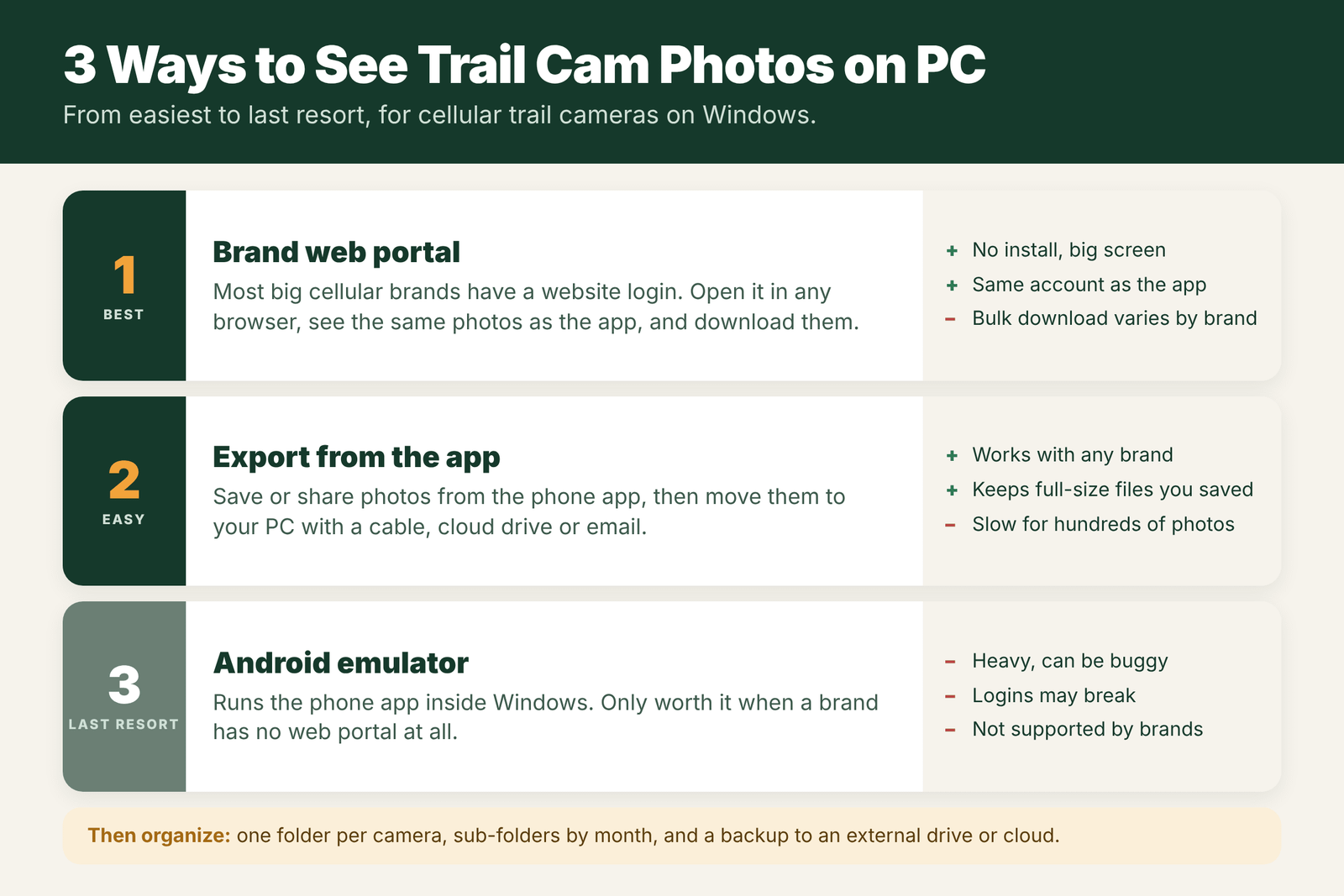
Most cellular trail camera brands do not have a Windows app, but many have a web portal: log in on the brand’s website in any browser with the same account you use in the app, and you can view and download your photos on your PC. If your brand has no web portal, save or share photos from the phone app and move them to your PC with a cable or cloud drive. An Android emulator can run the phone app on Windows, but it is a last resort. For SD card photos from non-cellular cameras, just use a card reader.
- Windows app
- Rare for cellular brands
- Best option
- Brand web portal
- Login
- Same as the phone app
- No portal?
- Export from phone app
- Emulator
- Last resort
- SD card photos
- Card reader on PC
Web Portals by Brand
Many major cellular camera brands offer a browser version of their app. To find yours:
- Go to the brand’s official website and look for Log in, Web app or My account.
- Sign in with the same email and password you use in the phone app.
- Open your camera gallery. You should see the same photos, filters and camera settings as on your phone.
- Use the download button on single photos, or a multi-select option if the portal has one.
Features vary. Some portals let you change camera settings and request HD photos; others are view-only. For brand-specific help, see the Stealth Cam Command app and how to use Command Pro.
Exporting From the Phone App
If your brand has no web portal, or you only need a few photos:
- Save to phone: download photos to your phone’s gallery from the app.
- Move to PC: connect your phone with a USB cable, or use a cloud drive such as Google Photos, OneDrive or iCloud.
- Share: email or message small batches to yourself.
Request HD versions first if you want full-size photos on your PC, since the app may only hold thumbnails.
Android Emulators (and When to Avoid Them)
An Android emulator runs phone apps inside Windows. It can work, but:
- It is heavy on your PC and can be slow or buggy.
- Logins, notifications and updates may not work right.
- Brands do not support it, so help is limited if something goes wrong.
- Only install emulators from well-known, trusted sources.
Use it only when there is no web portal and exporting is too slow.
Downloading in Bulk
- Check whether the web portal has select all or a download by date option.
- Some brands offer a zip download of many photos at once.
- If not, download in batches by camera or by week.
- For full-size photos from the camera itself, the SD card is still the fastest way. See how to view trail camera photos on a computer.
Organizing on PC
- One folder per camera, named by location, such as “North Ridge Scrape”.
- Sub-folders by month or by card pull date.
- Rename or tag key photos, such as a named buck.
- Back up to an external drive or cloud storage.
- Try free sorting tools if you have thousands of photos. See free trail camera software.
Ways to Get Trail Camera Photos on a PC
| Method | Works for | Pros | Cons |
|---|---|---|---|
| Brand web portal | Cellular cameras with a website login | No install, full gallery, often bulk download | Not every brand has one |
| Export from phone app | Any app that can save or share photos | Simple, works everywhere | Slow for hundreds of photos |
| Cloud sync (Google Photos, iCloud, OneDrive) | Photos saved to your phone | Automatic once set up | Uses phone storage and cloud space |
| SD card reader on PC | Any camera with an SD card | Full-size originals, fast, no data | Need to pull the card |
| Android emulator | Android-only apps | Runs the phone app on a PC | Clunky, may break, privacy concerns |
Step-by-Step: Moving App Photos to Your PC
- Open the brand app on your phone and select the photos you want.
- Use the download or save option to save them to your phone’s gallery. Some apps save full-size versions only if you request HD first.
- Choose a transfer method: a USB cable, cloud sync, email to yourself or a file-sharing app.
- On the PC, create a folder for each camera, with sub-folders by month or date.
- Copy, do not move, so you still have a backup on the phone until the PC copy is checked.
- Back up the PC folder to an external drive or cloud service.
Viewing SD Card Photos on a PC
- Turn the camera off and remove the card.
- Insert it in a card reader. Many laptops have a built-in SD slot; otherwise use a USB reader.
- Open the card in File Explorer (Windows) or Finder (Mac) and find the DCIM folder.
- Copy the files to your camera folder on the PC.
- Eject the card safely before removing it, then format it in the camera before reuse.
If videos will not play, try a free player like VLC. See how to view trail camera photos on a computer.
Field Examples
The end-of-season archive: a hunter with four cellular cameras logs into the brand’s web portal and downloads the whole season’s photos for each camera in a few clicks, then sorts them into folders by buck.
The no-portal brand: another hunter’s brand has no website. Turning on automatic cloud backup for the phone’s gallery, and saving each good photo from the app, sends them to the PC without cables.
The emulator headache: a third hunter installs an Android emulator to run the camera app on a laptop. It works for a while, then breaks after an app update. A web portal or plain phone export is more reliable.
Mistakes to Avoid
- Relying on the app’s cloud as your only copy. Plans change and old photos may be deleted after a set time.
- Moving instead of copying from the SD card, then losing files if the transfer fails.
- Formatting the card on the PC. Format it in the camera for best results.
- Installing unofficial apps or emulators from unknown sources.
Organizing Photos on Your PC
A simple folder structure saves hours later: a top folder for the year, sub-folders for each camera, and sub-folders by month. Rename your best photos with the date, camera and buck name, such as 2026-11-04_Scrape_SplitBrow.jpg. Free software can help tag and search large collections, and AI tools can filter out empty frames. See free trail camera software.
How Web Portals Usually Work
A brand web portal is simply the website version of the phone app. You go to the brand’s site in any browser, such as Chrome, Edge, Firefox or Safari, and log in with the same email and password you use in the app. Your cameras, photos and often settings appear on a bigger screen. Many portals let you filter by camera, date or tag, mark favorites, and download one photo or a batch. Some also let you request HD photos or change camera settings, just like the app. Portal features vary by brand and sometimes by plan, so if you cannot find a download-all button, check the brand’s help pages. If you log in and see no cameras, make sure you are using the same account the cameras are registered to, especially if a partner shared the cameras with you.
Building a Season Archive
At the end of each season, set aside an hour to build a clean archive. Download everything worth keeping from the app or portal, copy the SD cards from every camera, and put them into your year and camera folders. Delete obvious junk, such as empty frames and endless raccoon photos, but keep at least one photo of every buck, every predator and anything unusual. Write a short note file in each camera folder with what you learned: when bucks moved, which wind they used, and what changed in the rut. Next summer, that archive is the first thing you will open when you plan where to hang cameras again.
Keeping Your Account Secure
Use a strong password for your camera account, especially if your cameras watch your home or cabin. Log out of the portal on shared computers. If you share cameras with others, review the list once a year and remove anyone who no longer needs access.
Frequently Asked Questions
Is there a trail camera app for PC?
Few cellular brands have a Windows app, but many have a web portal you can open in any browser on your PC with your app login.
How do I see my cellular trail camera photos on my computer?
Log in to the brand’s web portal, or save photos from the phone app and move them to your PC with a cable or cloud drive.
Can I use an Android emulator for my trail camera app?
It can work, but it is heavy, can be buggy and is not supported by brands. Use it only when there is no web portal.
How do I download all my trail camera photos at once?
Look for select-all, date range or zip download options in the web portal. If there are none, download in batches or pull the SD card.
How do I view SD card photos on a PC?
Put the card in a USB SD card reader or your PC’s card slot, open it in File Explorer, and copy the DCIM folder to your computer.
Can I download all my cellular trail camera photos at once?
Many brand web portals let you select and download many photos at once. Check your brand’s website.
Are photos from the app full size?
Not always. Many apps save the uploaded size, which may be a thumbnail. Request HD or copy the SD card for full-size photos.
What is the safest way to back up trail camera photos?
Keep at least two copies, such as one on your PC and one on an external drive or cloud service.