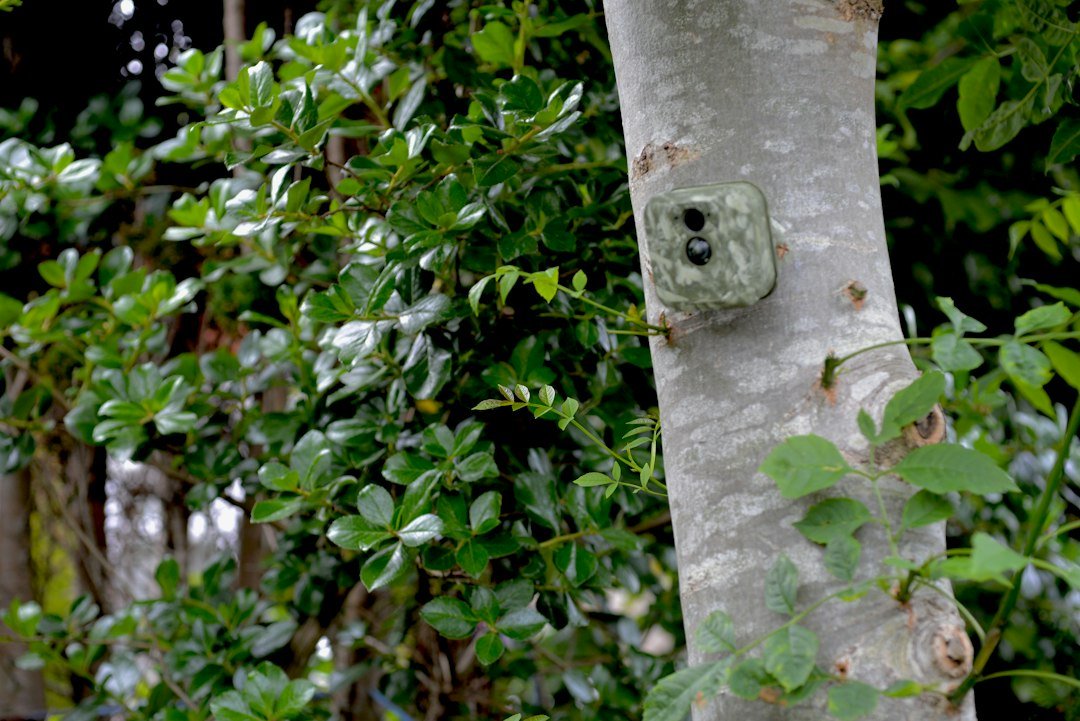
How to view trail camera photos on a computer: Turn the camera off, remove its SD card, insert it into a compatible computer card reader, and open the image files in Windows File Explorer or macOS Finder. Some models also support USB transfer or cellular account access.
Quick Answer: How to View Trail Camera Photos on a Computer
The simplest way to view trail camera photos on a computer is to turn off the camera, remove its SD or microSD card, insert it into a compatible card reader, and open the files in Windows File Explorer or macOS Finder. Most cameras store JPEG photos in a folder such as DCIM, although folder names vary. Some cameras also support a USB connection, while cellular models may let you view transmitted images through a manufacturer website or account. The correct method depends on your exact camera model. Always copy important files to the computer before deleting or formatting a memory card.
What You Need Before Opening Your Photos
Start with the trail camera, its memory card, and a compatible computer. If your computer has an SD card slot, you may be able to insert a full-size SD card directly. For microSD cards, use an appropriate adapter or reader. Otherwise, connect a USB card reader that supports your card type and capacity. Make sure the card is not physically damaged, and identify the camera model in case its storage layout or video format differs from common defaults. If you plan to connect the camera directly, use the cable and connection procedure specified in its manual. Avoid buying accessories until you know the card format.
Method 1: Use an SD Card Reader
Power the trail camera off before removing the memory card, unless the manufacturer explicitly provides a different safe procedure. Insert the card into the correct slot on the reader, then connect the reader to your computer. Wait for the operating system to recognize the removable storage. Open the card and locate image folders, commonly under DCIM. Double-click a supported JPEG file to view it. For safer management, copy the files to a folder on your computer and confirm the copies open correctly. When finished, use the operating system’s eject function before removing the card or reader. Return the card to the camera only after the transfer is complete.
How to View Trail Camera Photos on Windows 11 or Windows 10
Insert the SD card into your computer’s card slot or connect a USB reader. Open File Explorer and select This PC. Look for a removable drive corresponding to the memory card. Open it and browse the folders for JPEG photographs or supported video files. You can double-click a JPEG to open it in the default photo viewer. To save a copy, select the files, copy them, and paste them into a new folder such as Pictures > Trail Camera. If Windows offers to format the drive unexpectedly, cancel that prompt until you have checked the card on another compatible reader or device. Formatting can erase existing images.
How to View Trail Camera Photos on a Mac
Connect the card reader or insert the SD card into a supported Mac slot. Open Finder and look for the card in the sidebar under Locations. If the card appears, open it and browse to the image folder. Double-click a supported photo to open it in Preview, or use Quick Look to inspect files without importing them. You can also import supported images through Photos or Image Capture when the device and file layout are recognized. Copy the original files to a dedicated folder if you want to preserve camera filenames and timestamps. Eject the card from Finder before unplugging it to reduce the risk of file-system problems.
Where Are Trail Camera Photos Stored on an SD Card?
Many trail cameras use a DCIM directory, sometimes with one or more numbered subfolders. Other manufacturers use their own folder names or file structures. JPEG is a common still-image format, while video files may use different extensions and codecs. If you do not immediately see photos, examine the available folders rather than assuming the card is empty. Switch the file view to show details or file extensions, and sort by modification date when useful. Do not rename, move, or delete files on the original card until you have made a backup. Some cameras expect a specific folder layout when the card is returned.
Method 2: Connect the Trail Camera Directly With USB
Some trail cameras support connecting to a computer by USB cable and presenting their storage as a removable drive. Others use USB only for firmware, power, or other limited functions. Check the exact model manual before trying this method. Turn the camera off or place it in the prescribed mode, connect the correct cable, and follow any on-screen prompts. If a removable drive appears, open it in File Explorer or Finder and copy your images. If nothing appears, do not assume the camera is broken: the model may not support direct file transfer, or the cable may be charge-only. An SD card reader is often a more straightforward alternative.
Method 3: Use a Cellular Trail Camera Account
A compatible cellular trail camera can transmit selected photos to a manufacturer’s online account. Depending on the brand and current service, you may be able to review images through a web portal on your computer or download them from the manufacturer’s app on another device. Not every brand provides a desktop web gallery, and the transmitted images may differ from full-resolution originals stored locally. Verify the official account options for your model and plan. If the camera is in a weak-signal location, uploads may be delayed. For the underlying setup process, see our trail camera connection guide.
How to Transfer Trail Camera Photos to a Computer
After opening the card, create a folder on your computer for the camera and date, such as Trail Camera > North Gate > November. Select the photographs you want, copy them, and paste them into that folder. Avoid cutting or moving the originals directly from the SD card if the photos are important. Open several copied files to verify they transferred correctly, and compare file counts or sizes if you are transferring a large batch. Consider making a second backup to an external drive or trusted cloud account. Once your copies are secure, use the camera’s supported formatting process if you need to prepare the card for another recording session.
How to View Trail Camera Videos on a Computer
Trail camera videos may use MP4, AVI, MOV, or another container depending on the model, and the codec inside the file determines whether your computer can play it. Try the default Windows or macOS video player first. If the file will not play, check its extension and the camera manual for codec requirements. A reputable compatible player may support formats that the default application does not. Do not assume a file is corrupt solely because one player cannot open it. For large recordings, copy the file to your computer before attempting playback. Preserve the original until you have confirmed the copy works.
How to Open Photos From a SPYPOINT Camera
For a SPYPOINT model with removable local storage, use a compatible SD or microSD reader and open the image files in File Explorer or Finder. Exact card specifications depend on the camera model, so check the manual before inserting a different card. For a cellular SPYPOINT camera, photos transmitted to your account can also be viewed through supported official services, but availability of desktop access and download features should be confirmed for your account and model. If you only need the highest-quality locally saved files, the memory card may be the most direct source. See our SPYPOINT setup guide.
How to Open Photos From a Tactacam REVEAL Camera
A Tactacam REVEAL camera can deliver supported images through its cellular service, while local file access and storage requirements vary by model. If your model uses removable storage, turn the camera off and access its card according to the manual. Use a compatible computer reader and open the supported files. For transmitted pictures, consult the official REVEAL account options available to you. Do not assume that every generation supports identical storage, video downloads, or browser access. When photos are missing, check whether they were captured locally but not transmitted. Our Tactacam guide discusses newer models.
How to Open Photos From a Browning Trail Camera
Many Browning trail cameras record images to removable SD storage. After safely removing the card, use a compatible reader and inspect the folders in Windows or macOS. Open JPEG images with the default photo viewer and copy them to your computer. If your camera saves videos in a format your computer does not support natively, consult the manual and use a compatible player. Card capacity and formatting requirements vary across Browning models, so do not generalize from one camera to another. For a related model-specific walkthrough, see our Browning photo viewing guide.
How to Open Photos From a Muddy Trail Camera
The method depends on whether your Muddy camera is a cellular model or a basic SD-card camera. For an SD-card model, turn off the camera, remove its supported card, and use a computer reader. For a cellular model, the manufacturer’s supported account or app may provide transmitted images, while local originals may still require direct storage access depending on the hardware. Do not assume every Muddy model uses the same app or card capacity. Check the exact model’s manual before formatting storage or buying a reader. See our Muddy app guide.
Why Your Computer Does Not Recognize the SD Card
Check that the card is seated correctly and the reader supports its physical format and capacity. Try another USB port, reader, or compatible computer to isolate the problem. Inspect the card for physical damage. If the operating system asks to format the card, do not proceed until important images are backed up or recovery options are considered. A corrupted file system, unsupported format, faulty reader, or damaged card can all cause detection problems. If the camera itself can still display photos, that may help confirm whether images remain on the card. Consult the manufacturer’s storage requirements before replacing the card.
Why the Card Appears Empty
An apparently empty card can have several explanations. The camera may not have recorded images, the files may be in an unexpected folder, the operating system may hide certain files, or the card may have file-system errors. Check the camera’s recording mode and review its playback screen if available. Inspect all folders and confirm you selected the correct removable drive. Do not save new data to a card when you suspect accidental deletion, because new recordings can overwrite recoverable files. If the card is important, consider professional data recovery rather than repeated formatting attempts. Always preserve the original media until the issue is understood.
What If Photos Open but Look Black or Blurry?
If files open normally but the photographs are dark, blurry, or blank, the problem may be with the camera’s capture conditions rather than the computer. Nighttime images depend on infrared illumination, battery power, lens cleanliness, and subject distance. Motion blur can result from moving animals or low-light exposure. A blocked lens or poor camera angle can also reduce image quality. Compare several daytime and nighttime images before drawing conclusions. Do not repeatedly reformat the card to fix a camera exposure problem. For dark night images, see our black nighttime photo troubleshooting guide.
Can You View Trail Camera Photos Without Internet?
Yes. If your camera stores photos on a memory card, a computer and compatible card reader are enough to view supported files without internet access. You do not need a cellular data plan or cloud subscription for ordinary local SD-card transfers. By contrast, accessing images uploaded to a manufacturer’s cellular service typically requires an internet connection and a supported account. Some camera apps may cache previously downloaded images, but this behavior varies. For remote property monitoring, understand the difference between the camera’s mobile connection and the computer’s internet connection. Neither is necessary to open a locally saved JPEG file.
How to Organize and Back Up Wildlife Photos
Create a consistent folder structure by camera location, date, or project. Keep original filenames if you may later need to match a photograph to a specific camera or memory card. Check that the camera’s date and time settings are accurate; incorrect timestamps can make wildlife observations confusing. Back up valuable images to a second drive or secure cloud storage. Avoid keeping your only copy on an SD card that will be reused outdoors. When sharing images, consider whether location information or private property details should remain confidential. Our SD card management guide offers related maintenance advice.
Frequently Asked Questions
How do I view trail camera pictures on my laptop? Insert the memory card into a compatible reader, then open it in File Explorer or Finder. Do I need special software? Usually not for supported JPEG images. Can I plug my trail camera directly into a computer? Only if the model supports a compatible USB transfer mode. Where are photos saved? Often in a DCIM folder, though layouts vary. Why won’t videos play? The computer may lack the required codec. Can I view photos without internet? Yes, from local SD storage. Should I format the card? Not before backing up important files.
Final Checklist for Viewing Trail Camera Photos
Identify your camera’s storage method and obtain the right SD or microSD reader. Power off the camera before removing the card, open it through Windows File Explorer or macOS Finder, and locate the image folder. Copy the photographs to your computer and confirm that the copies open. Eject the card safely before reinstalling it. For cellular models, check whether your manufacturer provides a supported desktop account or download workflow. If files are missing, troubleshoot the reader and card before formatting anything. For mobile viewing, see our iPhone photo viewing guide.
As an Amazon Associate, I earn from Qualifying Purchases.