
How to View a Trail Camera SD Card on an Android Phone
Pulling a card and driving home to see what your camera caught is no fun, especially if the camera was aimed wrong or the batteries died a week ago. With a small, cheap card reader, you can check your photos on an Android phone right at the tree, fix problems on the spot, and leave the woods sooner. Here is which trail camera SD card reader for Android to get and how to use it the right way.
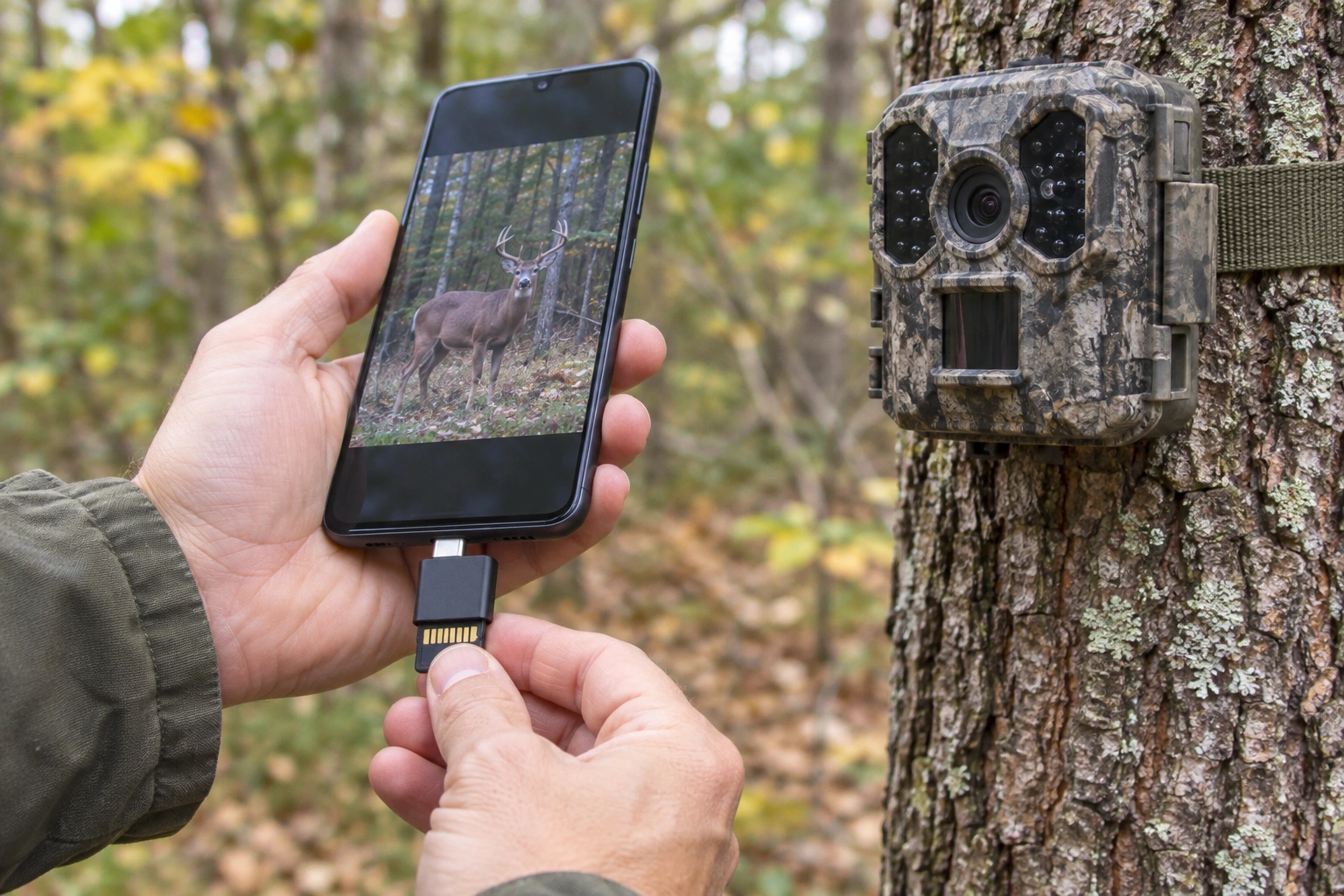
Get an SD card reader that matches your phone’s port, usually USB-C on newer Android phones or micro-USB on older ones, and that has a slot for full-size SD cards (most trail cameras use them). Turn the camera off, remove the card, plug the reader into your phone, and open the Files app. Your photos are in the DCIM folder. Copy (do not move) what you want, then eject safely before putting the card back in the camera.
- Newer Android
- USB-C reader
- Older Android
- Micro-USB reader
- Card slot
- Full-size SD (most trail cams)
- Where photos are
- DCIM folder
- Best practice
- Copy, do not move
- Before removing
- Eject safely
Readers That Work
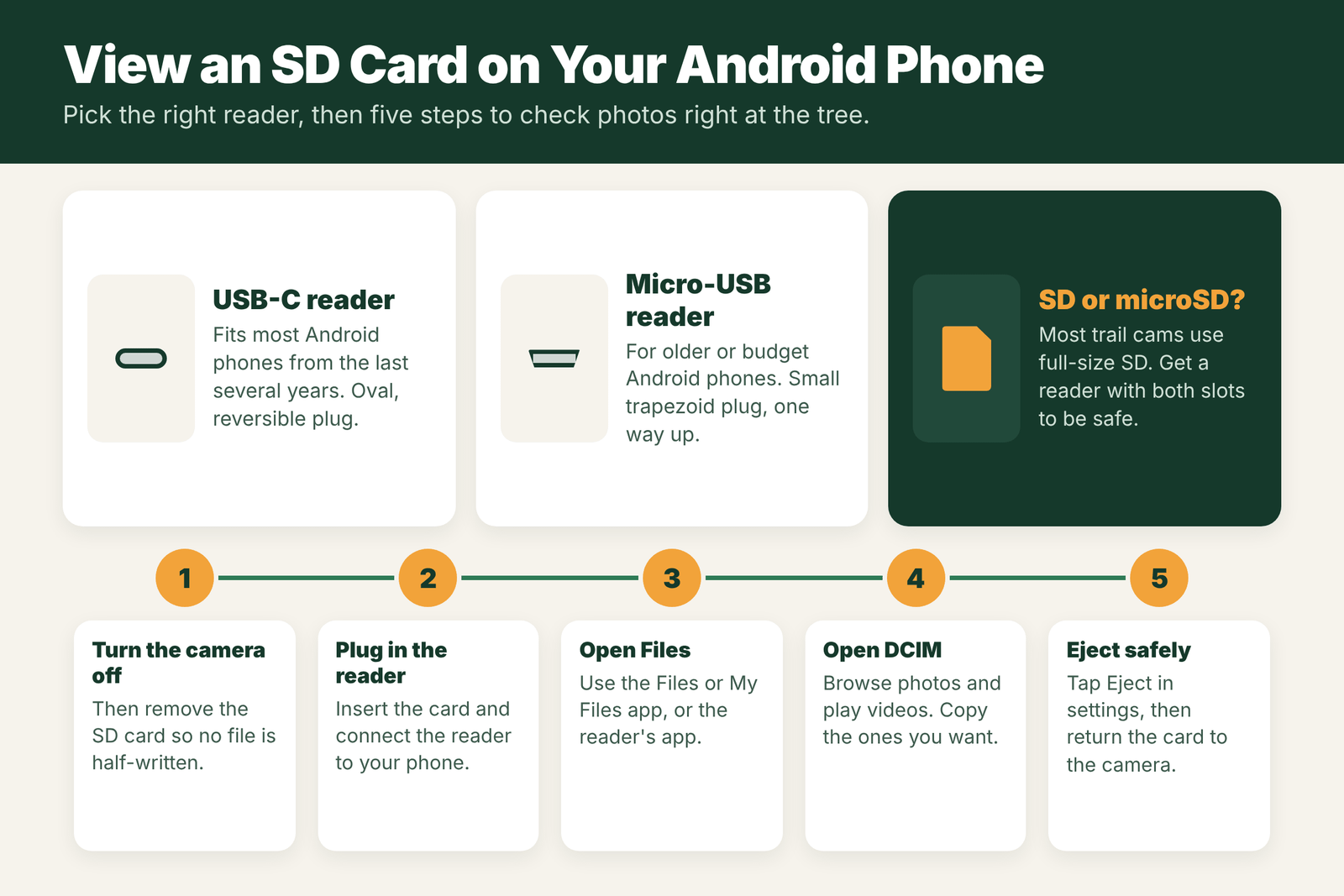
- USB-C readers: fit most Android phones made in the last several years. Look for “USB-C OTG” or “for Android” on the package.
- Micro-USB readers: for older or budget phones with the small trapezoid port.
- Dual readers: many have both SD and microSD slots. This is handy, since most trail cameras use full-size SD but some use microSD.
- OTG support: your phone must support USB OTG (On-The-Go). Most modern Android phones do.
- Rugged build: a cap or cover keeps dirt and moisture out in the field.
See our picks for the best trail camera SD card readers.
Step-by-Step Viewing
- Turn the camera off before removing the card, so no file is being written.
- Insert the SD card into the reader, label side as shown on the reader.
- Plug the reader into your phone. A notification may pop up for “USB drive” or “SD card”.
- Open the Files app (Files by Google, My Files on Samsung, or a similar file manager).
- Choose the USB drive, then open DCIM and the folder inside it, often named 100MEDIA or similar.
- Tap a photo to view it. Swipe to see the next one.
Using an iPhone? See how to view trail camera photos on an iPhone.
Copying vs Moving Photos
- Copy leaves the photo on the SD card and puts a copy on your phone. This is the safe choice.
- Move deletes it from the card after copying. If the transfer fails, you can lose the photo.
- Select only what you need. Copying hundreds of photos in the field is slow and fills your phone.
- Clear the card at home after backing up, or format it in the camera. See how to manage your trail camera SD card.
Video Playback Issues
- Some videos will not play in the phone’s default player because of the file format (often AVI or MOV). Try a free player such as VLC.
- Large files may stutter when played straight from the card. Copy one clip to the phone first.
- Slow card readers make big videos load slowly. A USB 3 reader helps.
Safe Ejection
- Close any photo or video still open from the card.
- Go to Settings → Storage (or tap the USB notification) and choose Eject or Unmount.
- Unplug the reader, remove the card, and put it back in the camera.
- Turn the camera on and check that it shows the card and the correct mode.
Pulling the card out without ejecting can corrupt files or the whole card.
Choosing the Right Reader
| Phone port | Reader type | Notes |
|---|---|---|
| USB-C (most newer Android phones) | USB-C SD card reader | Look for a full-size SD slot |
| Micro-USB (older phones) | Micro-USB OTG reader | Phone must support USB OTG |
| Either | Reader with both SD and microSD slots | Handy if you use different cards |
| Either | Reader with a short cable | Less strain on the phone port in the field |
Troubleshooting: Phone Cannot See the Card
| Problem | Likely cause | Fix |
|---|---|---|
| Nothing happens when plugged in | Phone does not support OTG, or reader is faulty | Check phone specs; try another reader |
| Phone says “unsupported” or asks to format | Card format not supported by the phone | Do not format; view on a PC instead |
| Files app shows the card, but no photos | Photos in a different folder | Look in DCIM and any brand-named folders |
| Photos show but videos will not play | Video format not supported by the default player | Install a player like VLC |
| Reader disconnects | Loose port, low phone battery | Use a short cable, charge the phone |
Step-by-Step: A Clean Field Routine
- Bring two cards per camera and swap them at the tree, so the camera keeps running.
- Back at the truck, plug the reader into your phone and open the Files app.
- Browse the DCIM folder and look at thumbnails first.
- Copy the best photos to a folder on your phone named for the camera and date.
- Eject the card safely in the phone’s settings or Files app before unplugging.
- At home, copy the full card to a computer for backup, then format it in the camera.
Field Examples
The scouting trip: a hunter checks four cameras in one afternoon, swapping cards at each. In the truck, a USB-C reader shows a new buck on one card, which helps decide where to sit that evening.
The format warning: another hunter plugs in a card and the phone offers to format it. Tapping yes would erase the photos. Instead, they cancel and copy the files on a computer at home.
The video problem: videos show as files but will not play. Installing a free video player solves it.
Mistakes to Avoid
- Formatting the card on the phone. Always format in the camera.
- Moving files instead of copying and losing them if the transfer stops.
- Pulling the reader out mid-copy, which can corrupt the card.
- Swapping cards in the rain, which lets moisture into the camera.
- Filling your phone with full-size videos. Copy only what you need.
Storage Tips
Trail camera videos and large photos fill phone storage fast. Make a habit of copying only the best photos to your phone, and keeping the full card on a computer. If your phone supports it, turn on automatic cloud backup for your trail camera folder so your best photos are saved even if you lose the phone. For card care, see how to manage an SD card in a trail camera.
Where Trail Camera Files Are Stored on the Card
Most trail cameras save photos and videos in a folder called DCIM, short for Digital Camera Images. Inside, you will usually find one or more sub-folders with names like 100MEDIA or 100_BTCF, depending on the brand. Each sub-folder holds a few hundred to a few thousand files before the camera starts a new one. Files are often named with a prefix and a number, like IMG_0001.JPG or a brand code. Some cameras also create extra folders for settings, firmware or time files. Leave those alone. If you are looking for a specific photo, sort the files by date in the Files app, and remember that the dates come from the camera’s clock, so they are only as good as the time you set. See how to set the time and date on a trail camera.
Viewing on a Tablet or Chromebook
The same method works on most Android tablets and many Chromebooks. Plug a USB-C reader into the device, open the Files app, and browse the DCIM folder. A tablet’s bigger screen makes it much easier to judge antlers and compare photos in the field. Some hunters keep an inexpensive tablet in the truck just for this.
What About iPhone?
iPhones can also read SD cards with the right adapter, and newer models with USB-C work much like Android phones. Older iPhones need a Lightning SD card reader. The Photos and Files apps can import or browse the photos. For full steps, see how to view trail camera photos on iPhone.
Protecting Your Reader and Cards in the Field
Card readers and SD cards are small and easy to lose in a truck or a pack. Keep them in a small hard case or a waterproof pouch, together with your spare cards. Label each card with the camera name using a fine marker or small sticker, so you always put the right card back in the right camera. Keep the reader’s connector clean and dry; pocket lint and moisture are the most common reasons a reader stops working. In cold weather, let a card warm up in your pocket for a few minutes before reading it, so condensation does not form on it.
Frequently Asked Questions
How can I view trail camera pictures on my Android phone?
Use an SD card reader that fits your phone’s USB-C or micro-USB port, plug it in, and open the DCIM folder in the Files app.
What SD card reader works with Android?
A USB-C reader for newer phones, or a micro-USB reader for older ones. Your phone must support USB OTG, which most modern Android phones do.
Why can’t my phone see the SD card?
Check that the reader fits and is pushed in fully, the card is seated, and OTG is turned on if your phone has that setting. Try another reader or card to test.
Why won’t trail camera videos play on my phone?
The file format may not be supported by the default player. Try a free player like VLC, or copy the clip to your phone first.
Should I copy or move trail camera photos to my phone?
Copy. It keeps the original on the card in case the transfer fails. Clear the card later at home after you back up your photos.
Do I need an app to view trail camera photos on Android?
No. Most Android phones can open the card with the built-in Files app and a card reader.
What is USB OTG?
USB On-The-Go lets a phone connect to devices like card readers. Most modern Android phones support it.
Can I delete photos from the SD card on my phone?
You can, but it is safer to copy photos off and then format the card in the camera.