
Tactacam Reveal Not Checking In: How to Fix It
You set up your Tactacam Reveal, open the app, and it says the camera is pending or has not checked in. Or it worked fine for weeks and then went quiet. Either way, it is frustrating, especially if the camera is hanging on a tree an hour’s drive away. The good news is that most cases come down to a few simple causes. Here is what to do when your Tactacam Reveal is not checking in.
A Reveal that is not checking in usually has one of five problems: it is not fully activated or has no active plan, it has weak or no cell signal, the batteries are low or cold, the SD card is missing or needs formatting, or the app or firmware is out of date. Check the plan in the app, move the camera to a spot with better signal, put in fresh lithium batteries or a solar panel, format the card in the camera, update everything, then restart the camera and give it a few minutes. If it still shows pending, contact Tactacam support with your camera ID.
- “Pending” means
- App has not heard from the camera
- New camera?
- Activate and add a plan
- Top cause
- Weak signal
- Next causes
- Batteries, plan, SD card
- First fix
- Restart, then wait a few minutes
- Last resort
- Tactacam support
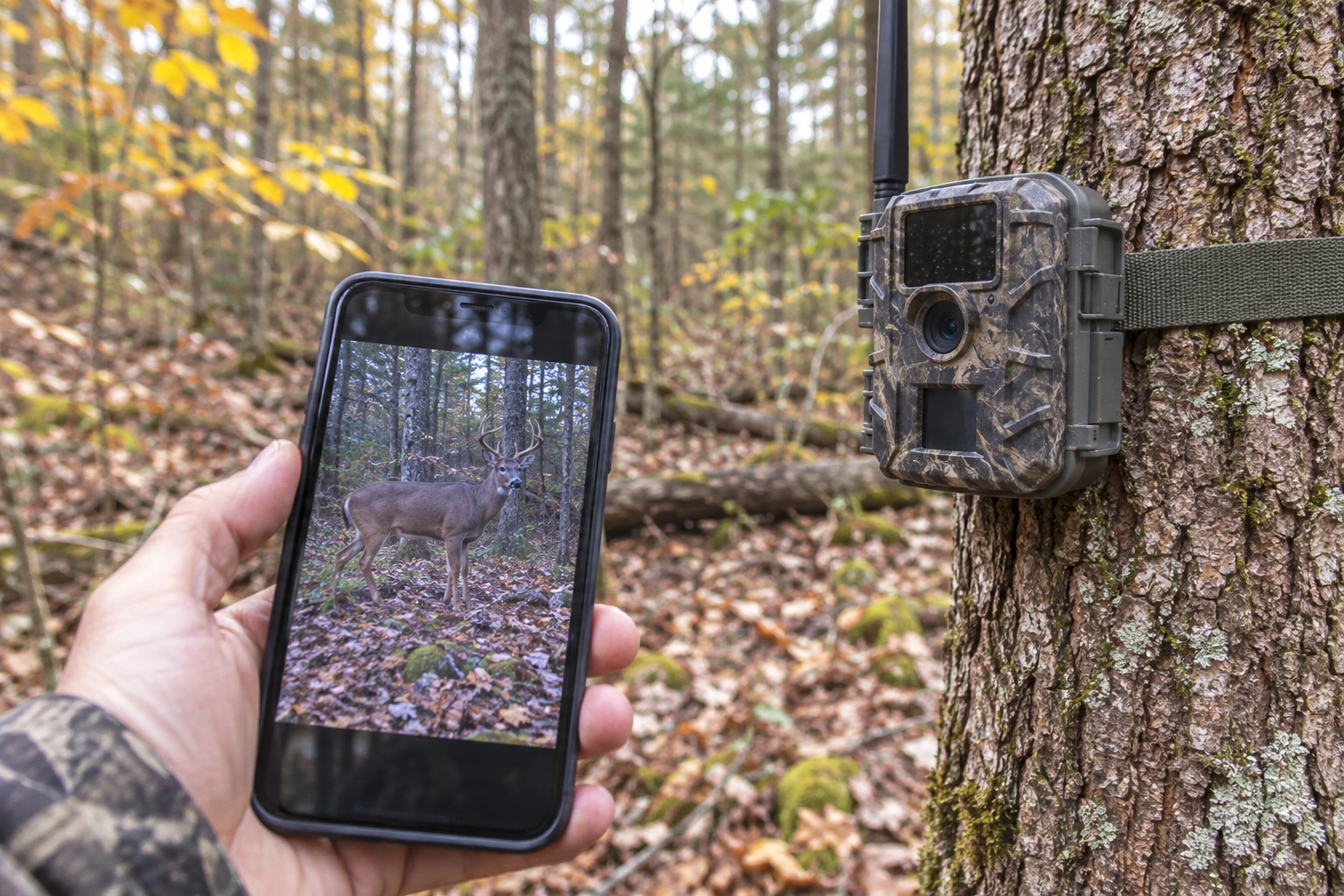
What “Check-In” Means
A cellular camera like the Reveal does not stay connected all the time, because that would drain the batteries. Instead, it connects on a schedule to check in: it sends its status (battery, signal, card), picks up any setting changes you made in the app, and uploads photos. “Pending” or “not checked in” means the app has not heard from the camera yet, or not for a while. Settings you change in the app usually wait as “pending” until the next check-in.
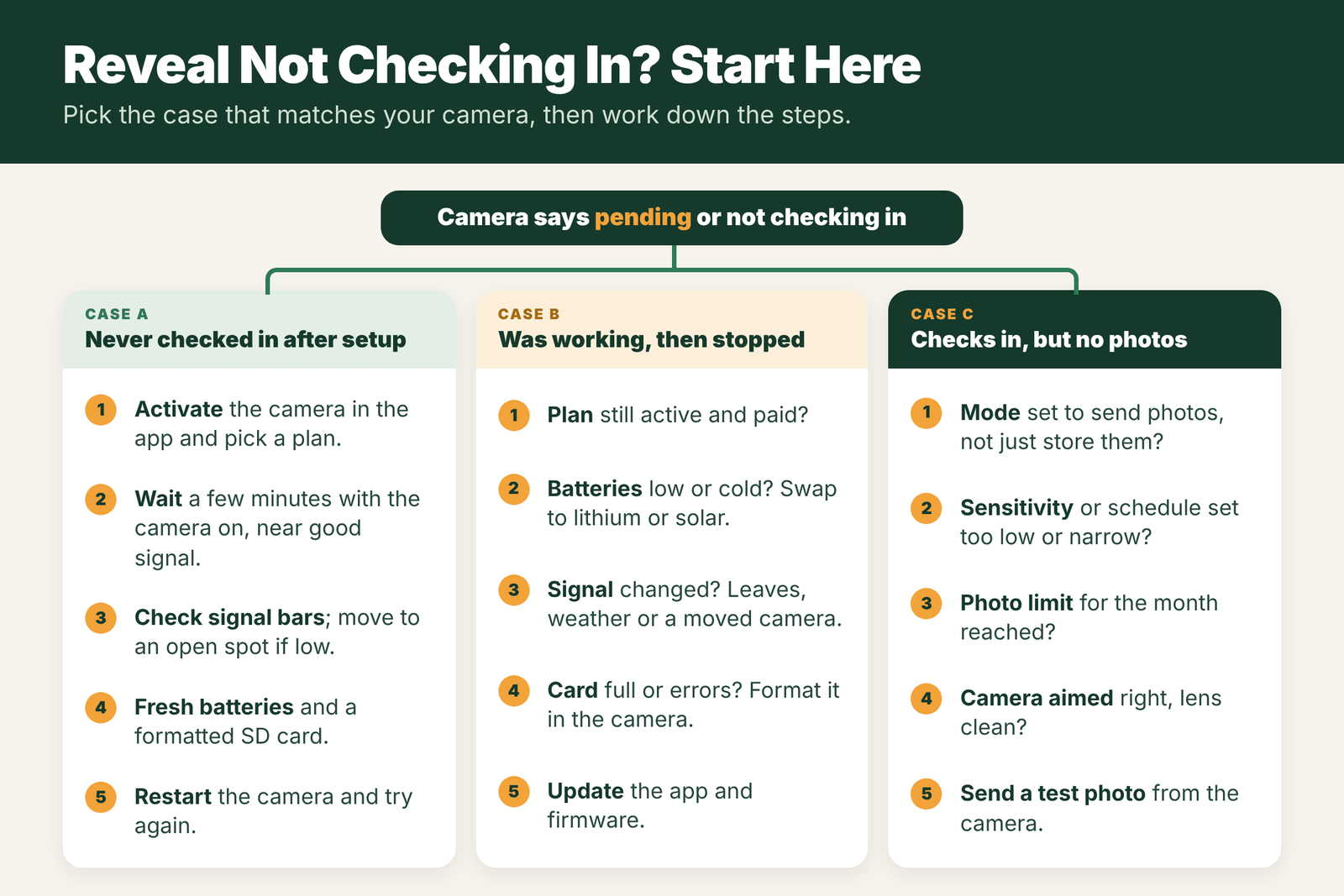
Pending After Setup
If the camera has never checked in since you set it up:
- Finish activation in the Reveal app: add the camera with its ID and choose a data plan.
- Insert fresh batteries and an SD card before powering on.
- Turn the camera on and leave it on in a spot with good signal. The first connection can take a few minutes.
- Do not change settings over and over while it is pending. Wait for the first check-in.
- Check that you added the right camera and that it matches your carrier version.
Signal and Battery Causes
- Signal: look at the bars in the app or on the camera. Low ground, thick cover and wet leaves weaken signal. Move the camera higher or to a more open spot. See trail camera antenna placement tips.
- Carrier: if your Reveal’s carrier is weak at your spot, no setting will fix it. A camera on a different network may be needed.
- Batteries: uploading uses the most power, so low batteries often stop check-ins first. Use fresh lithium batteries, especially in cold weather, or add a solar panel.
- Cold: very cold nights can drop battery voltage enough to skip check-ins until it warms up.
Plan Status
- Open the app and check that the plan is active and not expired or paused.
- Make sure the payment method on file is up to date.
- Check whether you have hit a monthly photo limit on your plan.
- If you moved the camera to a new account or phone, confirm it is still linked. See how to reactivate a Tactacam Reveal.
Reset and Re-Sync Steps
- Power cycle: turn the camera off, remove the batteries for about 30 seconds, put them back and turn it on.
- Format the SD card in the camera (back up any photos first).
- Update the Reveal app and, if available, the camera firmware.
- Log out and back in to the app, then pull down to refresh the camera list.
- Wait a few minutes for the camera to check in before changing anything else.
- Factory reset only if nothing else works. Follow the steps for your model in how to reset a Tactacam Reveal X.
Still not working? Contact Tactacam support with your camera ID, plan details and when it last checked in. If it checks in but photos do not arrive, see Tactacam Reveal not sending pictures.
Match the Symptom to the Cause
Before you drive out to the camera, look at what the app is telling you. The pattern usually points to the cause.
| What you see | Most likely cause | What to try first |
|---|---|---|
| Never checked in since setup | Activation or plan not finished, or no signal at the setup spot | Confirm plan in app, power on at a spot with good signal |
| Worked for weeks, then stopped | Batteries drained or cold | Fresh lithium batteries or a solar panel |
| Checks in some days, not others | Borderline signal or weather | Move higher or to a more open spot |
| Last check-in shows low battery | Power | Replace batteries, check solar cable |
| Last check-in shows SD card error | Card full, locked or failing | Format in camera or replace card |
| Stopped right after a plan change | Billing or plan status | Check payment and plan in app |
| Settings show pending for days | Camera has not connected since change | Wait or power cycle to force a check-in |
The app usually shows the last time the camera connected, along with battery and signal from that check-in. Those three pieces of information tell you more than anything else. Low battery at the last check-in is a strong hint. One bar of signal is another.
A Field Check at the Camera
If the app has not helped, go to the camera with fresh batteries, a spare SD card and your phone. Work in this order so you do not miss a simple fix:
- Look before you touch. Is the camera on, or did it get bumped off? Is the latch closed? Is there water inside the case, or chewing on the antenna or solar cable?
- Check the signal on your phone. Your phone may be on a different carrier, but if it shows nothing at all, the camera probably struggles too.
- Swap in fresh batteries of one type and brand. Mixing old and new or mixing brands causes power problems.
- Swap the SD card for a freshly formatted one in a size your model supports. Check the manual for the supported card size and class.
- Power on and wait at the camera for about five to ten minutes with the app open. Refresh to see if it checks in.
- If it does not connect, walk the camera to a higher or more open spot nearby, power cycle and wait again. If it connects there, the original spot is the problem.
Improving Signal at a Weak Spot
- Go higher. Raising the camera even a few feet, or moving from a creek bottom to a ridge side, can add a bar.
- Clear the line toward the tower. Thick evergreens and wet leaves block signal. A spot at the edge of a field often does better than one deep in timber.
- Keep the antenna upright and away from the tree trunk where you can. Check that it is screwed on firmly if your model has a removable antenna.
- Consider an external or extended antenna if your model supports one. Check Tactacam accessories for what fits your camera.
- Use a different network. If the carrier your camera runs on is weak in that area, a camera on another network, or a multi-carrier model, may be the real fix.
Power Planning So Check-Ins Do Not Stop
Uploads are the hardest job a cellular camera does. A camera that takes many photos a day, sends full-size images or uploads video will drain batteries much faster than one that sends a few thumbnails. If check-ins keep stopping after a few weeks, do some of these:
- Use lithium AA batteries rather than alkaline, especially once nights drop near freezing.
- Add a compatible solar panel and check that its cable stays plugged in.
- Lower the number of photos per trigger, or lengthen the delay between triggers.
- Upload thumbnails and request full-size only for the photos you care about, if your plan supports it.
- Trim brush in front of the camera to cut false triggers from wind.
Mistakes That Make It Worse
- Changing settings again and again while the camera is pending. Changes stack up and you will not know which one worked.
- Factory resetting first. A reset can wipe settings and sometimes means setting the camera up again. Save it for last.
- Using a card from another camera without formatting it in the Reveal.
- Assuming the camera is broken before testing it at a spot with strong signal and fresh batteries.
Frequently Asked Questions
Why is my Tactacam Reveal not checking in?
The most common causes are weak signal, low or cold batteries, an inactive plan, an SD card problem, or an out-of-date app or firmware.
What does pending mean on a Tactacam Reveal?
It means the app has not heard from the camera yet, or that a setting change is waiting for the next check-in.
How long does a new Tactacam Reveal take to check in?
Usually a few minutes after activation with good signal, fresh batteries and an SD card. Weak signal can make it take much longer or fail.
How do I force my Tactacam Reveal to check in?
Power cycle it by turning it off, removing the batteries for about 30 seconds, then turning it back on. It will try to check in when it starts.
Can cold weather stop a Tactacam Reveal from checking in?
Yes. Cold lowers battery voltage, which can stop uploads and check-ins. Lithium batteries or a solar panel help.
Why does my Tactacam Reveal show low battery right after I put in new batteries?
The reading in the app comes from the last check-in, which may have been before the swap. Power cycle the camera so it checks in again, then refresh the app.
Will a solar panel stop my Reveal from missing check-ins?
It helps a lot if power was the cause, as long as the panel gets some sun and the cable stays connected. It will not fix weak signal.
Should I factory reset a Tactacam Reveal that is not checking in?
Only as a last step after you have tried fresh batteries, a formatted SD card, a power cycle and a spot with better signal.