
Moultrie Mobile App Not Working? 9 Fixes That Work
The Moultrie Mobile app is how you see photos from your Moultrie cellular cameras, change settings and manage your plan. So when it will not open, will not log in, or stops showing new photos, it feels like the whole system is down. Most of the time the problem is on the phone or the account side, not the camera, and it takes a few minutes to fix. Here is what to do when the Moultrie Mobile app is not working.
Start with the phone: check your internet connection, update the Moultrie Mobile app, and update your phone’s operating system. If the app still will not load, sign out and back in, clear the app cache (Android) or offload it (iPhone), then reinstall the app. If the app works but no new photos appear, the problem is usually the plan or the camera: check that the plan is active and look at the camera’s last connection in the Devices area. Still stuck? Contact Moultrie support.
- First check
- Internet on your phone
- Most common fix
- Update app and phone
- Won’t load
- Sign out, clear cache, reinstall
- No new photos
- Check plan and camera
- Camera status
- Last connection in Devices
- Last resort
- Moultrie support

App Problem or Camera Problem?
Before you start, figure out which side is broken. It saves a lot of time.
- The app will not open, crashes or will not log in: this is a phone or app problem. Start with fixes 1 to 6 below.
- The app opens, but no new photos arrive: this is usually a plan or camera problem. Jump to fixes 7 and 8.
- Settings changes never reach the camera: the camera is not connecting. See fix 8.
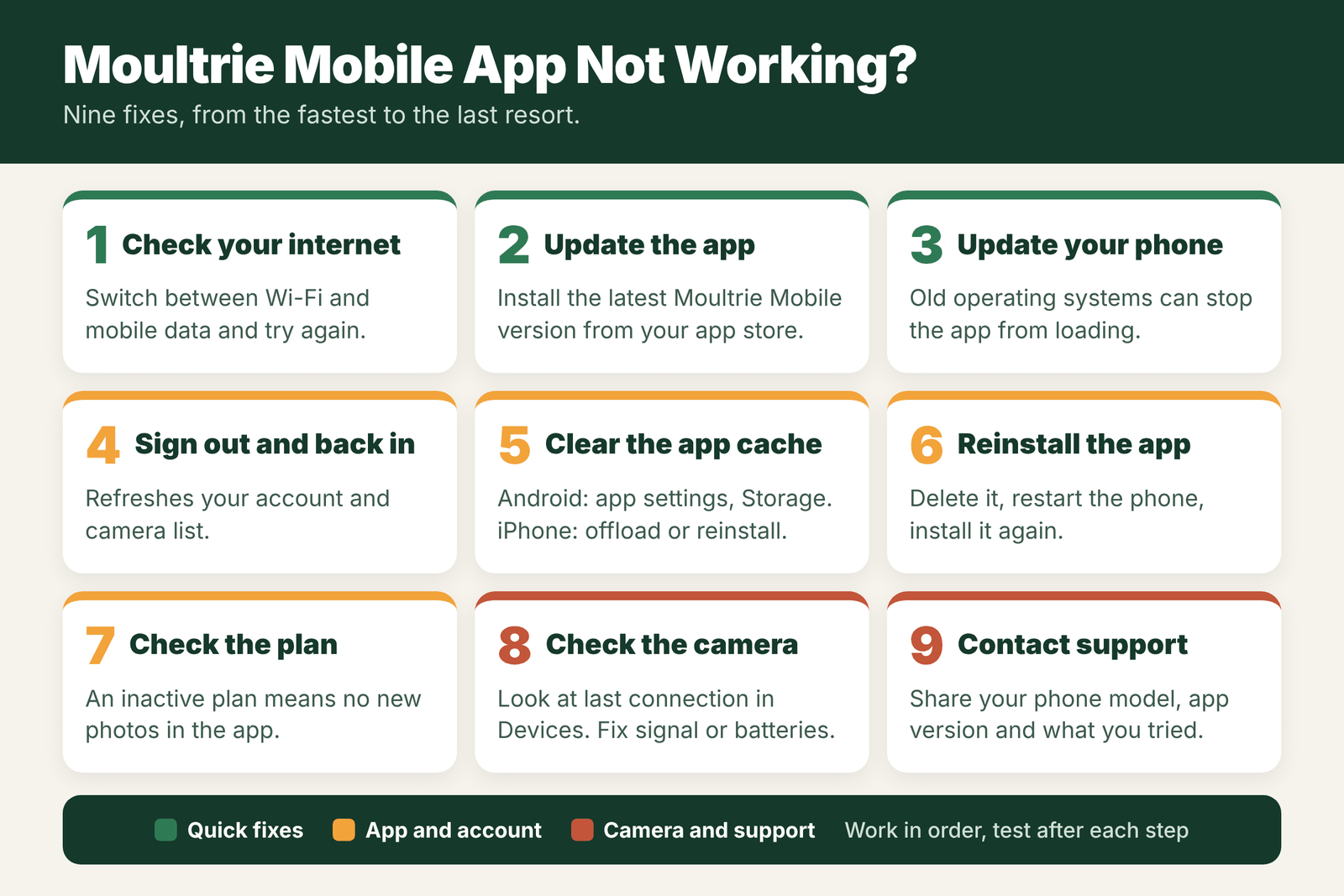
Quick Fixes on Your Phone
- Check your internet. Switch from Wi-Fi to mobile data, or the other way around, and open the app again. Weak hotel or cabin Wi-Fi is a common culprit.
- Update the app. Open the App Store or Google Play and install the latest version of Moultrie Mobile. Older versions can stop working after server changes.
- Update your phone. Moultrie’s own help for an app that will not load starts with updating the phone’s operating system. Then restart the phone.
App and Account Fixes
- Sign out and back in. This refreshes your account, cameras and photo list. Make sure you are using the same email you registered with.
- Clear the app cache. On Android, go to Settings, Apps, Moultrie Mobile, Storage, then Clear cache. On iPhone there is no cache button, so offload the app in Settings, General, iPhone Storage, or reinstall it.
- Reinstall the app. Delete it, restart your phone, and install it again from the app store. Your photos and cameras are stored on your account, not in the app, so they come back when you log in.
- Check the plan. If the plan is inactive, expired or at its photo limit, new photos stop arriving. Check it in the app and see Moultrie Mobile plans for options.
Forgot your password? Use the reset link on the login screen and check your spam folder for the email.
Camera and Support
- Check the camera. In the app’s Devices area, look at when the camera last connected. If it has not connected in a long time, the cause is usually weak signal, low batteries or an SD card problem at the camera. See Moultrie game camera troubleshooting. For Edge models, see our Moultrie Edge 3 review for setup and signal tips.
- Contact support. If nothing works, reach out to Moultrie support through their website. Have your phone model, app version, camera model and a list of what you already tried ready.
Symptom and Fix at a Glance
| What you see | Likely cause | Fix to try first |
|---|---|---|
| App crashes on open | Outdated app or phone software | Update app and phone, restart phone |
| Spinning wheel, nothing loads | Weak internet or server issue | Switch Wi-Fi and mobile data, try again later |
| Login fails with correct password | Stuck session or wrong account email | Sign out, reset password, check email used |
| Old photos show, no new ones | Plan or camera not connecting | Check plan status and last connection |
| Photos load as gray boxes | Slow connection or cache | Clear cache, try on stronger signal |
| Settings never change on camera | Camera not connecting | Check signal, batteries and SD card at camera |
| Notifications stopped | Phone notification settings | Allow notifications for the app in phone settings |
Phone Settings That Break the App
Phones have several settings that quietly stop an app from working in the background. If photos only appear when you open the app, or notifications never arrive, check these:
- Notifications: make sure notifications are allowed for Moultrie Mobile in your phone’s settings, not just inside the app.
- Battery saver or low power mode: these modes can block background refresh. Turn them off and test again.
- Background app refresh (iPhone) or background data (Android): allow it for the app so photos can load while the app is closed.
- Data saver: on Android, a data saver setting can block the app on mobile data. Add Moultrie Mobile as an exception.
- VPN or ad blocker: some VPNs and blocking apps interfere with app servers. Turn them off briefly to test.
- Storage space: a nearly full phone can make apps crash or fail to cache photos. Free up some space.
- Date and time: set them to automatic. A wrong phone clock can break secure logins.
Is It the App or the Server?
Sometimes the problem is not on your side at all. If the app suddenly stops working for you after it worked fine the day before, and none of the phone fixes help, the service may be having trouble. Signs of a server problem include the app failing on both Wi-Fi and mobile data, failing on a second phone or tablet with your same login, and the website also failing to load your photos. In that case, wait an hour or two and check Moultrie’s support site or social pages for any notice. Reinstalling the app over and over will not help a server outage.
Checking the Camera Side
If the app works but one camera never shows new photos, the cause is at the camera. Look at the last connection time, battery and signal for that camera in the Devices area. Then:
- Low battery at last connection: replace the batteries with fresh lithium AAs or check the solar panel and cable.
- Weak signal at last connection: move the camera higher or to a more open spot.
- SD card error: format the card in the camera, or replace it with a supported card.
- Last connection was days ago with good readings: power cycle the camera and see if it connects. Check the plan status for that camera specifically.
Field Example
A hunter’s Moultrie Mobile app keeps showing a spinning wheel at deer camp. At home it works fine. The cabin’s Wi-Fi is slow and drops often, so the app times out trying to load photos. Switching the phone to mobile data, which has two bars at the cabin, fixes it. The cameras were fine all along. A second hunter at the same camp gets no alerts, and the fix there was turning notifications on for the app in the phone’s settings after a phone update had switched them off.
Mistakes to Avoid
- Making a second account when login fails. Your cameras are tied to the original email, so reset the password instead.
- Resetting the camera when the problem is on the phone. Test the app first.
- Skipping phone updates. App updates often need a recent phone operating system.
- Ignoring the plan. An expired card on file stops photos even if the app looks normal.
What to Send Support
If nothing on this list works, a good support request gets you a faster answer. Include your phone model and operating system version, the Moultrie Mobile app version (found in the app settings or your app store page), the camera model and its name in the app, the email on your account, what you see on screen, and every step you already tried. A screenshot of the error or the camera’s status screen helps a lot. Mention whether the problem happens on Wi-Fi, mobile data or both, and whether it started after an update.
Frequently Asked Questions
Why is my Moultrie Mobile app not working?
The most common causes are an outdated app, an outdated phone operating system, a weak internet connection, or a stuck login. Update everything, sign out and back in, and reinstall if needed.
Why won’t my Moultrie Mobile app load?
Update your phone and the app, restart the phone, then clear the cache or reinstall the app. These steps fix most loading problems.
Why is my Moultrie app not showing new pictures?
If the app opens but no new photos arrive, check that your plan is active and look at the camera’s last connection in the Devices area. The camera may have weak signal or low batteries.
Will I lose my photos if I reinstall the Moultrie app?
Photos and cameras are tied to your account, so they should reappear when you log back in. Download any must-keep photos first to be safe.
How do I contact Moultrie support?
Use the contact options on Moultrie’s support website. Have your phone model, app version, camera model and the steps you tried ready.
Why am I not getting Moultrie Mobile notifications?
Check that notifications are allowed for the app in your phone settings, that battery saver is off, and that the alerts you want are turned on inside the app.
Can I use Moultrie Mobile on a computer?
Moultrie has offered a web version of Moultrie Mobile that you can use in a browser. Check the Moultrie Mobile website for current access.
How do I know if Moultrie Mobile is down?
If the app fails on both Wi-Fi and mobile data, on more than one device, and the website also fails, it is likely a service problem. Check Moultrie’s support site and try again later.