How to Share Tactacam Reveal Cameras With Friends or Family
Hunting a property with a partner, a son or daughter, or the landowner? Instead of forwarding photos one by one, you can share your Reveal camera so they see new photos in their own app. Tactacam built camera sharing into the REVEAL app, and it is free. Here is how to share Tactacam Reveal cameras, what shared users can expect, and how to stop sharing when the season ends.
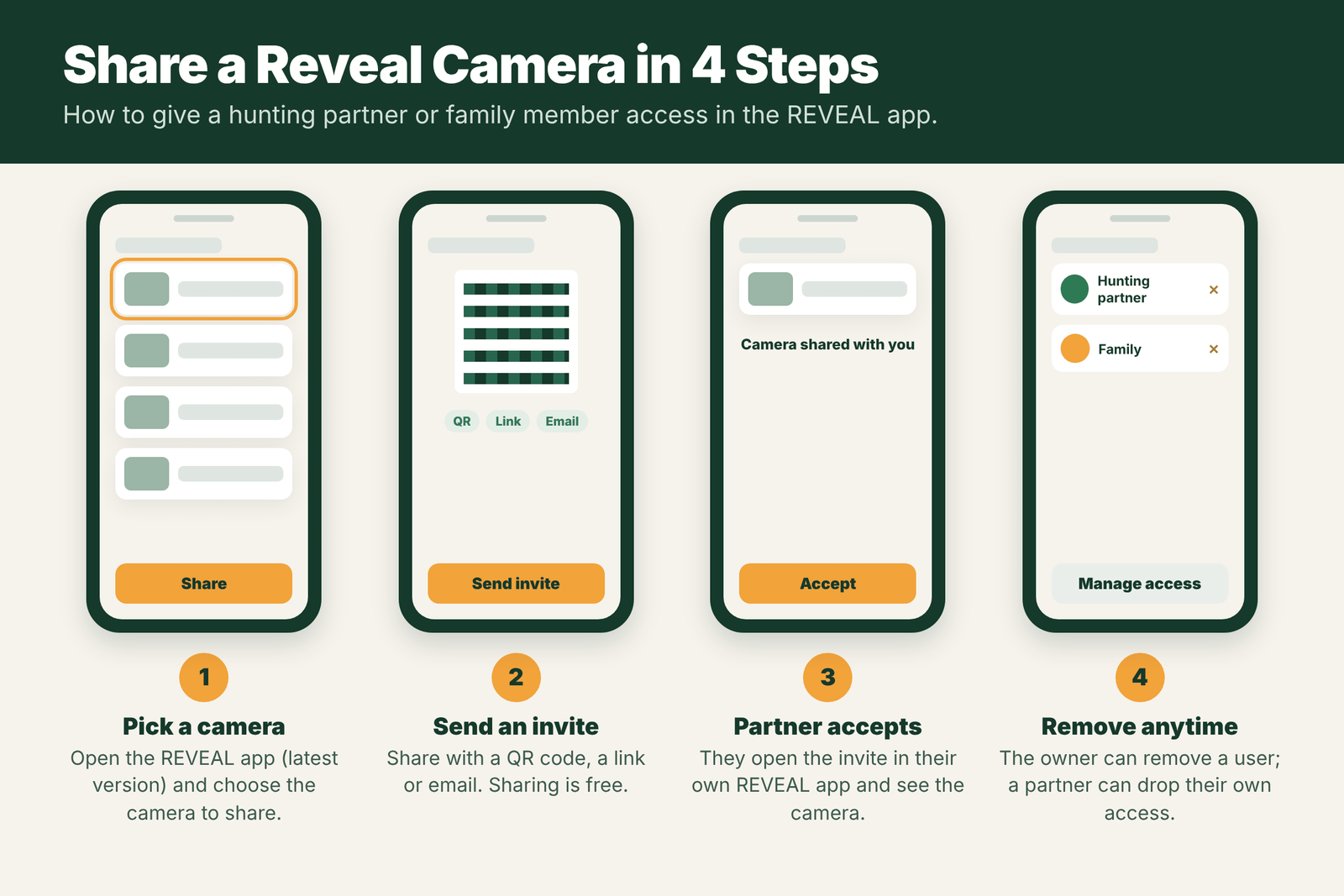
Update the REVEAL app to the latest version, open the camera you want to share, and use the share option to send an invite by QR code, link or email. Your partner opens the invite in their own REVEAL app and the camera appears in their camera list. Sharing is free and does not need a second data plan. The owner can remove a shared user at any time, and a shared user can remove their own access. To get access back after removing it, the owner must send a new invite. Menu names can change between app versions.
- Where
- REVEAL app, latest version
- Invite by
- QR code, link or email
- Cost
- Free
- Partner needs
- Their own REVEAL app account
- Remove access
- Owner, anytime
- Re-share
- Send a new invite
Sharing Feature Overview
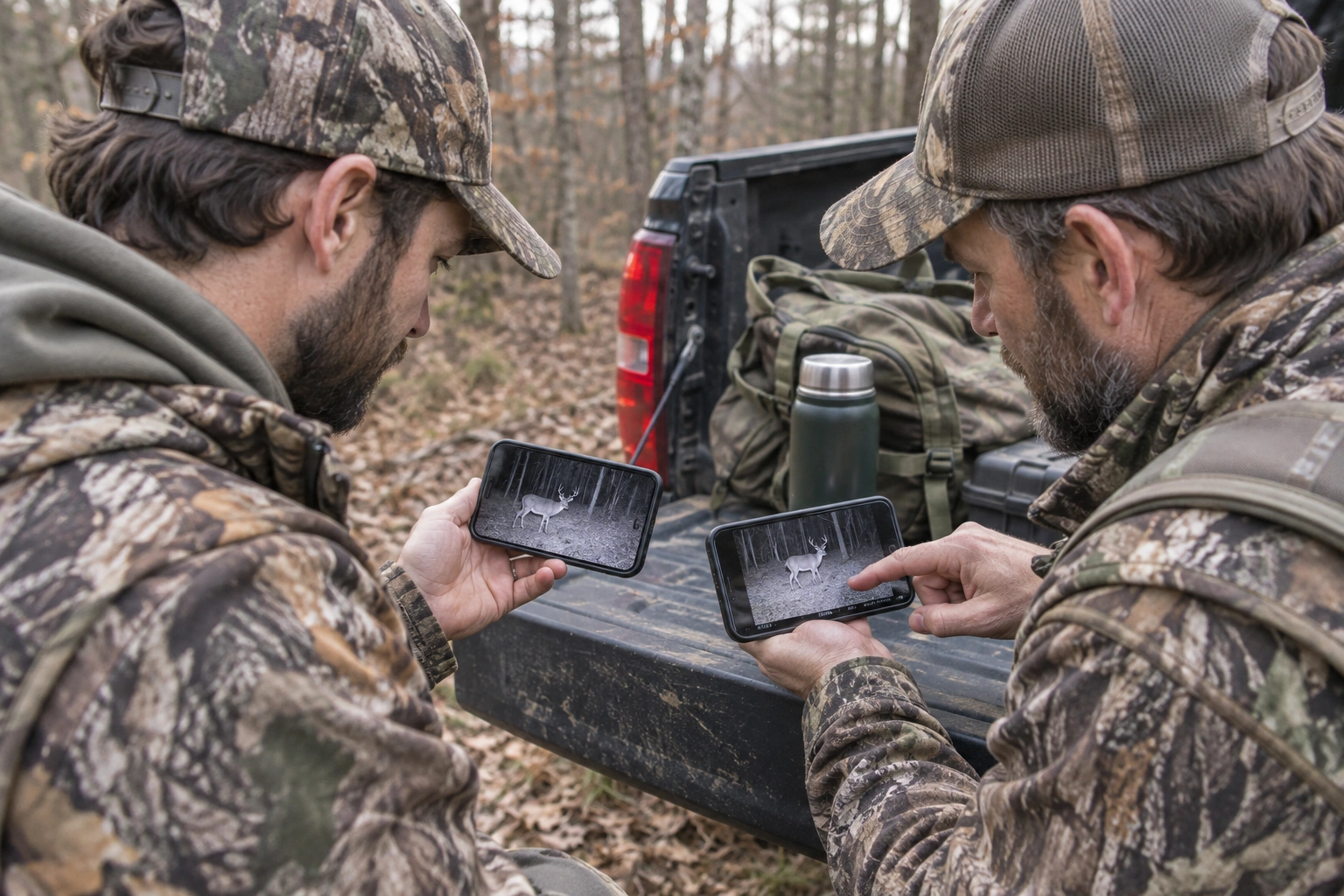
- What it does: lets another REVEAL app user see photos from your camera in their own app.
- Who pays: the camera owner keeps the data plan. Shared users do not need their own plan for that camera.
- How invites work: by QR code, a direct link or an email invite, so you do not have to swap email addresses if you share in person.
- Who controls it: the owner decides who has access and can remove anyone.
New to the system? See our Tactacam Reveal guide.
Step-by-Step in the App
- Update the REVEAL app on both phones to the latest version.
- Open the camera you want to share from your camera list. Give it a clear name first, such as “Creek Stand”, so your partner knows which one it is. See how to change a camera name on Tactacam Reveal.
- Choose the share option for that camera.
- Create the invite: show the QR code for your partner to scan, send the link, or enter their email.
- Your partner accepts in their REVEAL app. The camera then shows up in their list, usually marked as shared.
Permissions
The camera owner stays in charge of the camera, its plan and its sharing list. Shared users are mainly there to see the photos. Exactly which settings a shared user can change depends on the app version, so check in the app before you assume a partner can change settings or request HD photos. If you share several cameras, review each one, since sharing is set per camera.
Running several cameras? See can you have multiple trail cameras on one plan.
Removing a Shared User
- Owner: open the camera’s shared users list, select the person, and remove their access.
- Shared user: can remove the camera from their own app, under their cameras or shared section.
- Getting access back: once removed, the owner must send a new invite.
- Tip: review your sharing list at the end of each season, especially for leases and guest hunters.
Troubleshooting Invites
- Invite will not open: both people should update the REVEAL app, then try again.
- QR code will not scan: increase screen brightness, or send a link instead.
- Email invite not arriving: check spam, and confirm the address matches the one on their REVEAL account.
- Camera not showing: have your partner log out and back in, or pull down to refresh the camera list.
- Still stuck: contact Tactacam support with both account emails and the camera name.
Who Should You Share With?
Sharing is free, so it is easy to send invites to everyone. It is worth a minute of thought first, because anyone you share with can see where and when deer move on your ground. Common setups:
| Situation | Good approach | Watch out for |
|---|---|---|
| Hunting partner or family member | Share every camera | None, as long as you trust them |
| Lease with several members | Share the cameras on shared ground | Remove members who leave the lease |
| Landowner who lets you hunt | Share a camera near the house or gate for security | Do not share cameras on spots you want to keep private |
| Guest hunter for one weekend | Share one camera for the trip | Remove access after the hunt |
| Outfitter or guide clients | Share only cameras assigned to that client | Review access every season |
Setting Up Cameras Before You Share
- Name every camera clearly. Use a place name the other person knows, like “North Food Plot” or “Creek Crossing”, not “Camera 3”.
- Confirm the camera is checking in and sending photos before you invite anyone. Otherwise your partner sees an empty camera and assumes the share failed.
- Check that your plan has room. Sharing does not add photos to your plan, but more people watching often means more requests for full-size photos or video, which can use more of your allowance, depending on your plan.
- Decide on settings first. Set photo mode, trigger delay and upload size the way you want them, since the owner usually controls these.
- Tell your partner what to expect, such as how often the camera checks in, so they do not worry when photos arrive in batches.
Sharing on a Hunting Lease
Leases are where sharing helps most and causes the most trouble. A few simple rules keep things fair:
- Agree on who owns which camera. The person who pays the plan is the owner and controls the share list.
- Share common-area cameras with everyone, such as a gate, main road or shared food plot.
- Keep stand-specific cameras private if members have their own areas. That avoids arguments about who saw a buck first.
- Clean up the list when the lease changes. Former members keep access until the owner removes them.
- Do not use sharing as a way around someone else’s plan. Each camera still needs its own active plan from its owner.
Alerts for Shared Users
A shared user usually controls notifications in their own app, separately from the owner. That means you can each choose different alerts. For example, the owner might want every photo, while a partner only wants alerts for bucks. Check the notification settings in your app version, since options change over time. If a partner says they get no alerts, have them check that notifications for the REVEAL app are turned on in their phone settings as well as in the app.
Field Example
Two brothers hunt the same 80 acres with three Reveal cameras, all on one brother’s account. He renames the cameras “Gate”, “Ridge Scrape” and “Bottom Plot”, confirms each is checking in, and sends invites by link. The other brother accepts and turns on buck-only alerts for the scrape camera. When a friend comes for opening weekend, the owner shares only the gate camera, then removes the friend on Monday. Nobody had to share passwords, and the main account stays in one person’s hands.
Mistakes to Avoid
- Sharing your account password instead of using the share feature. Anyone with your login can change settings, plans and payment details.
- Forgetting to remove guests after a hunt or season.
- Sending an invite to the wrong email, such as a work address that is not linked to the partner’s REVEAL account.
- Assuming a shared user can fix the camera. Plan changes and most settings stay with the owner.
Sharing and Privacy
A shared camera shows more than deer. Depending on the app, a shared user may see the camera name, photo times, weather data and sometimes location details on a map. Before you share, look at what your camera name and map pin reveal. A name like “Smith Farm Back Gate” tells anyone who sees it exactly where the camera is. If you share with someone outside your hunting group, use a neutral name and check the map or location settings in the app. It also helps to think about photos of people. Cameras near gates, roads or cabins can capture neighbors, family members or workers, so share those cameras only with people who need to see them.
Frequently Asked Questions
Can I share my Tactacam Reveal camera with someone else?
Yes. The REVEAL app has a free sharing feature. Send an invite by QR code, link or email, and the other person sees the camera in their own app.
Does the person I share with need a data plan?
No. The camera owner keeps the plan. The shared user just needs the REVEAL app and an account.
How do I stop sharing a Reveal camera?
Open the camera’s shared users list in the app, select the person and remove their access. They will need a new invite to see it again.
Is camera sharing free on Tactacam Reveal?
Yes. Tactacam describes camera sharing as a free feature in the latest REVEAL app.
Why can’t my partner open the share invite?
Usually the app is out of date. Update the REVEAL app on both phones, then send the invite again or try a link instead of a QR code.
Can a shared user change my Reveal camera settings?
Usually the owner stays in control of the camera, its plan and most settings. What a shared user can change depends on the app version, so check in the app.
Does sharing a Tactacam Reveal camera use more data?
Sharing itself does not add photos. If shared users request full-size photos or video, that can use more of the owner’s plan, depending on how the plan works.
Can I share a Reveal camera without sharing my password?
Yes. Use the share feature in the REVEAL app to send an invite. Your partner logs in with their own account, so you never need to share your login.