
Bluetooth Trail Cameras: How They Connect to Your Phone
Pulling an SD card, putting it in a reader and squinting at photos on your phone in the woods gets old fast. Bluetooth trail cameras offer an easier way: walk up, open an app, and see your photos without touching the card. Here is how a trail camera connects to your phone with Bluetooth, how to pair it, how far it really reaches, and what to do when it will not connect.
A Bluetooth trail camera pairs with the brand’s app on your phone when you are close to the camera. Turn on Bluetooth (and location) on your phone, put the camera in Setup or Pair mode, add it in the app, and you can change settings and view photos. Many models use Bluetooth to connect and control, then switch to WiFi to download photos and video faster. Range is short, often around 30 feet or less in the woods. It is not remote viewing: you still have to walk to the camera. For photos sent from anywhere, you need a cellular camera.
- Connects with
- The brand’s phone app
- Range
- Short, often 30 ft or less
- Often paired with
- WiFi for fast downloads
- Battery use
- Low on Bluetooth
- Remote viewing
- No, you must be close
- For remote photos
- Cellular camera
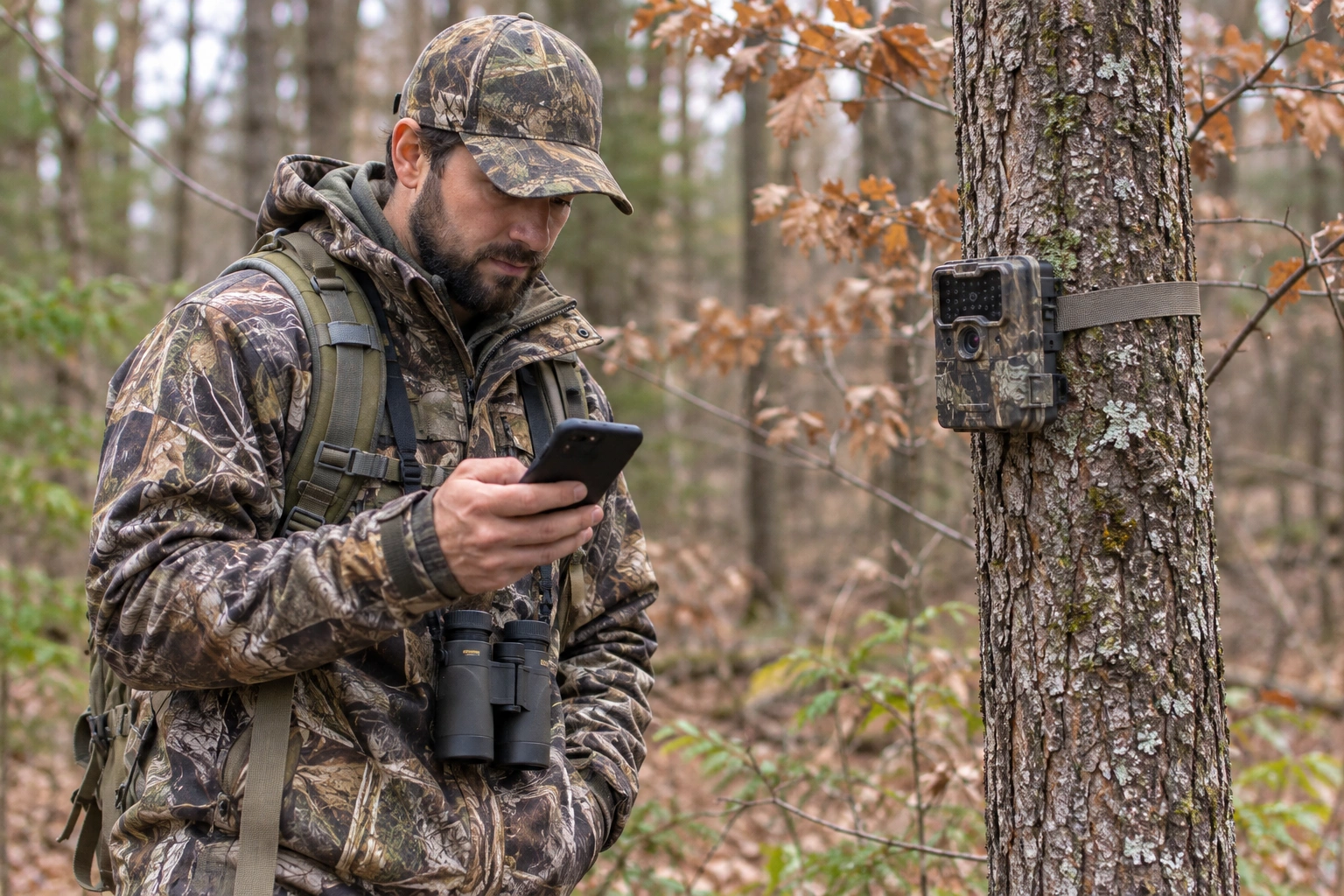
Bluetooth vs WiFi in Trail Cameras
- Bluetooth uses little power, so it can stay ready while the camera waits for you. But it is slow and short range, which makes it fine for settings and thumbnails, not for big files.
- WiFi (WiFi Direct, where the camera makes its own hotspot) is much faster and reaches a bit farther, but uses more battery. It is better for downloading full photos and video.
- Both together: many cameras sold as “Bluetooth and WiFi” use Bluetooth to find and wake the camera, then turn on WiFi only for transfers. That saves battery and keeps downloads quick.
Compare models in our list of the best trail cameras with Bluetooth.
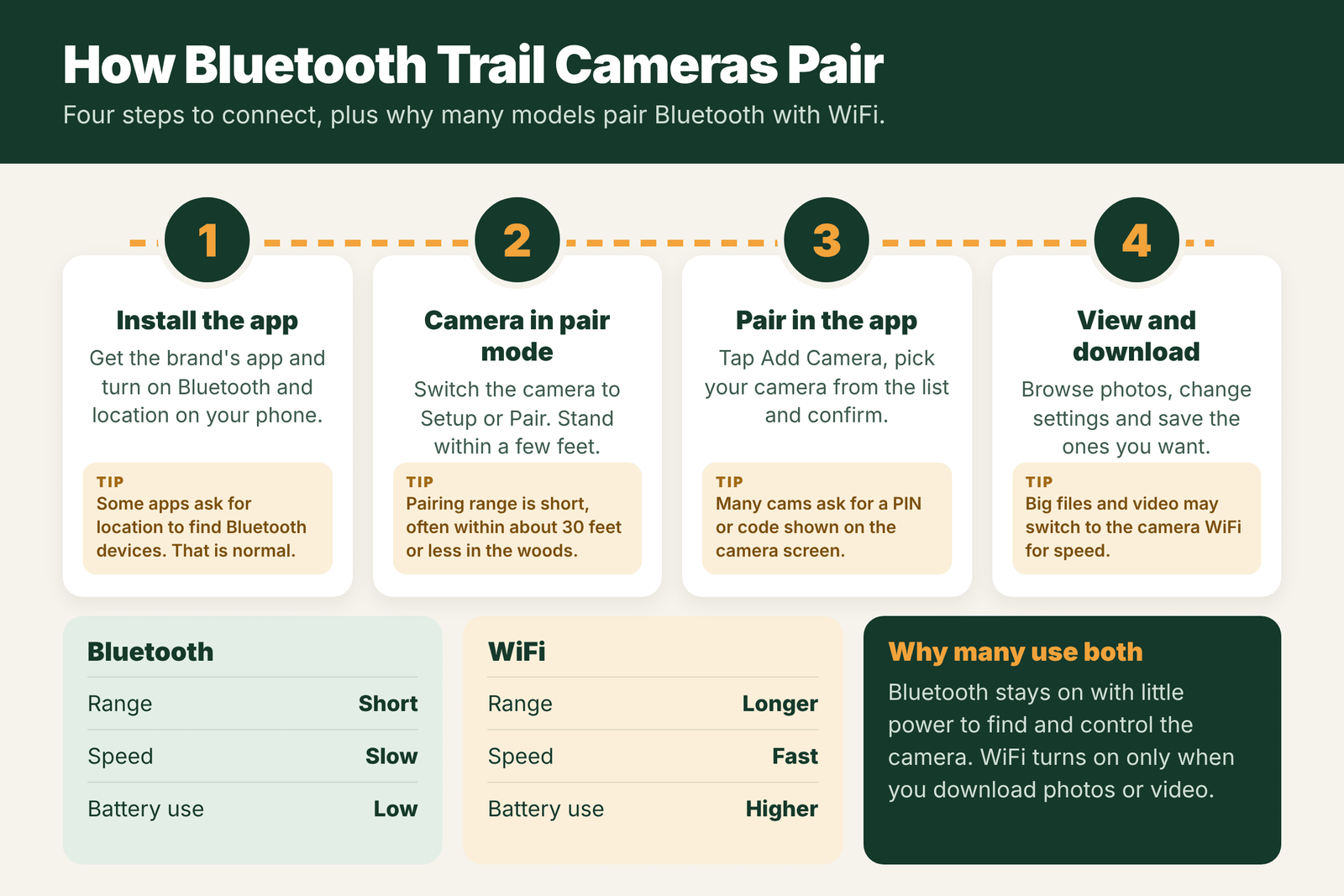
Pairing Step by Step
- Install the brand’s app and create an account if it asks.
- Turn on Bluetooth and location on your phone. Android and iPhone often need location on to find Bluetooth devices.
- Insert batteries and an SD card, then switch the camera to Setup, Pair or the mode your manual names.
- Stand close, within a few feet for the first pairing.
- In the app, tap Add Camera (or similar) and choose your camera from the list.
- Confirm the pairing, often with a PIN or code shown on the camera screen.
- Set the time, photo settings and name for the camera, then switch it to On.
For more ways to link a camera, see how to connect a trail camera to your phone.
Range in the Woods
Bluetooth range on the box is usually measured in open space. In the woods, trees, brush, the camera case and even your body cut it down. Many hunters find it works best within about 30 feet, and closer is more reliable. That is still handy: you can often check photos from a few steps away without touching the camera or leaving scent right on the tree.
Downloading Photos
- Browse thumbnails in the app over Bluetooth.
- Download full photos or video, which may switch the camera to WiFi for speed. Your phone may ask to join the camera’s WiFi.
- Save to your phone gallery or the app’s library.
- Delete or keep files on the card as you like. Downloading usually copies, not moves.
Large video files can take a while and use battery on both devices. Download only what you need in the field.
Common Pairing Problems
- Camera not found: make sure it is in Pair or Setup mode, Bluetooth and location are on, and you are close.
- Pairing drops: move closer, and check that batteries are strong. Low power can cut the radio.
- Phone joins its old WiFi: when the app switches to the camera’s WiFi, your phone may jump back to another network. Turn off auto-join for other networks or confirm the switch.
- App permissions: allow Bluetooth, location and local network access in your phone settings.
- Still stuck: restart the phone and the camera, update the app and firmware, and remove and re-add the camera.
Learn how the WiFi side works in how a WiFi trail camera works.
Bluetooth vs WiFi vs Cellular for Phone Access
| Feature | Bluetooth | WiFi Direct | Cellular |
|---|---|---|---|
| Range | Very short, often tens of feet | Short, often under 100 feet in the woods | Anywhere with cell signal |
| Speed | Slow; good for settings and thumbnails | Faster; good for full photos and video | Depends on signal and plan |
| Battery use | Low | Higher while on | Highest overall |
| Monthly cost | None | None | Plan required |
| Typical use | Pairing, settings, previews | Downloading photos at the camera | Remote viewing and alerts |
Step-by-Step: Pairing for the First Time
- Install the brand’s app and create an account if needed, while you have good internet at home.
- Update the app and camera firmware before you head to the woods.
- Turn on Bluetooth and location on your phone. Many phones need location on for Bluetooth device scanning.
- Put fresh batteries in the camera and switch it to Setup or Pair mode.
- Tap add camera in the app and stand close to the camera, within a few feet.
- Confirm the pairing code or prompt, then name the camera.
- Test it: change one setting and check a photo preview.
Pair at home first. If something goes wrong, it is much easier to fix at the kitchen table than in the woods.
Common Problems and Fixes
| Problem | Likely cause | Fix |
|---|---|---|
| Camera not found in app | Not in Pair mode, too far away | Switch to Setup or Pair mode and stand closer |
| Pairs, then drops | Weak batteries, interference, distance | Fresh batteries, move closer, turn off other Bluetooth devices |
| Cannot download full photos | Camera needs WiFi for large files | Allow the phone to join the camera WiFi when asked |
| App asks for permissions | Bluetooth or location blocked | Allow Bluetooth and location for the app in phone settings |
| Old pairing will not connect | Saved pairing conflict | Forget the device in phone settings and pair again |
Field Examples
The hidden camera: a hunter mounts a camera 8 feet high to keep it hidden. With Bluetooth, settings can be changed from the ground without climbing up, and photos downloaded over the camera’s WiFi in a couple of minutes.
The long walk: another hunter expects to check photos from the truck 300 yards away. Bluetooth does not reach that far. A cellular camera would be needed for that kind of distance.
Mistakes With Bluetooth Cameras
- Expecting remote access. Bluetooth only works close to the camera.
- Pairing for the first time in the field without signal to log in to the app.
- Leaving wireless on all the time, which can drain batteries on some models.
- Ignoring app updates, which often fix pairing bugs.
Battery Tips
Bluetooth itself uses little power, but some cameras keep their radios ready to pair, and downloads over WiFi use more. Turn wireless features off in the settings when you do not need them, or use the camera’s schedule if it has one. Lithium batteries keep the camera responsive in the cold, which also helps pairing.
Why Bluetooth Cameras Are Growing in Popularity
Bluetooth used to be rare on trail cameras. Now it shows up on many mid-range models, for a few good reasons. Phones are easier to use than the small buttons and screens on a camera, especially with cold fingers. Bluetooth lets you set up a camera mounted high in a tree from the ground. It avoids opening the case in bad weather, which protects the seal and keeps moisture away from the SD card. And it lets you check photo previews on the spot, so you can decide whether to move the camera without carrying a laptop or card reader. The trade-off is that you still have to walk to the camera, so it does not replace cellular for places where every visit risks spooking deer.
Where a Bluetooth Camera Makes Sense
- Food plots and field edges you already walk past often.
- Cameras mounted high for security or to stay hidden.
- Public land where you do not want to leave a camera that sends signals, or where cellular cameras are restricted. See what states ban trail cameras.
- Hunters on a budget who want phone convenience without a monthly plan.
Downloading Faster
If downloads feel slow, download thumbnails first and pick only the photos you want in full size. Videos take the longest, so download them last or copy the SD card at home. Keep your phone close to the camera and avoid standing behind the tree, since the trunk can block the signal. Some apps let you download in batches; letting the phone stay unlocked during the transfer helps too.
Frequently Asked Questions
How do I connect my Bluetooth trail camera to my phone?
Install the brand’s app, turn on Bluetooth and location, put the camera in Setup or Pair mode, stand close, and add the camera in the app.
How far does a Bluetooth trail camera reach?
Usually a short distance. In the woods, many work best within about 30 feet, and closer is more reliable.
Can I see Bluetooth trail camera photos from home?
No. Bluetooth only works near the camera. To get photos at home, you need a cellular trail camera.
Why do Bluetooth trail cameras also use WiFi?
Bluetooth uses little power but is slow. WiFi is faster for downloading full photos and video, so many cameras use both.
Why won’t my trail camera pair with my phone?
Check that the camera is in pair mode, Bluetooth and location are on, app permissions are allowed, batteries are strong and you are close. Then restart both and try again.
Do I need internet to use a Bluetooth trail camera?
Not to pair and download in most cases, but many apps need internet the first time you log in or register the camera.
Can I change trail camera settings with Bluetooth?
Yes. That is one of the main uses: changing settings from your phone without opening the camera.
Why does my Bluetooth trail camera need location permission?
Many phones require location access for apps that scan for nearby Bluetooth devices.