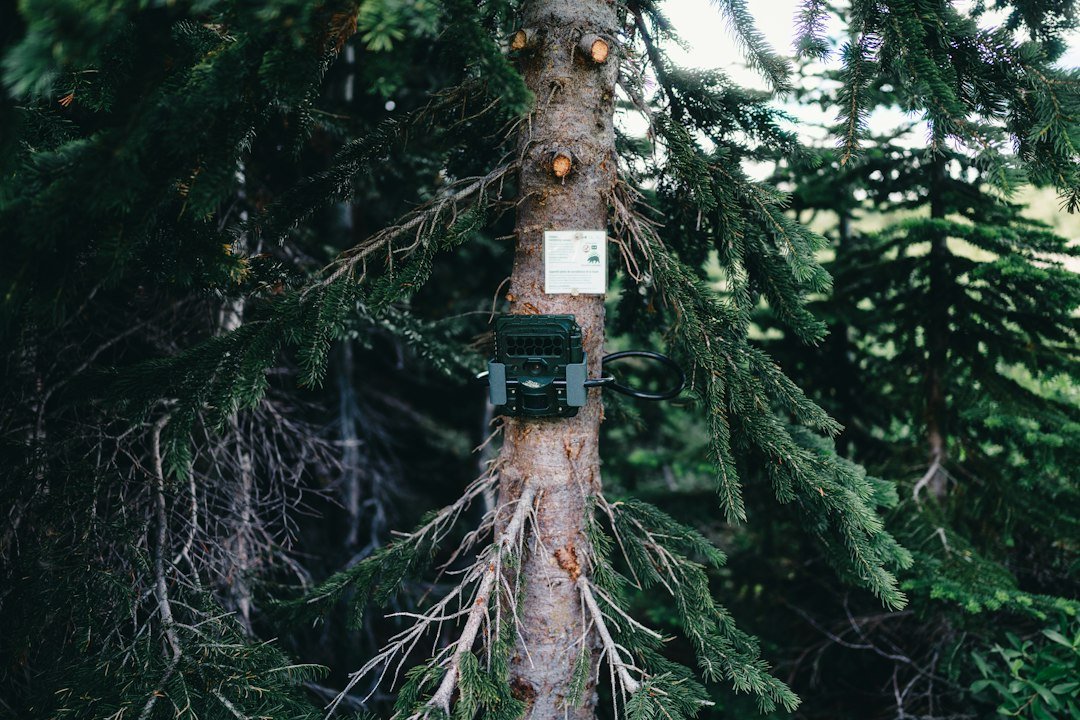
How to fix a trail camera depends on whether the problem involves power, storage, motion detection, image quality, moisture, or cellular service. This practical guide walks through safe checks you can perform before deciding whether the unit needs professional repair.
Start With a Safe, Repeatable Diagnosis
A trail camera that appears broken may simply have exhausted batteries, a full memory card, incorrect scheduling, or an obstructed sensor. Begin by bringing the camera indoors, drying the outside, and recording its current settings before changing anything. Use a clean table with good lighting. Remove the memory card and batteries only while the unit is switched off, unless the manufacturer specifically instructs otherwise. Inspect the door seal, battery contacts, latch, and card slot without poking tools into connectors. If the case is cracked, the battery compartment is swollen, or water has reached the circuit board, stop using the camera and contact the manufacturer. A practical troubleshooting process changes one variable at a time so you can identify the actual cause instead of accidentally masking it.
1. Trail Camera Will Not Turn On
Replace the entire battery set with fresh cells of the exact type specified by the manufacturer. Do not mix new and used batteries or different chemistries unless the manual explicitly allows it. Confirm the polarity markings inside the tray; one reversed cell can prevent startup. Examine contacts for corrosion, bent springs, or debris. A dry microfiber cloth can remove loose dirt, but do not scrape contacts aggressively or apply liquid into the compartment. If your model uses a removable battery tray, ensure it is fully seated. Disconnect any external solar panel or power pack and test the camera on its approved internal power source first. This separates camera problems from external cable or voltage problems. If it still will not boot with known-good batteries, consult the model’s support team rather than opening a sealed electronic housing.
2. Camera Powers On but Takes No Pictures
First distinguish a capture failure from a detection failure. Set the camera to its test or setup mode, if available, and take a manual test image. If manual images save correctly, the lens and storage may be functioning while motion detection or scheduling needs attention. Check that the camera is actually in its armed or ON position, not merely in setup. Review start and stop times, working-day schedules, capture delay, and time-lapse mode. A long delay can make it seem as though events are being missed. Walk across the detection area rather than directly toward the lens, because passive infrared detection can behave differently with the direction of movement. Review the manufacturer’s recommended detection distance and avoid expecting reliable triggering far beyond it.
3. Fix an SD Card Error
Power the camera off before removing the SD card. Confirm that its capacity, card type, and speed class are supported by your specific camera; compatibility varies widely. Check the lock switch on a full-size SD adapter and make sure the card clicks into place. Copy any important photos to a computer before formatting, because formatting erases stored files. When possible, format the card using the camera’s own format menu, following its manual. If the camera continues to show a card error, test a different known-good, compatible card. Avoid repeatedly forcing a damaged card into the slot. If two compatible cards fail in the same unit, the problem may be with the slot or camera firmware rather than the cards.
4. Fix Blurry or Washed-Out Pictures
Inspect the outside lens window for fingerprints, dried rain, mud, condensation, and protective film that was never removed. Clean the exterior gently with a suitable lens cloth, not abrasive paper. Check whether the camera is vibrating on a loose strap or branch; movement can create soft-looking images. For nighttime pictures, inspect nearby grass, leaves, and reflective surfaces. Objects close to the infrared LEDs can become extremely bright while the subject remains dark. Reposition the camera away from reflective trunks or branches. Also remember that some night images show motion blur because the available illumination and exposure differ from daylight. A cleaner lens will not correct every motion-blur problem, but better placement often improves consistency.
5. Trail Camera Takes Too Many Empty Photos
Repeated pictures of empty scenery often indicate moving vegetation, direct sunlight warming surfaces, or unstable mounting rather than a failed sensor. Clear small branches and tall grass from the immediate detection zone without damaging the habitat. Angle the unit away from strong direct sunlight when practical, and tighten the mount so wind does not move the camera. If the model has adjustable PIR sensitivity, reduce it one step and test again. Avoid setting sensitivity so low that the desired animals are missed. Compare timestamps and weather conditions for false triggers; windy, sunny periods may reveal the cause. For more on sensitivity and detection, see trail camera PIR sensitivity settings.
6. Trail Camera Does Not Trigger at Night
Start with a controlled walk test in low light where it is safe to do so. Verify that nighttime capture is enabled and that the camera has sufficient battery power. Weak batteries can sometimes affect infrared illumination or other power-intensive features even when menus still operate. Examine the infrared LED window for dirt, tape, or obstructions, but never stare into active infrared emitters at close range. Remove branches immediately in front of the lens that may reflect infrared light. Check whether the camera is set to video rather than still photos, and whether the recording duration or recovery delay makes activity appear absent. If daytime triggering works but nighttime triggering consistently fails after these checks, the infrared subsystem may need professional service.
7. Fix Black Night Photos and White Night Photos
Completely black nighttime images can arise from blocked illumination, insufficient power, unsuitable exposure settings, or hardware failure. Begin with fresh approved batteries and a clean unobstructed infrared window. If images are almost entirely white, move the camera away from close reflective objects and clean the lens cover. Do not assume every bright white image is a defective camera: nearby foliage, precipitation, insects, and reflective surfaces can dominate the frame. Test the same location with an unobstructed foreground before changing multiple menu settings. Compare a series of test shots rather than a single image. If your camera offers night exposure or illumination settings, use the manufacturer’s defaults as the baseline.
8. Fix Short Battery Life
Battery life depends on camera design, temperature, number of triggers, nighttime illumination, video duration, and cellular transmission. Start by reviewing how many files the camera records each day. Hundreds of empty images can drain power even when the hardware is healthy. Shorten video clips if your monitoring goal permits and increase the interval between captures where appropriate. Cellular cameras may consume additional power while searching for a weak signal. Verify that any external power source provides the voltage and connector polarity specified for your model; a connector that fits physically is not proof of electrical compatibility. Never improvise wiring or use a damaged battery pack. Read how long trail camera batteries last for a fuller explanation of power-related tradeoffs.
9. Cellular Trail Camera Will Not Send Photos
A cellular camera can save photos to its SD card while failing to upload them. That distinction matters. First verify that local capture works, then check whether the cellular plan is active, the device is registered to the correct account, and the app shows a usable connection. Confirm the manufacturer-supported SIM arrangement; many cameras use integrated or provisioned SIMs that should not be swapped casually. Move the unit temporarily to a location with better reception for a controlled test. Follow the maker’s procedure for forcing a connection or requesting a test upload, since menus vary by brand. If local images work and network uploads fail only at one site, signal coverage may be the main issue. A factory reset should be a last resort because it can erase useful configuration.
10. Camera Freezes or Keeps Restarting
A frozen screen or repeated reboot can reflect low voltage, incompatible storage, firmware trouble, or hardware damage. Power the camera down and disconnect external accessories. Install fresh approved batteries and try booting without the SD card only if the manufacturer permits this diagnostic. If it starts normally, shut it down again and test with a compatible formatted card. Review firmware instructions for your exact model and hardware revision. Never install firmware intended for a similar-looking but different camera. Keep power stable throughout any official update and do not interrupt it. If the device repeatedly restarts even with known-good power and storage removed, stop cycling it and seek support.
11. Fix Incorrect Date and Time
Wrong timestamps make wildlife activity difficult to interpret and can interfere with scheduled recording. Set the correct local date, time, time zone, and daylight-saving option, if offered. Some cellular models synchronize time through their network or app; others require manual setup. After setting the clock, take a test picture and check its displayed timestamp. If the time resets after every battery change, check the manual for any clock-backup behavior and confirm the main batteries are installed correctly. Avoid assuming a time-zone error means the image files themselves are corrupted. The camera may simply be using a different clock setting from your phone or computer.
12. Fix Moisture, Fogging, and Water Problems
Condensation on the outside of a lens is different from moisture trapped inside the housing. Wipe exterior moisture with a clean cloth and allow the camera to reach ambient temperature. Inspect the gasket for dirt, deformation, and trapped straps or cables that prevent the door from sealing. Do not apply random oils, sealants, or solvents to the gasket, as they may damage its material. If droplets appear behind the lens or inside the battery compartment, remove batteries, stop using the camera, and contact the manufacturer for inspection. Drying a wet camera does not guarantee that internal corrosion or electrical damage has been resolved. See how to prevent condensation in a trail camera for additional placement and moisture-management advice.
13. Test the PIR Sensor and Camera Placement
The PIR sensor responds to changes in infrared radiation across its detection zones; it does not identify animals the way a person does. Mount the camera securely, activate its walk-test feature if provided, and move across the intended detection area at several distances. Note where the test indicator activates. Repeat the test after adjusting the camera’s height and angle. Aiming directly at open sky, moving leaves, or a sun-heated background can make results less predictable. Use the model’s instructions for placement height because the best position differs for small animals, deer, and security-style monitoring. A useful companion guide is how to aim a trail camera.
14. When to Reset the Camera
A factory reset can be appropriate when settings have become confusing, but it should not be the first step. Photograph or write down the current configuration, including date, capture mode, delay, schedules, cellular account details, and any custom settings. Back up images before formatting storage. Look for a reset option in the manufacturer’s manual; the button sequence may differ even within one brand. After resetting, configure only the minimum settings needed for a simple test photo. If that works, restore your preferred options one at a time. This method helps identify whether a particular setting caused the original problem. A reset cannot repair cracked seals, damaged contacts, or a failed image sensor.
15. When to Repair, Replace, or Contact Support
Contact support when the camera remains unresponsive with verified compatible power, repeatedly corrupts files on multiple supported cards, has visible internal water damage, or cannot produce a test image after basic checks. Record the model number, firmware version if accessible, purchase date, and a short description of the exact failure. Include a few original sample files if the issue concerns image quality. Ask whether the product is covered by warranty before attempting any disassembly. Opening a sealed housing can damage waterproofing and may affect warranty coverage. Replacement may be more sensible than repair for inexpensive models, but the decision depends on manufacturer policy, parts availability, and actual service cost rather than a universal rule.
Quick Troubleshooting Checklist
Before returning the camera to the field, complete a short controlled test. Confirm that batteries are fresh and correctly installed, the card is supported and has available space, the clock is accurate, and the camera is armed. Capture one manual photo and one motion-triggered photo, then review both on a computer or in the app. If cellular upload is required, verify an actual delivered test image rather than relying only on signal bars. Recheck the gasket and mounting strap, then leave the camera operating briefly in a safe test location. A successful test under controlled conditions is more useful than changing many settings and immediately redeploying the unit miles away.
Frequently Asked Questions
Why is my trail camera not taking pictures? The most useful first checks are batteries, compatible SD storage, armed mode, scheduled hours, and a walk test. Can I fix a trail camera myself? Basic cleaning, power replacement, card formatting, and configuration checks are reasonable for many models. Internal electronic repairs should be left to qualified service. Why does my camera work during the day but not at night? Check power, infrared illumination, and reflective foreground objects before suspecting a hardware defect. Will formatting the SD card fix the camera? Formatting may resolve some storage problems but erases files and will not repair a damaged sensor or power circuit. Should I update firmware? Only when an official update applies to your exact model, following its documented instructions. What if the camera still fails? Preserve the symptoms and test results, then contact the manufacturer.
Editorial note: Exact menus, battery chemistry, supported memory cards, and reset procedures vary by model. Always prioritize the instructions supplied with your camera.
As an Amazon Associate, I earn from Qualifying Purchases.