Update via the camera maker's firmware file on an SD card or app, then install per instructions.
I’ve updated dozens of trail cameras for fieldwork and backyard monitoring. This guide shows exactly how to update trail camera firmware step by step. You’ll get clear prep checks, a safe update routine, troubleshooting tips, and real-world lessons from my experience. Read on to learn how to update trail camera firmware reliably and keep your camera working at peak performance.

Why updating firmware matters
Firmware is the small software that runs your trail camera’s brain. Updating fixes bugs, improves battery life, and adds new features. If you know how to update trail camera firmware, you can avoid missed photos, false triggers, and security holes. Keep updates timely to protect data and get better images in the field.

What firmware is and when to update
Firmware sits between hardware and apps. It controls sensors, motion detection, time stamps, and network links. You should update when manufacturers release patches, when your camera acts odd, or when you want new features. Common triggers include image timing errors, Wi-Fi problems, or battery drain. Knowing how to update trail camera firmware helps you respond fast and safely.
Preparation checklist before you update
Follow this short checklist before any firmware change:
- Verify camera model and current firmware version from the camera menu or label.
- Download the exact firmware file from the manufacturer’s support page.
- Use a fresh, formatted SD card (recommended speed class per camera manual).
- Fully charge batteries or use fresh cells; avoid power loss during install.
- Backup important images and settings to your computer.
- Read the firmware release notes so you know what fixes or changes to expect.
These steps reduce risk and make recovery easier if something goes wrong. If you want a quick tip: write the version number and date on a sticker for the camera.
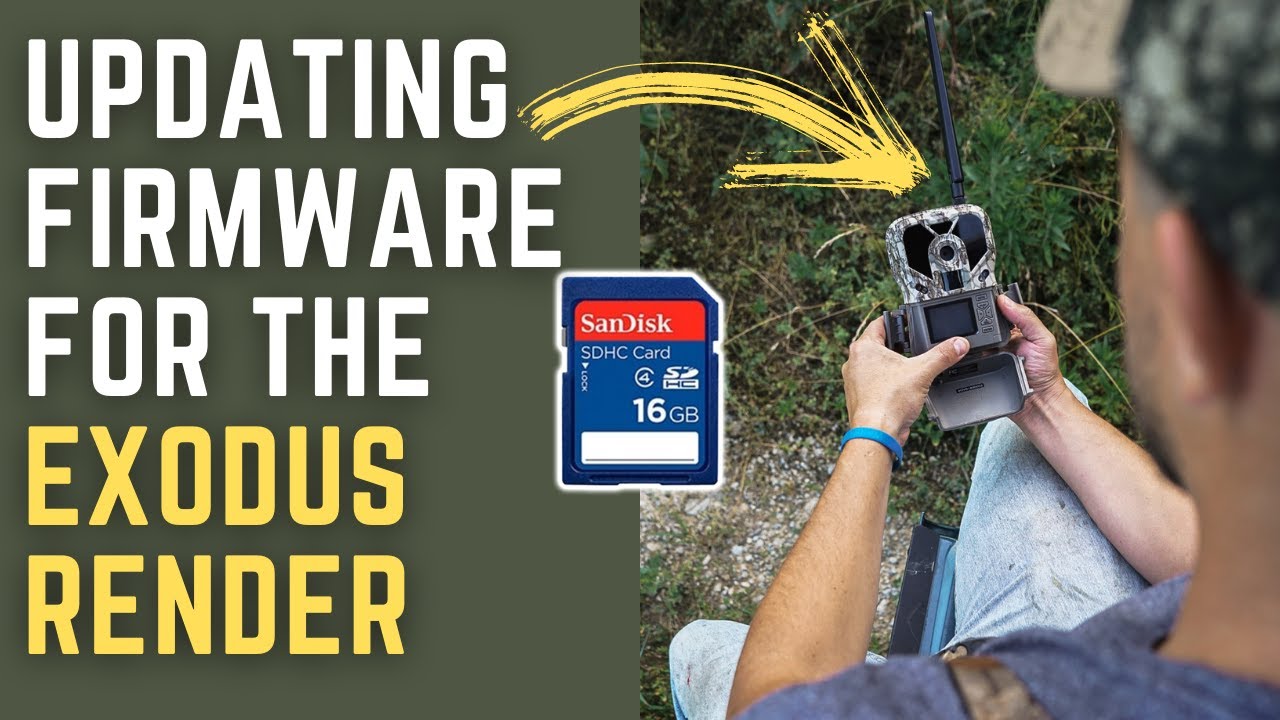
Step-by-step: how to update trail camera firmware
Below is a safe, common method that fits most cameras. Always check your model’s manual first.
- Confirm model and firmware
- Turn on the camera.
- Find the firmware or system info in settings.
- Note the current version.
- Get the correct firmware file
- Go to the camera maker’s support/downloads page.
- Select your exact model.
- Download the firmware file to your PC.
- Prepare the SD card
- Format the SD card in the camera or use the computer to format FAT32/exFAT per manual.
- Copy only the firmware file to the root folder (not inside other folders).
- Insert and install
- Insert the SD card into the powered-off camera.
- Power the camera on or follow the model’s special install steps.
- Wait—do not remove power or the card during the update.
- Confirm success
- Camera may reboot. Check firmware version in settings.
- Restore settings if needed. Reinsert backup SD with images.
If your model supports app or Wi‑Fi updates, the steps change slightly:
- Open the official app and pair the camera.
- Choose firmware update from the app menu.
- Let the app download and push the update. Stay within Bluetooth/Wi‑Fi range until it finishes.
Practice this routine once at home to build confidence. Learning how to update trail camera firmware by doing it in a safe setting makes field updates painless.

Troubleshooting common update problems
If the update fails, try these fixes:
- Camera won’t boot after update
- Remove batteries and SD card. Wait 10 seconds. Reinstall and power on.
- Update file not recognized
- Re-download file. Confirm file name and extension match developer instructions.
- Update freezes or stops
- Remove power, wait, then restart installation with fresh batteries.
- Lost settings after update
- Reapply your saved settings. Keep a settings template note for quick restore.
- Corrupt SD card errors
- Replace the card and format it in the camera before retrying.
If you still fail, contact support and give them firmware version and camera serial number. Document each step you tried. That makes help faster and more accurate.

Best practices and lessons from experience
I’ve updated many cameras on old hunting stands and at research sites. Here’s what I learned:
- Always test updates at home first. I once bricked a camera that I tried to update in deep cold. Never update outdoors in extreme weather.
- Use fresh, high-quality batteries. Low power is the main reason updates corrupt.
- Keep a backup SD card with current photos. I lost a week of game images once after an interrupted update. Backups save heartache.
- Note firmware history. Keep a simple log: model, serial, old version, new version, date, and notes.
- Do not skip release notes. A small change may reverse a setting you rely on.
These simple habits cut downtime and protect data. They also help you spot problems early and explain behavior changes after an update.

Advanced tips for longer camera life
Use these ideas once you know how to update trail camera firmware:
- Version control
- Keep copies of each firmware you install. Some updates add features; others remove compatibility.
- Scheduled maintenance
- Plan firmware checks twice a year or before major seasons.
- Remote update strategies
- For networked cameras, restrict updates to secure Wi‑Fi only. Disable automatic updates if you need control.
- Power stability
- Consider external power packs or solar setups during firmware installs on remote units.
- Security
- Use strong passwords for app-connected cameras. Firmware updates can patch security flaws—apply them promptly.
These practices help your cameras serve long term and reduce human error.

Quick PAA-style questions
How long does a firmware update take?
Most updates finish in 1–10 minutes. Complex updates or downloads can take longer if the file is large or the connection is slow.
Can a failed update ruin my camera?
A failed update can corrupt software but not usually hardware. You can often recover by reloading firmware or contacting support.
Is it safe to update in the field?
Avoid updating outdoors in wet, hot, or cold conditions. Field power loss raises the risk of a bad install.

Frequently Asked Questions of how to update trail camera firmware
How often should I update my trail camera firmware?
Update when the maker releases a new version, or if you see bugs. For many users, checking twice a year is a good habit.
Do I need a special SD card to update firmware?
You usually need a standard SD card formatted as the manual requires. High-quality, reliable cards lower the chance of corruption.
Can I revert to an older firmware if a new one causes problems?
Some manufacturers allow rollback if you keep older firmware files. Save previous versions to test and restore if needed.
Will updating firmware delete my photos?
Most updates do not delete photos, but interruptions can corrupt files. Always back up images before updating.
What if the camera shows “update failed” and won't start?
Remove power and SD card, wait a minute, then reinsert and retry the update. If that fails, contact manufacturer support with error details.
Conclusion
Keeping your trail camera updated prevents bugs, improves features, and protects your data. Follow the simple prep steps, test updates at home, and use fresh power during installs. Start a firmware log and back up your photos before every update. Take one action this week: check your camera model and current firmware version, then plan an update if needed. If you found this guide helpful, leave a comment or subscribe for more practical tips on trail camera care.
As an Amazon Associate, I earn from Qualifying Purchases.