
Is your Stealth Cam taking photos but refusing to upload them? You’re not alone.
When your trail camera snaps the perfect shot but fails to send it to your phone or email, frustration quickly sets in. Whether you rely on your Stealth Cam for wildlife monitoring, security, or hunting, getting those photos delivered promptly is crucial.
But don’t worry—this problem often comes down to a few common issues like weak cellular signals, battery troubles, or incorrect settings. You’ll discover simple, step-by-step fixes that will get your Stealth Cam uploading photos again, so you never miss a moment. Keep reading to regain full control of your camera and enjoy seamless photo uploads every time.
Credit: www.stealthcam.com
Check Cellular Signal
Checking the cellular signal is essential when your Stealth Cam is not uploading photos. The camera relies on a strong signal to send images to your phone or email. A weak or no signal can stop the photos from uploading, even if the camera takes pictures properly.
Many users overlook the signal strength, but it plays a key role in photo transmission. Before changing settings or replacing parts, verify the signal quality. This simple step can save time and ensure your camera works smoothly.
Check Signal Strength On Your Camera
Most Stealth Cams show signal strength on the screen. Look for bars or a numeric indicator. More bars mean a better connection. If the signal is low or missing, try moving the camera to a different location. Higher places or open areas often have better coverage.
Perform A Hello Test
The Hello Test helps check if your camera can connect to the network. Go to Menu > Wireless > Diagnostic > Hello Test. The camera will try to send a test message. If the test fails, the signal is too weak or there is a network issue.
Use A Signal Booster Or Antenna
In places with weak cellular coverage, a signal booster can help. Some Stealth Cams allow you to add an external antenna. This improves reception and helps photos upload faster. Choose an antenna compatible with your camera model.
Check Network Coverage In Your Area
Verify that your cellular provider offers good coverage where your camera is placed. Use the provider’s coverage map online. Rural or remote areas may have poor or no signal. Consider changing your camera location or provider if needed.
Credit: www.walmart.com
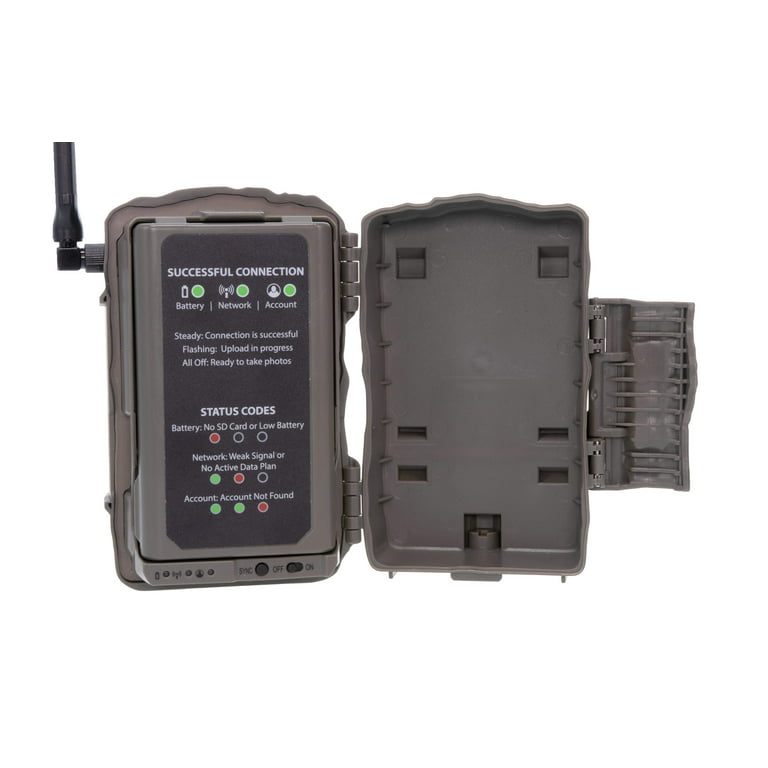
Verify Battery Levels
Verifying the battery levels is crucial when your Stealth Cam does not upload photos. Low or dead batteries often cause the camera to stop working properly. The camera needs enough power to take pictures and send them through the cellular network.
Checking the battery status can save time and prevent frustration. It is one of the first steps to troubleshoot before looking for other problems. Always use fresh batteries or fully charged rechargeable ones for the best results.
Check Battery Indicator On The Camera
Look at the battery icon on the camera screen. It shows the current battery level. If the icon shows low power, replace or recharge the batteries immediately. This simple check helps ensure the camera has enough energy to operate.
Use High-quality Batteries
Cheap or old batteries lose power quickly. They may cause the camera to turn off or fail to upload photos. Choose alkaline or lithium batteries for longer life. These batteries perform better in cold weather too.
Replace Batteries Regularly
Even good batteries run out over time. Change them after a few weeks of use. Always carry spare batteries when using the camera in remote areas. Regular replacement keeps your camera ready to capture and send images.
Test With A Fully Charged Battery
Try using a fully charged battery pack or new batteries. If the camera works and uploads photos, the old batteries were the problem. This test confirms that battery power affects photo uploads.
Inspect Sd Card
Checking the SD card is vital when your Stealth Cam fails to upload photos. The card stores all captured images before transfer. A faulty or full SD card often blocks photo uploads. Start by inspecting the card’s condition and compatibility.
Look for physical damage like scratches or cracks on the card. Also, ensure the card fits properly in the camera slot. Dirt or dust may cause poor contact, so clean the card gently before reinserting it.
Format Sd Card
Formatting the SD card can solve many upload issues. It clears corrupted files that block new photo storage. Use the camera’s format option to ensure proper file system setup. Avoid formatting the card on a computer unless necessary. Always back up important photos before formatting. A freshly formatted card helps the camera save and upload pictures smoothly.
Try Different Sd Card
Using a different SD card helps identify if the original card is the problem. Choose a card recommended by Stealth Cam for best results. Insert the new card and test if photos upload correctly. If the camera works with another card, replace the faulty one. This quick test saves time and confirms if the SD card caused the upload failure.
Review Camera Settings
Reviewing your Stealth Cam’s settings is key to fixing photo upload issues. Incorrect settings can block photos from sending. Adjusting these options can restore proper function. Check every detail carefully to avoid missed images.
Photo Mode
Photo mode controls how the camera captures images. Choose the right mode for your needs. For example, set it to “Photo Only” if you want still pictures. Some modes focus on video or time-lapse, which may delay uploads. Confirm your camera is not in a mode that hinders uploads. Double-check this setting in the camera menu or app.
Transmission Frequency
Transmission frequency sets how often photos upload to your device. A higher frequency sends images quickly but uses more battery and data. Lower frequency saves power but delays uploads. Find a balance that fits your location and signal strength. Adjust the frequency to improve photo delivery. Use the camera’s menu or app to change this setting easily.
Test Camera Connectivity
Testing your Stealth Cam’s connectivity helps find the cause of photo upload issues. Confirm the camera communicates well with your network. This step ensures the camera sends pictures properly. Follow simple tests to check connection and fix problems fast.
Perform Hello Test
The Hello Test checks if your camera talks to the network. Turn on the camera and go to Menu. Select the Wireless option, then choose Hello Test. The camera sends a signal to confirm connection with your phone or app.
If the test fails, check your signal strength. Move the camera to a spot with better reception. Retry the Hello Test until you get a successful message. This step verifies the camera’s network link is active.
Manual Photo Send
Manual Photo Send lets you send a test picture instantly. Open the camera menu and find the option to send a photo manually. This helps check if the camera can upload images on demand.
Use this test to confirm if photos upload correctly. If the photo does not send, check battery power and SIM card status. Repeat after fixing any issues to ensure smooth photo uploads.
Credit: www.stealthcam.com
Check Antenna Connection
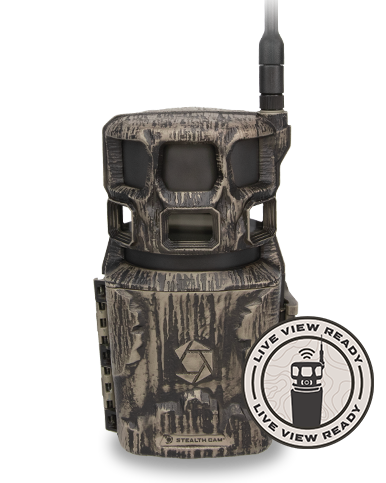
Checking the antenna connection is a key step when your Stealth Cam is not uploading photos. The antenna sends signals to the cellular network. A poor connection can stop photos from reaching your phone or email. Make sure the antenna is firmly attached and positioned correctly. A loose or damaged antenna may block signals.
Proper antenna setup improves signal strength. This helps your camera upload photos faster and more reliably. Sometimes, just tightening the antenna or repositioning it can fix upload problems. Always inspect the antenna before moving on to other troubleshooting steps.
Inspect The Antenna For Damage
Look closely at the antenna for cracks or breaks. Physical damage can weaken signal transmission. Replace the antenna if you find any visible damage. A healthy antenna is essential for steady photo uploads.
Ensure The Antenna Is Securely Connected
Check the connection point between the antenna and camera. It should be tight with no wiggle or looseness. A loose connection disrupts the signal flow. Screw the antenna firmly onto the port to avoid interruptions.
Position The Antenna Correctly
Point the antenna upward and away from metal surfaces. Metal can block or reflect signals, causing weak reception. Higher placement often gives better cellular coverage. Test different angles to find the strongest signal spot.
Test Signal Strength After Adjustments
After fixing the antenna, check the camera’s signal strength. Most Stealth Cams display signal bars on the screen. Good signal bars mean the antenna is working well. Weak or no bars suggest further antenna or location changes are needed.
Update Firmware
Updating the firmware of your Stealth Cam can fix problems with photo uploads. Firmware controls how your camera works. Outdated firmware may cause errors in sending pictures. Keeping firmware updated ensures smooth performance and better connectivity.
Firmware updates often fix bugs that block photo uploads. They also improve the camera’s ability to connect to cellular networks. Some updates add new features or enhance existing ones. Regular updates keep your camera working properly with the latest network standards.
Check Current Firmware Version
Start by checking the firmware version on your camera. Go to the menu and find the system or settings section. Look for “Firmware Version” or similar text. Note the number and compare it to the latest version on the Stealth Cam website.
Download Latest Firmware
Visit the official Stealth Cam support page to find firmware updates. Download the newest firmware file to your computer. Make sure the file matches your camera model. Using the wrong firmware can cause more issues.
Install Firmware Update
Connect your camera to the computer using a USB cable or memory card reader. Copy the firmware file to the root directory of the SD card or camera storage. Safely eject the device and follow the camera’s update instructions. The camera may restart during the process.
Verify Update Success
After the update, check the firmware version again on the camera. It should match the latest version you installed. Test the camera by taking photos and observing if uploads improve. If problems persist, try repeating the update or contact support.
Verify Premium Credits
Verifying your Premium Credits is a key step if your Stealth Cam is not uploading photos. Without active credits, the camera cannot send images to your phone or email. Checking this ensures your subscription is valid and ready for use.
Premium Credits act like a prepaid balance for sending photos over the cellular network. Each photo sent uses a certain amount of credits. If the credits run out, photo uploads will stop.
Check Your Premium Credits Balance
Open the Stealth Cam app or website. Locate the section showing your Premium Credits balance. Confirm there are enough credits available for photo transmission. Low or zero credits mean the camera cannot upload new photos.
Purchase Or Renew Credits
Buy more Premium Credits if your balance is low. Follow the prompts on the app or website to add credits. Renew your subscription if it has expired. This will restore your camera’s ability to upload photos.
Verify Payment Success
Confirm your payment went through after purchasing credits. Check your bank or card statements for the transaction. Sometimes payments fail, leaving credits inactive. Contact support if your credits do not update after payment.
Check For Account Issues
Log into your account and review for any alerts or restrictions. Suspended accounts can block photo uploads. Clear any outstanding issues or contact customer support to resolve problems affecting your Premium Credits.
Adjust App Settings
Adjusting the app settings can solve many issues with Stealth Cam not uploading photos. The app controls how photos transfer from your camera to your phone. Small changes in settings often fix upload problems quickly. Focus on key options in the app to improve photo delivery and avoid delays.
Enable Auto-download
Auto-download allows photos to transfer automatically. Check if this feature is turned on in the app. Without auto-download, images stay on the camera until you manually fetch them. Enabling it saves time and ensures you get photos promptly. Go to the app settings and switch on auto-download for smoother photo transfers.
Clear App Data
Clearing app data resets the app without deleting your photos. Sometimes, stored data can cause bugs that block uploads. Clearing it removes corrupted files and refreshes app performance. Open your device settings, find the app, and choose “Clear Data.” Restart the app and log in again. This step often fixes upload errors caused by app glitches.
Restart Devices
Restarting devices is a simple but effective step when your Stealth Cam is not uploading photos. This process can clear temporary glitches and refresh connections. It helps both the camera and the app to work smoothly again.
Power cycling the devices resets their internal systems. This can fix minor bugs that block photo uploads. Restarting also ensures the devices reconnect properly to the network. Follow these easy steps to restart your camera and phone.
Restart Camera
Turn off your Stealth Cam completely. Wait for about 10 seconds before turning it back on. This pause allows the camera’s system to reset fully.
Check the battery level and replace batteries if needed. Ensure the memory card is properly seated. Restarting can help the camera reconnect to the cellular network for uploading photos.
Restart Phone And App
Close the Stealth Cam app on your phone. Turn off your phone and wait a few seconds. Power it back on to refresh the network connection.
Open the app again and log in. This refresh often resolves syncing issues between the app and camera. Restarting your phone and app clears any stuck processes blocking photo uploads.
Frequently Asked Questions
Why Is My Camera Not Sending Photos?
Your camera may not send photos due to weak cellular signal, low battery, incorrect settings, or SD card issues. Check signal strength, battery level, and photo mode. Verify data plan and app settings. Format or replace the SD card if needed.
Update firmware for best performance.
Why Is My Trail Camera Not Saving Pictures?
Check your SD card for errors or formatting issues. Ensure the battery is charged and the camera has a strong cellular signal. Verify photo mode and transmission settings. Update firmware and confirm active data plans or premium credits for sending pictures.
How Long Does It Take A Stealth Cam To Send Pictures?
A Stealth Cam typically sends pictures within 30 seconds to a few minutes after capture. Signal strength and battery life affect this timing. Ensure strong cellular reception and sufficient battery for faster photo transmission.
Why Is My Spartan Camera Not Sending Pictures?
Your Spartan camera may not send pictures due to weak cellular signal, low battery, SD card issues, or inactive premium data plan. Check signal strength, battery level, SD card condition, app settings, and ensure premium credits are active for proper photo transmission.
Why Is My Stealth Cam Not Uploading Photos?
Weak cellular signal or low battery often stops photo uploads from Stealth Cam.
How Do I Fix Stealth Cam Photo Upload Issues?
Check signal strength, battery level, SD card, and camera settings to fix upload issues.
Can A Bad Sd Card Cause Upload Failures?
Yes, a faulty or full SD card can prevent photos from uploading properly.
Does Low Battery Affect Stealth Cam Photo Sending?
Low battery can stop the camera from sending photos; always use fresh batteries.
How To Check Stealth Cam’s Cellular Signal Strength?
Look at the signal icon on the camera’s screen to verify cellular reception.
What Photo Mode Should Stealth Cam Use For Uploading?
Set the camera to the correct photo mode and transmission frequency for uploads.
Conclusion
Stealth Cam may fail to upload photos due to weak signals or low batteries. Always check your camera’s settings and signal strength first. Use fresh batteries and a good SD card to avoid issues. Testing the connection with the Hello Test helps find problems quickly.
Keep your data plan active and app settings correct. Regular checks make sure your Stealth Cam works smoothly. This keeps your photos uploading without hassle. Stay patient and follow simple steps for best results.
As an Amazon Associate, I earn from Qualifying Purchases.