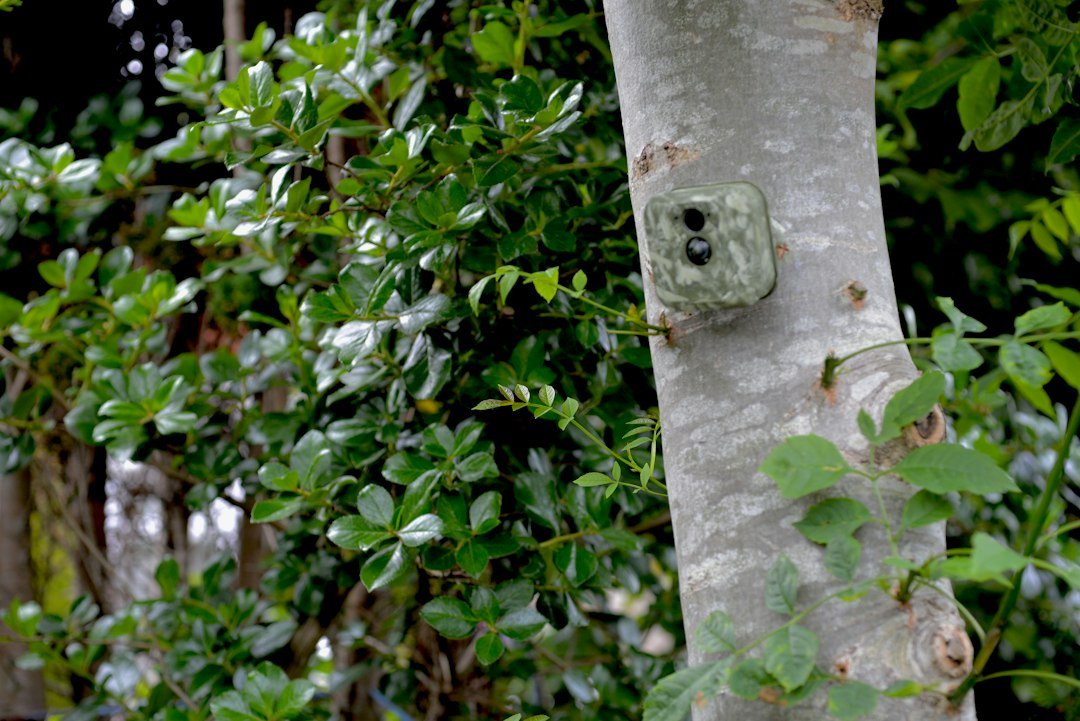
What app does Muddy trail camera use? Compatible Muddy cellular trail cameras use the Stealth Cam Command app by GSM Outdoors. Older manuals may call it Command Pro; the app was renamed Command in 2026. Most non-cellular Muddy cameras do not require a smartphone app.
Quick Answer: What App Does a Muddy Trail Camera Use?
Muddy cellular trail cameras use the Stealth Cam Command app, published by GSM Outdoors. In 2026, the earlier Command Pro name was simplified to Command, so you may see both names in older manuals, product descriptions, and videos. Muddy’s Manifest, Matrix, and Mitigator cellular families are examples of cameras in the Command ecosystem, although specific features depend on model and firmware. Traditional non-cellular Muddy cameras generally save photographs to an SD card and do not need an app for remote image delivery. Before downloading anything, identify the model number on your camera and confirm whether it is a cellular model.
Is It Command or Command Pro?
The naming can be confusing because Muddy product pages and older printed instructions refer to Command Pro, while current app-store listings use Command. A June 2026 announcement explained that the Command Pro app for Stealth Cam and Muddy cameras became the Command app. This was presented as a streamlined app experience rather than a requirement to move to an unrelated provider. When searching the app store, look for Command by GSM Outdoors and verify the publisher before installing. Avoid similarly named unofficial applications. If an old setup guide says Command Pro, check the current Command instructions and your exact camera’s compatibility rather than searching indefinitely for a separate old app.
Which Muddy Cameras Work With the App?
The Stealth Cam Command ecosystem supports Muddy cellular trail cameras, including product families such as Manifest, Matrix, and Mitigator. The official Manifest 3.0 and Matrix 2.0 product pages describe app connectivity and remote camera management. Exact supported features vary: a model may support on-demand photographs but not live video, or offer different transmission options. Some older Muddy cellular cameras used earlier Command software versions. Check the model-specific manual if your camera does not appear during activation. A Muddy Pro-Cam or another non-cellular camera that stores images only on a memory card will not become cellular simply by installing Command.
Where to Download the Official Muddy Camera App
For Android, open Google Play and search for Command by GSM Outdoors. The official listing is available at Command on Google Play. For iPhone, use the Command App on Apple’s App Store. Both listings describe support for Muddy and Stealth Cam cellular cameras. Verify the publisher name and check device compatibility before installation. The app itself can be downloaded without buying a trail camera, but transmitting images through a cellular camera generally requires a supported data plan. Avoid downloading APK files from unfamiliar websites when the official stores are available.
How to Set Up a Muddy Cellular Trail Camera
Start by reading the manual for your exact Muddy model. Insert the recommended batteries and a supported SD card, then install Command on your phone. Create an account or sign in. In the app, choose the option to add a camera, commonly shown with a plus symbol. Scan the QR code on the camera if the model provides one, then follow the on-screen activation prompts. Choose an eligible data plan when required. Place the camera where its supported cellular network has usable coverage, power it on as instructed, and allow activation to finish. Trigger a test image and confirm that it appears in the app before deploying the camera for a long period.
How to Connect the Camera With a QR Code
The Command app’s official Google Play instructions describe adding a camera with the plus button and scanning the QR code inside the device. The code identifies the camera during setup; it is not the same as pairing a Bluetooth speaker or connecting to home Wi-Fi. Keep the phone’s camera permission enabled while scanning. If the QR code is scratched or unreadable, consult the model’s manual for an alternative camera identification method or contact support. Do not post a clear photograph of your camera’s activation QR code publicly. After the camera is added, review the account and plan status and send a test image.
Does a Muddy Cellular Camera Need Wi-Fi?
Muddy cellular models typically send images through supported mobile networks rather than relying on your home Wi-Fi router. The official Manifest 3.0 and Matrix 2.0 descriptions discuss automatic network coverage using supported AT&T and Verizon networks in the United States. This does not guarantee service at every remote property. A camera needs a usable cellular signal and the appropriate plan to upload photographs. Your smartphone may use Wi-Fi to access the Command app, but that is separate from how the camera communicates. A non-cellular Muddy camera does not upload pictures through the app. Read our trail camera Wi-Fi guide for the differences.
Do You Need a Cellular Data Plan?
To receive transmitted images from a cellular Muddy camera, you generally need an active compatible data plan. The Command app provides plan and billing management, according to its official store listing. The available plans, image allowances, video features, and pricing can change, so review the current options inside the official app or on the provider’s website before paying. The number of photos a plan allows is not necessarily the same as the number of full-resolution downloads. Some functions may require a compatible camera or an additional service tier. Our cellular plan comparison explains what to check.
What Can You Do in the Command App?
Command can help users view incoming photos, organize cameras, manage compatible camera settings, receive notifications, and review account details. The official app listing also describes image tagging, mapping, camera sharing, and on-demand photo or video requests. Live View is available only on selected compatible models; it is not a universal Muddy feature. Similarly, AI tools and third-party integrations can vary by camera and service. For practical use, begin with the basics: confirm the camera is online, review recent images, check battery and signal indicators where supported, and set a transmission schedule suited to your monitoring needs. Use the official help material for model-specific options.
How to View Muddy Trail Camera Photos on Your Phone
Open Command and sign in to the account used to activate the camera. Select the correct camera or group, then open the photo gallery or image feed. Newly transmitted photographs should appear according to the camera’s transmission settings and network availability. Some cameras send previews first, with high-resolution files available through a separate request. Save important images to your phone or another secure location rather than relying exclusively on app storage. If nothing appears, verify that the camera captured a local image, that the cellular plan is active, and that the location has adequate signal. Do not assume every missing photo means the app itself is broken.
Can You Change Camera Settings Remotely?
Many compatible Muddy cellular cameras allow settings to be changed through Command. Depending on the model, you may be able to adjust image capture schedules, transmission timing, photo settings, or other supported controls. Remote changes require the camera to communicate with the service, and they may not take effect instantly when the device is sleeping or outside coverage. Older models may support fewer options. Always check the manual before changing settings during a critical monitoring period. A trail camera with only an SD card and no cellular modem generally requires on-device adjustments. For broader setup steps, see our Muddy trail camera setup guide.
Why Is My Muddy Camera Not Connecting to the App?
First confirm that the camera is a compatible cellular model and that you installed the official Command app. Check whether the camera has approved batteries, a correctly installed SD card, and an active data plan. Verify the activation code and ensure that the camera is in a location with supported cellular service. Some devices require a successful initial connection before remote settings and image uploads work. Restart or reinitialize the device only as instructed in the manual. If the app shows an error, note the exact message and model number before contacting support. Avoid repeatedly deleting the camera from your account without understanding the activation consequences.
What If Photos Are Not Uploading?
A camera can sometimes save pictures locally while failing to transmit them. Check the SD card for recent files and compare that with the app’s last received image. A weak cellular signal, inactive plan, low battery, transmission schedule, or account issue may explain the difference. Some settings send images at intervals rather than immediately after every trigger. Try a controlled test in an area with known compatible coverage. If the camera uploads during testing but not at its final location, the site may be the problem. Preserve any useful SD card images before formatting. Our Muddy SD card guide covers storage precautions.
How to Fix Login or Notification Problems
If Command will not open or sign in, first confirm that the phone has internet access and the official app is updated. Check that you are using the account linked to the camera. Use the app’s supported password-reset process if needed rather than creating duplicate accounts unnecessarily. For missing notifications, review both the app’s notification preferences and the phone’s system notification permissions. A notification setting cannot compensate for a camera that is offline or has not transmitted an image. If photos appear in the gallery but alerts do not, focus on phone permissions and app settings. If neither appears, investigate camera connectivity and plan status.
Command App vs Other Hunting Apps
Command is the primary app for compatible Muddy cellular camera management. Hunting map apps such as HuntStand may offer integrations for organizing camera information, but they are not necessarily replacements for camera activation and account management. The official Muddy site describes a HuntStand integration through Command Pro, while current Command documentation lists mapping and integrations. Features and account requirements can change. Do not confuse a camera’s companion app with a general hunting maps app. For a non-cellular camera, a computer or card reader may be all you need to view images, even if you use a separate hunting app to plan trips.
Do Non-Cellular Muddy Cameras Need an App?
Most conventional non-cellular Muddy trail cameras record photographs or video onto an SD card. They do not require Command to capture images, and installing Command will not add a cellular transmitter. To view the recordings, turn the camera off as directed, remove the card, and use a compatible reader or the camera’s own screen if provided. Some cameras can connect to a computer by cable, depending on model. The exact process is documented in the manual. If you are unsure which type you own, look for references to a SIM card, cellular activation, or Command compatibility on the model’s official product page. See our non-cellular camera guide.
Frequently Asked Questions
What is the Muddy trail camera app called? The current app is Command by GSM Outdoors. Is Command Pro the same app? Command Pro was renamed Command in 2026. Does every Muddy camera use Command? No, conventional non-cellular models generally do not need a phone app. Is the app free? The app is free to download, but cellular transmission usually requires a plan. Can I see live video? Only with supported models and features. Does it work on iPhone and Android? Yes, official listings exist on both stores. Why can’t I see photos? Check cellular coverage, batteries, activation, plan status, and transmission settings.
Final Answer and Official Sources
If you have a Muddy cellular trail camera, download Stealth Cam Command from the official iPhone or Android app store. The name Command Pro still appears in some Muddy manuals and product descriptions, but the updated Command app is the current branding. Confirm compatibility using your exact model number, and remember that remote photo transmission generally requires a supported cellular plan. For authoritative information, see the official Muddy Manifest 3.0 product page, the official Command app page, and the official Google Play listing.
As an Amazon Associate, I earn from Qualifying Purchases.