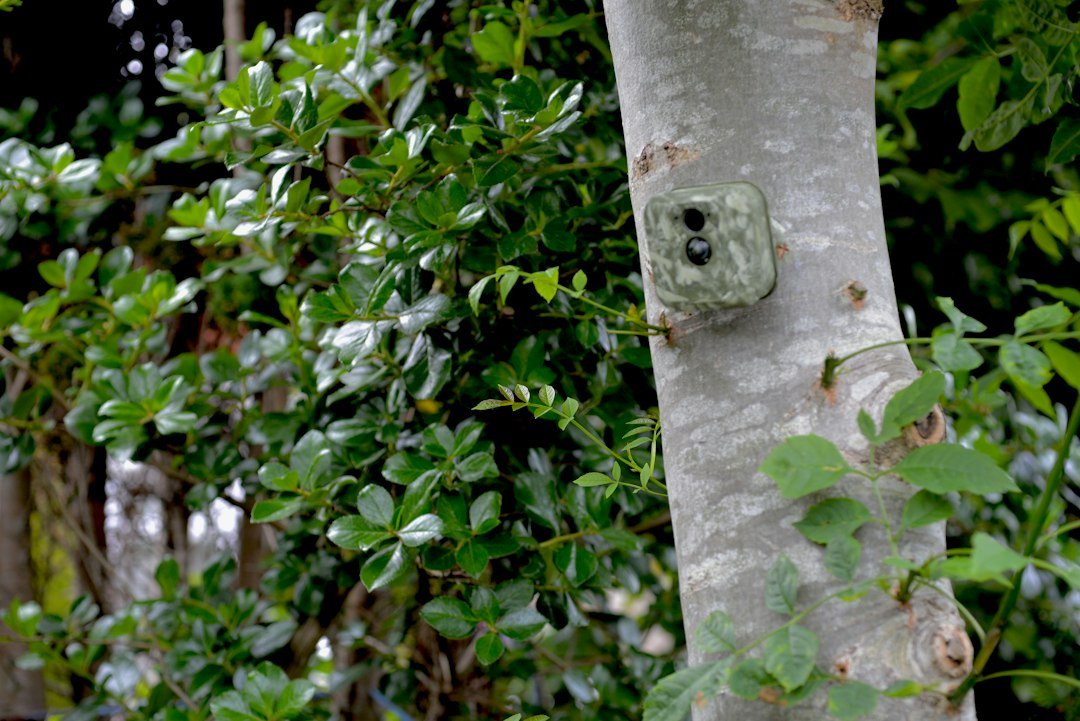
How to use a Muddy trail camera: Install the correct batteries and SD card, choose the recording settings, mount the camera, and test it before leaving the site. Cellular Muddy models also need app activation and a working mobile connection. The steps below explain both types and highlight important model differences.
Quick Start: Identify Your Muddy Model
Before installing a Muddy trail camera, read the model number printed on the housing or product label. The instructions for a Pro-Cam 20, a non-cellular digital model, are not identical to those for a Manifest or Matrix cellular model. The number of AA batteries, supported SD card capacity, menu layout, and app requirements can differ. Muddy’s official support page provides manuals for various models, including Pro-Cam 14, Pro-Cam 20, Mitigator, and Matrix. Begin with the exact manual rather than assuming one tutorial covers every camera. Keep the camera indoors while completing the first setup, so you can test its power, storage, and controls before mounting it outdoors. A successful test photo is more valuable than a menu that merely looks correct.
What You Need Before Setup
Gather the camera, its mounting strap or compatible bracket, fresh manufacturer-approved batteries, a supported SD or SDHC card, and the user manual. Cellular models may also require a phone, the supported Command app, an account, and a cellular plan. Check whether the model has an antenna and whether it must be attached before use. Do not buy a high-capacity memory card without checking compatibility; some Muddy models specify cards up to 32GB. For example, the official Manifest 3.0 product page describes an SD slot supporting up to 32GB and operation on eight AA batteries. Other models have different requirements. A card reader is helpful for checking locally stored files. Keep packaging and receipts in case you need warranty support.
Step 1: Install Batteries Correctly
Switch the camera off before opening its battery compartment. Follow the polarity marks carefully and insert the complete set of batteries specified for your model. Do not mix used and new batteries or combine alkaline and lithium chemistries. The Muddy Manifest cellular manual specifies eight AA batteries and warns against mixing battery types. Some Pro-Cam models use different counts, so check the correct documentation. Close the compartment firmly to preserve the weather seal. If you use an external battery pack, verify voltage, connector polarity, and accessory compatibility before connecting it. An incorrect external power supply can damage the electronics. If the camera will not turn on, first inspect battery orientation and the metal contacts before attempting a reset.
Step 2: Insert a Compatible SD Card
Locate the memory card slot, which may be inside the camera housing or near the battery compartment. Insert the correct SD or SDHC card in the direction shown by your model’s diagram; never force it into the slot. Many Muddy manuals recommend a Class 10 card, but supported capacity and type vary. If the card contains existing photographs, back them up before using a formatting or erase function. The Mitigator manual explicitly warns that erasing the card deletes its data. Use the camera’s recommended formatting procedure after confirming that you have saved any important files. If you receive an SD error, try a known-good supported card. Our trail camera SD card guide explains compatibility and formatting.
Step 3: Turn On the Camera
On a non-cellular Muddy model, move the power or mode switch to its operating or setup position according to the manual. Some models offer quick-set modes; others use an on-screen menu for individual settings. The Pro-Cam 20 instructions describe a power switch, menu button, up and down controls, and an OK button for saving changes. On a cellular Manifest model, switching on the camera can begin a network synchronization process. Do not assume that a display or indicator light proves the camera is actively recording. Some devices remain in setup or test mode until you select an armed mode. Check the screen, indicator, or app for the state described in your manual before leaving the camera in the field.
Step 4: Set the Date and Time
Accurate timestamps make wildlife photographs far more useful. Find the date and time menu, choose the appropriate format, and set the local time or time zone. Some cellular cameras can synchronize settings through their connected service, while older standalone cameras require manual entry. If the clock is wrong, activity that occurred at night may appear under a daytime timestamp. The Pro-Cam 20 quick-start instructions specifically remind owners to set the current date and time. Check whether your model uses a 12-hour or 24-hour display and whether daylight-saving adjustments apply. After saving, take a test photograph and confirm that the file’s timestamp is correct. If the clock resets after replacing batteries, review the manual for the proper procedure.
Step 5: Select Photo or Video Mode
Choose whether the camera will capture still photos, short videos, or another supported mode. Start with still photos for a simple first test because they are easy to inspect and generally use less storage than long videos. A photo burst can capture several images after one trigger, while video length determines how long the device records. Available options vary. For example, Muddy’s Manifest 3.0 advertises burst capture of one to three photos per trigger, while Pro-Cam menu options differ by model. Set a reasonable recovery delay so the camera is ready for another event without producing excessive duplicate images. If you are monitoring a busy area, remember that frequent recording can shorten battery life.
Step 6: Adjust PIR Sensitivity and Delay
PIR stands for passive infrared, the motion-detection method used by many trail cameras. Sensitivity settings influence when movement is likely to trigger a capture. Higher sensitivity may help detect activity farther away but can also produce more false triggers in some environments. Lower sensitivity may reduce photos of moving grass but can miss distant animals. The official Muddy Mitigator manual describes PIR sensitivity and PIR delay as separate controls. Start with a middle setting if available, then test by walking across the expected animal path. Recovery delay controls how long the camera waits before another trigger. Choose a delay that suits the speed and frequency of activity. See our PIR trigger guide for more details.
Step 7: Understand Night Flash Settings
Muddy models may provide infrared flash or night-image controls. The Pro-Cam 20 manual lists an automatic flash mode, while some cellular manuals include a Reduce Blur setting for nighttime images. These controls affect exposure, illumination, or image processing, but they cannot guarantee sharp photos of fast-moving animals. Test the camera after dark at realistic distances. Keep the lens and infrared LED windows clear of branches, leaves, and housing edges. Nearby objects can reflect infrared light into the lens and cause washed-out photographs. A camera that takes daytime pictures but not nighttime pictures may have weak batteries, incorrect settings, or an illumination problem. Our night picture troubleshooting guide offers additional checks.
Step 8: Mount the Camera Securely
Use the included strap or a compatible bracket to attach the camera to a stable tree or post where you have permission to monitor wildlife. Avoid flexible branches that move in the wind. Position the lens toward the trail or crossing and leave enough open space for the animal to enter the frame. Muddy’s older cellular manual recommends mounting about three to four feet above ground, facing north, and angled slightly downward for that model; those are model-specific guidelines, not a universal rule for every camera or animal. Avoid pointing directly toward sunrise or sunset when practical, because glare and changing background temperatures can affect results. Perform a walk test before tightening the strap completely.
Step 9: Run a Test Capture
After mounting, use the model’s test mode or arm the camera and walk across its field of view. Check whether the motion sensor detects movement at the expected distance. Take several test photographs and inspect them on the camera screen, a card reader, or the connected app. The subject should be visible and reasonably centered rather than cut off at the edge. If the camera captures empty frames, inspect moving grass and nearby branches. If it misses your walk test, adjust height, angle, or sensitivity. Repeat the test after dark if night recording matters. Our camera aiming guide provides additional placement advice.
How to Set Up a Muddy Cellular Trail Camera
A Muddy cellular model requires additional steps beyond ordinary SD-card recording. Confirm the exact app named in the current manual and product page, install it on your phone, and create or sign into the required account. Follow the camera-specific instructions to add the device, activate service, and choose a compatible plan. Some older manuals refer to Stealth Cam COMMAND, while current product pages may mention Command Pro; software branding and compatibility can change. Follow the latest official instructions for your model instead of relying on an old screenshot. After activation, verify the cellular signal at the actual installation location and send a test photograph. A successful local recording does not guarantee that cellular upload is working.
Cellular Antenna and Signal Tips
On models with a removable antenna, attach it as the manufacturer instructs before field deployment. The older Muddy cellular manual says the antenna should be hand-tight, with care not to overtighten it, because proper attachment also affects weather sealing. Keep the antenna in its recommended orientation and away from large metal surfaces where practical. Cellular cameras need usable network coverage to transmit photos. A phone showing bars nearby is not a guarantee that the camera’s supported carrier will connect reliably. Use the camera’s own sync or connection test to confirm service. If uploads fail, check plan activation, app settings, signal, battery power, and the next scheduled transmission window before replacing hardware.
How to View Pictures on a Muddy Camera
For non-cellular models, follow the manufacturer’s procedure for switching off the device and removing the SD card. Insert the card into a compatible computer or reader, then copy the image files before deleting or formatting anything. Some models have an on-camera screen that lets you preview captures. For cellular models, photos may appear in the supported app after a successful upload, but the timing depends on network and transmission settings. If the app shows no images, inspect local storage before assuming the camera never took a picture. A cellular transmission failure and a camera capture failure require different troubleshooting. Back up valuable wildlife images regularly, especially before making changes to storage settings.
How to Make Batteries Last Longer
Battery life depends on the camera, chemistry, temperature, number of triggers, infrared illumination, video length, and cellular transmission activity. Avoid false triggers by clearing moving vegetation from the immediate detection zone. Use only the battery types recommended in the manual and replace a complete matched set when needed. If your camera supports an approved solar or external power accessory, verify electrical compatibility and installation instructions. Do not assume a generic power pack is safe because its plug fits. Check battery status during early field visits so you can learn the actual maintenance interval. For a broader explanation, see our trail camera battery life guide.
Troubleshooting: Muddy Camera Not Taking Pictures
If your Muddy camera is not recording, first verify that it is powered on and armed rather than left in setup mode. Check that batteries are installed correctly, the SD card is supported and has space, and the date and time are reasonable. Review PIR sensitivity, recovery delay, and any operating-hours schedule that could restrict recording. Perform a controlled walk test. If daylight photographs work but night images fail, investigate infrared settings and battery power. If files exist locally but are missing from a cellular app, focus on activation, plan status, signal, and upload settings. Change one setting at a time and keep notes. If basic tests fail repeatedly, consult the exact model manual before attempting a factory reset.
Understanding DVR Mode and Scheduled Hours
Some Muddy cellular models include DVR mode, which controls what happens when the memory card becomes full. The official Mitigator manual explains that enabling DVR mode allows the camera to overwrite the oldest files to make space for new ones; disabling it stops new recording when storage is full. This feature is not continuous video recording in the usual home-security sense. Check the precise meaning in your model’s manual. Some models also let you choose scheduled operating hours instead of recording around the clock. If the schedule is wrong, the camera may appear defective even though it is simply inactive. See our DVR mode explanation for more detail.
Muddy Pro-Cam vs Manifest vs Matrix
Muddy has offered several camera families over time. Older Pro-Cam units emphasize local recording with physical menus and memory cards. Cellular Manifest and Matrix models add network transmission and app-based functions. Specific battery counts, photo resolution, card capacity, video support, and connection procedures differ by generation. For instance, the Manifest 3.0 product page describes a built-in SIM arrangement, app compatibility, eight AA batteries, and an SD slot supporting up to 32GB. That does not establish the specifications of an older Pro-Cam 20 or every Matrix variant. Use the model number rather than the brand alone when buying replacement parts, following a tutorial, or contacting support.
Common Setup Mistakes to Avoid
Do not mix batteries of different ages or chemistries. Do not force a memory card into the wrong orientation or format it before backing up images. Do not assume that setup mode is the same as active recording mode. Avoid covering the lens, PIR sensor, or infrared flash with camouflage materials. Do not mount the camera where vegetation constantly moves across the detection zone. On cellular models, do not leave the site until you have confirmed an actual test upload. Finally, do not copy settings from a different Muddy model without checking the manual. A careful ten-minute setup test can prevent repeated trips to a remote location.
Frequently Asked Questions
How do I turn on a Muddy trail camera? Use the power or mode switch described in your model’s manual, then confirm that the camera is armed. Does a Muddy camera need an SD card? Many models use SD storage; check the required type and capacity. Does it need Wi-Fi? Non-cellular models record locally, while cellular models use mobile networks for uploads. What app works with Muddy cellular cameras? The supported Command app depends on model and current software; verify the official instructions. Why does it take empty pictures? PIR sensitivity, moving vegetation, and placement are common factors. Can it record at night? Many Muddy models include infrared night capture. How do I reset it? Use the model-specific official reset instructions after backing up important settings and files.
Final Checklist and Official References
To use a Muddy trail camera, identify the exact model, install approved batteries, insert a supported memory card, configure date and capture settings, mount securely, and confirm a real test image. For cellular models, add the official activation and upload test. Never assume every Muddy camera has the same battery count, app, or menu. The manufacturer’s product support and manuals page is the best starting point. Also consult the Muddy Mitigator cellular manual and the Manifest 3.0 product page when those models apply. If your exact model is not listed, contact Muddy support rather than improvising instructions.
As an Amazon Associate, I earn from Qualifying Purchases.