
Stealth Cam Command App brings remote control, live view, and image management for Stealth Cam trail cameras.
I have used trail cameras and camera apps for years, and I know what matters. This guide dives deep into the Stealth Cam Command App. You will learn how it works, how to set it up, real tips from my field tests, and how to solve common issues. Read on to make the app work smoothly with your cameras and to get better images with less fuss.
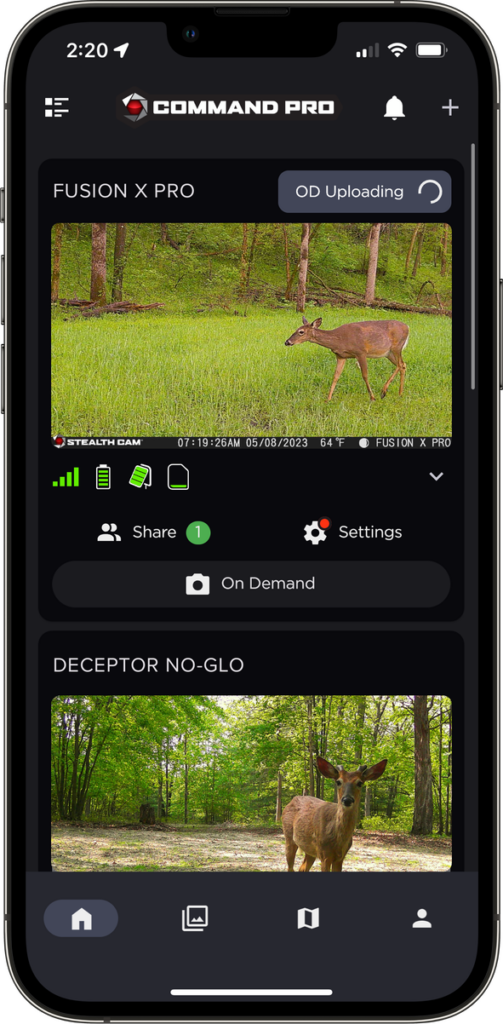
What is the Stealth Cam Command App?
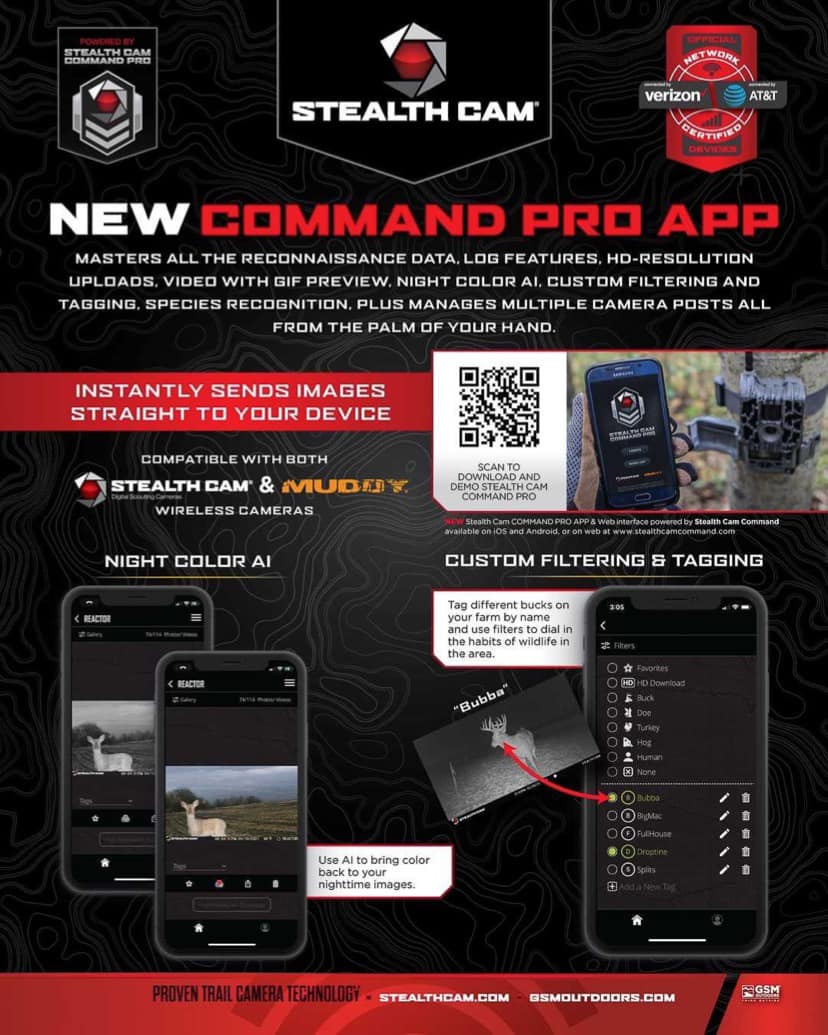
The Stealth Cam Command App is a mobile application that connects to Stealth Cam trail cameras. It lets you change settings, view images, and get alerts from a phone. The app works with Wi‑Fi, Bluetooth, and cellular camera models depending on the camera.
I have tested the Stealth Cam Command App on several hunts and property checks. The interface is simple. The app brings camera control to your pocket. You do not need to walk to the camera for basic tasks. This saves time and reduces human scent near game areas.
Key features of Stealth Cam Command App
The app gives useful tools for trail cam users. These features speed up work and cut down walks to the camera.
- Remote image download
- View photos on your phone without removing the SD card.
- Live view and test shots
- Confirm camera aim and scene before you leave.
- Camera setting control
- Change trigger speed, sensitivity, and photo burst from the app.
- Alerts and push notifications
- Get notified when your camera takes images or detects motion.
- Schedule and time-lapse
- Set active hours and time-lapse for day or night scenes.
- Firmware updates
- Update camera software from the app when updates are available.
- Cloud and storage options
- Save images to cloud services or to your phone for quick sharing.
These features make the app a strong tool for hunters, land managers, and wildlife watchers. The Stealth Cam Command App balances ease of use with advanced control.

How to set up the Stealth Cam Command App
Follow these steps to set up the app with a Stealth Cam camera. I break steps into easy parts so you can finish setup fast.
- Download and install
- Open your phone app store.
- Search for the Stealth Cam Command App.
- Install the app and open it.
- Create an account
- Use an email and password.
- Verify your email if the app asks.
- Power the camera and enable connectivity
- Insert batteries and SD card.
- Turn on Wi‑Fi or cellular on the camera model.
- Put the camera into pairing mode.
- Pair the camera with the app
- Tap Add Camera in the app.
- Follow on-screen prompts to find and pair the camera.
- Enter any camera ID or password if required.
- Configure settings
- Set date and time.
- Adjust motion sensitivity and burst mode.
- Enable push notifications or cloud upload.
If you get stuck, restart the app and camera. Small errors often clear with a quick reboot.
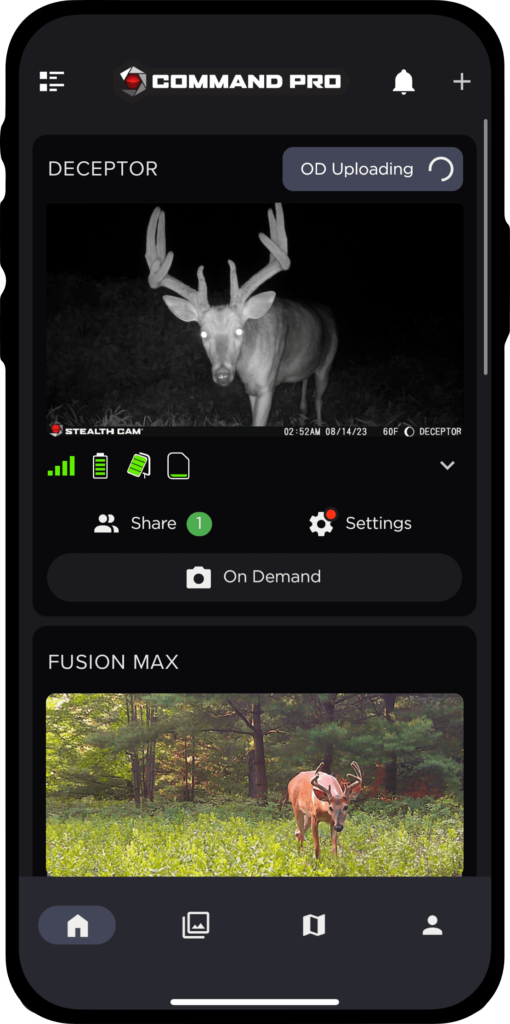
Using the app: tips and best practices
Here are practical tips I learned in the field. These will save time and get better results.
- Check signal and method
- Confirm whether your camera uses Wi‑Fi, Bluetooth, or cellular. Choose a spot with good signal for remote access.
- Aim and test with live view
- Use live view to line up the trail. Take test photos to check the angle and height.
- Use low-power modes wisely
- Low-power settings save batteries. But they can delay transmission or alerts. Balance battery life and responsiveness.
- Schedule uploads
- Upload images during the day for better cellular service. Night uploads can fail if signal drops.
- Keep firmware current
- Updates fix bugs and add features. Update cameras from the app when available.
From personal experience, I recommend mounting the camera at chest height for most game. I once set a camera too high and missed small animals. Live view helped me avoid that mistake on my next setup. Small checks in the app avoid big disappointments later.
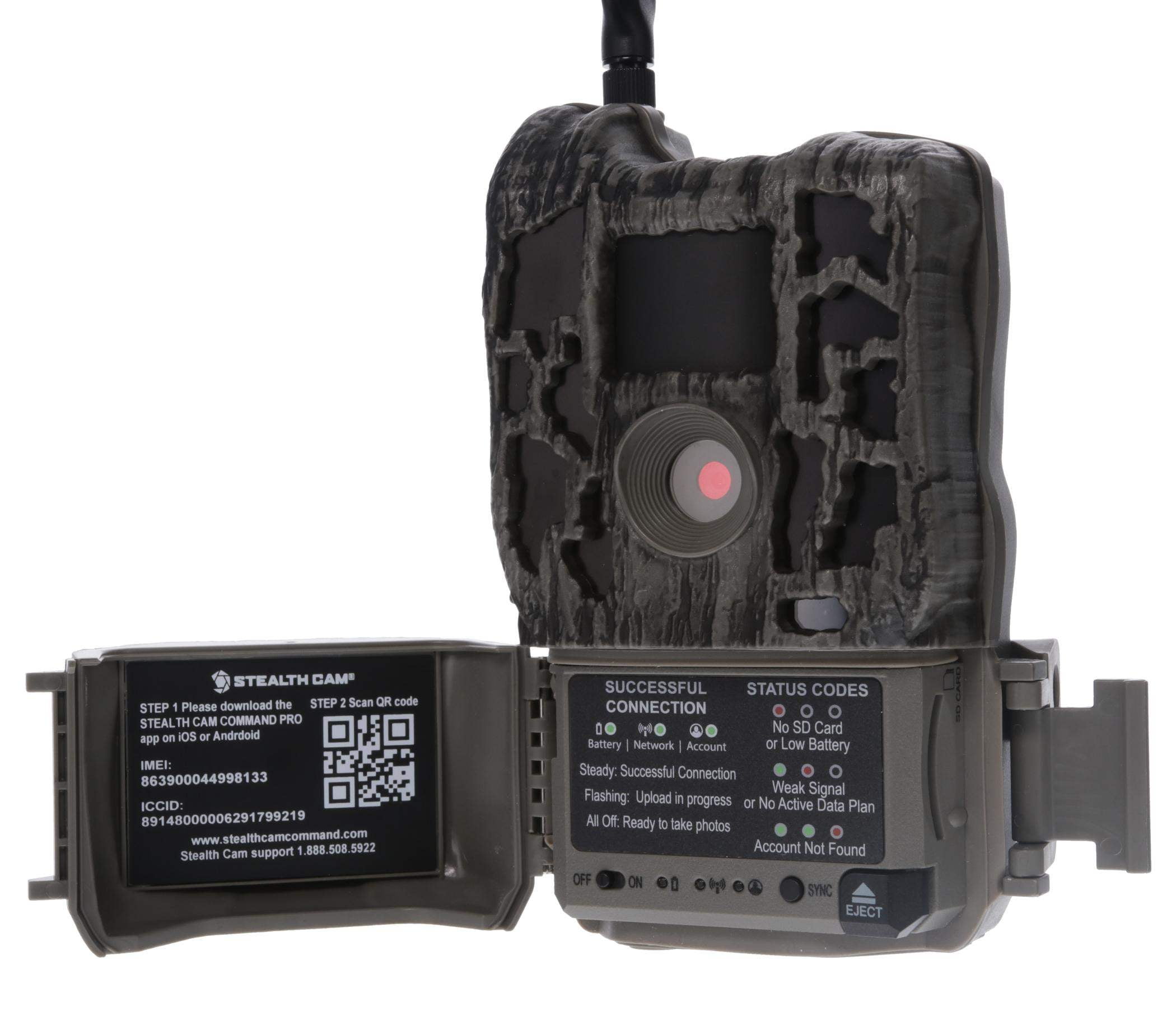
Troubleshooting and common issues
The steps below cover common Stealth Cam Command App issues. For Command Pro-specific errors, see our Stealth Cam Command Pro troubleshooting guide for additional checks.
- Camera not found by the app
- Make sure the camera is in pairing mode. Move closer to the camera if needed. Check batteries are fresh.
- Slow image downloads
- Check cellular or Wi‑Fi signal. Try downloading over Wi‑Fi if possible. Reduce image size in camera settings if available.
- Alerts not received
- Verify notification permissions for the app on your phone. Confirm the camera has cellular data or internet access.
- Firmware update fails
- Ensure stable power to the camera and a steady connection. Try again or use a fresh battery pack.
- App crashes or freezes
- Close and reopen the app. Reboot your phone. Update the app to the latest version.
If a problem persists, a full reset of the camera and re-pairing often clears deep issues. Keep a log of what you tried. It helps if you need help from support.
Privacy, security, and permissions
Privacy matters when cameras send images over the net. The Stealth Cam Command App requires some access to work. Here is how to stay safe.
- App permissions
- The app may ask for location, storage, and notification access. Grant only what you need.
- Data transmission
- Images may travel over cellular networks or cloud servers. Avoid sending sensitive images publicly.
- Account security
- Use a strong password and enable any available two-factor authentication. Change default camera passwords.
- Shared access
- Share camera access only with people you trust. Remove access when it is no longer needed.
I always set unique passwords and limit cloud sharing. This reduced my risk and kept my camera feeds private. Be mindful when placing cameras near private property or public trails.

Advanced features and integrations
After you know the basics, try these advanced options to get more from the Stealth Cam Command App.
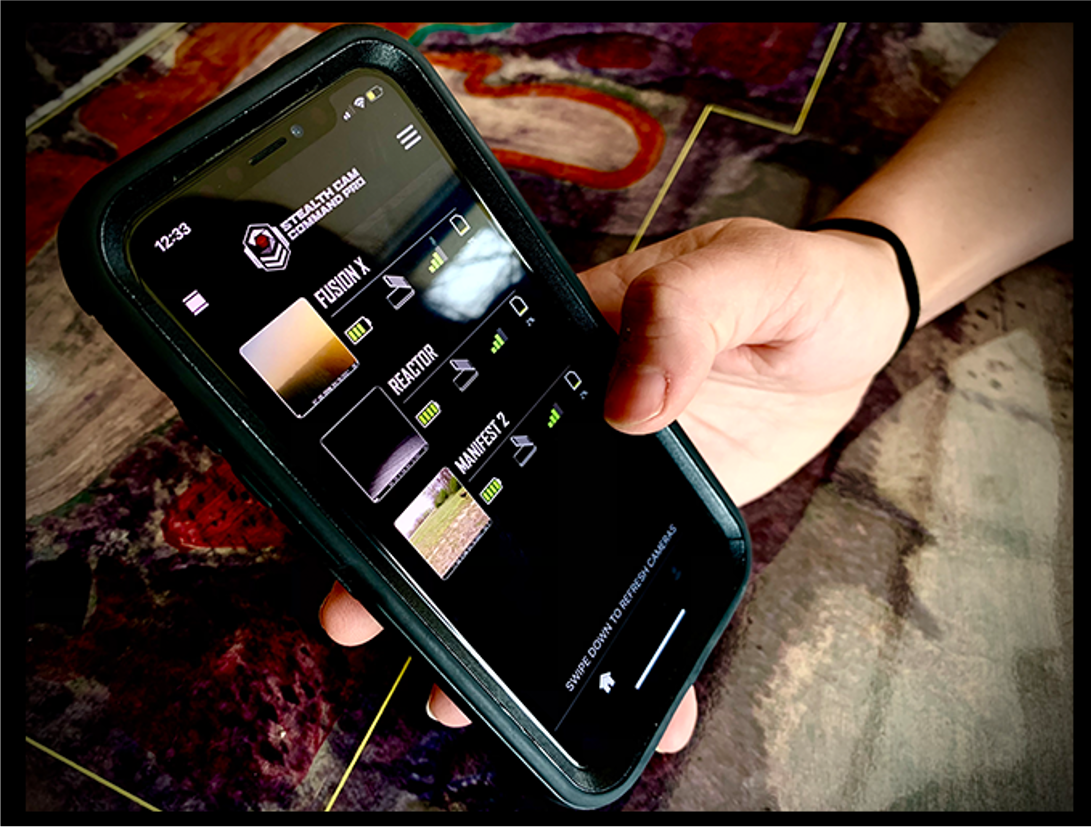
- Multi-camera management
- Control many cameras from one account. Group cameras by property or purpose.
- Mapping and location tags
- Tag photos with GPS and map camera spots. This helps track activity across land.
- Third-party cloud options
- Some models allow links to other cloud services for backup.
- Automation and rules
- Set rules to filter alerts or auto-download certain images.
- Integration with other tools
- Pair with weather or mapping apps to add context to your images.
I used multi-camera groups to monitor a deer trail network. The app made it easy to compare activity across spots without long walks.
Choosing the right trail camera for the app
Not every camera works the same with the Stealth Cam Command App. Pick the right model for your needs.
- Decide on connectivity
- Choose Wi‑Fi for local control or cellular for remote fields.
- Battery life and power options
- Look for long battery life or external power ports for long deployments.
- Image resolution and IR flash
- Pick higher resolution for clear images. Choose no-glow IR for stealth at night.
- Storage and cloud support
- Check SD card limits and cloud upload policies.
- Durability and weatherproofing
- Use rugged, weatherproof cases for long use outdoors.
Match the camera to your goals. For short-term close work, Wi‑Fi models are great. For remote land, use cellular models with a strong plan and the Stealth Cam Command App.

Frequently Asked Questions of Stealth Cam Command App
What cameras work with the Stealth Cam Command App?
Most recent Stealth Cam models support the app, but compatibility varies. Check the camera’s specs for app support and required connectivity.
How do I pair a camera if the app cannot find it?
Put the camera in pairing mode, move closer, and ensure batteries are strong. Restart both the camera and the app and try again.
Can I view live video in the Stealth Cam Command App?
Some models offer live view or test shots. Full live video is limited to select cellular models and depends on data speed.
Do I need a data plan for the app to receive images?
Cellular cameras need a data plan to send images. Wi‑Fi and Bluetooth models do not need cellular data but need local connectivity for remote use.
How can I save images from the app to my phone?
Open the image in the app and use the save or download option. You can also set auto-download rules in some versions.
Is my image data secure in the Stealth Cam Command App?
Security depends on account settings, passwords, and cloud choices. Use strong passwords and limit sharing for best security.
How often should I update camera firmware through the app?
Update when the app shows a new firmware release. Updates fix bugs and can improve battery life and features.
Conclusion
The Stealth Cam Command App can simplify trail camera work and save you time. Use it to control cameras, get images fast, and avoid needless trips. Start with a clear setup, test live view, and keep firmware and app versions up to date. Try the tips here and adjust settings for your land and needs. If you want better camera results, practice with the app, review images often, and make small changes. Give the app a try on a single camera first, then scale up as you gain confidence. Leave a comment with your own tips or questions, or subscribe for more guides on trail camera tools.
As an Amazon Associate, I earn from Qualifying Purchases.