
Stealth Cam Command Pro is a popular choice for hunters. But even reliable tools sometimes encounter issues.
If your Stealth Cam Command Pro isn’t working right, you’re not alone. Many users face problems with this device. Troubleshooting can seem daunting, but it doesn’t have to be. This guide aims to help you fix common issues quickly. From connectivity problems to image quality concerns, we cover it all.


With clear steps and simple solutions, you can get back to using your camera smoothly. So, let’s dive into the common issues and their fixes to make your Stealth Cam Command Pro work perfectly again.
Stealth Cam Command Pro Troubleshooting: Common Setup Issues
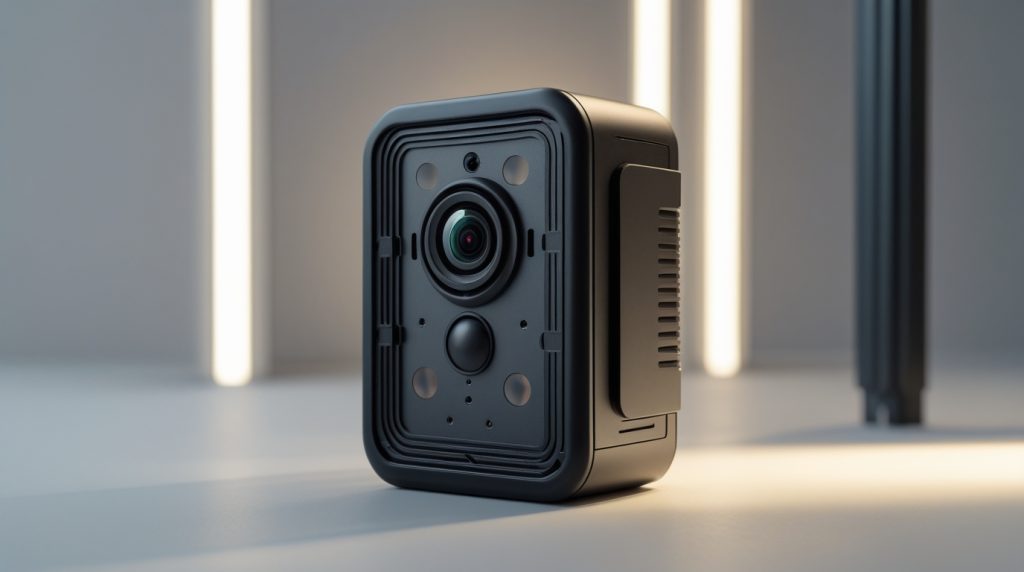
Setting up your Stealth Cam Command Pro can sometimes be tricky. Some users face common issues that prevent the camera from functioning properly. Understanding these problems can help you solve them quickly.
Power Problems
Power issues are a frequent hurdle. Ensure the batteries are installed correctly. Check that they have enough charge. If the camera does not turn on, try new batteries. Ensure the battery compartment is clean. Dirt or corrosion can prevent a good connection. Use a soft cloth to clean the contacts.
Sd Card Errors
SD card errors can also stop your camera from working. First, ensure the SD card is compatible. Stealth Cam Command Pro supports specific card types. If you use the wrong card, the camera will not recognize it. Second, format the SD card before use. This can solve many issues. Use the camera to format the card, not a computer. Lastly, check the card for damage. A damaged SD card will not function properly.
Connectivity Challenges
Experiencing connectivity issues with your Stealth Cam Command Pro? You are not alone. Many users face connectivity challenges that can disrupt the performance of their trail cameras. This guide helps you troubleshoot these problems efficiently.
Wi-fi Connection
One common problem is a weak or non-existent Wi-Fi connection. Follow these steps to improve it:
- Ensure the camera is within the Wi-Fi range. Walls and trees can weaken the signal.
- Check if the Wi-Fi network is working. Try connecting other devices to the same network.
- Restart the camera and your router. This simple step often resolves connection issues.
- Update the camera firmware. New updates can fix bugs and improve performance.
If these steps do not work, your camera may have hardware issues. Contact Stealth Cam support for further assistance.
Bluetooth Pairing
Another frequent issue is Bluetooth pairing. Follow these steps to resolve it:
- Make sure Bluetooth is enabled on your mobile device.
- Ensure the camera is in pairing mode. Refer to the manual for instructions.
- Place the camera and your device close together. Distance can affect the connection.
- Restart both your camera and mobile device. This helps clear any temporary glitches.
- Check for any pending updates on your mobile device and camera. Updates can resolve compatibility issues.
If you still face issues, try unpairing and re-pairing the devices. Repeat the above steps and ensure proper settings.
Image Capture Problems
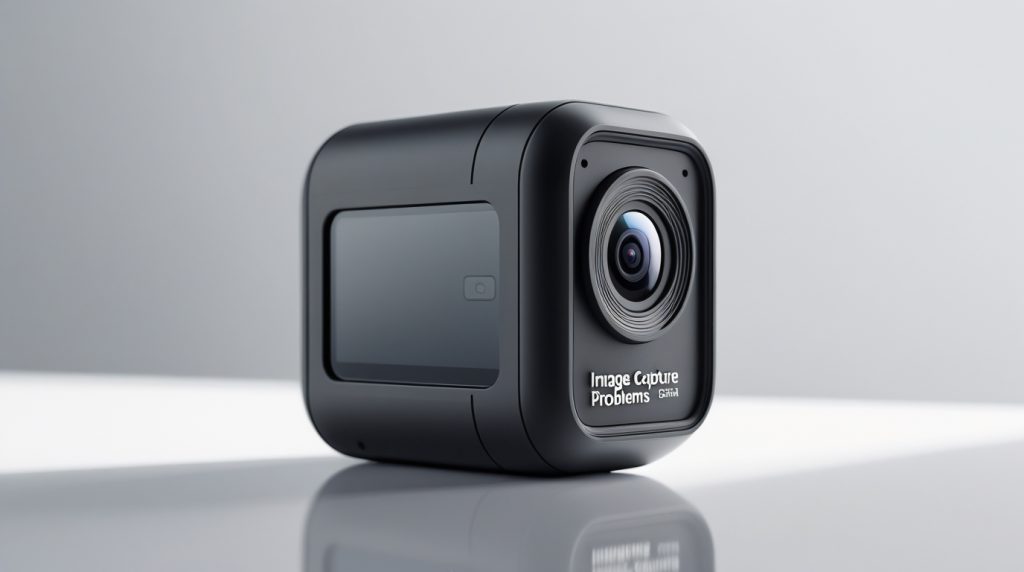
Experiencing image capture problems with your Stealth Cam Command Pro can be frustrating. These issues can hinder the effectiveness of your trail camera, especially for wildlife monitoring or security purposes. Below, we address common problems and provide simple solutions.
Blurry Photos
Blurry photos are a common issue. Here are some potential causes and solutions:
- Camera Movement: Ensure the camera is securely mounted. Any slight movement can cause blurriness. Use a sturdy mount or tripod.
- Lens Cleaning: Check the lens for dirt or smudges. Clean it with a soft cloth.
- Focus Settings: Make sure the focus settings are correct. Refer to the manual for optimal settings.
- Lighting Conditions: Poor lighting can affect image quality. Ensure your camera is placed in well-lit areas.
Missed Shots
If your camera is missing shots, consider these factors:
- Trigger Sensitivity: Adjust the trigger sensitivity settings. Higher sensitivity can capture more movement.
- Detection Zone: Ensure the camera is aimed correctly. The detection zone should cover the area of interest.
- Battery Life: Low battery can affect performance. Replace batteries regularly.
- Firmware Updates: Check for firmware updates. Updated firmware can fix bugs and improve performance.
Addressing these common issues can enhance the performance of your Stealth Cam Command Pro. Ensure regular maintenance and proper settings for optimal results.
App Interface Issues
The Stealth Cam Command Pro app makes managing your trail camera simple. Yet, users sometimes face issues with the app interface. Below are some common problems and their solutions.
Login Troubles
Are you having trouble logging into the Stealth Cam Command Pro app? First, ensure your username and password are correct. Sometimes, a small typo can cause login issues.
If you forget your password, use the ‘Forgot Password’ option. This sends a reset link to your registered email. Check your spam folder if you do not see it in your inbox.
Still having issues? Try clearing the app cache. Here is how:
- Go to your device settings.
- Find the app in the list.
- Tap on the app and select ‘Clear Cache’.
Sync Failures
Sync failures can be frustrating. Here are some steps to address this:
- Ensure your device has a stable internet connection.
- Check if the camera is powered on and within range.
- Verify that the app and camera firmware are up to date.
Sometimes, restarting both the app and the camera can resolve sync issues. If the problem persists, check the camera’s SD card. Ensure it has enough space and is not corrupted.
Important: Use only SD cards that are compatible with Stealth Cam.
| Issue | Solution |
|---|---|
| Forgot password | Use ‘Forgot Password’ option |
| App cache problem | Clear cache in device settings |
| Sync failure | Check internet, power, updates, and SD card |
Firmware Updates
Keeping your Stealth Cam Command Pro updated is crucial for optimal performance. Firmware updates can fix bugs, improve features, and enhance overall functionality. Here, we guide you through the update process and rollback steps to ensure your camera operates smoothly.
Update Process
Updating the firmware on your Stealth Cam Command Pro is straightforward. Follow these steps:
- Visit the Stealth Cam website and navigate to the Support section.
- Download the latest firmware update for your camera model.
- Save the firmware file to an SD card.
- Insert the SD card into your Stealth Cam.
- Turn on the camera and navigate to the Update Firmware option in the settings menu.
- Select the firmware file from the SD card and start the update process.
After completing these steps, your Stealth Cam Command Pro should be running the latest firmware. Ensure the camera remains powered on during the update to avoid interruptions.
Rollback Steps
Sometimes, an update might not work as expected. Rolling back to a previous firmware version can solve issues. Follow these rollback steps:
- Download the previous version of the firmware from the Stealth Cam website.
- Save the older firmware file to an SD card.
- Insert the SD card into your Stealth Cam.
- Turn on the camera and go to the Update Firmware option in the settings menu.
- Select the older firmware file from the SD card and initiate the rollback process.
After completing these steps, your Stealth Cam Command Pro should revert to the previous firmware version. Ensure the camera remains powered on during the rollback to avoid disruptions.
Battery Life Concerns
Struggling with the battery life of your Stealth Cam Command Pro? Many users face similar issues. Understanding the causes and optimizing settings can help extend battery life.
Battery Drain
Battery drain is a common problem. Several factors can cause it. Identifying these factors is the first step.
- Temperature: Extreme cold or heat can affect battery performance.
- Settings: High-resolution images and videos drain more power.
- Usage: Frequent use or long-term operation without breaks.
Check your camera settings. Ensure they align with your needs.
Optimal Settings
Adjusting your Stealth Cam Command Pro settings can help save battery life.
| Setting | Recommendation |
|---|---|
| Image Resolution | Lower resolution to save power. |
| Video Length | Reduce video length to 10-15 seconds. |
| Trigger Interval | Increase interval to reduce captures. |
These settings balance performance and battery life. Test different settings to find what works best for you.
Use a solar panel or external battery pack for longer field use. These can provide continuous power, reducing the need for frequent battery changes.
Environmental Factors
Environmental factors can significantly impact the performance of your Stealth Cam Command Pro. Understanding these factors can help you troubleshoot common issues and ensure optimal functionality. Let’s explore how weather and animal interference can affect your game camera.
Weather Impact
Weather conditions play a crucial role in the operation of your Stealth Cam Command Pro. Extreme temperatures can affect the battery life and overall performance. In cold weather, batteries may drain faster. In hot weather, overheating can cause malfunctions. Ensure your camera is rated for the temperature range in your area.
Rain and humidity can also cause problems. Moisture can seep into the camera and damage internal components. Use a weatherproof case to protect your camera. Heavy rainfall can obstruct the lens, leading to unclear images. Regularly check and clean the lens to maintain image quality.
Animal Interference
Animals can sometimes interfere with your Stealth Cam Command Pro. Curious animals might bump into the camera, changing its position. This can lead to misaligned shots or missed captures. Secure your camera firmly to prevent movement.
Small animals like rodents may chew on cables and parts. This can cause malfunctions or even render the camera useless. Use protective coverings for cables and regularly inspect for damage. Scouting for signs of animal activity around your camera can help you take preventive measures.
Advanced Troubleshooting
Advanced troubleshooting can help solve persistent issues with your Stealth Cam Command Pro. Sometimes, basic fixes aren’t enough. These advanced steps can ensure your camera functions at its best. Below are detailed methods to tackle complex problems.
Factory Reset
A factory reset can solve many technical issues. It returns your camera to its original settings. To perform a reset, locate the reset button. Usually, it’s on the side or back of the device. Press and hold the button for about 10 seconds. The camera will reboot. This process wipes custom settings and data. Ensure you back up important data first.
Customer Support
If issues persist, contacting customer support is a good option. Stealth Cam has a dedicated team to help. Visit their website for contact details. They offer phone, email, and live chat support. Be ready to provide your camera’s model number and describe the problem clearly. This helps the support team assist you faster.
Frequently Asked Questions
How Do I Reset My Stealth Cam Command Pro?
To reset your Stealth Cam Command Pro, remove the batteries and SD card. Wait for 10 seconds, then reinsert them. Turn the camera on and check if it’s functioning properly.
Why Is My Stealth Cam Not Taking Pictures?
Your Stealth Cam may not take pictures due to dead batteries, full SD card, or incorrect settings. Ensure batteries are charged, the SD card has space, and camera settings are correct.
How Do I Update Stealth Cam Firmware?
To update Stealth Cam firmware, visit the Stealth Cam website, download the latest firmware, and follow the instructions provided. Ensure your camera is fully charged before starting the update.
What Should I Do If My Stealth Cam Won’t Turn On?
If your Stealth Cam won’t turn on, check the batteries and ensure they are properly inserted. Try replacing them with new ones. If the problem persists, contact Stealth Cam support.
Conclusion
Troubleshooting your Stealth Cam Command Pro can be straightforward. Follow the steps shared. Regular maintenance helps avoid common issues. Always check for firmware updates. Ensure batteries are fresh. Inspect connections and SD card. If problems persist, contact customer support. Reliable performance relies on proper care.
Happy wildlife tracking!
As an Amazon Associate, I earn from Qualifying Purchases.