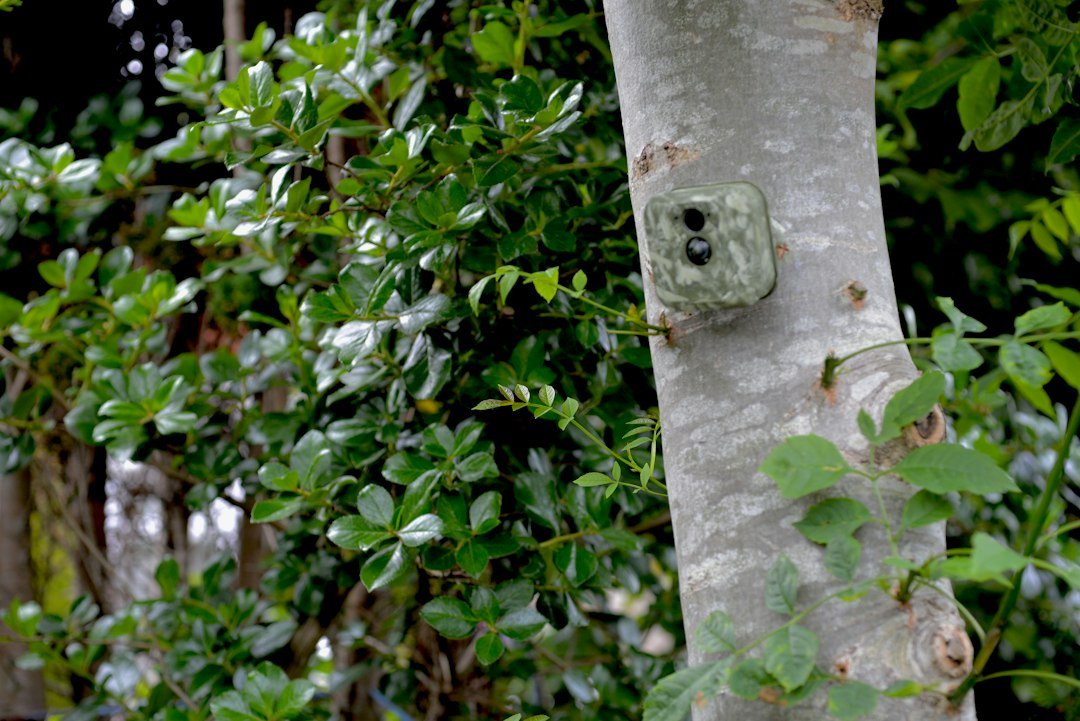
How to use a Wildgame Innovations trail camera: Identify your model, install its specified batteries and SD card, set the date and capture mode, mount the camera, perform a walk test, and switch to normal recording. Exact controls vary by model.
Quick Answer: How to Use a Wildgame Innovations Trail Camera
Start by finding the exact model number, installing the recommended batteries and supported memory card, setting the date and time, selecting photo or video mode, and mounting the camera on a stable tree or post. Then perform a walk test and switch the camera into its normal recording mode. Wildgame Innovations has produced several camera families, including Terra, Mirage, Cloak, and cellular models. Their buttons, power requirements, menus, and card capacities are not identical. The steps below describe a reliable general workflow, but the manual for your exact model takes priority over generic instructions.
Identify Your Camera Model
Look for a model number on the rear housing, inside the battery compartment, on the packaging, or in the user manual. Record the model name before searching for setup instructions. A Terra camera may use a different interface from a Mirage or Cloak model, while a cellular unit may require account activation and a service plan. Avoid copying settings from an unrelated model just because the camera housing looks similar. Check the manufacturer’s official support resources for the correct manual. This helps you confirm the battery type, memory card capacity, recording modes, and location of the setup controls before making changes.
Step 1: Install the Correct Batteries
Switch the camera off and open the battery compartment according to its manual. Insert the specified number and type of batteries, observing the polarity symbols. Different Wildgame Innovations models use different battery configurations, so do not assume every unit takes the same number of AA cells. Use a complete matched set of fresh, approved batteries. Do not mix old and new batteries or incompatible chemistries. Inspect the contacts for visible corrosion without scraping delicate components. Close the compartment securely. If the camera will not start, recheck battery orientation and the power switch before attempting any reset. Night recording may demand more power than daytime photographs.
Step 2: Insert a Compatible SD Card
Most traditional non-cellular trail cameras store images and video on a removable SD card. Verify the card type, capacity limit, and any speed recommendation in the exact model manual. Power the camera off before inserting or removing the card, and follow the orientation markings near the slot. Check the lock switch on a full-size SD card, because write protection can prevent recording. A larger card is not always compatible with an older camera. If you plan to reuse a card, back up important photographs first. Some cameras provide an in-camera format function; use it only when the manual documents the procedure and you are prepared to erase stored files.
Step 3: Power On and Enter Setup Mode
Wildgame Innovations models may have a power switch, menu buttons, or a display-based setup interface. Turn on the camera and enter the configuration mode described in its manual. On models with an LCD, use the menu controls to review capture settings. On simpler models, certain settings may be controlled by physical buttons or preset options. Do not force a switch or assume that a menu from a video tutorial matches your camera. If the display remains blank, inspect the batteries and whether the unit has a separate power or setup position. Confirm the camera can recognize its SD card before proceeding.
Step 4: Set the Date and Time
Set the current date, time, and any time format options supported by the camera. Accurate timestamps make it easier to identify animal movement patterns and compare photographs from different days. Some models use a 24-hour clock, so check the display before saving. Use the camera’s OK, Enter, or equivalent confirmation control to store each setting. After taking a test photograph, inspect the timestamp to ensure it is correct. If the date resets after battery replacement, consult the manual for any clock-retention instructions. An incorrect timestamp usually does not prevent recording, but it can make the resulting footage much less useful.
Step 5: Choose Photo or Video Mode
Select still photographs if you want simple wildlife monitoring and easy image review. Video mode can capture behavior and movement, but it generally creates larger files and may use more battery power. Available resolutions, clip lengths, and multi-shot options vary by model. Start with a basic photo setting until you know the camera records reliably. Then experiment with multiple images per trigger or video when your model supports those features. If you need to identify animals at night, test the infrared illumination in the chosen mode. Avoid assuming the highest advertised megapixel number always provides the best real-world detail.
Step 6: Adjust the Trigger Delay
Trigger delay determines how long the camera waits after a recording event before it can capture another. A short delay may photograph several animals moving along a trail, but it can also produce many duplicate images. A longer delay conserves storage and power while increasing the chance of missing activity. Select a moderate setting as a starting point, then adjust after reviewing actual images. Some basic Wildgame cameras provide limited delay options or fixed settings, while others allow more control. The correct setting depends on the location, animal traffic, and how frequently you can check the SD card.
Step 7: Mount the Camera Securely
Use the supplied mounting strap or an approved bracket to attach the camera to a stable tree or post. For deer, a height around three to four feet above the animal’s path is a practical starting point, but slopes and smaller animals may require changes. Avoid aiming directly into dense vegetation or at reflective objects near the infrared flash. Keep the lens, motion sensor, and LEDs unobstructed. Tighten the strap enough to prevent movement without damaging the camera or tree. Follow local rules and obtain permission before mounting on land you do not own. Read our trail camera height guide for positioning advice.
Step 8: Aim the Camera at the Trail
Point the camera across the likely route of an animal rather than toward a random open area. Check the distance from the camera to the trail and make sure the target will appear in the lens’s field of view. The motion sensor’s detection area may not exactly match the photographed area. If the trail runs uphill or downhill, adjust the camera’s tilt accordingly. Avoid direct sunlight entering the lens where possible and clear only vegetation that you are allowed to remove. A good aim reduces empty photographs and helps capture more of the animal’s body. Our aiming guide provides further tips.
Step 9: Perform a Walk Test
Before leaving the camera unattended, use its test mode if available or trigger it by walking through the intended detection area. Test from several directions and distances. Review the saved photographs to check whether the subject is centered, sharp enough, and properly illuminated. A camera may detect motion without producing a useful image if the subject is too far away or passes too quickly. Adjust height, tilt, or position one variable at a time. Repeat after dark if nighttime monitoring matters. A short test during setup can prevent days or weeks of empty or poorly framed recordings.
Step 10: Activate Normal Recording
After setup and testing, place the camera into the recording or ON mode specified by the manual. Some models provide a countdown that gives you time to leave the detection area. Close and latch the housing to protect it from rain and dust. Walk away and allow the camera to monitor the site. Do not leave it in a configuration screen if that prevents normal triggering. Note the installation date and location for future reference. If the camera has a status indicator, check that it shows normal operation before leaving. Avoid opening the housing repeatedly while the device is writing to the SD card.
How to View Photos and Videos
When you return, power off the camera before removing the SD card unless the manual specifies another safe procedure. Use a compatible card reader and open the files on a computer or supported mobile device. Copy important photos and videos into a dated folder before deleting anything. Some Wildgame models may have an integrated viewing screen, while others require an external reader. Check the file format if a video will not play on your device. If photographs are missing, verify the card is not full, locked, or incompatible. Avoid formatting the card until you have preserved any files you want to keep.
Do Wildgame Innovations Cameras Need Wi-Fi or an App?
Traditional Wildgame Innovations trail cameras generally record to an SD card and do not require home Wi-Fi or a smartphone app to capture images. Cellular models are different: they may send photos through a supported mobile network and require account activation, an app, and a data plan. The correct companion service depends on the specific cellular model and its supported platform. Do not assume every Wildgame camera works with the same app. Confirm the model’s current official activation instructions before downloading software or purchasing a subscription. See our Wi-Fi versus cellular guide for more detail.
How to Use a Wildgame Camera at Night
Many Wildgame trail cameras use infrared illumination to capture black-and-white photographs after dark. Infrared LEDs need sufficient battery power, a clear flash window, and a target within their effective range. Nearby branches or reflective surfaces can create bright glare while leaving the background dark. A camera mounted too high or angled incorrectly may illuminate the ground instead of the trail. Test the camera at night and inspect the actual files rather than relying only on daytime results. If night images are completely black, check battery strength, flash settings, and possible hardware faults. Read our night picture troubleshooting guide.
How Far Can a Wildgame Trail Camera See?
The useful range varies by model, lighting conditions, and the size of the subject. Motion detection range, infrared illumination range, and the distance at which you can identify an animal are not necessarily the same. A camera might trigger at the edge of its detection zone but produce a dark or tiny image of the subject. Check the official specifications for your model, then verify them with a field test. Moving the camera closer to the trail often improves detail more than choosing a higher image-resolution setting. For general guidance, see our trail camera range guide.
Fix a Wildgame Camera That Will Not Turn On
Begin with the correct battery type and quantity. Remove and reinstall the cells according to the polarity markings, then confirm the battery door is fully closed. Check whether the power switch is in the correct position and whether the camera requires a setup button to activate the display. If the contacts show corrosion or damage, consult manufacturer guidance rather than forcing a repair. Try a fresh matched set of batteries. If the device still will not start, check for visible water damage and contact support with the model number. Do not use an unapproved external power adapter to test the camera.
Fix a Camera That Is Not Taking Pictures
Confirm the camera is in normal recording mode and that the SD card is supported, properly inserted, unlocked, and not full. Check the capture settings and trigger delay. Perform a walk test directly across the sensor’s expected coverage. If the camera records test images but not wildlife, the mounting location or angle may be the problem. If no test image is saved, try a known-good compatible card and fresh batteries. Back up files before using a format option. If the camera still fails, review its manual for any diagnostic indicators. Our general repair guide covers additional causes.
Prevent False Triggers and Empty Photos
Wind-blown grass, moving branches, strong sunlight changes, and nearby warm objects can contribute to false triggers on some cameras. Reposition the camera away from vegetation that moves in front of the sensor. Adjust detection sensitivity if your model provides that setting. Keep the camera firmly mounted so it does not sway. Check that the lens and sensor are clean and not blocked by insects or spider webs. Review several empty photos to look for a repeating pattern before making major changes. A longer trigger delay can reduce duplicate images but does not address the underlying cause of false activation.
How to Extend Battery and SD Card Life
Use the batteries and storage media specified in the manual. Reduce unnecessary triggers by aiming carefully and avoiding moving vegetation. Choose recording settings that match your purpose rather than selecting the longest possible videos by default. Check batteries before cold weather and long deployments. Back up photographs regularly and replace cards that repeatedly show errors. Never remove a card during a write operation. A clean, dry housing and stable mounting position help prevent avoidable failures. If you plan to leave a camera for an extended period, perform a complete day-and-night test first.
Frequently Asked Questions
How do I turn on a Wildgame Innovations trail camera? Install the approved batteries and card, use the model’s power control, and enter normal recording mode after setup. Does it need Wi-Fi? Most traditional SD-card models do not. What size SD card works? The limit depends on the model; consult its manual. Why does it take black pictures at night? Possible causes include weak batteries, infrared flash issues, and excessive subject distance. How do I reset it? Use the model-specific instructions; do not assume one reset sequence fits all cameras. How do I get the pictures? Usually by removing the SD card with power off and reading it on a compatible device.
Final Setup Checklist and Official Support
Before leaving your Wildgame Innovations trail camera in the field, verify the model number, battery installation, compatible SD card, date and time, capture mode, trigger delay, secure mounting, and successful test photographs. Confirm normal recording mode and close the housing properly. Recheck nighttime images if you expect to monitor after dark. For model-specific requirements, use the manufacturer’s official Wildgame Innovations website and support documentation. If a manual is unavailable, contact the manufacturer with the model number rather than guessing at battery quantities, card limits, or activation instructions.
As an Amazon Associate, I earn from Qualifying Purchases.