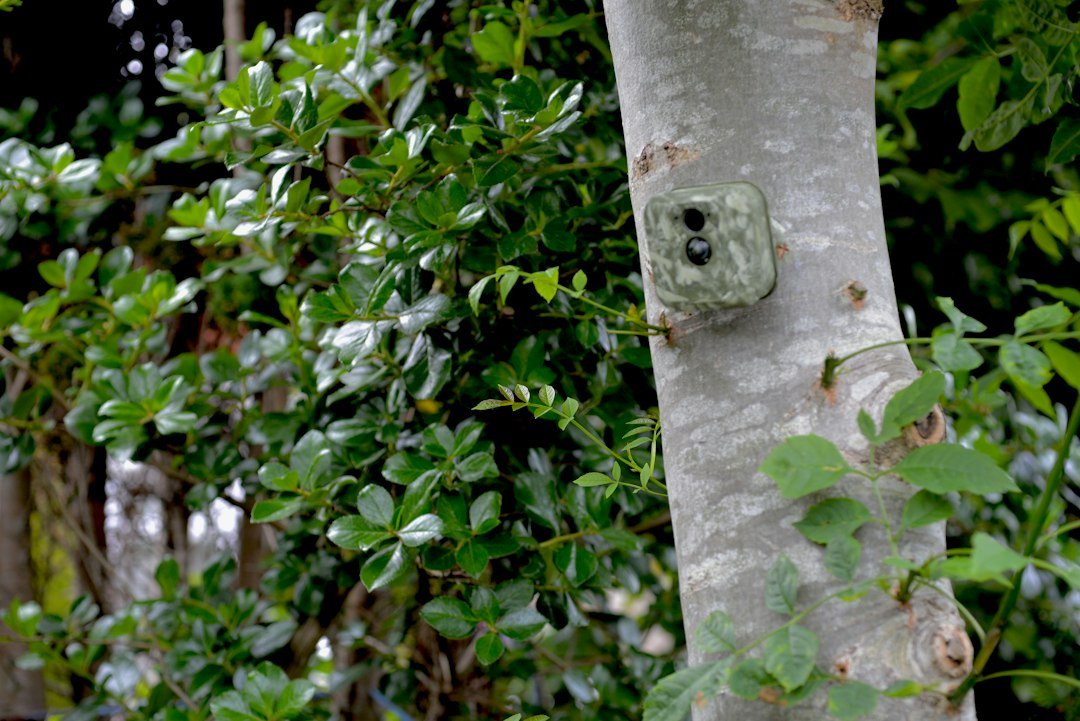
How to use a Tasco trail camera: Install the batteries and SD card recommended for your exact model, enter AIM or SETUP, set the date and time, choose photo or video, test the motion sensor, and switch to ON after mounting. Tasco model requirements vary, so check the manual before beginning.
Quick Answer: How to Use a Tasco Trail Camera
To use a Tasco trail camera, identify the model number, switch it off, install the batteries and SD card specified in its manual, enter setup mode, set the date and time, choose photo or video capture, mount it securely, and test motion detection before leaving it in the field. Tasco has produced several generations with different controls. Some use an OFF/AIM/ON switch and others have an OFF/SETUP/ON switch or a power button. Battery types and SD card limits also vary. The instructions below explain the common workflow while distinguishing verified examples from model-specific settings. Always defer to the manual for your exact camera.
Find Your Tasco Model Number
Before following a setup tutorial, locate the model number on the camera body, inside the battery compartment, or on the original packaging. Examples include 119256CW, 119270CW, 119271CW, 119422, and 119213C. These cameras do not all use identical batteries or controls. The Tasco 119256CW manual specifies four AA batteries and SD cards up to 32GB, while the older 119213C guide calls for four D-cell batteries and SD cards up to 8GB. Using the wrong instructions can lead to incompatible cards, incorrect button sequences, or a camera that will not start. Download the model’s manual from Tasco’s official manual library whenever possible.
Step 1: Install the Correct Batteries
Switch the camera to OFF before opening its battery compartment. Insert a full set of new batteries of the type and quantity specified for your model, following the positive and negative polarity markings. Do not mix old and new cells or different battery chemistries. Tasco recommends lithium or alkaline AA batteries for some models, including the 119256CW, but older devices may use larger C or D cells. The 119422 manual describes an eight-AA configuration. Battery life varies with temperature, the number of triggers, nighttime infrared use, and recording mode. If the camera does not power on, recheck polarity and contacts before assuming it is defective.
Step 2: Insert a Compatible SD Card
With the camera powered off, insert a compatible SD card in the orientation shown near the slot. Never force a card into place. Check that the physical write-protect switch is not locked. The maximum capacity depends on the model: some older Tasco cameras support only 8GB, while others accept up to 32GB. A larger card is not automatically compatible, even if it fits the slot. If a card was previously used in another device, back up its contents and use the camera’s documented Format option where available. Formatting deletes stored images and videos. Keep the card dry and clean, and avoid removing it while the camera is writing files.
Step 3: Enter Setup or AIM Mode
Many Tasco trail cameras have a three-position switch marked OFF, AIM, and ON, or OFF, SETUP, and ON. Move the switch to the middle position to access configuration. On models with a display, the screen should show current settings. The 119270CW and 119271CW instructions describe using UP, DOWN, and OK to change values. Some older models use a Menu button and a separate power switch, so do not assume the same sequence applies universally. In setup mode, you can usually adjust time, date, capture type, and detection delay. Read the model’s display prompts carefully and save changes before switching to normal recording mode.
Step 4: Set the Date and Time
Correct timestamps make wildlife observations much more useful. In the setup menu, locate the date and time settings and adjust the year, month, day, hour, and minute according to your model’s controls. Some older Tasco models use a 24-hour clock, so 2:00 PM appears as 14:00. Confirm each field with OK or Enter as directed in the manual. If your camera displays a date stamp on images, take a test photograph to confirm that it is accurate. Incorrect timestamps can make it difficult to compare animal movement patterns across days. If settings reset unexpectedly, inspect the batteries and consult the manual for possible clock-retention limitations.
Step 5: Choose Photo or Video Mode
Most Tasco trail cameras can capture still photographs, while many also support short video clips. In setup mode, choose the capture type that suits your purpose. Photo mode is often useful for long deployments because it typically uses less storage than frequent video recording. Video mode can reveal movement and behavior, but clip length, resolution, and battery use vary by model. The 119213C quick guide describes low-resolution photos, high-resolution photos, and video as selectable modes. Other models provide different options, including multiple photos per trigger. Start with photographs if you are unfamiliar with the camera, then experiment with video after verifying that recording works.
Step 6: Adjust the Trigger Interval
The trigger interval, also called detection delay, determines how long the camera waits between recording events. A shorter interval may capture more activity but can generate many similar images and consume batteries or SD card space more quickly. A longer interval reduces repeated captures but may miss animals that pass shortly after a trigger. Available delay options depend on the model. The older 119213C quick guide describes approximately 30 seconds between events, while other Tasco cameras allow the user to choose a delay. For a busy trail, start with a moderate setting and review the results. Adjust based on how often animals pass and how many duplicate photographs you receive.
Step 7: Mount the Camera on a Tree or Post
Use the supplied strap or an approved mounting bracket to attach the camera securely to a stable tree or post. Point it toward the expected animal path rather than a random open area. Avoid loose branches and tall grass directly in front of the sensor because wind movement can trigger unnecessary images. For deer, roughly three to four feet above ground is a practical initial height, but terrain and distance may require adjustment. Do not damage trees or mount cameras where prohibited. Check that the camera housing closes properly and that the strap does not obstruct the lens or infrared flash. Our camera height guide covers positioning.
Step 8: Aim and Test Motion Detection
Before leaving the camera unattended, test its field of view and passive infrared motion sensor. On models with AIM or TEST functionality, move through the intended detection area and observe the status indicator or recorded files as instructed. Walk at several distances and from different directions to see where the camera responds. Then inspect sample photos to confirm that animals will appear inside the frame. The sensor’s detection area and the lens’s visible area are not always identical. If the camera triggers too late or misses the path, change the angle or mounting position. See our trail camera aiming guide for additional tips.
Step 9: Switch to ON and Leave the Area
After configuring and testing the camera, move the switch to ON rather than leaving it in AIM or SETUP. Close and latch the housing to protect the electronics. Many Tasco models have a short delay before recording begins, giving you time to leave the detection area. The 119213C quick guide specifies a 60-second delay, but do not assume every model uses the same timing. Walk away without repeatedly triggering the camera and allow it to monitor the site. Record the deployment date and location for your notes. If the camera is used on public land, verify that local rules permit installation and that you have any required authorization.
Step 10: View Photos and Videos
When you return to check the camera, switch it off before removing the SD card. Insert the card into a compatible computer or card reader and open the recorded files. The older 119213C guide identifies a DCIM/100MEDIA folder containing JPG photographs and AVI videos. Folder names and file formats can differ on other models. Copy the files to your computer before deleting or formatting the card. Review timestamps and image quality to determine whether the camera is aimed correctly. If the device has a playback screen, follow its manual for reviewing files directly. Always safely eject the card before reinstalling it in the camera.
How to Use a Tasco Trail Camera at Night
Many Tasco trail cameras use infrared LEDs to illuminate wildlife after dark and produce black-and-white night images. The older 119422 manual describes an infrared LED array, but some early models use a visible flash. Nighttime performance depends on battery strength, distance, vegetation, and the camera’s flash design. Avoid pointing the camera directly at nearby branches or reflective objects, which can cause glare or leave the background dark. Test after sunset to confirm that the target area is visible. If daytime images look normal but nighttime images are black, check the batteries and infrared system. Read our black night photos troubleshooting guide.
How Far Can a Tasco Trail Camera Detect Motion?
Detection and illumination distances depend on the specific Tasco model, temperature, terrain, and the size of the moving subject. A PIR sensor may detect an animal beyond the distance at which the flash produces a useful photograph. Do not assume that a maximum range advertised for one Tasco model applies to another. A field test is more reliable than a generic distance claim: walk across the intended path at several measured distances, trigger the camera, and inspect the images. Move the camera closer if animals are too small or dark in the frame. See our trail camera range guide for a general explanation.
Troubleshooting: Tasco Camera Will Not Turn On
If your Tasco camera does not power on, first check the battery type, quantity, orientation, and condition. Replace weak cells with a complete approved set. Inspect the compartment for corrosion or bent contacts without attempting unsafe repairs. Verify that the power switch is fully seated in the intended position rather than resting between settings. If the device has a removable battery tray, make sure it is fully inserted. Check the manual for model-specific startup behavior. A damaged housing, water ingress, or internal electrical fault may require service. Do not open sealed circuit boards or connect an unapproved external power supply in an attempt to revive the camera.
Troubleshooting: Camera Takes No Pictures
If the camera turns on but does not record, verify that the SD card is supported, properly seated, unlocked, and not full. Check that the device is set to ON after configuration. Confirm the capture mode and trigger delay, then perform a walk test in front of the PIR sensor. If the camera was left in setup mode, it may not record normal field activity. Try a known-good compatible card and fresh batteries. Back up existing files before formatting a card. If the camera still fails, consult its official manual and note any error codes. Our general trail camera troubleshooting guide covers related problems.
How to Format the SD Card Safely
Formatting prepares a memory card for recording but also deletes the files already on it. First copy all photos and videos to another device and verify the backup. On Tasco models with a Format command in setup mode, use the documented menu sequence rather than guessing. The 119256CW manual recommends formatting in the camera when an SD card has previously been used in another device. Some older models have lower card capacity limits, and formatting a larger unsupported card will not necessarily make it compatible. Do not remove the card or interrupt power while formatting. Afterward, record a test photograph and confirm that it can be opened on a computer.
How to Improve Battery Life and Image Quality
Use the battery chemistry and quantity recommended for your exact Tasco model. Keep the lens and infrared window clean, and position the camera away from moving vegetation that causes false triggers. Select a trigger delay appropriate for the activity level. Avoid unnecessarily long videos if your goal is simply to identify visiting animals. Cold temperatures and frequent nighttime flash use may shorten battery life. Check the SD card before each deployment and test both daytime and nighttime images. A camera mounted securely on a stable tree will usually produce more consistent framing than one attached to a thin branch that moves in the wind.
Frequently Asked Questions
How do I turn on a Tasco trail camera? Install the correct batteries and SD card, configure the device, and switch to ON according to the manual. Does Tasco need Wi-Fi? Traditional Tasco SD-card trail cameras generally do not need Wi-Fi to record images. How many batteries does it take? It varies: verified manuals specify four AA, eight AA, or four D cells for different models. Can I use a 64GB SD card? Only if your exact model’s manual explicitly supports it; many older Tasco cameras have lower limits. Why are night photos black and white? Infrared imaging often produces monochrome images. How do I see photos? Remove the SD card with power off and use a compatible reader.
Final Setup Checklist and Official Manuals
Before leaving your Tasco trail camera outdoors, confirm the exact model, correct battery type and polarity, supported SD card, accurate date and time, selected capture mode, suitable trigger interval, secure mounting, and successful walk-test photographs. Finally, switch the camera to ON and close the housing properly. Do not use a generic battery or memory-card specification without verifying the manual. Tasco publishes official PDFs for model 119256CW, model 119422, and model 119213C. These official manuals are the best starting point for model-specific controls.
As an Amazon Associate, I earn from Qualifying Purchases.