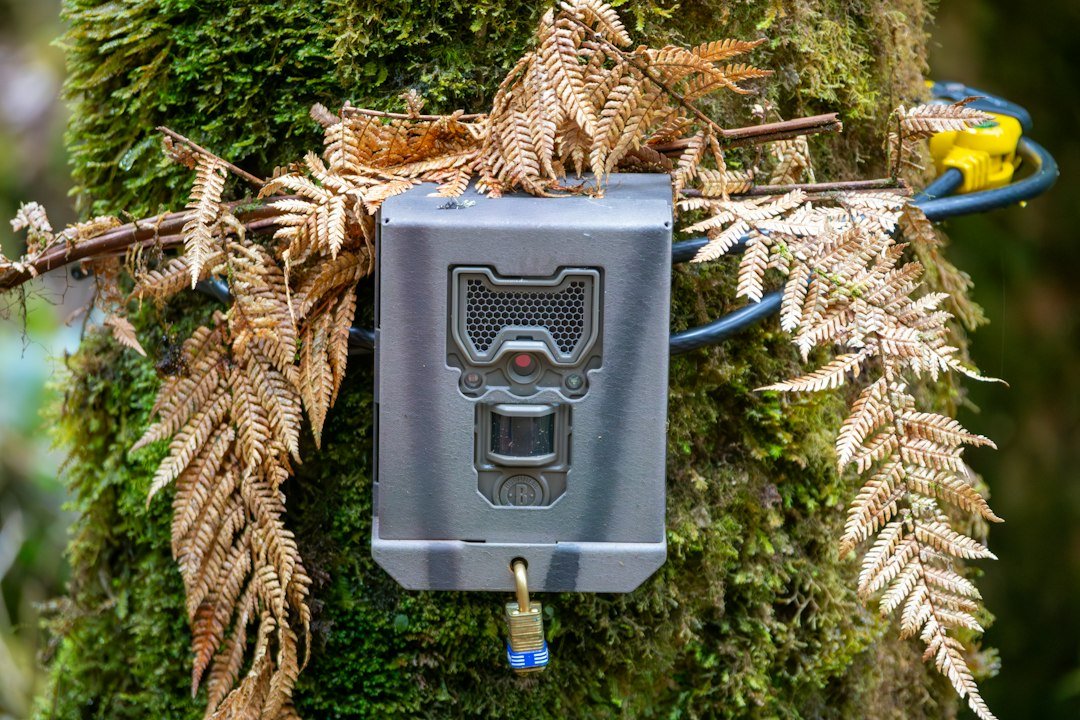
To set up a Tactacam REVEAL X, install the antenna without overtightening it, use the model-approved SD card, load 12 correctly oriented AA batteries, activate the camera in the REVEAL app, confirm cellular connection, and send a test image before mounting it. REVEAL X generations are not identical, so match the label to the X, X 2.0, X 3.0, X-Pro, or newer manual.
This guide focuses on the REVEAL X family and calls out generation differences. Never swap SIM cards between cameras unless current official instructions explicitly direct it; older cards can be paired to the device.
Identify the REVEAL generation
Open the housing and record the model, serial or camera ID, IMEI/ICCID where shown, and QR code location. Compare the model with Tactacam’s support page or PDF manual. The original X and X 2.0 require a Class 10 U3 card in the published instructions, while newer 4.0 documentation can differ.
Using the correct generation matters because carrier selection, card requirements, power systems, buttons, and work-mode behavior have changed. Do not follow an X-Pro LCD step on a model without that screen.
Create or verify the REVEAL account
Install the official Tactacam REVEAL app and sign in with the same account used for the web portal. If this is the first camera, establish the account before activation. Purchase or select the appropriate data plan through the current portal flow when required.
Keep the account email, camera name, and physical label consistent. Avoid sharing login credentials. If another person needs access, use supported account-sharing features rather than duplicating the device under a second account.
Install the antenna
Locate the supplied antenna and thread it clockwise onto the port. Stop when secure. Tactacam warns not to overtighten because this can damage the antenna port. Keep the camera off while attaching it and check that the connector is straight rather than cross-threaded.
At the final location, keep the antenna upright and clear of large metal objects or dense wet vegetation when possible. An antenna improves the designed radio connection; it cannot create coverage where the supported network is absent.
Install and format the SD card
Tactacam’s REVEAL X guidance specifies a 32GB Class 10 U3 card and recommends Tactacam, SanDisk, or Lexar for the covered generation. Insert the card in the marked direction until it clicks. Back up any existing files first.
Format the card in the REVEAL app or according to the model manual before first use and periodically when troubleshooting. Formatting erases everything. Avoid microSD adapters or unsupported capacities when the manual does not approve them. A slow, locked, corrupted, or wrong card can prevent capture or reliable video.
Install the batteries
Press EJECT to remove the tray where applicable. Load 12 AA batteries, following polarity markings on both sides. Tactacam recommends lithium AA batteries for performance, particularly in cold weather, in the cited X-family setup documentation. Do not mix brands, ages, or chemistries.
Slide the tray in until it seats fully. A partially engaged tray can power intermittently. If using an approved solar panel or rechargeable pack, follow its voltage, connector, and backup-battery instructions. Our trail-camera battery guide explains why cell matching and field temperature matter.
Understand the SIM card
REVEAL cellular models include the SIM arrangement required for their generation. Some older packages included carrier-specific or dual-carrier cards; newer models may automatically choose among supported networks. Do not insert a personal phone SIM.
Official Tactacam guidance warns that paired SIMs should not be swapped casually. If the app asks you to choose a network, follow that generation’s activation prompts. If it automatically searches, allow the search to finish before judging signal.
Activate the camera in the app
- Open the REVEAL app and go to Home.
- Open the menu and choose Add or Activate a New Device.
- Select the correct plan and camera model.
- Allow camera access only as needed to scan the device QR code.
- Scan the code inside the camera or enter the supported identifier.
- Name the camera and assign its location label.
- Complete carrier or SIM prompts for the exact generation.
- Wait for the initial activation and check-in.
If the QR code will not scan, clean the label, use even light, avoid glare, and confirm the app has camera permission. Do not scan a packaging code that identifies a retail item instead of the device. Our camera-code guide discusses the difference between device and retail identifiers, though the exact location differs by brand.
Pair local Wi-Fi for aiming and settings
On supported REVEAL X models, move the camera to SETUP. When its Wi-Fi indicator blinks blue, use the REVEAL app’s Connect to REVEAL Wi-Fi option. The camera creates a short-range setup network; it does not mean the camera uploads through home Wi-Fi.
Follow the in-app connection prompt. Older X documentation lists a case-sensitive default password, but use the current manual or app prompt for your generation rather than relying on a copied password. Local Wi-Fi generally works only when you are near the camera.
Aim with live preview
Use preview to center the expected travel path. Tactacam documentation describes a red horizontal line as the point-of-focus reference on supported models. Mount at the subject’s body height, aim level, and position at an angle to the trail so the animal stays in the detection zone longer.
Clear grass and branches that can heat and move. Avoid reflective objects close to the infrared LEDs. Secure the camera before final preview because tightening the strap can change the angle.
Configure capture and upload settings
Start with photo mode, moderate resolution, medium sensitivity, and a practical delay. A short delay captures more sequence detail but uses more power, card space, and data. A long delay reduces duplicates but can miss a second animal.
Do not assume every local file is uploaded at full resolution. Cellular cameras commonly transmit previews or compressed versions while keeping originals on the card. Video request behavior depends on model and plan. Apply settings, let the camera check in, and confirm the app reports the new values.
Send a test picture
Allow the camera to acquire cellular signal. Use the Test control or published check-in procedure and wait for the status cycle. Refresh the app only after the camera has had time to connect. Confirm the image arrives under the correct device and its battery and signal status are plausible.
A successful local image with no upload narrows the problem to plan, signal, antenna, SIM/account assignment, firmware, or app communication. A missing local file points instead toward power, card, mode, or trigger issues. See our REVEAL not-sending-pictures guide for that separation.
Enter work mode
Follow the model’s method to leave setup and enter the armed state. Some X-Pro and Pro models use a button command or automatic countdown; switch-based models have a WORK or ON position. Wait until the connection and arming sequence finishes before closing and walking away.
After arming, cross the detection zone, then verify both the local capture and the app upload. Test after dark because infrared illumination places a different load on batteries and reveals reflective-placement problems.
Common setup failures
Camera never activates
Confirm the correct account, plan, QR code, model choice, and camera identifier. Ensure the device is not already attached to another account.
No cellular bars
Let carrier search finish, reseat the antenna gently, move away from obstructions, and test another location. Phone service does not guarantee connected-device coverage.
Card error
Use the required Class 10 U3 capacity and approved brand, unlock and format it, or replace it.
App settings do not change
Wait for the next check-in and avoid submitting repeated conflicting commands. Use local Wi-Fi for immediate supported changes when near the camera.
Night uploads stop
Test fresh lithium batteries and inspect local nighttime files. Infrared demand can expose weak power that daytime testing did not.
Final deployment checklist
- Exact generation and manual confirmed
- Account and plan active
- Antenna secure, not overtightened
- Approved card formatted
- 12 matched batteries correctly loaded
- QR activation complete
- Local Wi-Fi preview checked
- Settings synced
- Test image captured and uploaded
- Camera in work mode and securely mounted
Separate local capture from cellular delivery
Treat the camera as two connected systems. The first detects motion and writes a file to the card; the second checks in and transmits according to signal, plan, firmware, and queued commands. When an image is missing from the app, inspect the card before changing several settings. A correctly timed local file shows that the sensor, power, mode, and storage completed their part. That makes cellular status the next place to investigate.
If the card also lacks the expected file, test a simple photo configuration at close range and confirm the camera actually entered work mode. Walk across, rather than directly toward, the detection zone. Repeat after dark with fresh matched batteries because infrared illumination increases demand. Keep each result with its timestamp so the app’s check-in history can be compared with local capture time.
Record the installed configuration
Save the camera name, exact model, plan, firmware shown in the app, card specification, battery type, signal result, settings, mount location, and test-image time. Do not record passwords in an exposed field notebook. A configuration record prevents two similar devices from being confused and shows whether a later app command was applied. Photograph the final field of view from the camera position without claiming it is an actual camera capture.
Frequently asked questions
Does REVEAL X use my phone’s carrier?
No. The camera uses its own supported cellular service and plan.
Is Wi-Fi required in the woods?
Home Wi-Fi is not normally required for cellular uploading. The camera’s local Wi-Fi is for nearby setup on supported models.
Can I replace the SIM?
Do not swap it unless official instructions for the exact generation direct you to do so.
Why does the app show an old setting?
The camera may not have completed its next check-in. Confirm signal and wait for communication.
Should I deploy immediately after activation?
No. Complete a local capture, upload, settings, and nighttime test first.
Official references
As an Amazon Associate, I earn from Qualifying Purchases.