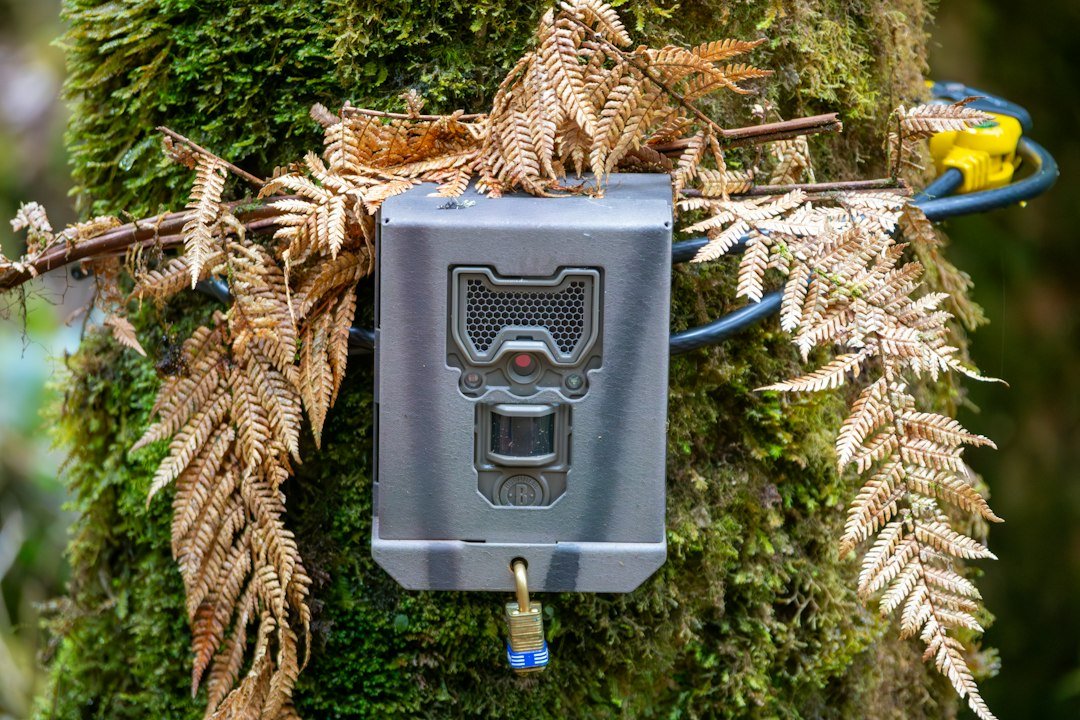
A Browning cellular trail camera is “synced” only when three parts agree: the physical camera is registered to the correct account, the camera has an active data plan, and it completes a network connection from the place where it will be used. A camera can take photos to its SD card while still failing to upload them, so treat capture and cellular transmission as two separate systems. The exact menu labels vary by model year, but the safe sequence is consistent: prepare power and storage, add the camera in Browning’s current app, activate service, run a test connection, and verify both a locally saved image and an uploaded image before leaving the site.
Before you start: identify the camera and app
Read the model name and model number from the label inside the door or battery compartment. Browning has sold conventional trail cameras, older Defender wireless models, and current cellular models that use different apps and setup paths. Do not assume that an instruction written for a Defender 850, a Defender Wireless, or a recent cellular model applies word-for-word to another unit. Browning’s official manuals and support pages are the authority for the switch positions, indicator lights, supported SD card capacity, and app required by your exact model.
For current cellular cameras, Browning’s official setup material directs users through the Strike Force Wireless app. Some older Defender products use the Defender app. If the packaging, manual, or QR label names a different app, follow that model-specific instruction instead of forcing the camera into the newest app. Installing the wrong app is a common reason a serial number or registration code appears invalid.
What you need for a successful sync
- Fresh batteries of the type and quantity specified in the manual, all from one brand and age group.
- A compatible, full-size SD card that has been formatted in the camera when that option is available.
- The camera’s serial number, IMEI/ICCID, QR code, or registration label required by the app.
- A phone or tablet with internet access and the correct Browning account credentials.
- An active plan for that camera, not merely an app login.
- A setup location with usable cellular signal for the network selected by the camera.
Do not remove the SD card or batteries while the camera is writing, updating, or attempting its first network connection. A weak battery set can power the display yet drop voltage when the modem or infrared LEDs draw more current. That creates confusing symptoms: the camera may boot, capture one test photo, and then fail during upload.
Step 1: prepare the SD card and power
With the camera switched off, insert the supported SD card in the orientation shown beside the slot. Never force it. Install fresh batteries while observing every polarity mark. If you use an external battery or solar accessory, confirm that it is specifically compatible with the camera’s voltage and connector; an external source does not excuse weak or mismatched internal batteries unless Browning’s manual explicitly says so.
Turn the camera to its setup position and use the camera’s format command if the manual provides one. Formatting deletes the card’s contents, so copy any files you need before doing it. Camera-side formatting establishes the file system and folder structure the firmware expects. If the card repeatedly reports an error, test a different supported card from a reputable manufacturer rather than assuming the cellular service is responsible.
Step 2: add the camera to the correct Browning account
Open the official app named for the camera and sign in. Choose the option to add or activate a camera. Scan the camera’s QR code when offered, or carefully enter the requested identifier. The label may contain several numbers; use the one the app asks for rather than guessing. Check visually for transposed digits before submitting.
If the app says the camera is already registered, stop repeated attempts. The unit may remain attached to a previous account, which is common with used or returned equipment. Account ownership cannot be safely bypassed with a factory reset. The previous owner or Browning support may need to release the camera after ownership is verified.
Give the camera a clear name that identifies its location, such as “North Creek Crossing,” rather than a vague name such as “Camera 1.” This makes later plan, signal, and battery troubleshooting much easier when several units are on the account. If you manage several cameras, our guide to using multiple trail cameras on one plan explains why account grouping and plan rules should be checked before deployment.
Step 3: activate or assign the data plan
Registration and service activation are separate. After adding the camera, select the available plan that matches your expected upload volume and complete the activation shown in the app. Plan names, prices, image limits, and supported carrier arrangements can change, so rely on Browning’s current app and official cell-camera information rather than an old screenshot or third-party price table.
Some recent Browning cellular models can choose among supported networks automatically, while older products may be tied to a particular carrier version. The carrier used by the trail camera does not have to match the carrier on your phone. What matters is coverage for the camera’s hardware and service at the deployment location. Do not try to replace a SIM or alter carrier settings unless Browning’s instructions for that exact model permit it.
Step 4: run the first connection correctly
Keep the camera outside or near a window with a clear view of the sky and an adequate cellular signal. Place the power switch in setup mode first. Allow the startup routine to finish. The display or status LEDs may show card initialization, network search, registration, or a connection result. Exact colors and timing vary, so use the manual’s status table rather than treating a generic light sequence as universal.
When the camera reports that it has connected, save the intended photo, trigger-delay, multi-shot, video, or time-lapse settings. Then move the switch to the operating position and close the door. Many cameras use a short countdown before arming. Walking directly in front of the sensor during that countdown can create a test image, but it does not prove that later wildlife detection is configured well.
Wait for the upload interval specified by your settings and plan. Cellular trail cameras often queue files and check in on a schedule to preserve battery life; they are not necessarily instant cameras. A photo visible on the SD card but absent from the app points toward plan, signal, account, or upload scheduling. No photo on the card points toward capture settings, the SD card, power, aim, or the sensor.
Step 5: verify capture and upload separately
Perform a controlled walk test in daylight. Cross the detection zone rather than walking straight toward the lens, because passive infrared detection responds best to a changing heat pattern across its field. Wait longer than the selected trigger delay, repeat from another distance, and then allow the camera to complete an upload cycle.
Confirm all of the following before mounting the camera permanently:
- The camera reports a successful network connection or check-in.
- A new file exists on the SD card.
- The same test event, or its transmitted thumbnail, appears under the correct camera in the app.
- The timestamp and time zone are correct.
- The app reports plausible battery and signal information.
If you can see the local file but not the upload, do not erase the card yet. Preserve the evidence while you check activation, plan status, signal, scheduled transmission, and the app’s filters. Our Browning carrier guide explains the difference between a service setting and hardware that is carrier-specific.
How to sync settings after the camera is deployed
Changing a setting in the app may create a pending command rather than altering the camera immediately. The camera normally has to contact the service before it can receive and apply that command. The interval depends on model, firmware, power state, signal, and the check-in schedule. If the app shows a pending change, avoid issuing the same command repeatedly. Leave the camera powered, confirm the plan is active, and wait through the next scheduled connection.
For an urgent change, visiting the camera and applying the setting locally may be faster. After a local change, run another test so the app and camera can reconcile. A stale battery percentage or old timestamp in the app is often a sign that the camera has not checked in, not proof that the camera ignored one particular setting.
When the Browning camera will not sync
The QR code or identifier is rejected
Confirm the app matches the model, clean the label, improve lighting, and enter the characters manually. Distinguish zero from the letter O and one from the letter I. If the unit is pre-owned or the app reports existing ownership, contact the seller or Browning support rather than attempting to defeat the account lock.
The camera searches but never connects
Move it to an open outdoor location and give the modem time to register. Replace marginal batteries, reseat or format the supported SD card, and confirm the plan is active. Signal on your phone is only a rough clue because the camera may use a different network or antenna. If it connects at home but not at the field site, location coverage is the leading explanation.
The camera connects but photos do not appear
Check whether a new file was written to the SD card. Verify the app is displaying the correct camera and date range, then check plan allowance, upload schedule, thumbnail or video settings, and signal. Large media files require more time and energy than thumbnails. If no local file exists, troubleshoot capture rather than cellular service.
The app shows old information
Refresh the camera page, confirm internet access on the phone, and compare the “last communication” or equivalent field with the current time. Pending settings, old battery data, and missing status reports usually share one cause: the camera has not completed a recent check-in.
Firmware and reset cautions
Install firmware only when Browning publishes a file or in-app update for the exact model. A similarly named camera can still require different firmware. Use stable power, follow every official step, and never interrupt the update. Do not use a factory reset as the first response to a coverage or inactive-plan problem; resetting local settings cannot create cellular coverage or transfer account ownership.
If support asks you to reset the camera, first note the current settings, camera identifier, firmware version, last successful communication, SD card specification, battery type, and the wording of any error. Those details make the reset useful as a controlled diagnostic instead of an unrecorded change.
Deployment checklist
- Correct model-specific app and account
- Camera registered with an active plan
- Fresh matched batteries and supported formatted SD card
- Successful outdoor network connection
- Controlled test saved locally and received in the app
- Correct date, time zone, upload schedule, and camera name
- Final field location has usable signal
Frequently asked questions
Does my phone need the same carrier as the camera?
No. Your phone only needs internet access to use the app. The camera’s compatible network and coverage at its location determine whether it can upload.
Why does the app say a setting is pending?
The service has recorded the change, but the camera has not yet checked in and applied it. Leave the camera powered and wait through its next connection window.
Can I sync the camera without an SD card?
Do not assume so. Many cellular trail cameras require a compatible SD card for normal capture, staging, and upload. Follow the manual for the exact model.
Will a factory reset remove the camera from another owner’s account?
Normally, a local reset does not prove ownership or release a server-side registration. Use the legitimate account-release or support process.
How do I know setup is truly complete?
A successful status light is not enough. Verify a fresh test photo on the SD card and a corresponding new item in the correct camera’s app feed.
Official references
- Browning Trail Cameras: setting up a cellular camera with the Strike Force Wireless app
- Browning Trail Cameras: manuals and troubleshooting resources
- Browning Trail Cameras: current cellular-camera information
As an Amazon Associate, I earn from Qualifying Purchases.