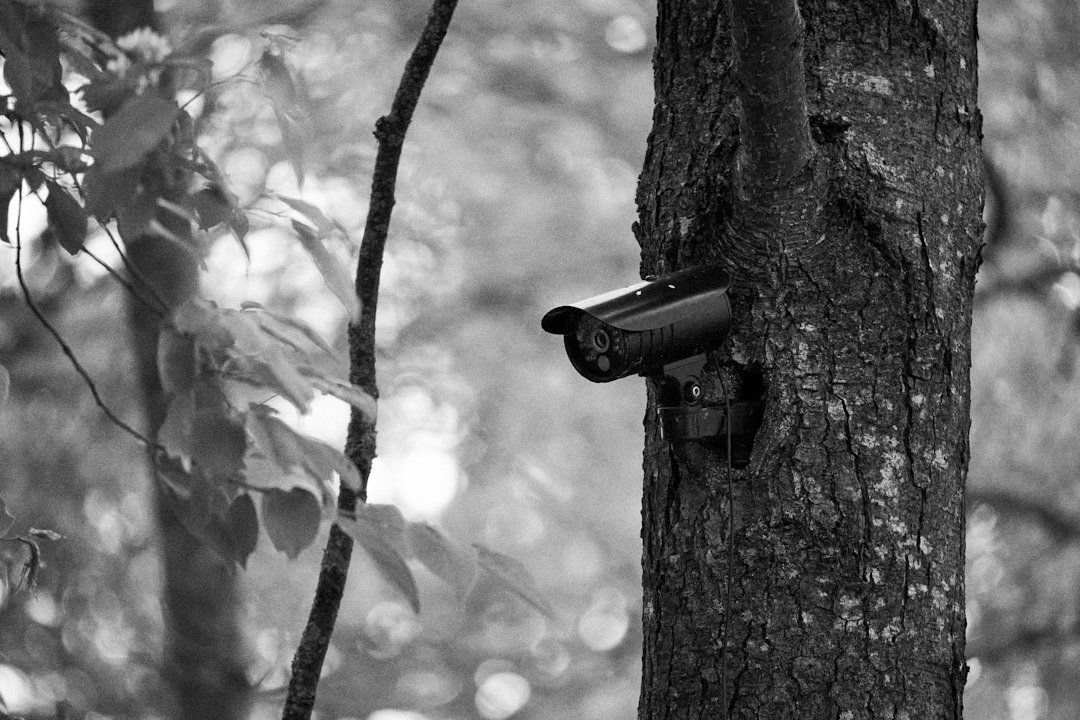
Setting the correct time on a Stealth Cam trail camera matters because every photograph and video uses that clock for its timestamp. An incorrect date can place animal movement in the wrong hour, confuse a multi-camera survey, or make files appear out of order. The menu path varies across Stealth Cam digital and cellular models, so the reliable method is to identify the model, use its official manual, and verify the timestamp with a test image.
This guide explains the common on-camera process, differences between stand-alone and cellular units, daylight-saving and time-zone issues, and what to do when the clock resets. Button names differ: one camera may use Menu and OK, while another uses a directional pad or app-controlled settings. Never force a sequence intended for a different model.
Quick steps for most stand-alone Stealth Cam models
- Install fresh, matched batteries and a compatible formatted SD card.
- Move the power switch to a setup or custom position rather than directly to full ON.
- Press Menu and use the arrow buttons to find Date/Time, Set Clock, or a similarly named option.
- Press OK or Enter to edit the highlighted field.
- Set year, month, day, hour, and minute in the order shown.
- Confirm every field and exit the menu normally so the value is saved.
- Take a test picture and inspect its information strip or file metadata.
These are general steps, not a replacement for the manual. Stealth Cam’s official downloads page currently lists manuals and firmware by product, including Fusion, Deceptor, DS4K, GMAX, PXV, QS, QV, Revolver, Sonix and other families. Select the exact product before applying button instructions.
Identify the exact camera first
Open the camera and record the complete model name or model number from its label. Marketing names can cover several generations, and a MAX, V2, NG, or X-PRO suffix may indicate different menus. A manual for a visually similar camera is not sufficient evidence that the controls are identical.
If the label is difficult to read, check the original box, purchase record, battery compartment, or existing app device information. Do not guess based on housing color. Once identified, open the official Stealth Cam manuals and firmware page and select that model. Save a copy of the manual for field use because phone coverage may be poor at the installation site.
Understand the power-switch positions
Many trail cameras separate configuration mode from active recording mode. Setup, Test, or Custom wakes the display and exposes menu items; ON arms the PIR sensor after a countdown. If you switch directly to ON, the screen may go dark before you can change the clock. Move to the documented setup position first.
After saving, return the switch to ON and close the door. Wait for the arming countdown to finish before walking through the detection zone. Opening the door again immediately can interrupt a cellular test or leave the camera in setup mode.
How to enter the date correctly
Pay attention to the date format displayed by the camera. In the United States, a menu may show month/day/year, while another firmware version may use year-month-day. A value such as 04/05 is ambiguous unless you confirm the field labels. Use the arrows to change one field, press OK to advance, and review the complete date before leaving the screen.
Set the four-digit year whenever the camera permits it. A wrong year can make a new SD card appear to contain old files and can disrupt chronological sorting. If the day will not advance beyond a certain number, check whether the month or year was entered incorrectly.
12-hour versus 24-hour time
Some Stealth Cam menus display AM/PM; others use a 24-hour clock. On a 12-hour display, confirm the AM or PM indicator. Noon is 12:00 PM, and midnight is 12:00 AM. On a 24-hour display, 1:00 PM is 13:00 and 11:00 PM is 23:00.
A common error is entering the correct digits with the wrong AM/PM selection. That shifts every observation by twelve hours and can make nocturnal activity look like midday movement. Take a test photograph while standing in front of the camera and compare the stamp with a phone or watch.
Cellular Stealth Cam models and the Command app
Cellular models may obtain or manage time through the Stealth Cam Command ecosystem, a network connection, or a combination of app and on-camera settings. The behavior depends on the product and firmware. Check the device settings in the official app for time zone, location, or camera-information fields, then follow the model manual for any local clock option.
Do not assume a successful upload proves that the displayed time is correct. The app, server, image stamp and SD-card file can use different time references. Compare a newly triggered image in both the app and on the card. If only the app view differs, review the account or phone time zone before repeatedly resetting the camera.
Our Stealth Cam Command app setup guide explains the app’s broader controls. If a cellular unit captures locally but does not transmit, use the separate Stealth Cam not-sending-pictures checklist rather than treating every delivery problem as a clock problem.
Time zones and daylight-saving time
Choose the time zone of the camera’s physical location, not the location where you are viewing photographs. A camera deployed across a state boundary or taken on a trip may need a new setting. If the app offers an automatic daylight-saving option, confirm what it does for that model; otherwise adjust the clock manually when the local change occurs.
Arizona, Hawaii and some U.S. territories do not follow the same daylight-saving pattern as most states. Do not apply a nationwide one-hour change without checking the deployment location. Researchers who compare several cameras may prefer standard time throughout a project, but that requires a documented method and should not be mixed silently with local time.
Why the time keeps resetting
A clock that returns to a default date after every battery change can indicate weak power, a very long period without batteries, an internal clock-retention problem, or incomplete saving. First install a full matched set of fresh batteries. Enter setup mode, set every field, confirm with OK, exit normally, and take a test image before removing power again.
Do not mix old and new cells or different battery chemistries. A display may illuminate even when voltage is unstable. Check the battery contacts for dirt, corrosion, or a cell installed backward. If the clock resets while the main batteries remain installed, record the model, firmware version, battery type and reset pattern before contacting Stealth Cam support.
Firmware and clock problems
Firmware can affect menus and time behavior, but an update should be model-specific. Use the official Stealth Cam download page, select the exact product, read the release information, and follow its instructions. Do not install a file from a different family merely because the housing looks similar.
Before updating, use stable power and a card that meets the manual’s requirements. Never remove batteries or the card while an update is in progress. After any firmware update, review the clock, capture mode, delay, resolution and schedule because some settings may return to defaults.
Verify with a controlled test
- Set the camera clock to match a trusted phone showing the correct time zone.
- Close and arm the camera.
- Wait until the next minute begins, then walk through the center of the detection zone.
- Allow the camera to finish writing or transmitting.
- Open the newest image and compare the timestamp with the known trigger time.
- Repeat after a power cycle if you are diagnosing a reset.
A difference of a few seconds can be normal because the photograph occurs after detection and file writing takes time. A difference of exactly one hour usually points to daylight-saving or time-zone settings; twelve hours suggests AM/PM; an entirely wrong year suggests an unsaved or reset clock.
Organizing files from multiple cameras
Synchronize all cameras before deployment and label each unit with a unique site name. Trigger a visible test card or wave a note containing the camera ID in front of each lens. This creates a reference image tying the clock to the physical unit.
When reviewing files, keep the original image and metadata. Renaming files is useful, but avoid overwriting the original timestamp without keeping a correction log. For scientific or property-security use, document any known clock offset and the period it affected.
Common mistakes
- Setting the clock in ON mode and losing the menu during the arming countdown
- Reversing month and day
- Selecting PM for a morning time
- Using the viewer’s time zone instead of the camera location
- Failing to press OK after the final field
- Removing batteries before the setting is stored
- Assuming an app timestamp and image stamp always use the same zone
- Installing firmware for a similar but different model
Troubleshooting a date that changes unexpectedly
If only some images show the wrong date, separate files captured before and after the correction. Check whether old files remained on the card after a format was skipped. Sort by both filename and metadata rather than assuming the operating-system date is the capture date. A downloaded cellular copy may also receive a new file-created date on the phone while retaining the original image stamp.
If the clock jumps after an app setting change, wait for the next confirmed camera communication and run another test. Remote commands can remain pending until the camera checks in. Record the before-and-after values so support can distinguish a synchronization delay from a persistent reset.
Frequently asked questions
Does a Stealth Cam set time automatically?
Some cellular models may synchronize or use app/network settings, while stand-alone models commonly require manual setup. Confirm in the exact model manual.
Why is every picture one hour wrong?
Check the selected time zone and daylight-saving setting. A consistent one-hour offset usually indicates one of those choices rather than a failing sensor.
Will formatting the SD card reset the clock?
Normally the SD card and internal clock are separate, but model behavior can vary. Verify the time after formatting and after firmware work.
Why are new files mixed with old ones?
The year or date may be wrong, or the card may contain files from another camera. Back up the card, set the clock, format it in the camera when supported, and run a fresh test.
Where can I find the correct manual?
Use Stealth Cam’s official Product Manuals and Firmware downloads page and select the exact model shown on the camera label.
Official reference
As an Amazon Associate, I earn from Qualifying Purchases.