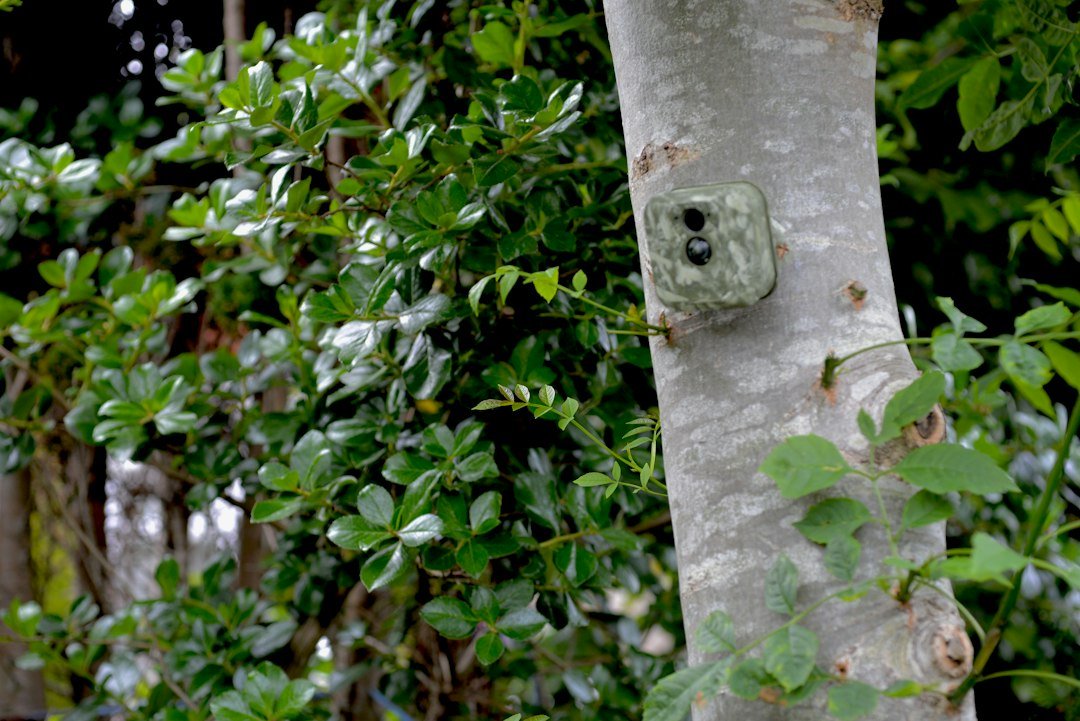
To reset a Browning trail camera, first identify the exact model and decide whether you need a settings reset, a power-cycle, an SD-card correction, or firmware recovery. Browning cameras do not all share one universal hidden reset button. On many models, the safest reset is to turn the camera off, remove every power source, wait, reinstall fresh batteries and a compatible formatted card, then restore menu settings manually. Cellular models may also require an app check-in; deleting the camera from an account is not a routine reset.
This guide uses a conservative sequence that protects stored images and avoids turning a simple card or battery problem into an account or firmware problem. Menu names differ by model and year, so compare the model number inside the door with Browning’s downloadable instructions before pressing unfamiliar buttons.
Before resetting: protect files and record settings
Switch the camera off before removing the SD card. Copy wanted photos and videos to a computer, then note the current date, time, capture mode, delay, burst count, video length, PIR sensitivity, target hours, camera name, and any cellular plan or account details. Photographing each settings screen is faster than rebuilding a complicated configuration from memory. A reset can clear some or all of these values depending on the model.
Inspect the battery tray, terminals, latch seal, antenna connection, and card lock tab. Corrosion, a reversed battery, a card in the locked position, or a door that is not fully closed can mimic corrupted settings. Never clean powered contacts with liquid, and do not mix old and new cells or different battery chemistries.
Step 1: perform a controlled power-cycle
- Move the power switch to OFF.
- Disconnect an external battery pack or solar source.
- Remove the internal battery tray or all batteries.
- Remove the SD card after the camera is off.
- Wait at least one minute so stored charge can dissipate.
- Inspect and reload a complete matched set of fresh batteries in the marked orientation.
- Leave external power disconnected for the first test.
- Insert a known-good card only after checking its capacity and format against the model manual.
- Move the switch to SETUP and confirm the display and controls respond.
A power-cycle does not normally erase an account or intentionally restore every menu default. Its purpose is to clear a temporary lockup and test the camera with a simple power path. If the display remains blank, measure or replace the power source before assuming software failure.
Step 2: isolate the SD card
Card faults cause many symptoms that owners describe as needing a reset: freezing at startup, refusing to arm, showing a card error, saving zero-byte files, or stopping after a few captures. Test with a manufacturer-supported full-size SD/SDHC card. Avoid relying on a microSD adapter unless the exact manual allows it. Back up the card, unlock its side tab, and format it in the camera when the menu offers that option.
If the camera cannot reach the format menu, fully format the card on a computer using the file system required by the manual, then let the camera format it again. A quick format may leave underlying errors. Do not format until the files are copied because formatting erases the card. Our trail-camera SD-card guide explains capacity, class, and error checks in more detail.
Step 3: restore menu defaults when the model provides it
Some Browning menus include a default, restore, or factory option; others expect the owner to re-enter settings. If your manual lists a restore command, use it from SETUP mode and confirm only after your files and settings notes are safe. Afterward, set the date and time first. Then choose one-photo mode, a moderate delay, normal resolution, and standard sensitivity for a clean walk test.
Do not improvise a button combination found for a different Browning model. A key sequence for a Defender cellular camera may perform a different function on a Strike Force, Recon Force, Dark Ops, or Command Ops unit. Model-specific instructions take priority over generic advice.
Cellular Browning cameras need an account check, not automatic deletion
A cellular camera can capture locally while failing to upload. Resetting the local camera may not repair an expired plan, weak signal, incorrect account assignment, delayed command, antenna problem, or carrier outage. Confirm the camera remains present in the Strike Force Wireless app, the subscription is active, and the most recent status report shows usable battery and signal.
Do not remove the device from the account or replace its SIM as a routine troubleshooting step. SIM and device identifiers may be paired. Record the camera ID, ICCID/IMEI information, and plan status before any account-level change. If the camera takes files on the card but sends nothing, follow the upload checks in our Browning synchronization guide.
When a firmware reinstall is appropriate
Firmware should be considered only when Browning publishes an update for the exact model and hardware version, or when official support directs you to it. An update is not a general-purpose reset. Installing the wrong file or interrupting power can leave the camera unusable. Verify the full model designation, current software version, download source, required card format, and installation sequence.
Use fresh batteries and a clean compatible card. Copy only the specified files to the location described by Browning, then follow the official button and switch sequence without interruption. After the update, confirm the reported version and run a daytime and nighttime test. See our Browning firmware guide before attempting this higher-risk step.
Build a clean test configuration
After a successful reset, avoid restoring every advanced option at once. Set the clock, choose photo mode, one image per trigger, a short but not minimum delay, medium sensitivity, and disable time lapse or target hours temporarily. Mount the camera at the expected subject height and perform several walk passes at different distances.
Review timestamps and framing on a computer. If this baseline works, add burst mode, video, target hours, or cellular uploads one feature at a time. When a failure returns immediately after one change, that setting or its interaction becomes the leading clue.
If the camera will not turn on after the reset
Confirm every battery is oriented correctly and that the tray contacts are clean and springy. Test without external power, then with only the approved external source if the manual permits it. Examine the tray for swelling or cracked plastic. A voltage reading under no load can look normal even when cells collapse during infrared or modem demand, so a complete fresh matched set is the better field test.
Try SETUP with the card removed only if the manual permits startup without a card. If the screen works without the card, replace or reformat the card. If there is still no display or status light with verified power, stop repeated power cycling and contact Browning support; opening the sealed housing may damage weather protection and warranty coverage.
If it powers on but takes no pictures
Check that the switch reaches ON rather than remaining in SETUP, wait for the arming countdown, and walk across the sensor’s field instead of straight toward it. Disable target recording hours and time lapse for the test. Clear moving grass and branches, aim level, and keep the subject within the documented detection range.
Use a manual test photo when available. If manual capture works but PIR capture does not, focus on sensitivity, aim, temperature contrast, and sensor behavior. If neither works, return to power and card checks. Our Browning diagnostic guide separates capture, storage, and cellular upload failures.
Reset checklist for field deployment
- Correct model manual confirmed
- Images backed up
- Settings and identifiers recorded
- Fresh matched batteries installed
- Approved card formatted and unlocked
- Date and time corrected
- Simple photo-mode walk test passed
- Night infrared test passed
- Cellular test upload confirmed when applicable
- Housing gasket clean and door latched
Keep the successful configuration in a field log. A record of battery type, card, firmware version, settings, and test time prevents a future reset from becoming guesswork.
Protect evidence before changing anything
When the failure is intermittent, the last files and status screens are diagnostic evidence. Before formatting or restoring defaults, copy the card to a dated folder and photograph the current menu pages. Note the time of the last normal image, the first bad image, battery reading, temperature, and any recent card or power change. On a cellular unit, save the last check-in time and signal report from the app. This record helps distinguish a sudden hardware or power event from a scheduling or configuration mistake.
After the reset, reproduce the same field conditions as closely as practical. Use the same mounting height and subject path, but begin with the clean test configuration. If the problem returns only at night, during video, or during cellular transmission, that pattern points toward peak power demand rather than a menu reset alone. If the problem follows one card or battery tray to another compatible camera, remove that component from service.
Frequently asked questions
Will a reset delete SD-card photos?
A power-cycle normally should not, but formatting the card will. Back up files before any reset or format because model behavior and card condition vary.
Is removing the batteries enough?
It can clear a temporary lockup, but it does not repair a damaged card, weak power, incorrect schedule, expired plan, or wrong firmware.
Should I remove my cellular camera from the app?
Not as a first step. Account removal can complicate reactivation. Verify plan, signal, identifiers, and local capture first.
Can I use another model’s reset combination?
No. Use instructions for the exact model and hardware generation.
When should I contact support?
Contact Browning when verified fresh power and a supported card do not restore SETUP operation, when firmware recovery is unclear, or when account identifiers cannot be validated.
Official references
As an Amazon Associate, I earn from Qualifying Purchases.