
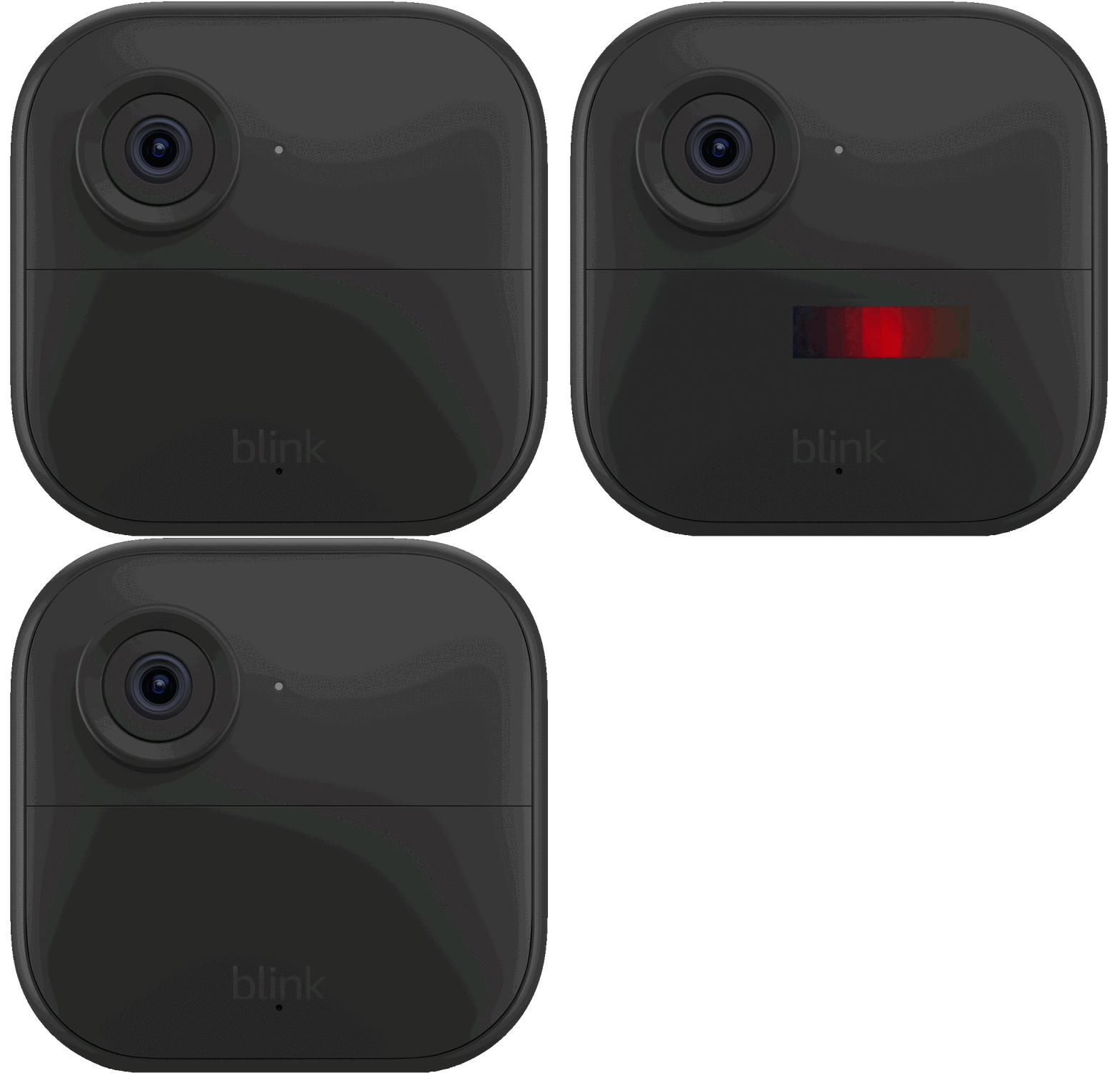
A flashing red light on your Blink camera can be concerning. It often signals an issue that needs attention.
Understanding what this red light means is crucial for ensuring your home security system works properly. When your Blink camera flashes red, it typically indicates either a connectivity problem or a low battery. This simple alert can help you address issues quickly.
Knowing how to interpret these signals can save you time and frustration. Whether you’re trying to connect to Wi-Fi or replace the batteries, it’s essential to know the steps to take. In this blog post, we’ll explore the reasons behind the red flashing light and provide practical solutions to get your camera back to normal.
Credit: www.tiktok.com
Decoding The Red Flash: Causes
A red flash on your Blink camera can be confusing. Understanding what it means can help you troubleshoot the issue quickly. The camera usually flashes red for specific reasons. Let’s explore these causes.
Wi-fi Connection Challenges
A flashing red light often signals a Wi-Fi connection problem. Your camera may struggle to connect to your network. This can happen if the signal is weak or if the camera is too far from the router.
Check your router’s status. Make sure it is working properly. Restarting the router can sometimes resolve the issue. Also, ensure your camera is within the recommended range for optimal performance.
Low Battery Indicators
An ongoing red flash might mean your camera’s battery is low. The Blink camera needs sufficient power to function well. If the battery is dying, replace it as soon as possible.
Check the battery level through the Blink app. A low battery indicator will appear on the screen. Replacing the batteries regularly can help prevent this issue.
Quick Fixes For Wi-fi Related Issues
A flashing red light on your Blink camera often means Wi-Fi problems. Addressing these issues can help restore your camera’s connectivity. Here are some quick fixes to get your camera back online.
Signal Strength Assessment
Check the signal strength of your Wi-Fi. A weak signal may cause connection issues. Move closer to your router and see if the red light changes. You can also use your smartphone to test the Wi-Fi signal in the camera’s location.
Router Restart Techniques
Restart your router to refresh the connection. Unplug the router and wait for 30 seconds. Plug it back in and allow it to reboot completely. This can fix temporary connectivity problems.
Re-pairing The Camera
Re-pair your Blink camera with the app. Open the Blink app and remove the camera from your device list. Follow the pairing instructions to add the camera back. This may resolve any connection issues.
Wi-fi Credentials Verification
Check your Wi-Fi credentials in the Blink app. Ensure the network name and password are correct. An error here can prevent your camera from connecting. Update the information if needed, then try reconnecting.
Battery Troubleshooting Steps
When your Blink camera flashes red, battery issues are often the cause. A simple check can help you resolve this. Follow these steps to troubleshoot battery problems effectively.
Checking Battery Levels
Start by checking the battery levels of your Blink camera. Open the Blink app on your smartphone. Navigate to the camera settings. Here, you will see the battery percentage displayed. A low battery level means it’s time to recharge or replace the batteries.
Battery Replacement Guide
Replacing the batteries is straightforward. First, open the back cover of your camera. Remove the old batteries carefully. Insert fresh batteries, making sure they are placed correctly. Close the back cover securely. This should resolve the flashing red light issue.
Understanding Battery Lifespan
Knowing the lifespan of your batteries is important. Most Blink camera batteries last between two to three years. Environmental factors can affect battery life. Extreme temperatures can drain batteries faster. Regularly check battery levels to avoid interruptions.
Credit: support.blinkforhome.com
When Setup Leads To Red Flashes
Setting up your Blink camera should be a smooth process. Yet, many users face a flashing red light during setup. This signal can be confusing. Understanding its meaning helps you troubleshoot effectively.
A red flash typically means two things: the camera struggles to connect to Wi-Fi or the battery is low. Recognizing these signals early saves time and frustration. Let’s dive into the setup steps and recovery options to fix this issue.
Completing The Camera Setup
To complete the camera setup, follow these steps carefully. First, ensure your camera is close to your Wi-Fi router. This helps with a strong signal. Next, open the Blink app on your phone. Follow the prompts to connect your camera. Make sure to enter the correct Wi-Fi password.
Check if the camera’s LED light turns solid green after setup. A flashing red light means it has not connected. If the light continues to flash, double-check your Wi-Fi connection. Restart your router if needed. Sometimes, a simple reboot can solve the issue.
Reset And Recovery Procedures
If the red flash persists, try resetting your camera. Locate the reset button on the camera. Press and hold it for about 10 seconds. Wait for the camera to restart. The LED light will flash, then turn solid green once it reconnects.
After resetting, repeat the setup process in the Blink app. Ensure your phone is connected to the same Wi-Fi network. If problems continue, consider replacing the batteries. Low battery power can cause connection issues and flashing red lights.
By following these steps, you can resolve red flashing lights during setup. This ensures your Blink camera functions properly and provides peace of mind.
Dealing With Persistent Red Flashes
A Blink camera flashing red usually means it is having trouble connecting to Wi-Fi or needs a battery replacement. Persistent red flashes may require checking your internet connection, resetting the camera, or changing the batteries. Address these issues to restore normal functionality.
Dealing with persistent red flashes on your Blink camera can be frustrating. You expect your security camera to work seamlessly, and seeing that red light can feel like a glitch in your system. Understanding the cause of these flashes is essential for restoring peace of mind. Here are practical steps to identify potential issues and ensure your camera is functioning correctly.
Identifying Hardware Malfunctions
A consistent red flash often indicates a hardware issue. First, check the battery level. Replace the batteries if they are low.
Next, inspect the camera for any physical damage. Look for cracks or loose connections that could impact performance.
You might also want to verify the camera’s placement. Is it too far from the Wi-Fi router? If your camera struggles to connect, it may lead to persistent red flashes.
These simple checks can save you time and trouble. Have you noticed any other indicators that could help diagnose the issue?
Contacting Customer Support
If the red flashes continue despite your troubleshooting efforts, reaching out to customer support is a wise choice. Blink’s support team can provide insights based on your specific situation.
Gather details about your camera’s behavior before contacting them. Document any steps you’ve already taken. This information will help them assist you more effectively.
Don’t hesitate to ask questions. Understanding what the red flashes mean and how to resolve them can empower you as a user. Your security is important, and getting your camera back online is worth the effort. What will you do next to ensure your home remains secure?
Preventive Measures And Maintenance
Taking care of your Blink camera helps avoid flashing red lights. Simple steps keep your camera running smoothly. Regular maintenance can save time and effort in the long run.
Regular Firmware Updates
Keeping your camera’s firmware updated is crucial. Updates fix bugs and improve performance. Check for updates in the Blink app regularly. Enable automatic updates for convenience.
Optimizing Camera Placement
Camera placement affects its performance. Choose a spot with a strong Wi-Fi signal. Avoid areas with obstructions like walls or furniture. Higher placements often provide better coverage.
Routine Battery Checks
Regular battery checks can prevent issues. Replace batteries every few months. Consider using rechargeable batteries to save money. Always keep a spare set handy for emergencies.
Navigating The Blink App Settings
A flashing red light on your Blink camera often signals connectivity issues or low battery. To resolve this, check your Wi-Fi connection and consider replacing the batteries. If the issue continues, resetting the camera may help restore its functionality.
Navigating the Blink App Settings can feel overwhelming, especially when your Blink camera is flashing red. This situation often indicates connection issues or low battery levels. Understanding how to adjust your settings can help you manage these alerts effectively and ensure your camera operates smoothly.
Adjusting The Status Led
To start, open the Blink app on your mobile device.
Locate the camera you want to manage and tap on Device Settings.
Next, navigate to General Settings. Here, you’ll find the Status LED option.
You can choose to adjust its visibility. If the red light is bothersome, select Always Off to disable it.
Make sure to save your changes to ensure they take effect.
If you prefer a hardware solution, remove the back cover of the camera.
Find the REC. LED switch near the camera’s serial number and slide it to the OFF position using a small tool like tweezers.
This simple adjustment can provide a more peaceful environment.
Camera Settings Overview
The Blink app offers various settings to customize your camera experience.
You can adjust motion detection sensitivity, set specific monitoring schedules, and manage notifications.
Take a moment to explore all options available under the Device Settings.
Doing so can help you tailor the camera’s performance to your needs.
For instance, if you live in a busy area, lowering sensitivity might reduce unnecessary alerts.
Have you ever missed an important notification because of too many alerts?
Finding the right balance can enhance your overall experience.
Make sure to check for software updates as well.
An updated app can improve functionality and fix bugs that might cause the camera to flash red.
Your Blink camera should work seamlessly with a little attention to the app settings.
This proactive approach can save you time and frustration in the long run.
Understanding Red Flash Patterns
A red flashing light on your Blink camera signals important alerts. This usually means the camera is attempting to connect to Wi-Fi or the battery is low. Persistent red flashes may require checking your Wi-Fi connection or replacing the batteries for proper functionality.
Understanding Red Flash Patterns
When your Blink camera starts flashing red, it’s essential to understand what those patterns signify. These signals can help you troubleshoot issues quickly and ensure your camera is functioning correctly. Let’s break down the different flash patterns and what they mean for you.
Differentiating Between Flash Codes
The Blink camera uses specific flash codes to communicate its status. Here are some common red flash patterns:
– Quick Flash: This usually indicates that the camera is attempting to connect to Wi-Fi.
– Slow Flash: A slow, steady flash often means the camera is in low battery mode.
– Solid Red: If the light remains solid red, it typically points to a more serious problem, such as a malfunction.
Understanding these flash codes can save you time and frustration. You can act quickly based on the specific pattern your camera displays.
What Constant Red Vs. Flashing Red Means
A constant red light generally means your camera is not connecting to the internet. This could be due to Wi-Fi issues or even a temporary outage.
On the other hand, a flashing red light is often a sign of low battery. If you’ve noticed the camera flashing red frequently, it might be time to replace the batteries.
Have you ever found yourself in a situation where you needed your camera to work, but it was flashing red? It can be stressful. Regular maintenance, like checking your battery life, can help you avoid that panic.
Addressing these issues promptly will keep your Blink camera functioning optimally. Always keep an eye on those flash patterns!

Credit: www.youtube.com
Frequently Asked Questions
Why Is My Blink Camera Blinking Red?
A blinking red light on your Blink camera indicates either a low battery or a connection issue with Wi-Fi. Check the battery status and ensure your camera is properly connected to your network. If the red light continues, consider resetting the camera or replacing the batteries.
How Do I Turn Off The Red Light On My Blink Camera?
To turn off the red light on your Blink camera, open the Blink app. Select the camera, go to Device Settings, then General Settings. Find the Status LED option and choose “Always Off. ” Save your changes. For physical cameras, slide the REC.
LED switch to the OFF position inside the back cover.
Why Is My Camera Light Blinking Red?
A blinking red light on your camera usually means it’s trying to connect to Wi-Fi or has a low battery. Check your Wi-Fi signal, restart your router, or replace the batteries if the issue continues. These steps can help restore normal functionality.
What Does A Flashing Red Light Mean?
A flashing red light typically means the Blink camera is attempting to connect to Wi-Fi or has a low battery. Check your Wi-Fi signal and replace the batteries if the issue persists. Troubleshooting these areas can help restore functionality.
Conclusion
A flashing red light on your Blink camera can be concerning. It usually means the camera needs attention. Check your Wi-Fi connection and replace the batteries if needed. Simple troubleshooting steps can solve most issues. Ensure your camera stays connected for reliable security.
Regular maintenance can help prevent future problems. Stay aware of any updates from Blink. Keeping your camera in good shape ensures peace of mind. Your security matters, so take action when you see that red light.
As an Amazon Associate, I earn from Qualifying Purchases.