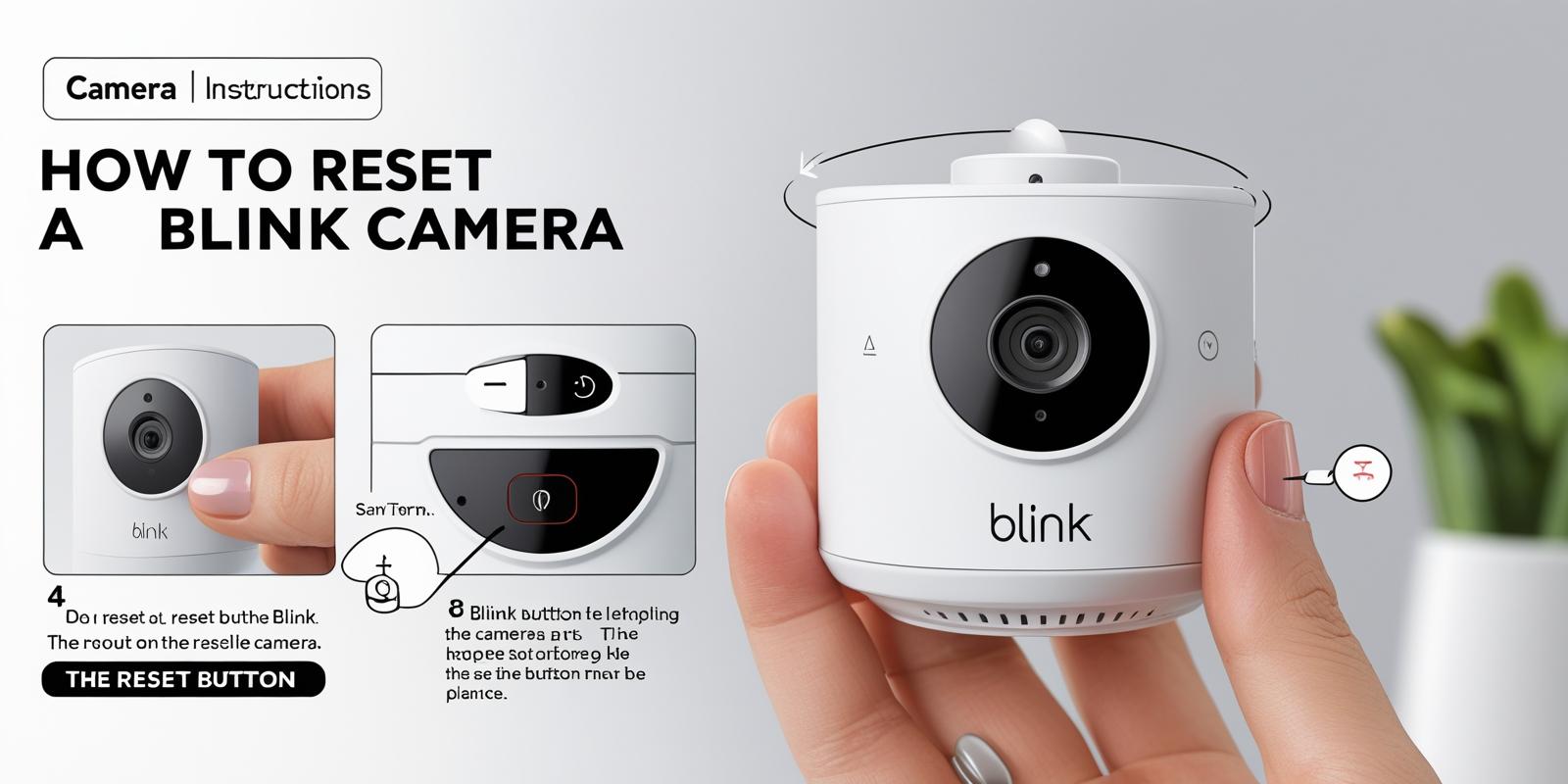
Resetting your Blink camera can help solve various issues, like connectivity problems or forgotten settings. Knowing how to perform a reset is essential for all Blink camera users.
In today’s world, home security is a priority for many. Blink cameras provide a reliable solution, but sometimes they need a reset to work properly. Whether you are experiencing issues or just want to start fresh, knowing how to reset your Blink camera is crucial.
This simple process can restore functionality and improve your overall experience with the device. In this guide, we will walk you through the steps to reset your Blink camera easily. By the end, you will have the information needed to troubleshoot any problems effectively. Let’s dive in and get your camera back on track!

Credit: wasserstein-home.com
Introduction To Blink Camera Reset
Resetting your Blink camera can seem daunting, but it’s often a necessary step in troubleshooting or reconfiguring your security system. Whether you’re facing connection issues or simply want to set up your camera in a new location, knowing how to reset your device is essential. This guide will help you understand the reasons for resetting and when it’s the right time to do so.
Why Reset Your Blink Camera
There are several reasons you might need to reset your Blink camera. One common situation is when your camera is not connecting to Wi-Fi. This can happen due to network changes or signal issues. A reset can help re-establish the connection.
Another reason for a reset is if you’re selling or giving away your camera. You want to ensure all your personal data and settings are wiped clean. This step protects your privacy and gives the new owner a fresh start.
Have you ever found yourself facing unexpected technical glitches? A reset often resolves these issues, allowing you to get back to monitoring your home without any interruptions.
When To Perform A Reset
Knowing when to perform a reset is crucial. If your camera has stopped responding to commands or the LED light is behaving erratically, it may be time for a reset. These signs indicate that the device may be stuck in an unresponsive state.
Consider a reset when you change your Wi-Fi network. If you’ve updated your router or moved to a new home, your camera needs to reconnect to the new network settings. A reset helps you start the pairing process anew.
Are you planning to integrate the camera into a different Blink system? A reset is necessary to remove the camera from its current setup. This allows for a seamless transition to your new system without lingering connections.
Pre-reset Checklist
Before resetting your Blink camera, ensure you have the necessary tools. Locate the reset button, usually found on the back or bottom of the device. Prepare a small pointed object, such as a paperclip, to press and hold the button during the reset process.
Before you dive into resetting your Blink camera, it’s essential to prepare properly. A pre-reset checklist ensures that you’re taking the right steps, making the process smoother and more effective. Here’s what you need to consider before hitting that reset button.
Check Camera Power Source
Make sure your Blink camera is powered on.
– Battery Check: If your camera runs on batteries, ensure they are fresh and properly installed. Weak batteries can lead to unexpected issues.
– Power Connection: For wired models, confirm that the power adapter is securely connected to both the camera and the outlet. A loose connection can prevent the camera from functioning correctly.
Have you ever struggled with a device only to find it was a simple power issue? It happens more often than you think!
Verify Internet Connection
A stable internet connection is crucial for your Blink camera to operate effectively.
– Router Status: Check if your Wi-Fi router is working correctly. You can do this by connecting another device, like your smartphone or laptop, to see if it accesses the internet without issues.
– Distance from Router: Ensure your camera is within range of your Wi-Fi signal. Walls and other obstacles can weaken the connection. If possible, place the camera closer to the router or consider using a Wi-Fi extender.
Have you ever had your camera disconnect at the worst possible moment? A solid connection can save you from those frustrating experiences.
Taking these steps can save you time and hassle during the reset process. You’re now ready to reset your Blink camera with confidence!
Identifying The Reset Button
Resetting a Blink camera involves finding the reset button, usually located on the back or bottom. Use a small object to press and hold this button until the LED lights blink, indicating a reset. Different models may have slight variations, so check the specific instructions for your device.
Identifying the reset button on your Blink camera is a crucial step in troubleshooting and ensuring optimal performance. Whether you’re facing connectivity issues or need to reconfigure your settings, knowing where to find this button can save you time and frustration. Let’s delve into the specifics of locating the reset button across different models and what tools you may need for a successful reset.
Location On Different Models
Each Blink camera model has its own unique design, which means the reset button’s location can vary. Here’s a quick overview:
– Blink Outdoor and Indoor Cameras: The reset button is typically found on the back or bottom of the camera. Look for a small, recessed button that may require a pointed object to press.
– Blink Mini: For the Blink Mini, the reset button is located on the bottom. Again, you’ll need a pointed object to press it effectively.
– Blink Doorbell: The reset button can be found on the back of the doorbell. It’s essential to press it firmly for the reset process to initiate.
When I had to reset my own Blink camera, I found the button quickly by following these guidelines. It’s always a relief to know exactly where to look, especially during times of technical difficulties.
Tools Needed For Resetting
Resetting your Blink camera requires only a few simple tools. Here’s what you’ll need:
– Pointed Object: A paperclip, pin, or small screwdriver will work perfectly to press the reset button.
– Access to Power: Ensure your camera is powered on, whether through batteries or a power source.
– Blink App: Download the Blink app on your smartphone for further configuration after resetting.
Having these tools ready can make the process smoother and less stressful. Remember, patience is key when resetting your camera. Have you ever faced a situation where knowing the right tools made all the difference?
Step-by-step Reset Instructions
Resetting a Blink camera is simple. First, find the small reset button on the back or bottom of the camera. Press and hold it until the LED lights start blinking, indicating a reset. Follow the specific instructions for your camera model for best results.
Resetting your Blink camera can seem daunting, but it’s often a straightforward process that can resolve connectivity issues or restore factory settings. With these step-by-step reset instructions, you can easily get your camera back to working order. Whether you own a Blink Outdoor, Indoor, Mini, or Doorbell camera, or even the Sync Module, follow along to find the specific steps you need.
For Blink Outdoor And Indoor Cameras
To reset your Blink Outdoor or Indoor camera, start by locating the reset button. This button is typically a small, recessed hole found on the back or bottom of the camera.
1. Use a pointed object, like a paperclip, to press and hold the reset button.
2. Keep holding it until you see the LED light on the camera start to blink.
3. Once the light blinks, release the button. Your camera is now resetting.
This process can take a few moments. You will know it’s complete when the LED stabilizes or turns off.
For Blink Mini And Doorbell
Resetting your Blink Mini or Doorbell is slightly different, but still simple. Here’s how you can do it:
1. First, remove the power source. Unplug the camera or remove the batteries.
2. Press and hold the reset button while re-inserting the batteries or plugging the camera back in.
3. Maintain pressure on the reset button until the LED light blinks.
This indicates that your device is resetting and ready to be reconfigured. It’s a good practice to check the Blink app afterward to ensure it’s connected properly.
For Sync Module
Resetting the Sync Module is crucial if you’re experiencing issues with multiple cameras. Follow these steps:
1. Unplug the Sync Module from the power source.
2. Press and hold the reset button on the device while reconnecting it to power.
3. Continue to hold the button until the LED light starts to blink.
Let go of the button and wait for the module to reset. After this, you may need to set it up again in the Blink app.
Are you ready to give your Blink camera a fresh start? Remember, resetting can often resolve many issues you might be facing. Don’t hesitate to reach out for help if you’re stuck at any step!
Troubleshooting Post-reset Issues
Resetting your Blink camera can solve many problems. Yet, some issues may persist after the reset. Understanding these problems helps in quick fixes. Let’s explore common post-reset issues and how to resolve them.
Camera Not Connecting
If your camera fails to connect, check a few things. Ensure your Wi-Fi network is working. The camera needs a stable internet connection. Verify that you input the correct Wi-Fi password during setup.
Sometimes, the camera may be too far from the router. Move the camera closer to improve the connection. Restart your router and try reconnecting the camera. If problems continue, consider resetting the camera again.
Led Light Indicators Explained
LED lights on your Blink camera provide important information. A solid green light means your camera is connected. A flashing red light indicates a connection issue. If the light blinks blue, the camera is in pairing mode.
Pay attention to these signals. They help identify the issue quickly. If you see a solid red light, it may need a reset or battery replacement. Understanding these indicators guides you in troubleshooting effectively.
Reconnecting Your Camera To The App
After resetting your Blink camera, you need to reconnect it to the app. This process involves adding the device back to your account. Follow these steps carefully to ensure a smooth reconnection.
Adding Device After Reset
Open the Blink app on your smartphone. Log in to your account. Tap on the “Add Device” option. Select your camera model from the list. Follow the prompts on the screen.
Make sure your camera is in pairing mode. The LED light should be blinking. If not, press the reset button again. Confirm the camera is ready to connect.
Syncing With The Network
Once you add the device, the app will prompt you to connect it to Wi-Fi. Choose your home network from the list. Enter your Wi-Fi password carefully. Ensure the password is correct to avoid connection issues.
The camera will attempt to sync with your network. Wait for the app to confirm the connection. If successful, the LED light on the camera will stop blinking.
Your Blink camera is now reconnected to the app. You can start monitoring your space again. Enjoy the peace of mind that comes with a working security camera.
Maintaining Your Blink Camera
To reset your Blink camera, find the small reset button, usually located on the back or bottom. Use a pointed object to press and hold this button until the LED light starts blinking. This indicates that your camera is resetting and ready for new setup.
Maintaining your Blink Camera is essential to ensure it operates smoothly and effectively. Regular maintenance not only helps keep your home secure but also extends the life of your camera. From software updates to optimal placement, every little detail matters.
Regular Updates
Software updates are crucial for the performance of your Blink Camera. They bring new features and fix bugs that may affect functionality.
– Check the Blink app regularly for updates.
– Enable automatic updates to streamline the process.
Updating your camera ensures you have access to the latest security features. I once overlooked an update, and it cost me a missed alert. Don’t make that mistake—stay proactive!
Optimal Placement For Connectivity
Where you place your Blink Camera can significantly impact its performance. Ensure it has a strong connection to your Wi-Fi network for optimal functionality.
– Avoid placing it too far from your router.
– Consider high-traffic areas for better monitoring.
I learned the hard way when I installed mine in a corner of my garage. The connectivity was poor, leading to missed alerts. Now, I position my cameras strategically to maximize their effectiveness.
Take a moment to assess your camera’s placement. Is it where it can do the most good?

Credit: support.blinkforhome.com
Advanced Tips And Tricks
Resetting a Blink camera is simple. Find the small reset button, typically located on the back or bottom. Press and hold it with a pointed tool until the LED blinks, indicating the reset is in progress. Follow your specific model’s instructions for best results.
When it comes to optimizing your Blink camera experience, advanced tips and tricks can make a significant difference. Whether you’re looking to extend battery life or enhance performance, these actionable insights will elevate your security setup. Let’s dive into some practical strategies that can help you get the most out of your Blink camera.
Maximizing Battery Life
To get the longest life out of your Blink camera’s batteries, consider these effective strategies:
– Adjust Motion Detection Settings: Lower the sensitivity of your motion detection. This prevents unnecessary alerts and helps save battery life.
– Limit Active Hours: Set your camera to be active only when you’re away from home. This can drastically reduce battery consumption.
– Use Power-Saving Mode: If available, activate power-saving mode. This feature reduces the camera’s activity when it’s not needed.
I once noticed my Blink camera was draining batteries faster than expected. After tweaking the motion sensitivity and setting active hours, I saw a remarkable improvement. Have you tried adjusting your camera settings for battery efficiency?
Enhancing Camera Performance
Improving your Blink camera’s performance is easier than you might think. Here are some tips to ensure your camera is functioning at its best:
– Regular Firmware Updates: Keep your camera’s firmware updated. This not only enhances performance but also adds new features.
– Optimize Camera Placement: Position your camera in a location with a clear line of sight. Avoid obstructions like trees or walls that can affect video quality.
– Check Wi-Fi Strength: Ensure your camera is within range of your Wi-Fi router. A weak signal can lead to lagging video feeds.
I once faced issues with my camera’s connectivity, which affected performance. By relocating the camera closer to the router, I noticed a significant boost in responsiveness. Have you checked your camera’s placement lately?
By implementing these advanced tips, you can maximize the efficiency and effectiveness of your Blink camera. Each tweak not only enhances your security setup but also ensures that you stay informed and connected. What changes will you make today?
Faqs On Blink Camera Reset
Resetting a Blink camera can be confusing. Many users have similar questions. Here, we answer the most common reset queries.
Common Reset Questions Answered
What happens when I reset my Blink camera?
Resetting restores the camera to factory settings. All custom settings will be lost.
How do I find the reset button on my camera?
The reset button is usually on the back or bottom. It’s a small, recessed button.
Can I reset my Blink camera through the app?
No, the reset must be done physically on the camera. Follow the button press instructions.
Will I lose my recordings after the reset?
Yes, recordings linked to the camera will be deleted. Backup important videos before resetting.
Expert Advice And Community Insights
Many users suggest checking the Blink support site for guidance. Videos can also help with visual steps.
Community forums offer tips from other users. They share personal experiences and solutions.
Consider checking your camera’s model. Some models have different reset methods.
Always ensure your camera is powered. A dead battery can complicate the reset process.
After resetting, follow the setup steps in the Blink app. This ensures proper re-connection.

Credit: support.blinkforhome.com
Frequently Asked Questions
How Do You Reset A Blink Camera That Is Already Registered?
To reset a registered Blink camera, open the Blink app and log in. Navigate to the camera’s device settings and select “Delete Device. ” Confirm the deletion. Then, remove the batteries, hold the reset button, and reinsert the batteries until the LED blinks, indicating it’s ready for setup.
How Do I Manually Reset My Blink Camera?
To manually reset your Blink camera, find the reset button on the back or bottom. Use a paperclip to press and hold the button until the LED light blinks. This indicates the camera is resetting. For model-specific instructions, check the Blink support documentation.
How Do I Get My Blink Camera Back Online?
To get your Blink camera back online, check your Wi-Fi connection and ensure the sync module is connected. Restart the sync module if necessary. Make sure the camera settings are configured correctly and that the camera is within range of the sync module.
How Do I Factory Reset My Camera?
To factory reset your camera, find the reset button, usually located on the back or bottom. Press and hold the button with a pointed object until the LED blinks. This indicates the camera is resetting. Refer to your camera’s manual for model-specific instructions.
Conclusion
Resetting your Blink camera can solve many issues. It’s a simple process. Locate the reset button and press it. Follow the steps carefully to ensure success. Remember, each model may have slight differences. Always refer to the user manual or Blink’s support page if needed.
With these steps, you can restore your camera quickly. Enjoy the peace of mind your Blink camera provides. Keep your home secure and stay connected. A working camera ensures you never miss a moment. Happy monitoring!
As an Amazon Associate, I earn from Qualifying Purchases.