Capturing stunning photos with your iPhone 15 Pro Max is easier than ever. This device offers advanced features that can transform your photography skills.
The iPhone 15 Pro Max boasts a powerful camera system with cutting-edge technology. Whether you’re a casual photographer or a serious hobbyist, understanding how to use these features can elevate your pictures. In this post, we’ll share practical tips to help you make the most of your iPhone 15 Pro Max camera.
From mastering the basics to exploring advanced settings, these tips will enhance your photography. Get ready to take incredible photos with your iPhone 15 Pro Max. Let’s dive into the world of mobile photography and discover what this device can do for you.
Introduction To Iphone 15 Pro Max Camera
The iPhone 15 Pro Max has an impressive camera system. It is designed to capture stunning photos and videos with ease. Whether you are a professional or a hobbyist, this camera will elevate your photography skills.
Key Features
- Triple-Lens System: The camera includes wide, ultra-wide, and telephoto lenses.
- 48MP Sensor: The primary camera boasts a 48-megapixel sensor for detailed shots.
- Night Mode: Capture clear photos even in low light conditions.
- ProRAW and ProRes: Advanced formats for professional editing.
- AI Enhancements: Smart HDR 5 and Deep Fusion for better image processing.
Why It Stands Out
The iPhone 15 Pro Max stands out due to its versatile camera system. It allows for high-quality photography in various conditions. The 48MP sensor offers incredible detail, making your photos look professional.
Night mode is another feature that sets it apart. It ensures your low-light photos are bright and clear. The AI enhancements, like Smart HDR 5, improve the overall quality of your images.
| Feature | Benefit |
|---|---|
| Triple-Lens System | Versatility in shooting different scenes |
| 48MP Sensor | High detail and resolution |
| Night Mode | Clear photos in low light |
| ProRAW and ProRes | Professional editing capabilities |
| AI Enhancements | Improved image processing |
Optimizing Camera Settings
Optimizing your camera settings on the iPhone 15 Pro Max can make a big difference in your photos. Fine-tuning these settings can help you capture clearer, more vibrant images. Let’s explore some essential tips to enhance your camera experience.
Resolution And Frame Rate
Choosing the right resolution and frame rate is key to high-quality video. The iPhone 15 Pro Max offers several options. For most situations, 4K resolution at 30 frames per second (fps) is ideal. It provides excellent detail and smooth motion.
If you want to save storage space, go for 1080p at 30 fps. It still looks great and takes up less space. For action shots, consider 1080p at 60 fps. Higher frame rates help capture fast movements more clearly.
| Resolution | Frame Rate | Best For |
|---|---|---|
| 4K | 30 fps | General use |
| 1080p | 30 fps | Saving space |
| 1080p | 60 fps | Action shots |
Hdr And Night Mode
The iPhone 15 Pro Max’s HDR (High Dynamic Range) feature is a game-changer. It balances the light and dark areas in your photos. This results in more detailed and vibrant images. To enable HDR, go to Settings > Camera > Record Video and toggle on HDR Video.
Night Mode is another powerful feature. It helps you take clear photos in low light. Night Mode activates automatically in dim conditions. Hold your phone steady, and let it do its magic. You can manually adjust the exposure time for better results.
- Ensure HDR is enabled for balanced lighting.
- Use Night Mode for low-light photography.
- Adjust exposure time for clearer night shots.
Mastering The Basics
Mastering the basics of iPhone 15 Pro Max photography is essential. This guide will help you improve your camera skills. By focusing on these key areas, you’ll capture stunning photos. Let’s start with the basics.
Focus And Exposure
Understanding focus and exposure is crucial. Tap the screen to set focus. This ensures your subject is sharp. You can also adjust the exposure. Drag your finger up or down. This brightens or darkens the image.
Use the AE/AF lock for consistency. This prevents the camera from changing focus or exposure. To activate, tap and hold on the screen. A yellow box will appear, showing the lock is on. Use this for better control over your shots.
Composition Techniques
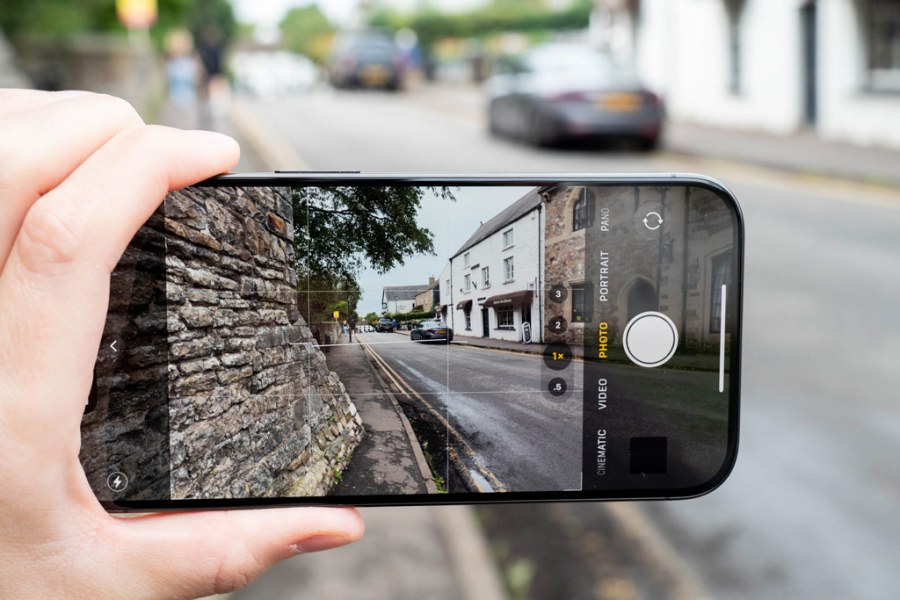
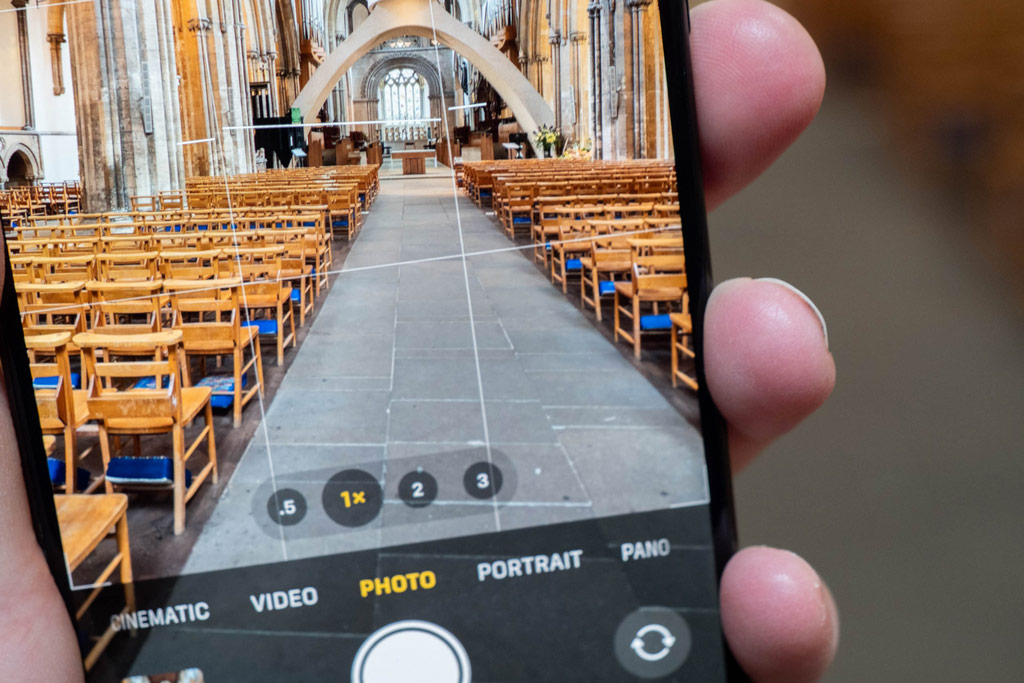
Good composition makes a photo stand out. Use the rule of thirds. Imagine a grid of nine squares on your screen. Place important elements along these lines. This creates a balanced and interesting image.
Leading lines guide the viewer’s eye. Look for lines in your scene. Roads, paths, or fences work well. Position them to lead towards your subject. This adds depth and direction to your photos.
Framing is another useful technique. Use natural frames like windows or trees. These elements draw attention to your subject. Experiment with different angles and perspectives. This keeps your photos fresh and engaging.
Credit: amateurphotographer.com
Advanced Photography Techniques
The iPhone 15 Pro Max is a powerful tool for photographers. Its advanced features allow users to explore different photography techniques. Even beginners can take stunning photos with this device. Let’s dive into some advanced techniques that can enhance your photography skills.
Portrait Mode
Portrait Mode on the iPhone 15 Pro Max is impressive. It focuses on the subject while blurring the background. This effect makes your photos look professional. For best results, ensure your subject is well-lit. Tap on the subject to focus. Adjust the lighting effects to find what suits your photo best. Experiment with different angles. This mode is perfect for capturing people and pets.
Macro Photography
Macro Photography is another exciting feature. It allows you to capture tiny details. This is great for flowers, insects, and textures. To use this feature, get close to your subject. The iPhone 15 Pro Max will automatically switch to the macro lens. Hold your phone steady. Tap the screen to focus on the smallest details. Avoid using the flash. Natural light works best for macro shots. Practice with different subjects to see what works best.
Utilizing Editing Tools
The iPhone 15 Pro Max boasts a powerful camera. After capturing stunning photos, editing helps enhance their beauty. Knowing how to use the built-in editing features and the best third-party apps is key. Let’s dive into some practical tips.
Built-in Editing Features
The iPhone 15 Pro Max comes with robust built-in editing tools. These tools are easy to use and very effective.
Adjustments: Tap the Edit button to access various adjustments. These include brightness, contrast, and saturation. Slide to adjust them and see real-time changes.
Filters: The Photos app provides a range of filters. These can instantly change the look and feel of your photos. Try different filters to find the best match for your photo.
Crop and Rotate: Cropping helps focus on the main subject. Rotating corrects any tilt in your photo. Use the grid for perfect alignment.
Best Third-party Apps
Third-party apps offer advanced features not available in the built-in tools. Here are some top recommendations:
- Snapseed: This app provides a wide range of tools. These include healing, brush, structure, and HDR. Snapseed is free and user-friendly.
- VSCO: Famous for its filters, VSCO also offers advanced editing tools. It supports RAW editing and has a vibrant community for inspiration.
- Adobe Lightroom: This app is perfect for serious photographers. It offers precise control over every aspect of your photo. Lightroom supports cloud storage for easy access.
Using these editing tools, both built-in and third-party, can significantly improve your photos. Experiment with each tool to discover its full potential. Happy editing!
Credit: amateurphotographer.com
Taking Stunning Videos
The iPhone 15 Pro Max is a powerful tool for capturing videos. With its advanced features, you can record high-quality videos effortlessly. This section will help you take stunning videos using your iPhone 15 Pro Max. Let’s dive into the key features.
Cinematic Mode
Cinematic Mode is a standout feature in the iPhone 15 Pro Max. It allows you to create videos with a shallow depth of field. This means your subject stays in focus while the background blurs gently. It gives your videos a professional look. To use Cinematic Mode, open the Camera app and swipe to Cinematic. Tap the record button and start filming. Ensure your subject is well-lit for the best results.
Slow Motion And Time-lapse
Slow motion adds a dramatic effect to your videos. It captures fast actions in great detail. To activate slow motion, open the Camera app and swipe to Slo-mo. Tap the record button to start. It’s ideal for sports or action scenes.
Time-lapse compresses long recordings into short, fast-paced videos. It’s perfect for showing changes over time. To use time-lapse, open the Camera app and swipe to Time-lapse. Set your iPhone on a stable surface and hit record. Use it to capture sunsets or city traffic.
Leveraging Accessories
The iPhone 15 Pro Max has an excellent camera. To make the most of it, use accessories. These tools can help you take even better photos. Let’s explore some key accessories.
Lenses And Tripods
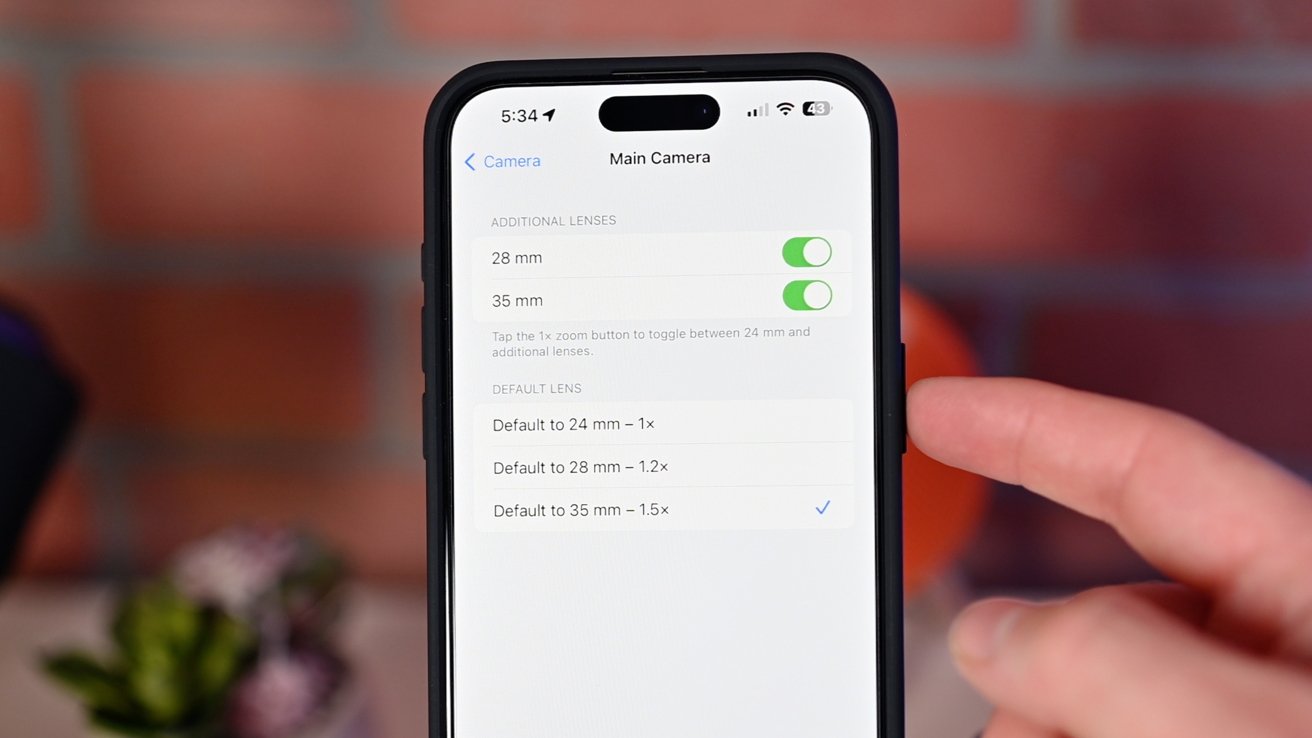
Adding extra lenses to your iPhone can change the way you capture images. Wide-angle lenses allow you to fit more into your shots. Macro lenses help you take clear pictures of small objects. Attach the lens to your iPhone and see the difference.
Tripods keep your iPhone steady while you take photos. This is useful for low-light shots or long exposures. Choose a small, portable tripod. It can fit in your bag easily. Some tripods even come with remote controls. This helps you take pictures without touching your iPhone.
Lighting Equipment
Good lighting is key to great photos. External lights can help you achieve this. Small LED lights are portable and easy to use. Attach them to your iPhone or a tripod. Adjust the brightness and color to get the best effect.
Consider using a ring light. Ring lights provide even lighting and reduce shadows. They are perfect for portraits and videos. Place the ring light around your iPhone for the best results.
Look for lights with adjustable settings. This allows you to change the brightness and color temperature. It gives you more control over your photos.
| Accessory | Benefit |
|---|---|
| Wide-angle lens | Fit more into your shots |
| Macro lens | Clear pictures of small objects |
| Portable tripod | Keep your iPhone steady |
| LED lights | Adjust brightness and color |
| Ring light | Even lighting, reduce shadows |
Credit: appleinsider.com
Sharing And Storing Photos
Sharing and storing photos on your iPhone 15 Pro Max can be a breeze. With advanced features, managing your digital memories becomes effortless. Here’s how you can make the most of the sharing and storage options available.
Icloud And Storage Options
iCloud makes storing photos easy. It offers seamless backup and synchronization across devices. Ensure you have enough storage space by subscribing to a suitable plan. Regularly check your iCloud storage to prevent running out of space.
Besides iCloud, consider other storage options. Google Photos and Dropbox are popular choices. They offer large storage capacities and easy sharing features. Explore these services to find what best suits your needs.
Social Media Tips
Sharing photos on social media can be fun. Use the built-in sharing options on your iPhone 15 Pro Max. This makes posting to platforms like Instagram and Facebook quick and easy.
Before sharing, edit your photos using the iPhone’s photo editor. Simple tweaks can enhance the visual appeal. Use filters, adjust brightness, and crop for better results. Engage your audience with high-quality images.
Consider privacy settings when sharing photos. Be mindful of who can see your posts. Adjust settings on each platform to control your audience. Protect your privacy while sharing beautiful moments.
Common Mistakes To Avoid
Capturing stunning photos with the iPhone 15 Pro Max is easier than ever. Yet, many users still make common mistakes. Avoid these pitfalls to ensure your photos look their best.
Overediting
Editing can enhance your photos. But overediting can make them look unnatural. Avoid using too many filters. Keep adjustments to a minimum. Focus on small tweaks rather than big changes. This keeps your photo looking real and appealing.
Ignoring Lighting
Lighting is crucial for great photos. Poor lighting can ruin a shot. Always check the light before taking a picture. Natural light works best. If indoors, find a well-lit area. Avoid backlighting. It makes your subject appear dark. Use the iPhone’s built-in tools to adjust brightness. This ensures your photo is clear and vibrant.
Frequently Asked Questions
How To Take Better Photos With Iphone 15 Pro Max?
To take better photos, use the ProRAW feature for high-quality images. Adjust the exposure and focus manually. Utilize the night mode for low-light conditions. Experiment with different angles and compositions. Keep the lens clean for clear shots.
What Are The Best Camera Settings For Iphone 15 Pro Max?
For optimal settings, use 4K resolution at 60fps for videos. Enable Smart HDR for balanced photos. Use Portrait mode for depth effect. Adjust white balance and ISO for various lighting conditions. Always keep the camera software updated.
How To Use The Macro Mode On Iphone 15 Pro Max?
To use macro mode, move the camera close to the subject. The camera will automatically switch to macro mode. Ensure good lighting for detailed shots. Focus on a specific part for clarity. Use a tripod for stability.
Can Iphone 15 Pro Max Shoot In Raw Format?
Yes, iPhone 15 Pro Max can shoot in RAW format. Enable ProRAW in the camera settings. This format provides more editing flexibility. Use it for professional-grade photos. Remember, RAW files are larger, so manage storage wisely.
Conclusion
Make the most of your iPhone 15 Pro Max camera. Practice these tips often. Experiment with different settings. Capture stunning photos easily. Share your best shots with friends and family. Keep exploring new features. Stay creative and enjoy photography. Happy snapping!
As an Amazon Associate, I earn from Qualifying Purchases.