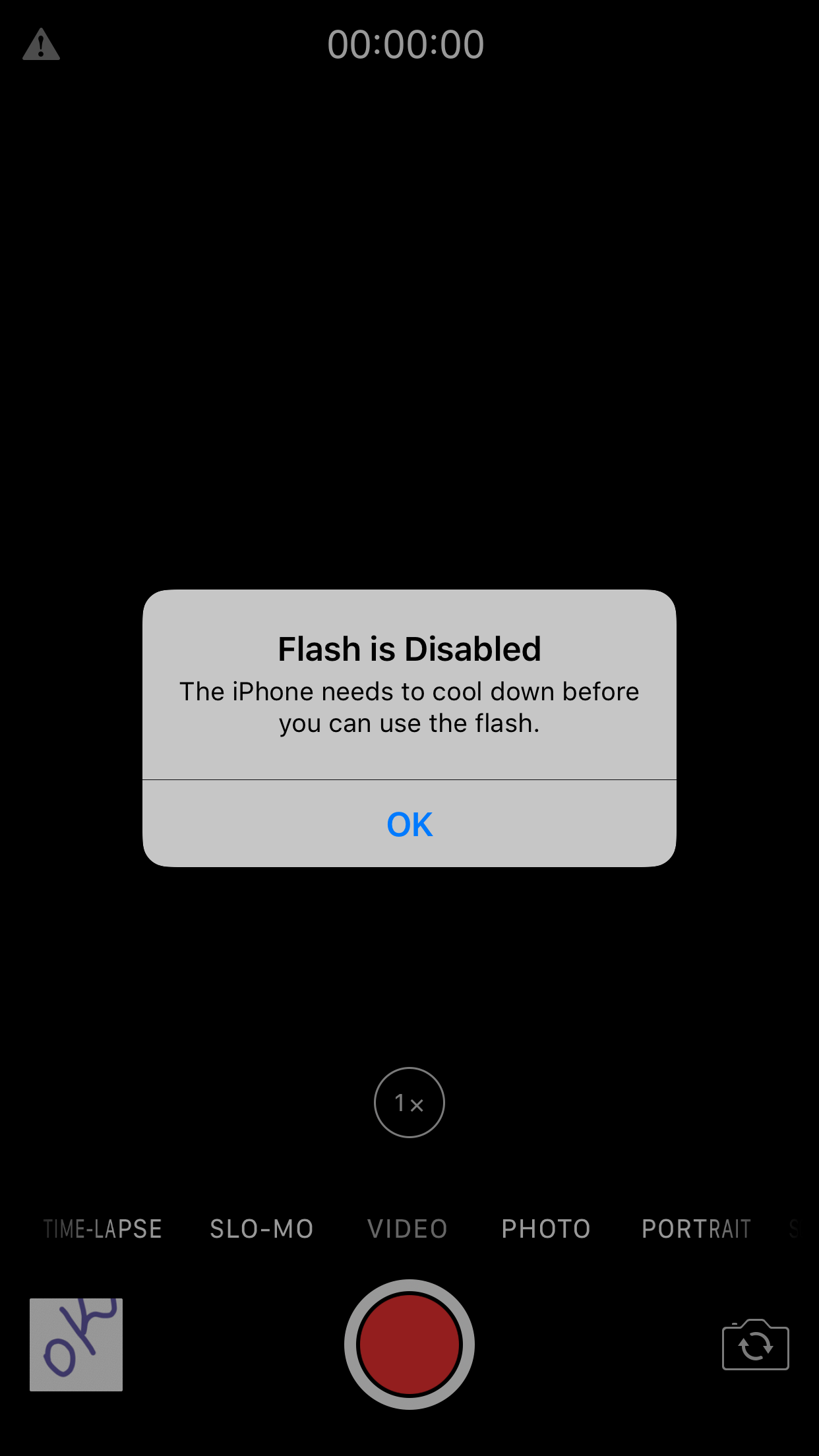
Is your iPhone camera not working? Don’t worry, you are not alone.
Many iPhone users face this issue. The camera on your iPhone can stop working for several reasons. It might be a software glitch, a hardware issue, or even something as simple as a setting that needs adjusting. Understanding the cause can help you fix the problem quickly.
In this post, we will explore the common reasons why your iPhone camera might not be working. We will also guide you through some simple fixes. Stay with us to get your camera back in action.
Common Camera Issues
Is your iPhone camera acting up? Many users face common camera issues. These problems can disrupt capturing memorable moments. Let’s explore some frequent camera issues and their causes.
Black Screen
Seeing a black screen instead of a clear image? This is a common problem. It can occur due to software glitches or hardware damage. Restarting your iPhone often resolves this issue. If it persists, check if any apps are using the camera. Close them to see if the camera works.
Blurry Photos
Are your photos coming out blurry? This can be frustrating. Dirt or smudges on the lens are often the cause. Clean the lens with a soft cloth. Sometimes, it’s due to a software issue. Updating your iPhone can help. If the problem continues, the camera might need repair.

Credit: www.reddit.com
Initial Checks
Experiencing issues with your iPhone camera can be frustrating. Before diving into complex solutions, perform some initial checks. These simple steps can often resolve common problems. Let’s explore some easy fixes to get your camera working again.
Restart Iphone
Sometimes, your iPhone just needs a quick reboot. Restarting your device can solve minor software glitches. Hold down the power button until the “slide to power off” option appears. Slide to turn off your phone. Wait a few seconds, then press the power button again to turn it back on. Check your camera to see if the issue is resolved.
Close Other Apps
Running too many apps can slow down your iPhone. It can also affect your camera’s performance. Close all open apps to free up memory. Double-tap the home button to see your recently used apps. Swipe up on each app to close them. Once all apps are closed, open your camera again. This can often fix any lag or unresponsiveness.
Software Glitches
Many iPhone users experience issues with their cameras. Often, the culprit is software glitches. These glitches can cause your camera to freeze, crash, or show a black screen. Fortunately, there are solutions. Below, we discuss two effective methods to resolve these issues: updating iOS and resetting settings.
Update Ios
Outdated software can cause many problems. One of them is camera malfunction. Make sure your iPhone runs the latest iOS version. Updating iOS can fix bugs and improve performance. Follow these steps to update iOS:
1. Go to Settings.
2. Tap General.
3. Select Software Update.
4. Download and install any available updates.
After updating, check if the camera works properly. If not, try the next solution.
Reset Settings
Resetting all settings can also solve camera issues. This action restores your iPhone’s settings to default without deleting your data. Follow these steps to reset settings:
1. Open Settings.
2. Tap General.
3. Scroll down and select Reset.
4. Tap Reset All Settings.
5. Enter your passcode if prompted.
Your iPhone will restart. After it restarts, test the camera again. This method often resolves software glitches.
Hardware Problems
When your iPhone camera stops working, it could be due to hardware problems. These issues often stem from physical damage or loose connections within the device. Understanding these problems can help you diagnose and fix your camera issues more efficiently.
Physical Damage
Physical damage to your iPhone can significantly impact the camera’s functionality. If you have dropped your phone recently, the camera might have been affected. Visible cracks on the lens or body can be a clear indicator.
Such damage can block the camera’s view or disrupt its internal components. Even minor bumps can misalign the camera, causing blurry or malfunctioning images.
To check for physical damage:
- Inspect the camera lens for cracks or scratches.
- Look for dents or bends on the phone’s body.
- Ensure the camera lens is clean and free of debris.
Loose Connections
Loose connections within your iPhone can also cause camera issues. The camera module connects to the phone’s motherboard through small, delicate connectors. If these connections loosen, the camera may not work properly.
Signs of loose connections include intermittent camera functionality or no response at all. You might notice the camera app crashing frequently or displaying a black screen.
Steps to identify loose connections:
- Restart your iPhone to rule out software issues.
- Gently press around the camera area to see if it reactivates.
- Visit an authorized service center for a thorough inspection.
App Permissions
Sometimes your iPhone camera may not work due to app permissions. Apps need permission to access the camera. If these permissions are not granted, the camera will not function within those apps. Let’s explore the necessary steps to ensure your camera permissions are correctly set.
Camera Access
To check if an app has camera access, follow these steps:
- Open the Settings app on your iPhone.
- Scroll down and select Privacy.
- Tap on Camera.
- Here, you will see a list of apps that have requested access to your camera.
- Ensure the toggle next to the app in question is turned on.
If the toggle is off, the app cannot use the camera. Turn it on to grant access.
Privacy Settings
Your iPhone has privacy settings to protect your data. These settings manage which apps can access your camera. If your camera is not working, check these settings.
To verify privacy settings:
- Go to the Settings app.
- Tap on Privacy.
- Select Camera from the list.
- Review the apps listed and their permissions.
Make sure the apps you need have camera access enabled.
If the issue persists, you might need to reset your privacy settings:
- Open the Settings app.
- Go to General.
- Scroll down and tap on Reset.
- Select Reset Location & Privacy.
- Confirm the reset.
This will reset all privacy settings to default, which can resolve permission issues.

Credit: discussions.apple.com
Third-party Apps
The iPhone camera is known for its quality and reliability. But sometimes, it may not work as expected. One common reason is third-party apps. These apps can interfere with the camera’s functionality.
Interference Issues
Some third-party apps can cause interference issues. This can prevent the camera from working properly. These apps might use the camera in the background without you knowing. This can lead to conflicts, especially if multiple apps try to access the camera at the same time.
To check if an app is causing interference, close all open apps. Then, try to open the camera again. If it works, one of the apps was likely the problem.
Uninstall Problematic Apps
If closing the apps doesn’t help, you might need to uninstall some of them. Start by uninstalling the most recently downloaded apps. Here’s a simple way to uninstall:
- Press and hold the app icon.
- Select “Remove App”.
- Tap “Delete App” to confirm.
Check the camera after uninstalling each app. This can help you identify the problematic app. If the camera starts working, the last uninstalled app was likely the cause.
For better results, avoid installing too many apps that require camera access. This can reduce the chance of interference and keep your camera working smoothly.
Advanced Solutions
Advanced solutions can help fix the camera on your iPhone. These methods are more in-depth and may require technical knowledge. They can help when basic troubleshooting fails.
Dfu Mode Restore
DFU (Device Firmware Update) mode restores your iPhone. It reloads the software and firmware. This process can fix deep software issues. To enter DFU mode, connect your iPhone to a computer. Open iTunes on the computer. Press and hold the Side and Volume Down buttons. Hold for about 10 seconds. Release the Side button but keep holding Volume Down. Your screen should stay black. Follow the prompts in iTunes to restore your iPhone.
Factory Reset
A factory reset erases all data on your iPhone. It restores the device to its original settings. This can fix software issues that affect the camera. Before you start, back up your data. Go to Settings. Tap General. Scroll down and tap Reset. Choose Erase All Content and Settings. Confirm your choice. Your iPhone will restart and you can set it up as new.
Professional Help
Is your iPhone camera acting up? Seeking professional help can save you time. It ensures your device gets the right care. Sometimes, issues are complex. Professional help can provide accurate solutions. Here are some avenues for getting professional help.
Apple Support
Apple Support is a reliable resource. They offer expert advice and solutions. You can contact them online or via phone. They guide you through troubleshooting steps. If your issue persists, they suggest further actions. Often, they can diagnose problems remotely.
Authorized Repair Centers
Visiting an authorized repair center is another option. These centers are certified by Apple. They use genuine parts for repairs. Technicians are trained to handle iPhone issues. They can fix hardware and software problems. This ensures your camera works like new.

Credit: forums.developer.apple.com
Frequently Asked Questions
Why Is My Iphone Camera Not Working?
Your iPhone camera might not work due to software glitches, hardware issues, or outdated iOS. Restarting the device or updating the software often helps.
How Do I Fix My Iphone Camera Black Screen?
Fix a black screen by restarting your iPhone, closing the camera app, or updating iOS. If it persists, contact support.
Why Does My Iphone Camera Freeze?
IPhone camera freezing can result from software bugs or insufficient memory. Restarting the phone usually resolves this issue.
Can A Damaged Lens Affect Iphone Camera?
Yes, a damaged lens can affect image quality. If the lens is scratched or cracked, it needs repair or replacement.
Conclusion
Experiencing camera issues on your iPhone can be frustrating. Try restarting your device. Update your iOS to the latest version. Clear any debris from the camera lens. Consider resetting all settings if problems persist. If nothing works, contact Apple Support for assistance.
Ensuring your iPhone’s camera functions properly is important. Simple troubleshooting steps often resolve the issue. Stay patient and methodical in your approach. Your iPhone camera can return to normal with these tips. Enjoy capturing moments again!
As an Amazon Associate, I earn from Qualifying Purchases.