
Using the camera on your HP laptop is simple. You only need to follow a few steps.
Most HP laptops come with built-in cameras. These cameras are great for video calls, taking pictures, or recording videos. Whether you’re attending a virtual meeting or connecting with family, knowing how to use your HP laptop camera can be very helpful.
In this guide, we’ll walk you through the process step-by-step. From opening the camera app to adjusting settings, you’ll learn everything you need to use your laptop camera effectively. Let’s get started and make sure you get the most out of your HP laptop camera.
Checking Camera Compatibility
Before using the camera on your HP laptop, check if it’s compatible. This ensures a smooth experience without technical issues. Follow these steps to verify compatibility.
System Requirements
First, confirm your laptop meets the necessary system requirements. Most HP laptops need Windows 10 or later. Ensure your operating system is updated. Check the system specifications of your laptop. You need at least 4GB of RAM for optimal performance. A stable internet connection helps in accessing online resources or updates.
Identifying Camera Model
Next, identify the camera model in your HP laptop. Open Device Manager from the Start menu. Locate the ‘Imaging Devices’ section. Here, you will find your camera listed. Note down the camera model name and number. This information is crucial for troubleshooting. You can also visit the HP support website for specific details. Enter your laptop’s model number to find related information.
Installing Camera Drivers
To use your HP laptop’s camera, installing the correct drivers is essential. Without the right drivers, the camera may not work properly or at all. This guide will help you download and install the necessary drivers for your HP laptop camera.
Downloading Drivers
Begin by finding the correct camera drivers for your HP laptop. You can get these from the HP support website. Follow these steps:
- Open your web browser and go to the HP support website.
- Enter your laptop’s model number in the search bar.
- Navigate to the Drivers and Software section.
- Look for the camera drivers compatible with your operating system.
- Click the download link to get the driver file.
Installing Drivers
Once you have downloaded the driver file, it’s time to install it. Follow these simple steps:
- Locate the downloaded driver file in your Downloads folder.
- Double-click the file to start the installation process.
- Follow the on-screen instructions to complete the installation.
- Restart your laptop to ensure the drivers are properly installed.
Your camera should now be ready to use. Open your preferred camera app to test it.
Accessing The Camera
Accessing the camera on your HP laptop is straightforward. You can use it for video calls, taking photos, and recording videos. This guide will help you get started. Whether you use built-in software or third-party applications, these steps are easy to follow.
Using Built-in Software
Your HP laptop comes with built-in software for the camera. Look for the Camera app in the Start menu. Open it by clicking on the Camera icon. You will see the live feed from your camera.
You can take photos or record videos using the on-screen buttons. Adjust settings like brightness and contrast if needed. The Camera app is easy to use and perfect for quick tasks.
Third-party Applications
Sometimes, you might need more features. Third-party applications offer advanced options. Popular choices include Zoom, Skype, and OBS Studio. Download and install the app from a trusted source.
Open the app and follow the setup instructions. Ensure the app has permission to access your camera. Explore the features and settings offered by the app. These applications can enhance your camera use.

Credit: support.hp.com
Configuring Camera Settings
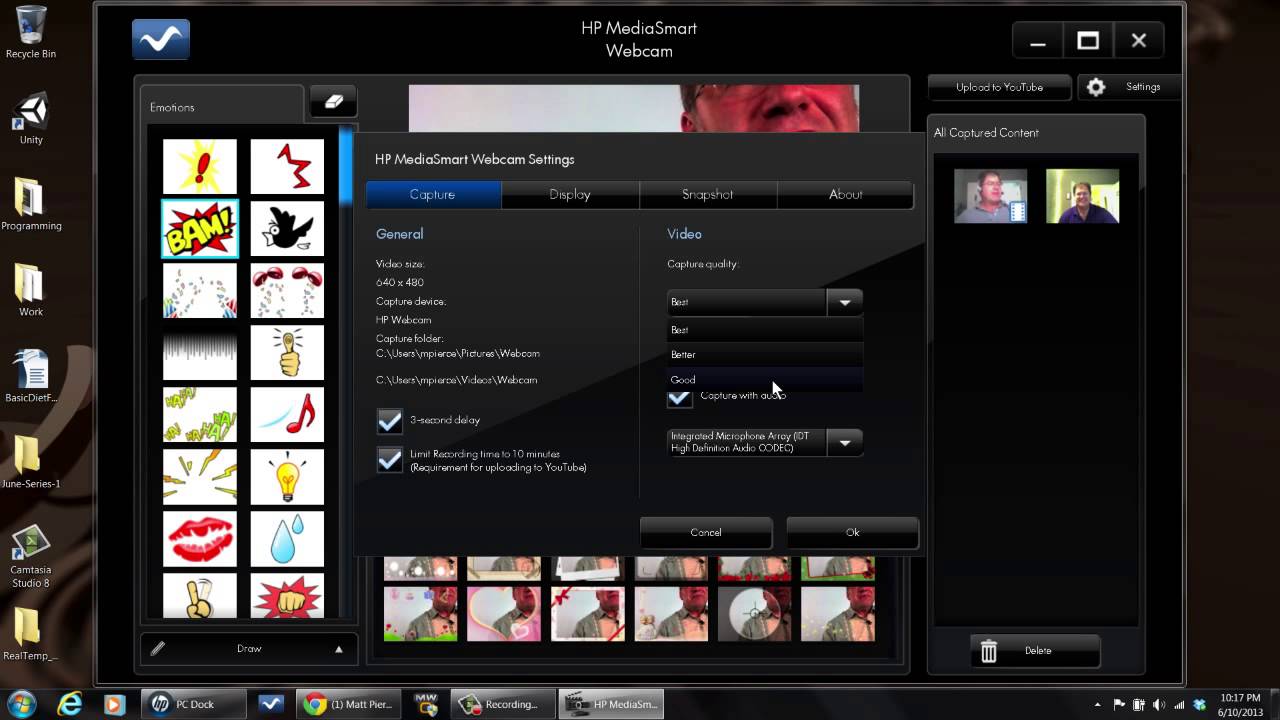
Configuring your camera settings on an HP laptop can improve your video quality. Adjusting these settings can help you look your best during video calls. Let’s dive into the key aspects of configuring your camera settings.
Adjusting Resolution
Resolution determines the clarity of your video. Higher resolution provides a clearer picture but may use more data. To adjust the resolution, open your camera app. Find the settings menu, usually represented by a gear icon. Select the resolution option. Choose a resolution that balances quality and performance. Common options include 720p and 1080p. Higher resolutions like 4K are available on some models. Always test the resolution to ensure it meets your needs.
Setting Frame Rate
Frame rate impacts the smoothness of your video. A higher frame rate offers smoother motion. To set the frame rate, go back to your camera settings. Look for the frame rate option. Common frame rates are 30 FPS and 60 FPS. Choose 30 FPS for standard video calls. Opt for 60 FPS for smoother, more dynamic videos. As with resolution, test your frame rate setting. Ensure it works well with your internet speed and hardware.
Troubleshooting Common Issues
Experiencing issues with your HP laptop camera? Don’t worry, you’re not alone. Many users face common problems that can be easily fixed. This section will help you troubleshoot and resolve those pesky issues, ensuring your camera works smoothly.
Resolving Driver Problems
The first step is to check the camera drivers. Faulty or outdated drivers can cause camera issues. To fix this, follow these simple steps:
- Press Windows + X and select Device Manager.
- Expand the Cameras section.
- Right-click on your camera and select Update driver.
- Choose Search automatically for updated driver software.
If the system finds an update, it will install it. Restart your laptop and check the camera again. If the issue persists, you might need to reinstall the driver:
- In Device Manager, right-click on the camera.
- Select Uninstall device.
- Restart your laptop. The system will reinstall the driver automatically.
Fixing Software Conflicts
Sometimes, software conflicts can prevent the camera from working. To address this, ensure that no other applications are using the camera. Here’s how:
- Close all applications that might use the camera.
- Open the Task Manager by pressing Ctrl + Shift + Esc.
- Go to the Processes tab.
- Look for applications using the camera and end those tasks.
After ending conflicting tasks, restart your camera application. If you still face issues, check your privacy settings:
- Go to Settings and click on Privacy.
- Select Camera from the left-hand menu.
- Ensure the toggle for Allow apps to access your camera is on.
- Scroll down and make sure the specific app has camera access.
By following these steps, you can resolve common HP laptop camera issues. This ensures a smooth and hassle-free experience.

Credit: www.youtube.com
Enhancing Camera Performance
Enhancing the camera performance on your HP laptop can significantly improve the quality of your video calls, streaming, or content creation. Simple adjustments can transform your video experience. Below are some effective techniques to boost your camera performance.
Using External Lighting
Good lighting is essential for clear video quality. Consider using external lighting sources to enhance the visibility and quality of your video. Here are some tips:
- Desk Lamps: Place a lamp behind your laptop. This can help illuminate your face evenly.
- Ring Lights: These provide even lighting. They are easy to set up and use.
- Natural Light: Position your laptop to face a window. Natural light is effective and free.
External lighting reduces shadows and highlights your face better. This makes you appear clearer on the screen.
Optimizing Background
The background plays a crucial role in video quality. A cluttered or messy background can distract the viewer. Consider these options:
- Neutral Background: Use a plain wall. It keeps the focus on you.
- Virtual Background: Many apps offer virtual backgrounds. Choose a professional setting.
- Organized Space: If you prefer a real background, make sure it is tidy and organized.
An optimized background ensures that the viewer’s attention remains on you and not on any distractions in your environment.
Security And Privacy Tips
When using the camera on your HP laptop, security and privacy are crucial. Unauthorized access can lead to privacy breaches. Follow these tips to protect your privacy and keep your device secure.
Covering The Camera
Covering the camera is a simple, effective method to protect your privacy. Use a camera cover slide. It is easy to install and use. Many are affordable and available online. When not using the camera, slide the cover shut. Tape or a sticky note can also work in a pinch. This physical barrier prevents any unauthorized viewing.
Managing Permissions
Managing permissions is crucial for camera security. Start by checking which apps have access to your camera. Go to your laptop’s settings. Find the camera settings. Review the list of apps with camera access. Disable access for any apps you do not trust. This limits the possibility of unauthorized use.
Also, always read app permissions before installing new software. Be cautious about granting camera access. Not all apps need it. By controlling permissions, you reduce the risk of misuse. Regularly review these settings for added security.
Credit: www.youtube.com
Frequently Asked Questions
How Do I Open The Camera On My Hp Laptop?
To open the camera on your HP laptop, press the Windows key and type ‘Camera’. Select the Camera app from the search results to launch it.
Why Is My Hp Laptop Camera Not Working?
Your HP laptop camera might not work due to outdated drivers or software issues. Ensure your drivers are updated or reinstall the Camera app.
How Do I Test My Hp Laptop Camera?
You can test your HP laptop camera by opening the Camera app. If the camera turns on, it’s working correctly.
How Do I Update My Hp Laptop Camera Driver?
To update your HP laptop camera driver, open Device Manager, find the camera under ‘Imaging devices’, right-click, and select ‘Update driver’.
Conclusion
Using the camera on your HP laptop is simple and convenient. Follow the steps outlined to get started quickly. With practice, you’ll find it useful for video calls, photos, and more. Remember to check settings for better quality. Regular updates keep your camera running smoothly.
Enjoy connecting with friends and family through your HP laptop camera. Happy snapping!
As an Amazon Associate, I earn from Qualifying Purchases.